The store will not work correctly in the case when cookies are disabled.

Litter-Robot 4: Inaccurate cat weight
Prefer step-by-step help?
Our interactive AI Troubleshooting Expert, can walk you through guidance for your Litter-Robot 4 and identify replacement part options if needed. If the issue is unresolved, you'll be connected with a live product specialist.
IMPORTANT
- Make sure your unit is plugged in.
- Make sure your unit is connected and online.
- Make sure your firmware is up-to-date. If the app does not give you the option to update, you have the latest version.
- Cats must weigh 3 lbs or more to safely use the Litter-Robot in Automatic Mode.
Preparation
The Litter-Robot is equipped with weight sensors located in the base of the unit that are used to further detect and weigh the cat within the globe while in the Home position.
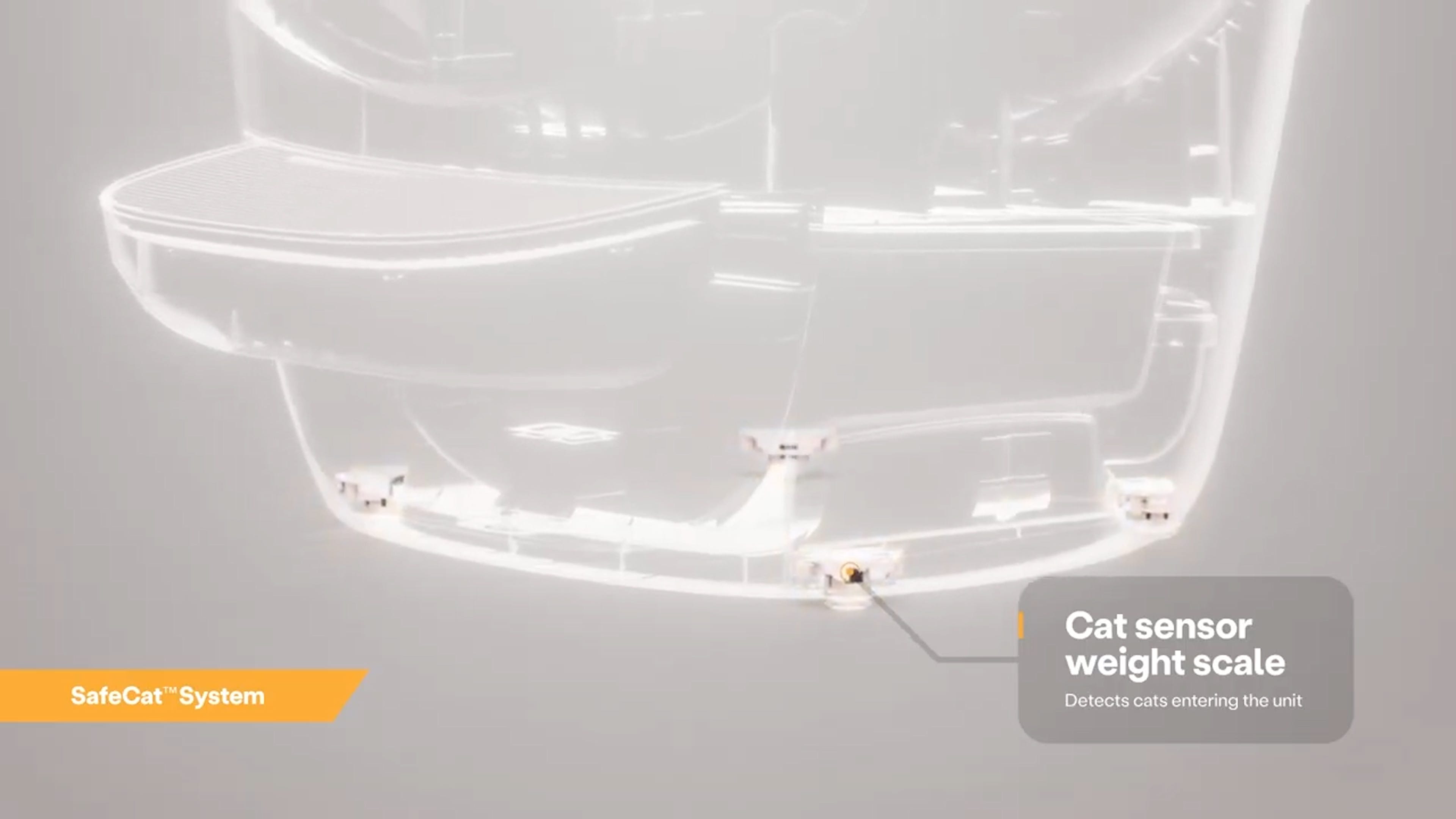
If your Litter-Robot 4 is not accurately detecting your cat's weight, this is typically an issue with the placement of your robot. The cat sensor weight scale may also record a partial measurement when a curious kitty puts weight on the step without completely entering the unit.
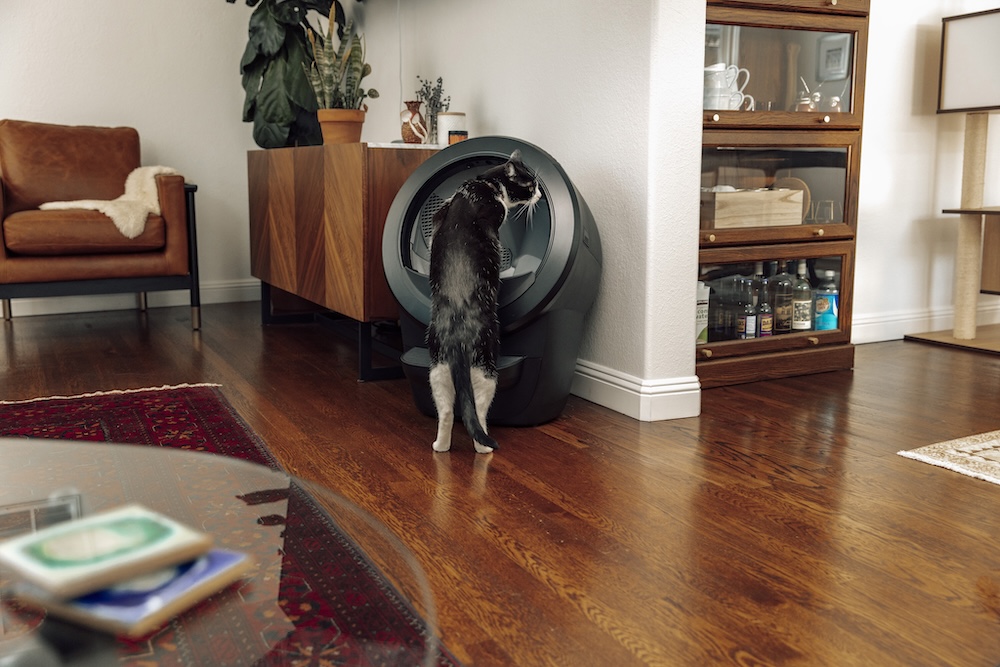
Successful: If your cat fully entered the unit and the correct weight is recorded, you've been successful.
Unsuccessful: If your cat fully entered the unit and the correct weight is not recorded, please continue.
How SmartScale® identifies your cat
SmartScale® uses the Litter-Robot weight sensors and your pet profiles in the Whisker app to estimate which cat is using the unit and assign each visit to the correct pet.
Set up or update your pet profiles
For SmartScale to accurately identify your cats, make sure each cat has a profile in the Whisker app and that you've entered their current weight as accurately as possible. SmartScale can only safely and accurately identify cats that weigh more than 3 lbs. Unfortunately, the SmartScale algorithm is not able to accurately distinguish between cats that weigh within one pound of each other.
Important: Ensure any cat in your household that uses the Litter-Robot in Automatic Mode weighs at least 3 lbs.
To add or edit a pet profile:
Open the Whisker app.
Navigate to Pets.
Add a new pet or update an existing profile.
Enter your cat's current weight.
Allow time for SmartScale to learn
After creating or updating pet profiles, SmartScale requires time to collect and analyze usage data before it can reliably identify individual cats.
Allow up to 7 days for SmartScale to learn your cat's habits and weight patterns.
Homes with multiple cats and multiple pet profiles may require additional time for SmartScale to build confidence and improve identification accuracy.
During the learning period, some visits may be assigned to the wrong cat or may appear as "Unknown."
As SmartScale gathers more data, identification accuracy typically improves automatically.
If SmartScale has had at least 7 days to learn your pet profiles and your cat's weight is still not being recorded or assigned correctly, continue with the troubleshooting steps below.
Reassign incorrect visits
If a weight is assigned to the wrong cat, reassign the weight in the Whisker app through the device activity by selecting the incorrect event. Unfortunately, the SmartScale algorithm is not able to accurately distinguish between cats that weigh within one pound of each other.
Reassigning weights helps SmartScale® learn and can improve future cat identification. If weights are not reassigned, outdated or inaccurate profile weight data may continue to affect future assignments.
Troubleshooting
Reset the weight scale
Any time you affect the weight or placement of the unit (including emptying the waste drawer, adding or removing litter, or cleaning or moving the unit), press the Reset button afterward to ensure the weight sensors will detect your cat and cycle properly. Be careful not to rest on the unit as you press the Reset button, or your weight will influence the reading.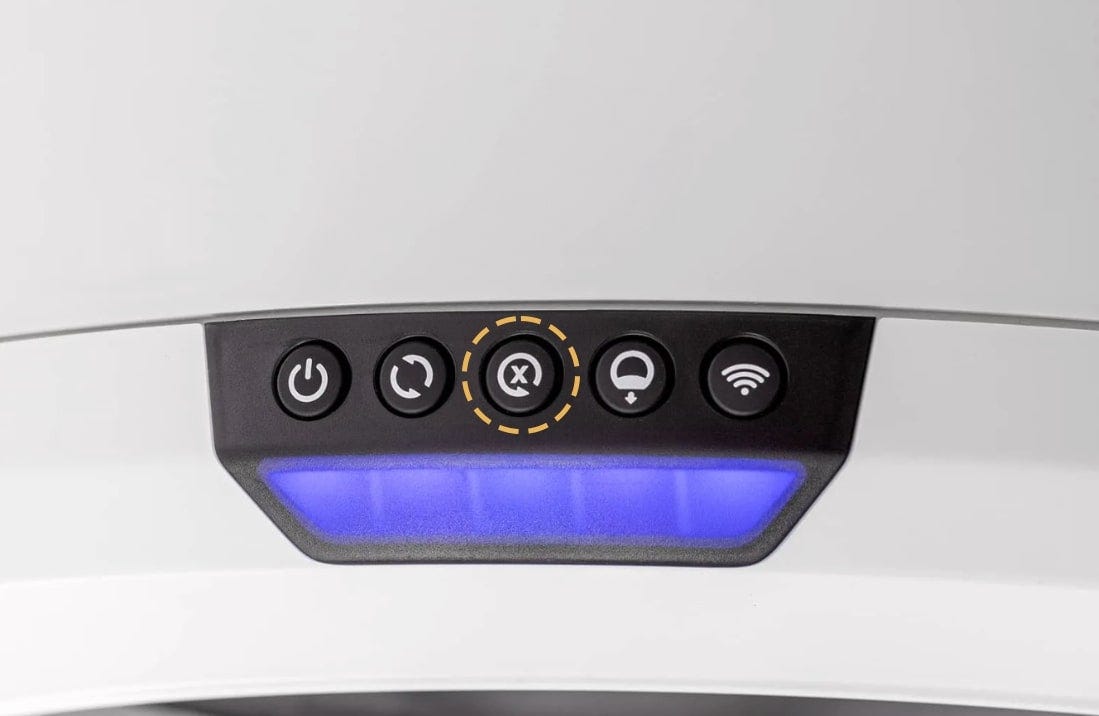
Placement guidelines
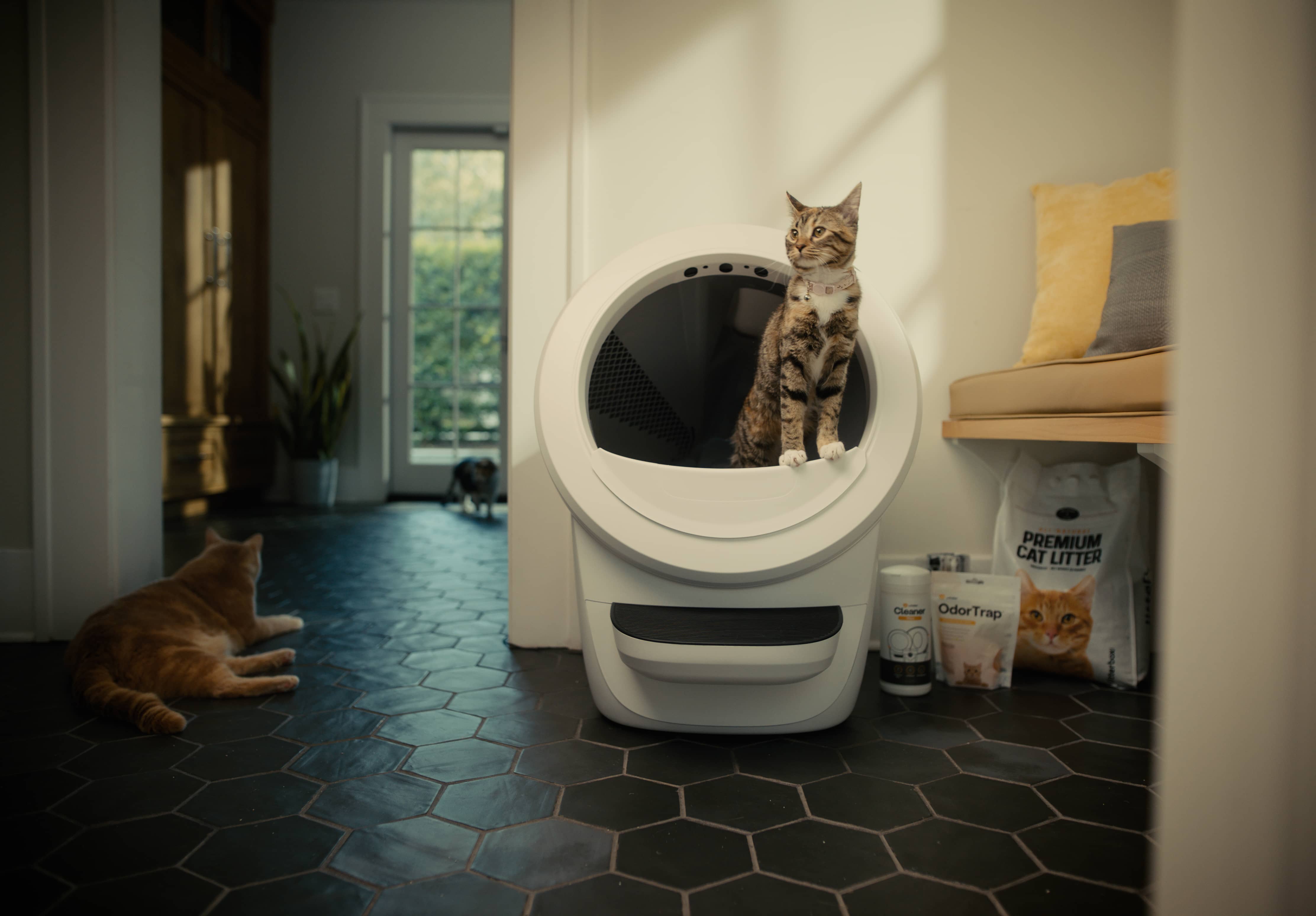
- Place the unit on a firm, level surface. Avoid soft, uneven, or unstable flooring for accurate weight measurements. The Litter-Robot 4 Carpet Tray should be used to improve the accuracy of SmartScale weight readings when Litter-Robot 4 sits on carpet or an uneven surface.
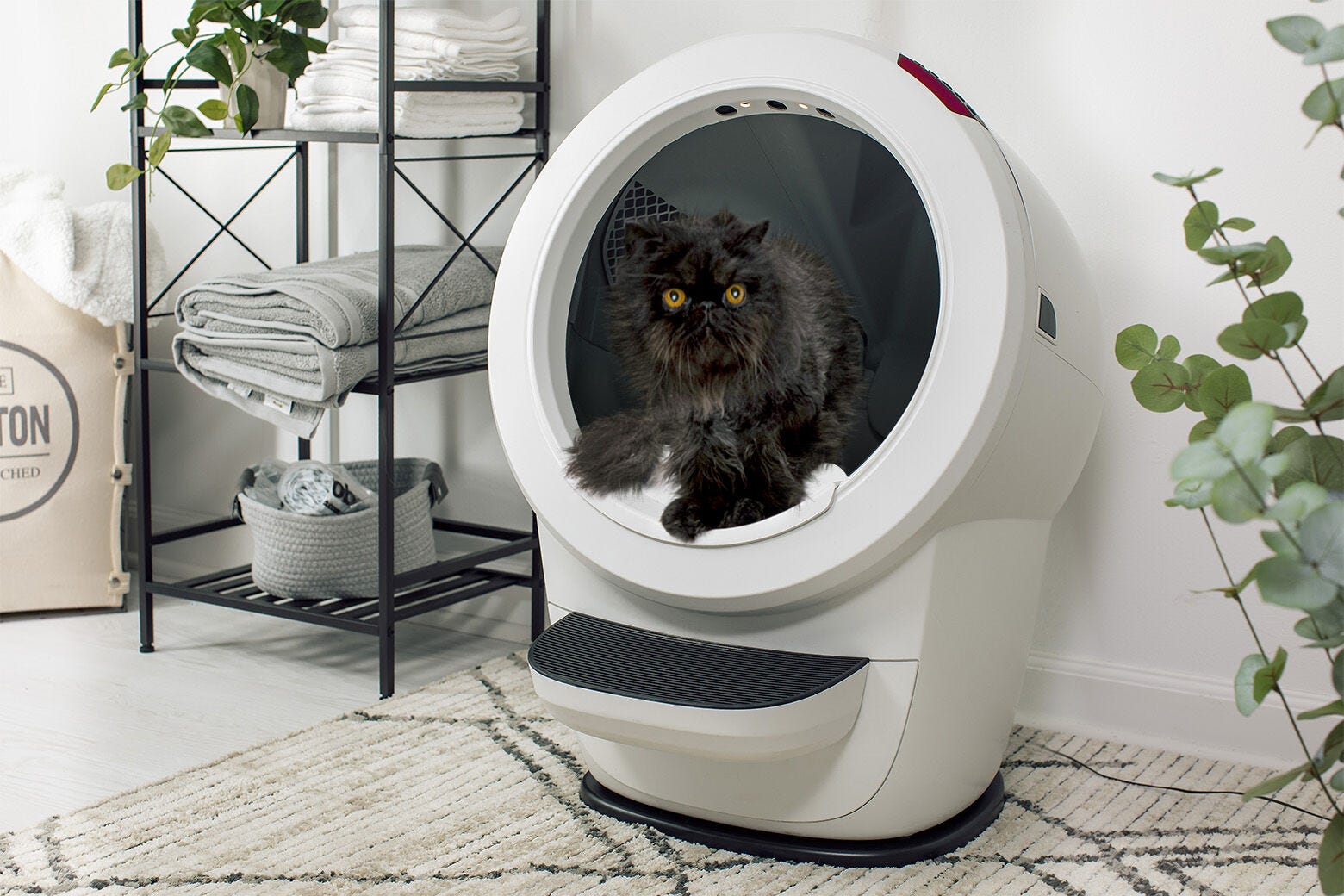
- Place your litter mat completely in front of the unit, not partially underneath.
- All sides of the robot should not touch any walls or other surfaces.
- Check that all four feet can move freely and clear any litter or debris that may be stuck in or around the feet.
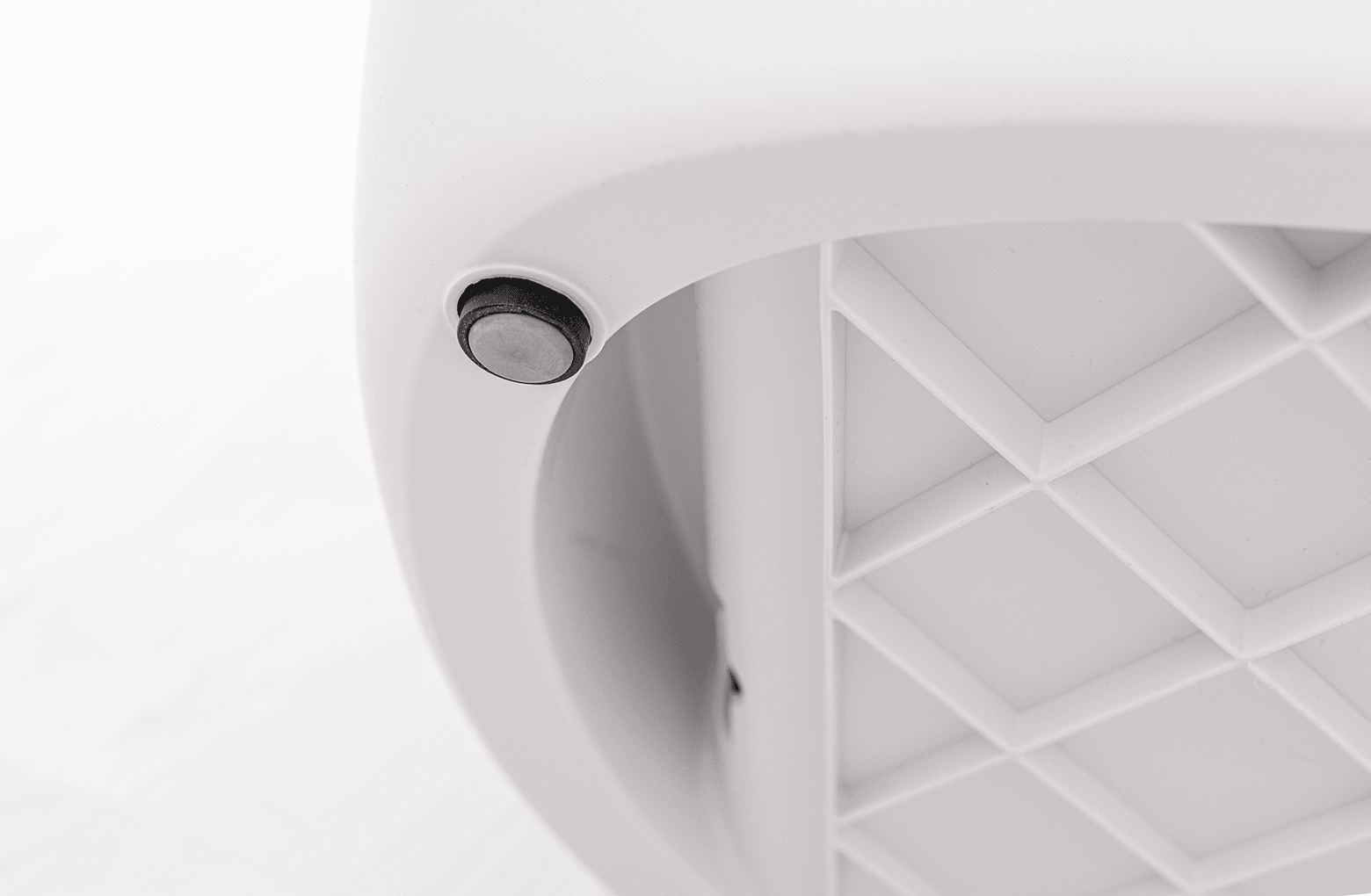
- Check that none of the four feet are resting on top of a cord or in a grout line.
Clean the bezel
- If your cat's weight is reading 0.0, clean the bezel. Debris (dust, cat fur, etc) can interfere with the laser sensors and inaccurately measure your cat's weight.
- Wipe the bezel area where the sensors are located with a dry clean cloth to remove any hair or dust.
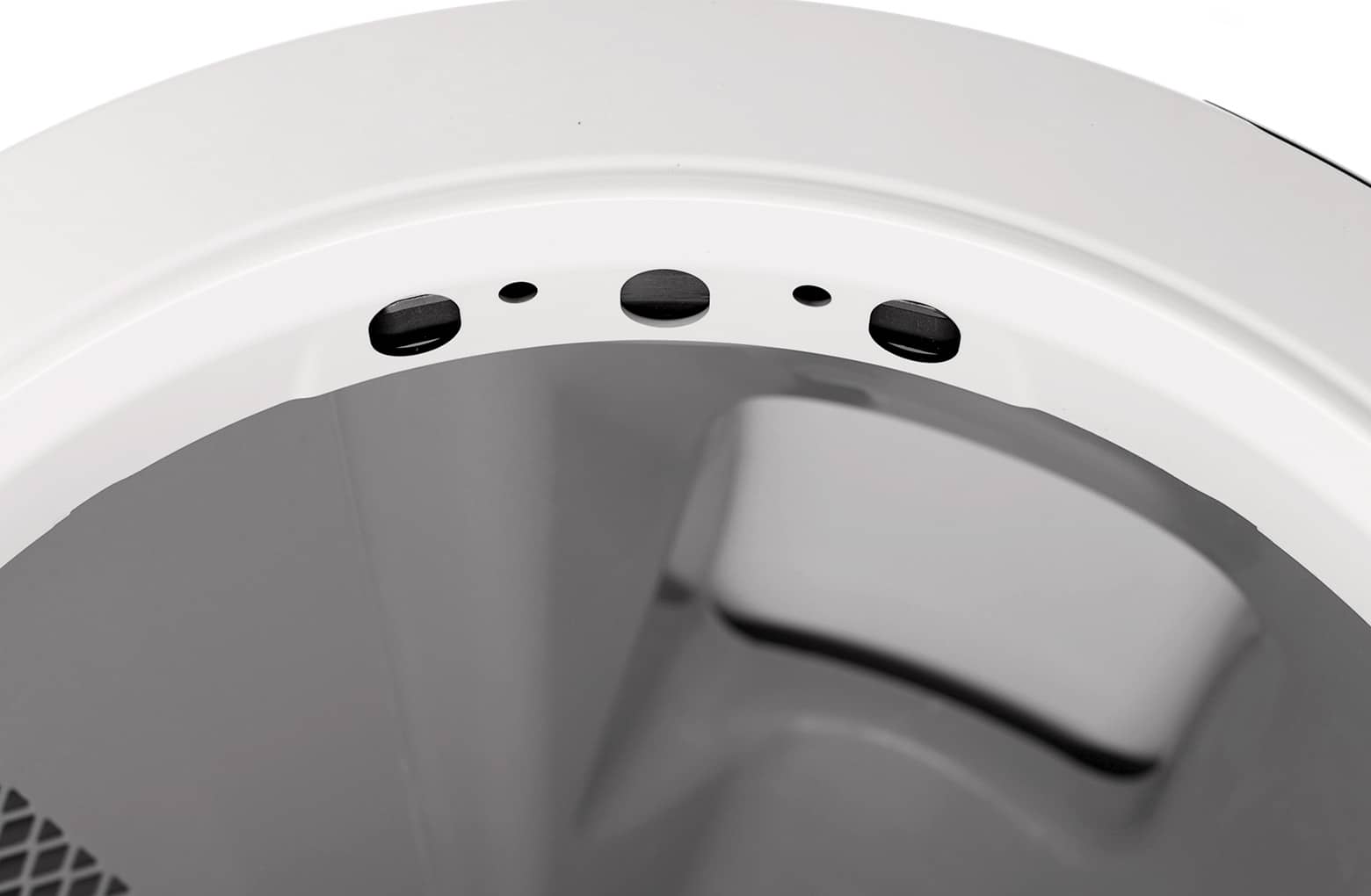
- Vacuum the inside perimeter of the bezel with a brush attachment, passing over the holes at the top of the bezel.
- Press the Reset button
Update firmware
Litter-Robot 4 receives automatic firmware updates when connected to WiFi. If an update is available for your unit, it will become available automatically while your robot is connected and online.
To confirm whether your unit is on the latest firmware, compare the firmware version shown in the Whisker app with the current version listed on the Whisker app releases page.
To check which version your robot is on in the Whisker app: Select your device→tap the Settings gear in the right-hand corner→tap Firmware Information
If your serial number begins with LR4C and you need to update your firmware, follow these steps.
If your serial number begins in LR4S and you need to update your firmware, contact Whisker Customer Experience for assistance.
Successful: If your Whisker app properly records your cat's weight you've been successful.
Unsuccessful: If your Whisker app does not properly record your cat's weight, there's likely an issue with your Litter-Robot.
Issue not resolved?
To repair your Litter-Robot, you will need a new base.
What do I do?
My unit is covered by WhiskerCare™
If your Litter-Robot is covered by WhiskerCare™ warranty, you have access to replacement parts, at no cost, to get your Litter-Robot up-and-running quickly. Please contact our Customer Experience Team for further assistance.
The warranty on my unit has expired
If your unit is no longer under warranty, we can help you with the necessary parts and instructions to properly fix your unit at home.Part Needed:
Need more help?
Chat with our interactive AI Troubleshooting Expert for guided troubleshooting, or contact Whisker Customer Experience for further assistance.
Didn't find what you're looking for?
Live support available Mon-Fri: 9AM-9PM EST and Sat-Sun: 9AM-5PM EST, or submit a ticket anytime.