The store will not work correctly in the case when cookies are disabled.

Litter-Robot 4: Control panel - Button functions
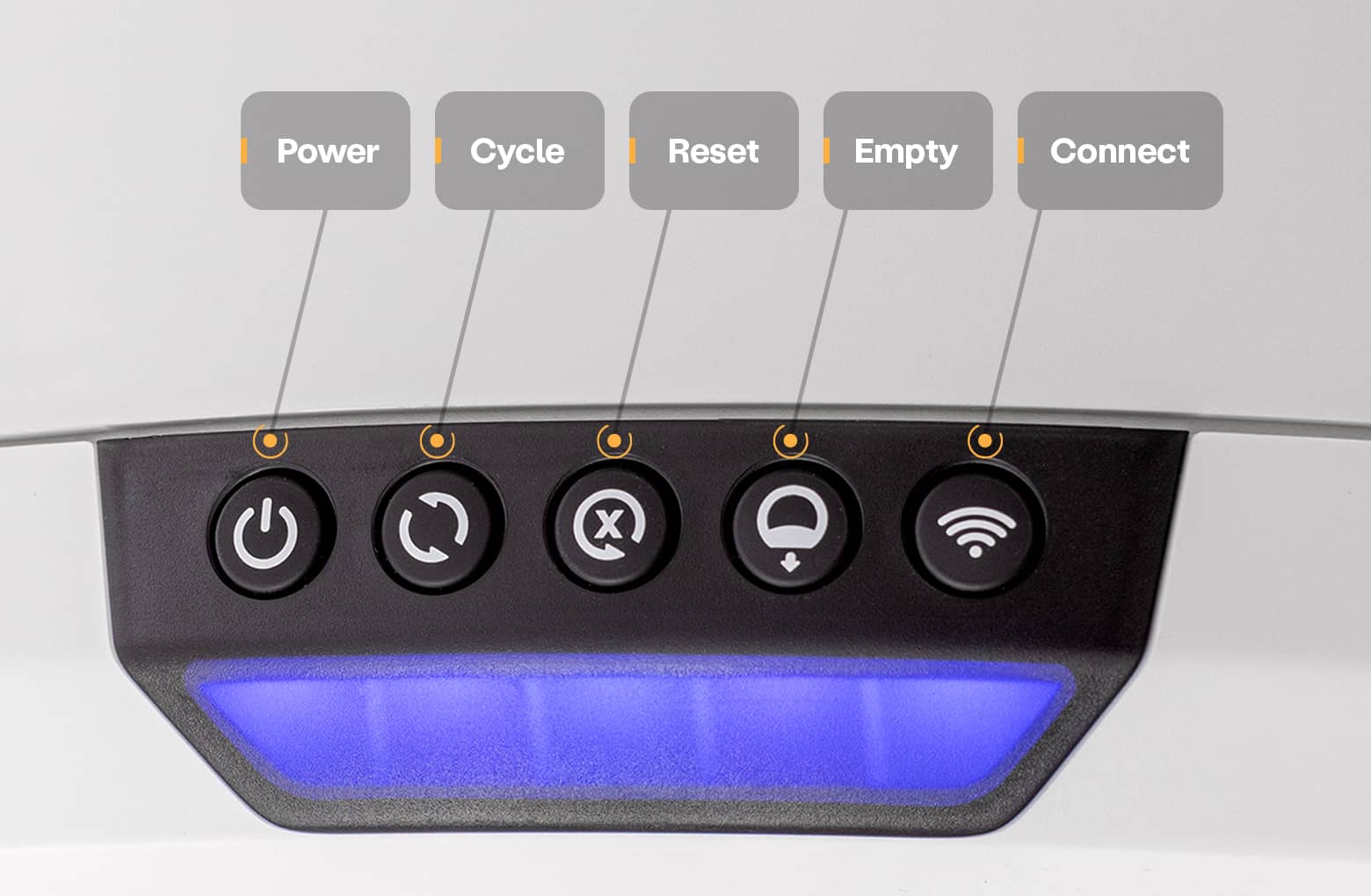
Litter-Robot 4 features an easy-to-use control panel near the top of the unit.
 Power button
Press the Power button to turn the unit power ON or OFF. The unit is ready for use when the light bar is solid blue.
With the unit powered ON, a 3-second long press of the Power button will turn the unit OFF.
 Cycle button: 8-hour sleep mode
Press the Cycle button to start a Clean cycle. Press the Cycle button again to pause or resume the cycle. While the unit is at the Home position, a 3-second long press will activate the default 8-hour sleep mode. The light bar will change to purple, indicating sleep mode is enabled for the next 8 hours. To exit this mode, press and hold the Cycle button for 3 seconds. The light bar will change to blue, indicating the mode has been disabled.
 Reset button: Automatic night light
Press the Reset button while the globe is at the Home position with the blue light bar on to reset the cat sensor(s). When pressed during a cycle, it will pause the cycle. If pressed again while paused, it will abort the cycle. When pressed with the red light bar on, it will cancel the cat sensor cycle delay and the unit will return to Ready mode (blue light bar on). A 3-second long press enables or disables automatic night light setting mode.
The light bar indicates the current setting. Short press the Reset button to move through the settings:
Always OFF: 1 green light
Always ON: 2 green lights
Automatic: 3 green lights
After selecting your preferred setting, press and hold the Reset button for 3 seconds to save it.
 Empty button: Cycle delay setting
Press the Empty button while the globe is at the Home position with the blue light bar on to start an Empty cycle. When pressed during a Clean cycle or Empty cycle, it will pause the cycle. Pressing the Empty button during a paused cycle will abort the cycle and send the globe back to the Home position. A 3-second long press enables or disables cycle delay setting mode.
The light bar indicates the current setting. Short press the Empty button to move through the settings:
3 minutes: 1 green light
7 minutes: 2 green lights
15 minutes: 3 green lights
25 minutes: 4 green lights
30 minutes: 5 green lights
The default cycle delay is 7 minutes. After selecting your preferred setting, press and hold the Empty button for 3 seconds to save it.
 Connect button
Press the Connect button to turn WiFi ON or OFF.
1. WiFi OFF is indicated by a white light adjacent to the Connect button.
2. WiFi ON and connecting is indicated by a blinking blue light adjacent to the Connect button.
3. WiFi ON and connected is indicated by a solid blue light adjacent to the Connect button, completing the blue light bar.
A 3-second long press will initiate onboarding mode indicated by a blinking yellow light adjacent to the Connect button. Press and release to exit onboarding mode.
Advanced button functions
Long press Power + Cycle buttons
If a LitterHopper is installed, this manually tests the LitterHopper motor.
Press and hold the Power and Cycle buttons until the motor starts, about 3 seconds.
Release the Power button. Continue holding the Cycle button.
Litter dispenses for as long as the Cycle button is held.
Release the Cycle button to stop dispensing.
Long press Cycle + Reset buttons
Enable or disable control panel lockout to prevent unwanted changes. The light bar flashes red to confirm the status has changed. The Litter-Robot continues to function normally in Automatic Mode while lockout is enabled.
Long press Cycle + Empty buttons
Filter change position. Globe will rotate to Dump, then to filter-change position, and stop.
Long press Reset + Empty buttons
Reset unit back to factory default setting.
Long press Reset + Connect buttons
Simulate pulling power plug from unit.
Long press Empty + Connect buttons
Turn USB power ON or OFF if USB power isn't working. This powers the USB port down when switching from enabled to disabled, and powers it up when switching from disabled to enabled.
Litter-Robot 4: Light Codes Guide
Download Litter-Robot 4 manual
Download Litter-Robot 4 manual (English/Français/Deutsch/Italiano)
Didn't find what you're looking for?
Live support available Mon-Fri: 2PM-2AM GMT and Sat-Sun: 2PM-10PM GMT, or submit a ticket anytime.