The store will not work correctly in the case when cookies are disabled.

Litter-Robot 4: Unable to onboard or WiFi disconnected
If your Litter-Robot 4 won’t complete onboarding in the Whisker app or is not connecting to your WiFi, follow this guide for step-by-step troubleshooting and error-specific fixes.
Prefer step-by-step help?
Our interactive AI Troubleshooting Expert, can walk you through guidance for your Litter-Robot 4 and identify replacement part options if needed. If the issue is unresolved, you'll be connected with a live product specialist.
Quick links
- Before you begin
- Onboarding checklist
- Error messages and fixes
- WiFi credential / network errors
- Unable to scan the QR code
- Phone bluetooth pairing errors
- Timeouts or device didn’t reboot
- Serial number or cloud errors
- Robot is offline
- Update Network
- Robot missing from the app
- Hard Reset and Factory Reset
- Router & network settings
- Need more help?
Before you begin
Before troubleshooting:
Place the robot near your WiFi router for setup.
Ensure your phone is connected to a stable 2.4 GHz WiFi network.
Install or update the Whisker app to the latest version and sign in.


Have your WiFi name (SSID) and password ready.
Enable your phone’s bluetooth and allow required permissions (Location/Nearby Devices/Camera).
Power on the automatic litter box. The light bar should be solid blue with a solid white Connect light.
Keep your phone within a few feet of the robot. Avoid VPNs or captive-portal networks.
Onboarding checklist (recommended order)
Open the Whisker app → Add a Device → Select Litter-Robot 4 —> follow prompts.
Press the
 Connect button on the Control Panel
 Press the
Connect button again for three seconds to enter pairing mode. The Connect light should flash yellow.Select the correct 2.4 GHz WiFi network and carefully type the password.
Keep the app open while the unit connects.
When onboarding completes, the light bar shows solid blue (ready).
Send a manual Cycle command in the app to ensure communication is active.
Tap your device → Controls → Cycle.
Error messages and fixes
Typical onboarding error messages include:
“The WiFi password is invalid. Check your credentials and try again.”
“Onboarding timed out. Please try again.”
“The serial number is invalid or already in use.”
“Device failed to reboot during the setup process.”
“Unable to connect device to your phone. Confirm bluetooth is enabled.”
“Device could not connect to the WiFi network / cloud service.”
Use the following sections to address each category.
WiFi credential / network errors
Verify SSID and password are exact (case-sensitive; avoid pasted spaces).
Ensure you are on a private home network.
Move the robot closer to the router for setup.
Turn off VPNs or firewalls blocking new devices.
Reboot your router by unplugging it for 30 seconds, then plugging it back in.
Retry onboarding after a short pause or perform a Hard Reset by pressing the
 Reset + Connect buttons simultaneously for three seconds.
Wait 15 seconds for the unit to reboot, then restart onboarding.
Unable to scan the QR code
If the QR code won't scan, the camera doesn't launch, or you receive a QR code error:
Clean your phone camera lens.
Improve lighting conditions.
Try all available QR codes:
• Product box
• Back of the base near the power port
• Inside the base underneath the waste drawerVerify camera permissions are enabled for the Whisker app.
Ensure your phone operating system is up to date.
Ensure you are selecting Litter-Robot 4 on the Add a Device screen.
If scanning still fails, try onboarding with another phone or tablet.
Camera permissions
iPhone (iOS)
Open Settings.
Scroll down and select Whisker.
Enable Camera permissions.
Android
Open Settings.
Select Apps > Whisker > Permissions.
Select Camera and choose Allow.
Or
Open your phone’s settings.
Select Privacy > Permission Manager > Camera > Whisker > Allow.
Still not connecting? Complete a Hard Reset and reattempt onboarding.
Phone bluetooth pairing errors
Common symptoms
- App cannot find the robot
- "Unable to connect device to your phone"
- Robot does not appear during setup
- Device discovery continues spinning
Confirm your phone's bluetooth is ON.
Keep the phone within a few feet of the robot.
Toggle your phone's bluetooth OFF/ON,
Close and reopen the Whisker app.
Press and hold the
Connect button for one second again to re-enter onboarding mode.Reboot the phone if scans keep failing.
If previously paired, remove the robot from your phone’s bluetooth device list before retrying.
Still not connecting? Complete a Hard Reset and reattempt onboarding.
Timeouts or device didn’t reboot
Keep the Whisker app open during setup.
Ensure a stable WiFi connection and proximity to the router.
Perform a Hard Reset:
Simultaneously press and hold
Reset+ Connect for three seconds, release, wait 15 seconds for reboot, then restart onboarding.
Confirm your phone is connected to a 2.4GHz Wi-Fi network before pairing.
Please see the Router & network settings section for more help.
Serial number or cloud errors
Ensure you are signed into the correct Whisker account.
Ensure you are selecting Litter-Robot 4 from the Add a Device screen.
Confirm the serial number isn’t already claimed under another account.
Verify your internet connection is active and unrestricted (no captive portal or VPN).
Retry onboarding after a Hard Reset.
If you see “Failed to establish secure session” or similar, perform Factory Reset and try again.
If you have purchased the robot second-hand, submit a Support Request form for further assistance.
Robot is offline (Blue with blue blinking Connect light)
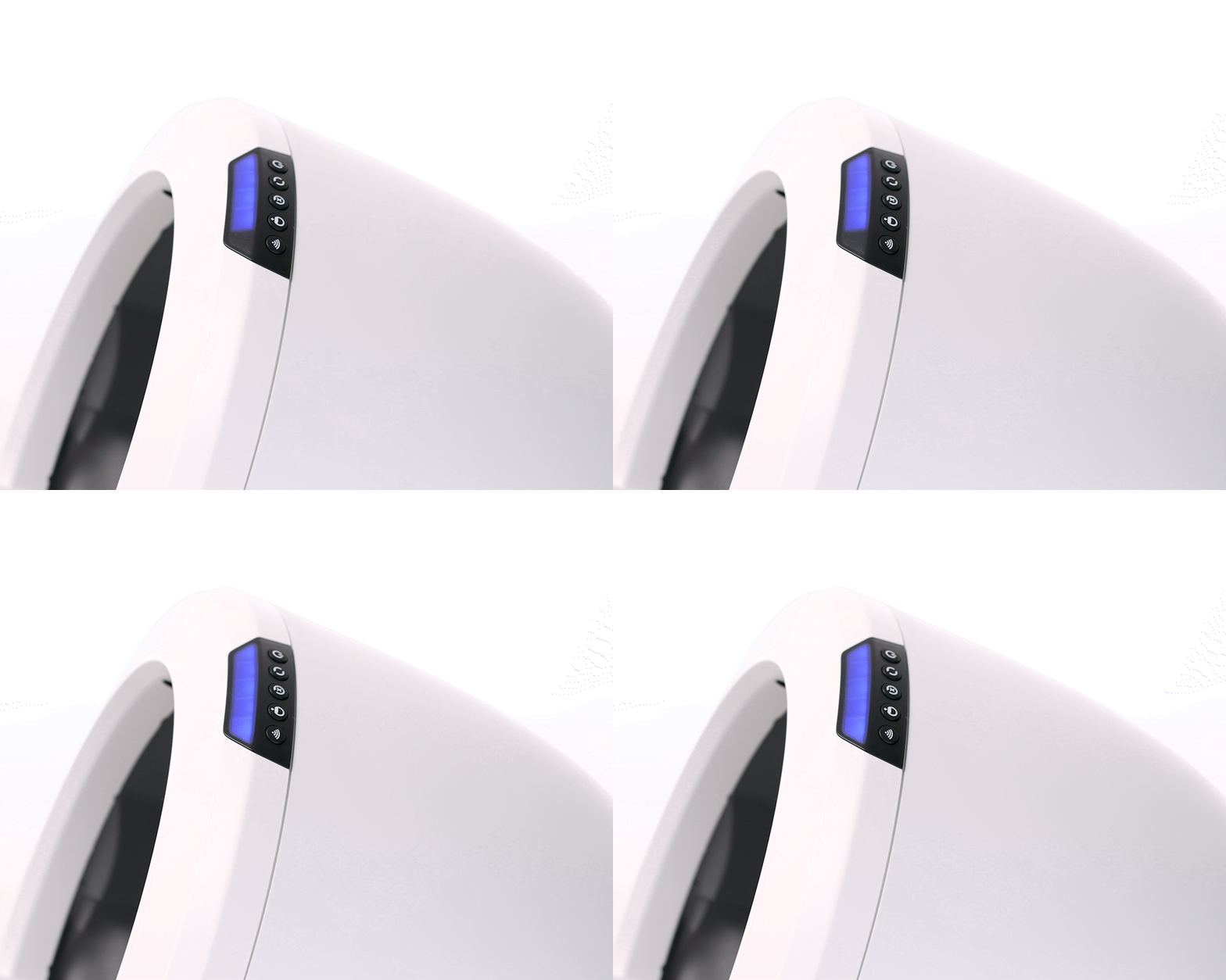
If your robot displays a solid blue light bar with a blinking blue Connect light, the unit is attempting to connect to WiFi.
Unplug the unit for 15 seconds, plug it back in, and power it on.
If your robot remains offline, or the Connect light remains blinking:
Short press the
Connect button for one second to turn WiFi off. The Connect light will change to solid white.- If your unit was previously onboarded to the app:
- Wait 30 seconds to allow the robot to complete its WiFi reset.
Note: If the Connect button is held too long and the Connect light starts blinking yellow, the robot has entered onboarding mode and forgotten its saved WiFi network. Open the app and follow the Update Network flow (see the section below) to reconnect.
- Short press the Connect button again for one second to re-establish the connection.
Wait for the Connect light to change from blinking blue to solid blue.
- Wait 30 seconds to allow the robot to complete its WiFi reset.
If your unit has never been onboarded to the app:
Follow our Onboarding your Litter-Robot 4 instructions.
Still not connecting? Continue to the Update Network section below.
Update Network
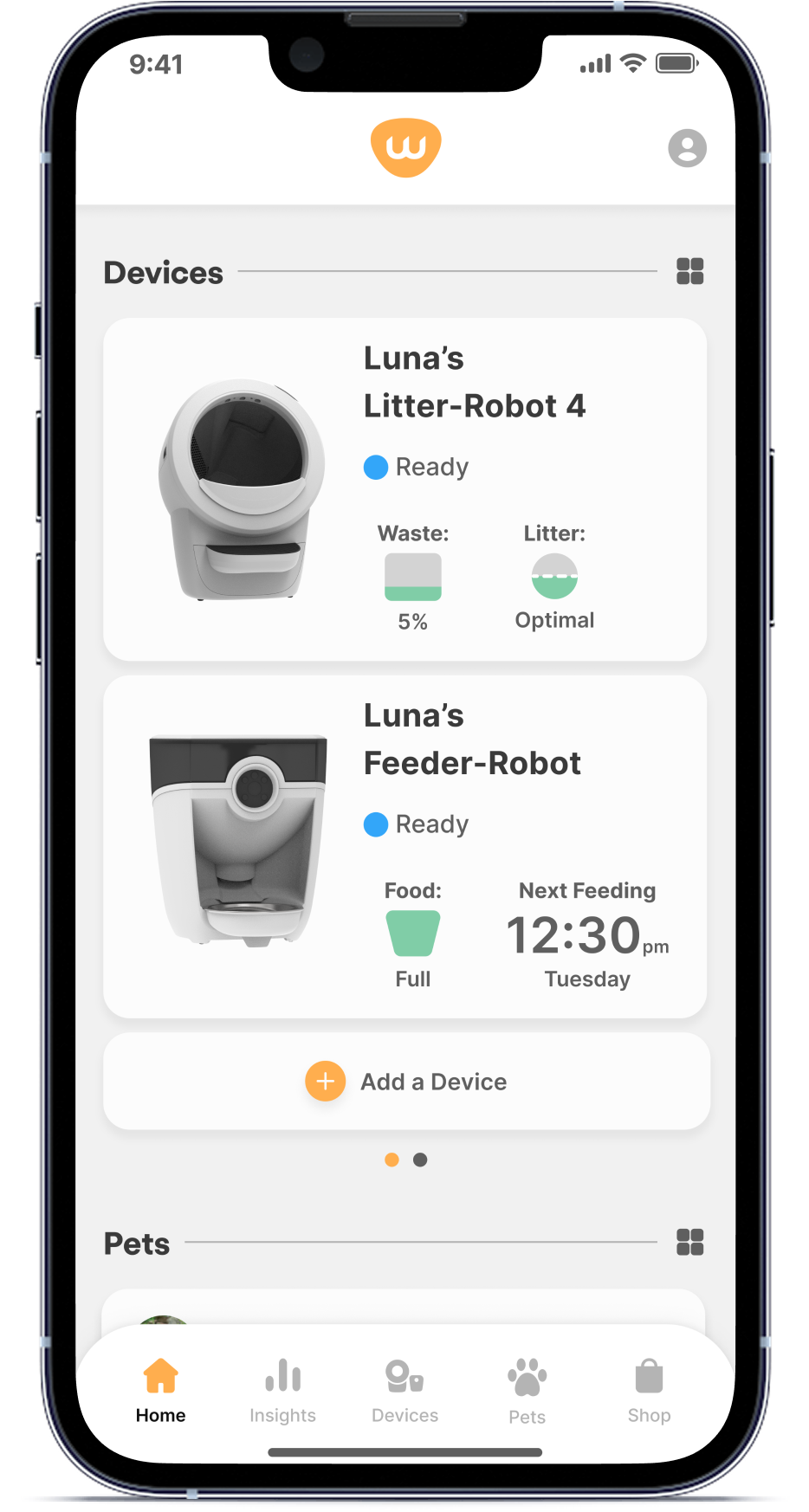
Open the Whisker app.
Select your robot.
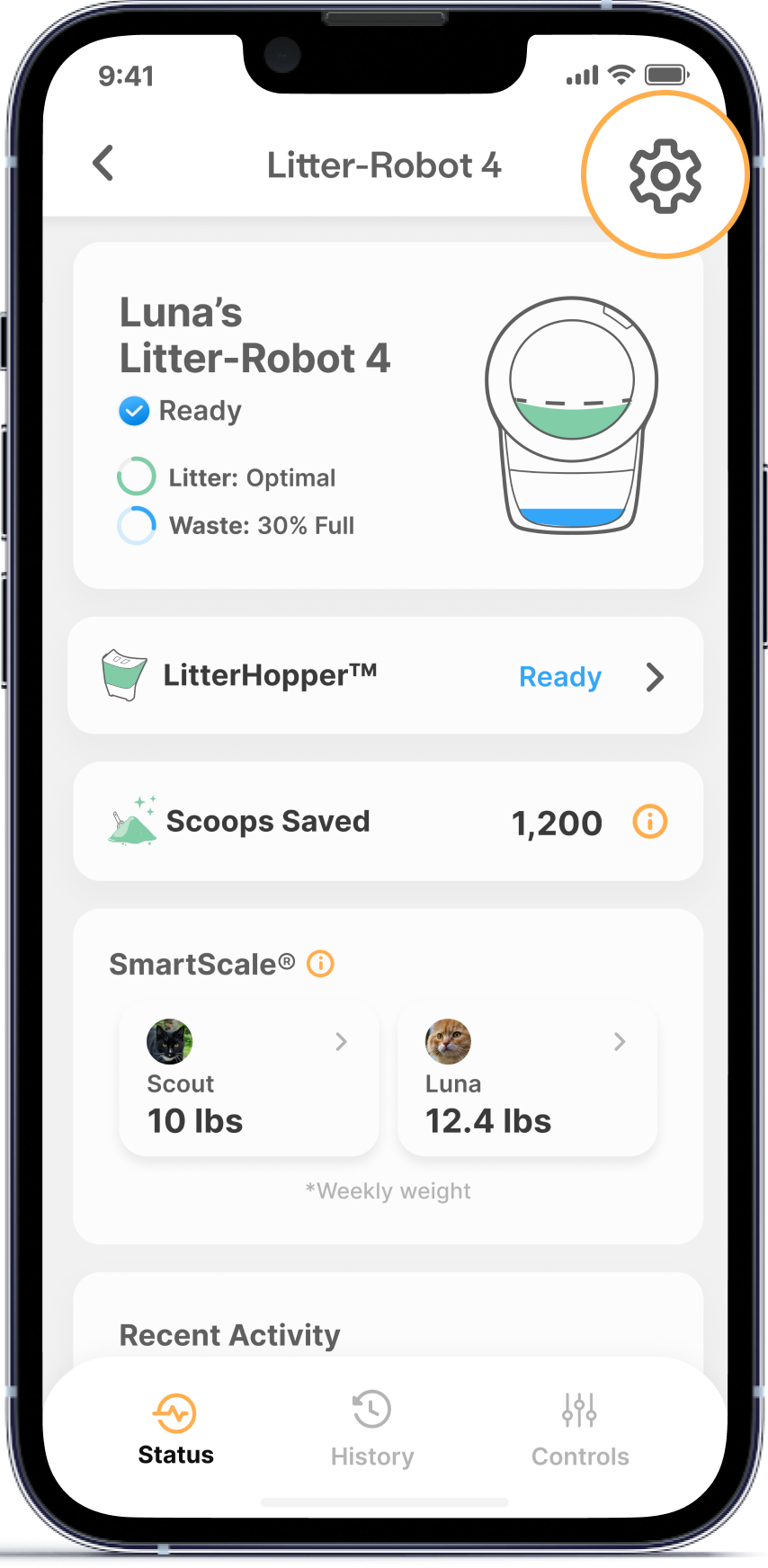
- Tap Settings.
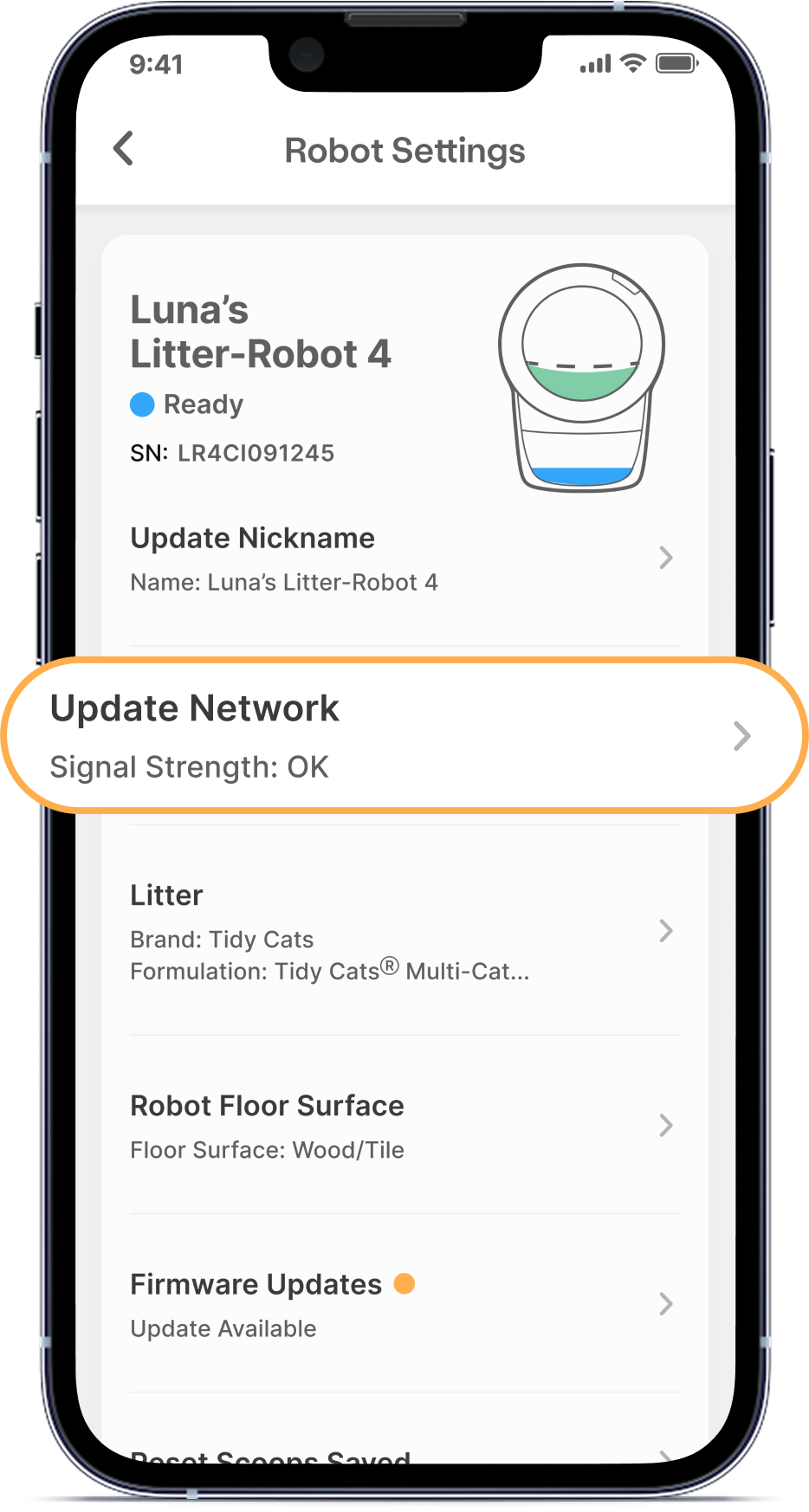
- Select Update Network.
- Follow the prompts to reconnect the robot to WiFi.
Note: Litter-Robot 4 supports 2.4 GHz WiFi networks only: Depending on your router's make and model, it may automatically provide a 2.4GHz network during your initial pairing attempt. If the connection drops and you cannot reconnect, your router has likely switched to a 5GHz network. Please refer to the Router & network settings section for assistance.
If the robot remains offline:
Verify your internet connection is working.
Close the Whisker app.
Unplug the robot for 15 seconds.
Disconnect the backup battery (if installed).
Restore power and allow startup to complete.
Wait for the solid blue Ready light.
Reopen the app and verify connection.
Still not connecting? Continue to the Router & network settings section.
Robot missing from the app
If your robot was previously connected but no longer appears in the Whisker app:
Confirm you're signed into the correct Whisker account.
Close and reopen the Whisker app.
Verify your internet connection is active.
Note: If onboarding recently completed, allow several minutes for synchronization before attempting onboarding again.
Re-add your robot
Open the Whisker app.
Tap Add Device.
Follow the onboarding process.
Hard Reset and Factory Reset
Hard Reset: With the unit powered ON, simultaneously press and hold
Reset + Connect for three seconds, release, wait for reboot.
Factory Reset: With the unit powered ON, simultaneously press and hold
Reset +  Empty for three seconds. Wait for reboot.
Retry onboarding after reset completes.
Router & network settings
If onboarding or connectivity issues continue, or you receive “An error occurred, make sure your unit is in onboarding mode,” check your router configuration.
Move the robot closer to the router during onboarding.
Disable VPN connections during setup.
Authorize IoT devices if your router requires device approval.
Disable QoS and/or MiMo settings if available.
Confirm ports 443 and 8443 are not blocked.
Litter-Robot 4 connects to 2.4 GHz networks only.
Mesh routers
If you are using a mesh router that combines 2.4GHz and 5GHz, you’ll need to temporarily disable 5GHz or set up a 2.4GHz-only Guest Network.
Verify your phone is connected to the Guest Network before proceeding with onboarding or reconnecting.
Note: Some mesh routers may automatically steer devices between 2.4 GHz and 5 GHz networks. If onboarding succeeds but the robot later disconnects or cannot reconnect, the router may no longer be presenting a compatible 2.4 GHz connection to the robot. Create a dedicated 2.4 GHz Guest Network and reconnect the robot.
For more help with your network or router settings, we recommend reaching out to your internet service provider for assistance.
Need more help?
If onboarding still fails chat with our interactive AI Troubleshooting Expert for guided troubleshooting, or contact Whisker Customer Experience for further assistance.
Please provide the following:
Capture a screenshot of the exact error message.
Note your phone model/OS, router brand, and what steps you’ve already tried.
Didn't find what you're looking for?
Live support available Mon-Fri: 2PM-2AM GMT and Sat-Sun: 2PM-10PM GMT, or submit a ticket anytime.