The store will not work correctly in the case when cookies are disabled.

Litter-Robot 5 & Pro: Assembly and disassembly
If your LCD screen appears fuzzy or discolored after powering on your unit, don’t worry—this is a temporary effect caused by static buildup during shipping. If it doesn’t clear up within 15–20 minutes, gently wipe the screen with a dry cloth.
Introduction
Litter-Robot is built in a modular way to make troubleshooting and maintenance simple. We'll show you how to take apart your Litter-Robot 5 to access certain areas for ongoing maintenance.
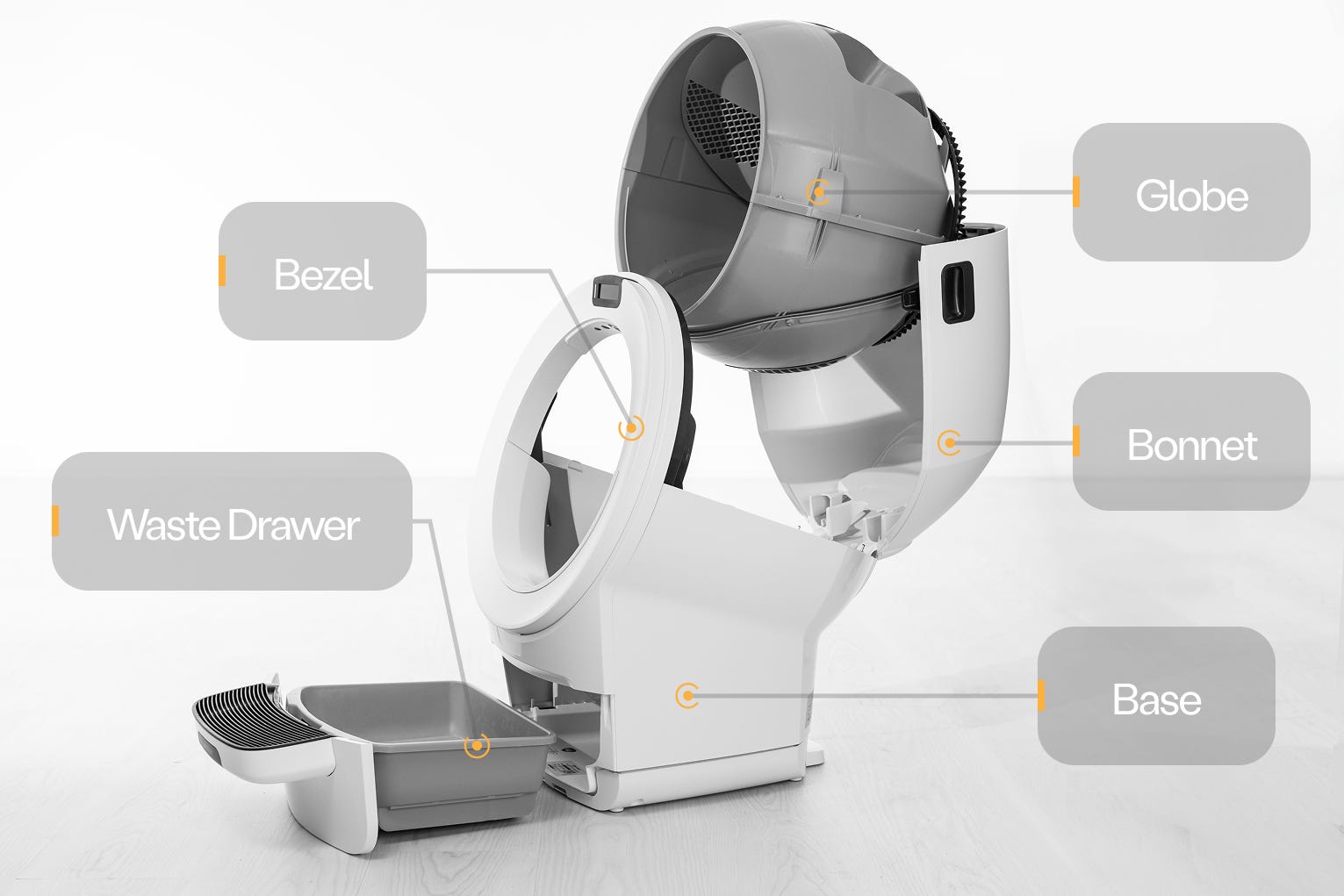
Litter-Robot 5 has five main components: the base, the bezel, the globe, the waste drawer, and the bonnet.
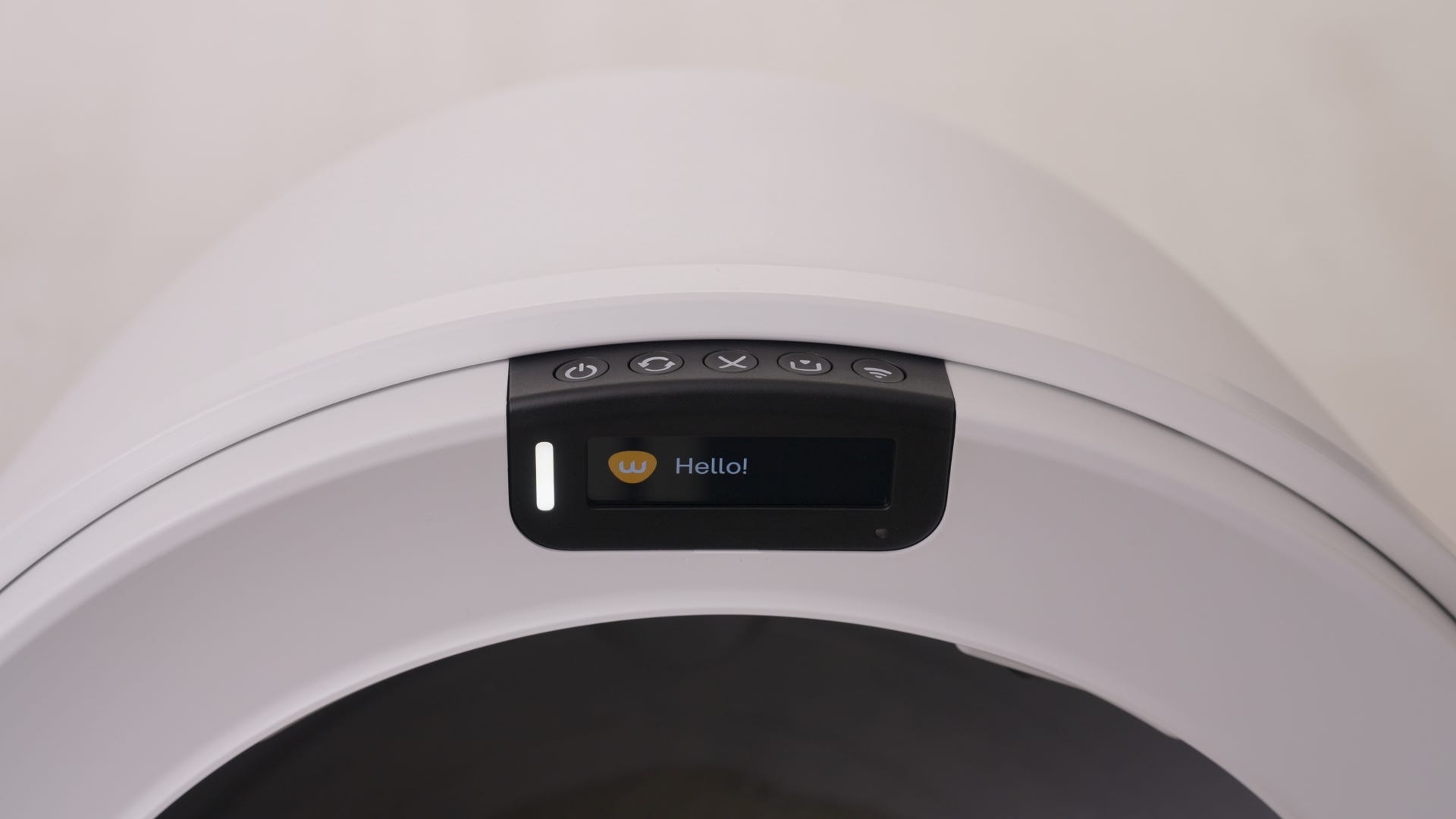
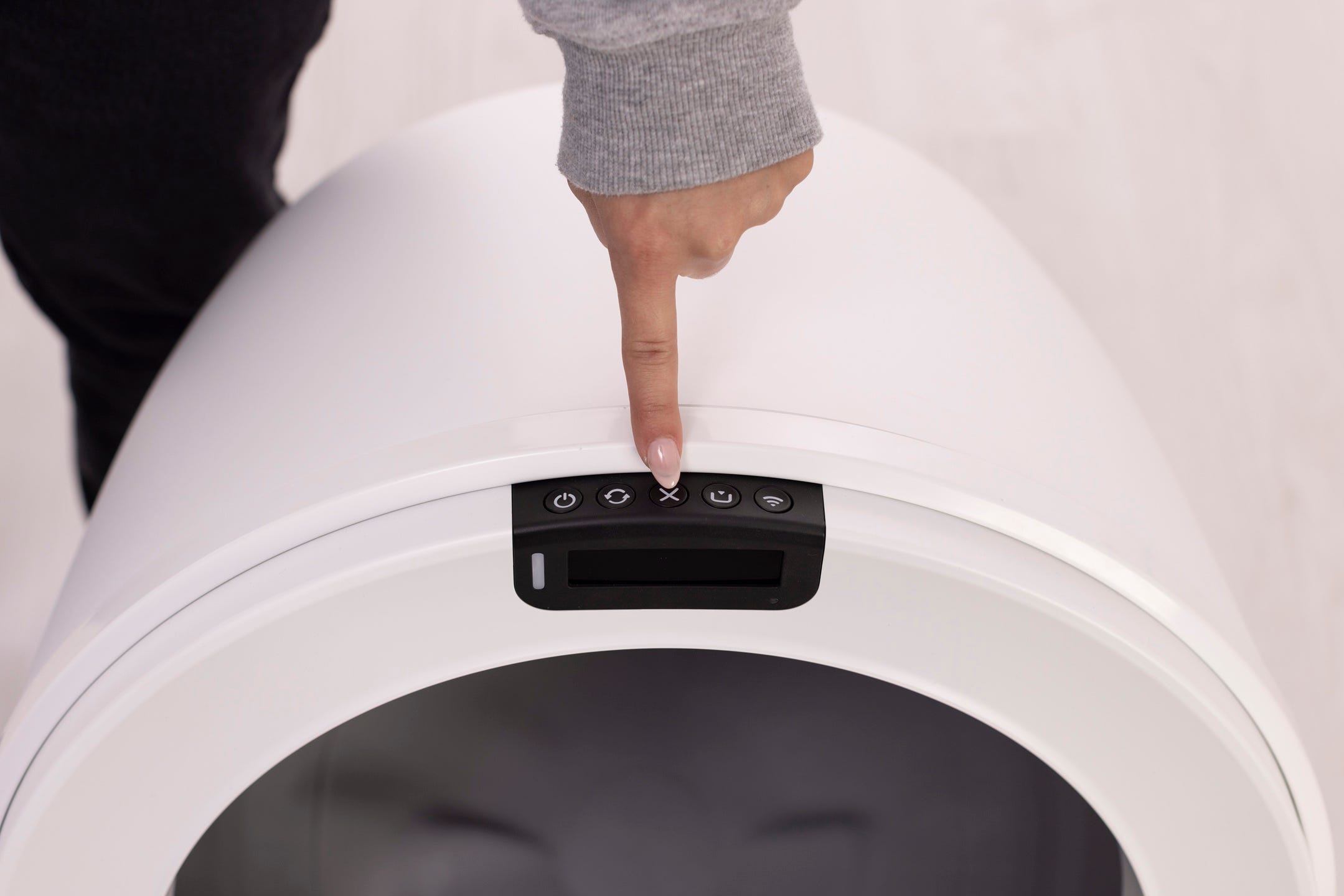
You'll find the control panel and LCD screen located at the top middle of the bezel.
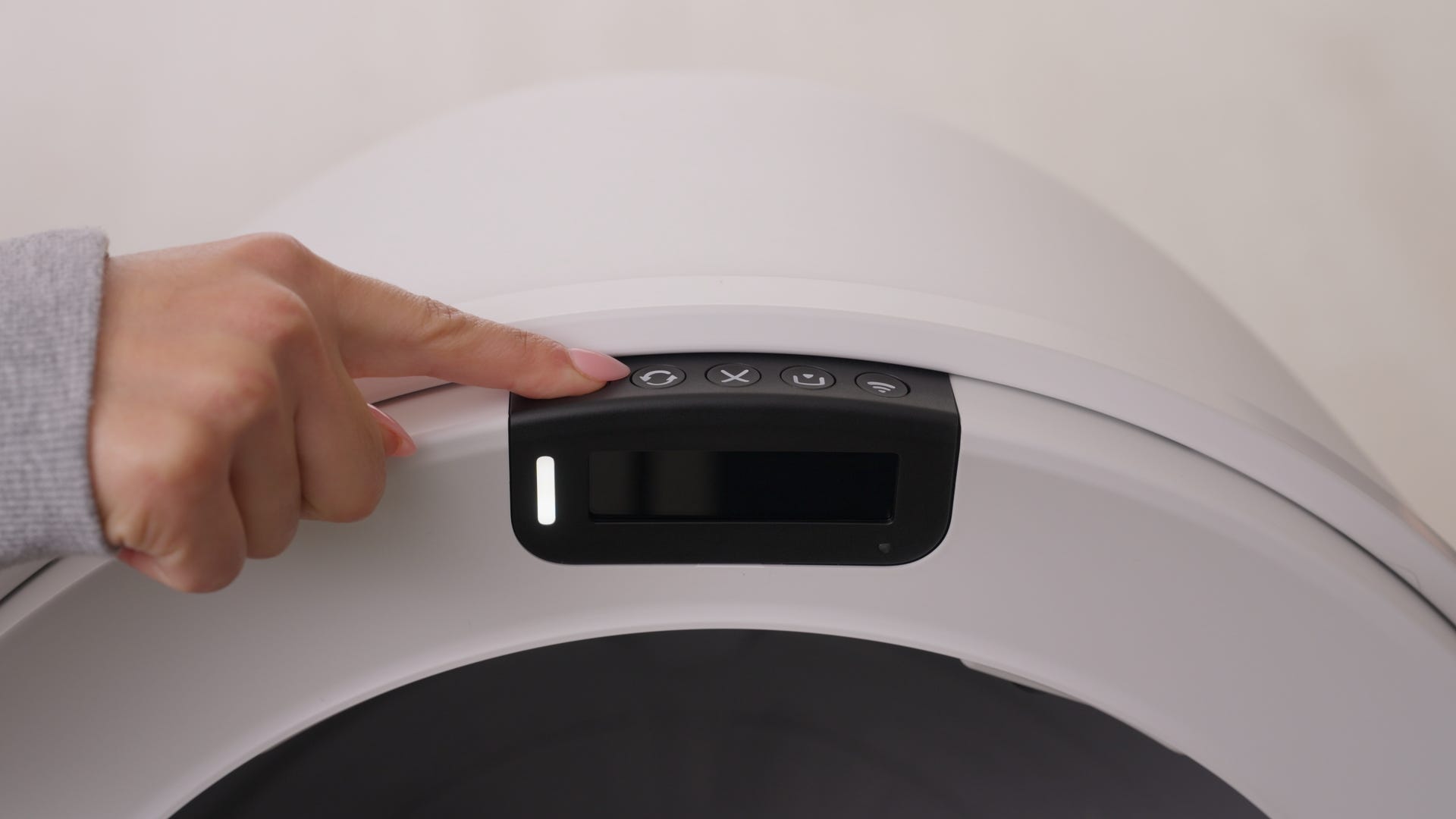
There are three types of button presses: a short press, a 3-second long press, and a 6-second long press.
Most of these functions are also available through the Whisker app.
Quick links
Disassembly
Here’s how to take apart Litter-Robot 5 properly.
Preparation
- Make sure the unit is in the Home position
- Press the Power button to turn the unit off, then unplug the unit from the wall.
Removing the bonnet
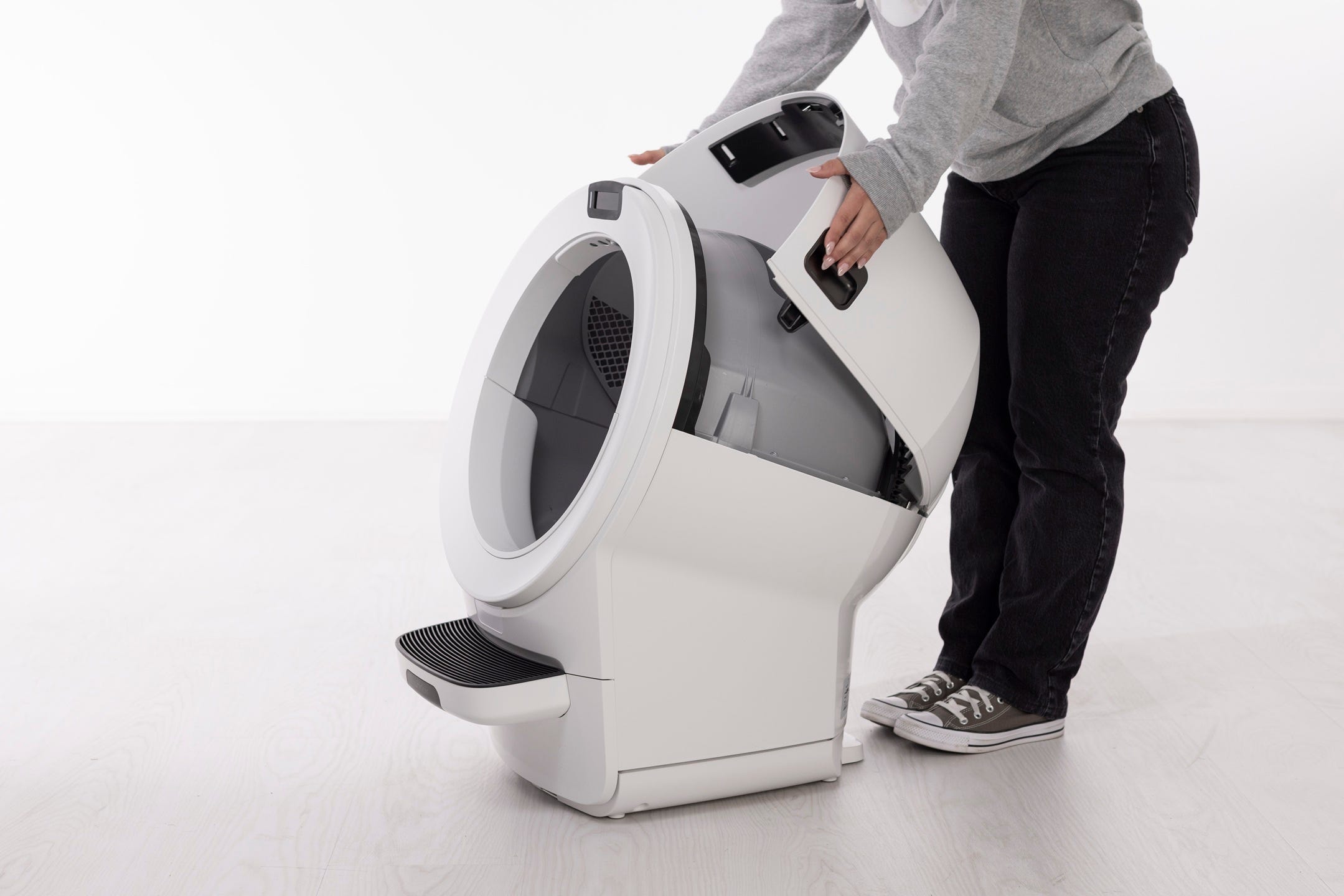
- To remove the bonnet, use the latches on both sides and rotate it to about 45° before pulling up and away. It cannot be removed in its fully open position. Set the bonnet aside.
- If you have the fence or other accessories installed, remove them from the bezel.
If your cat does not dig a lot or urinate near the opening of the globe the bezel guard is an optional accessory that can be purchased instead of the fence.
Note: Either a fence or bezel guard should always be used. The bezel guard allows for a larger opening for your cat.
Removing the globe
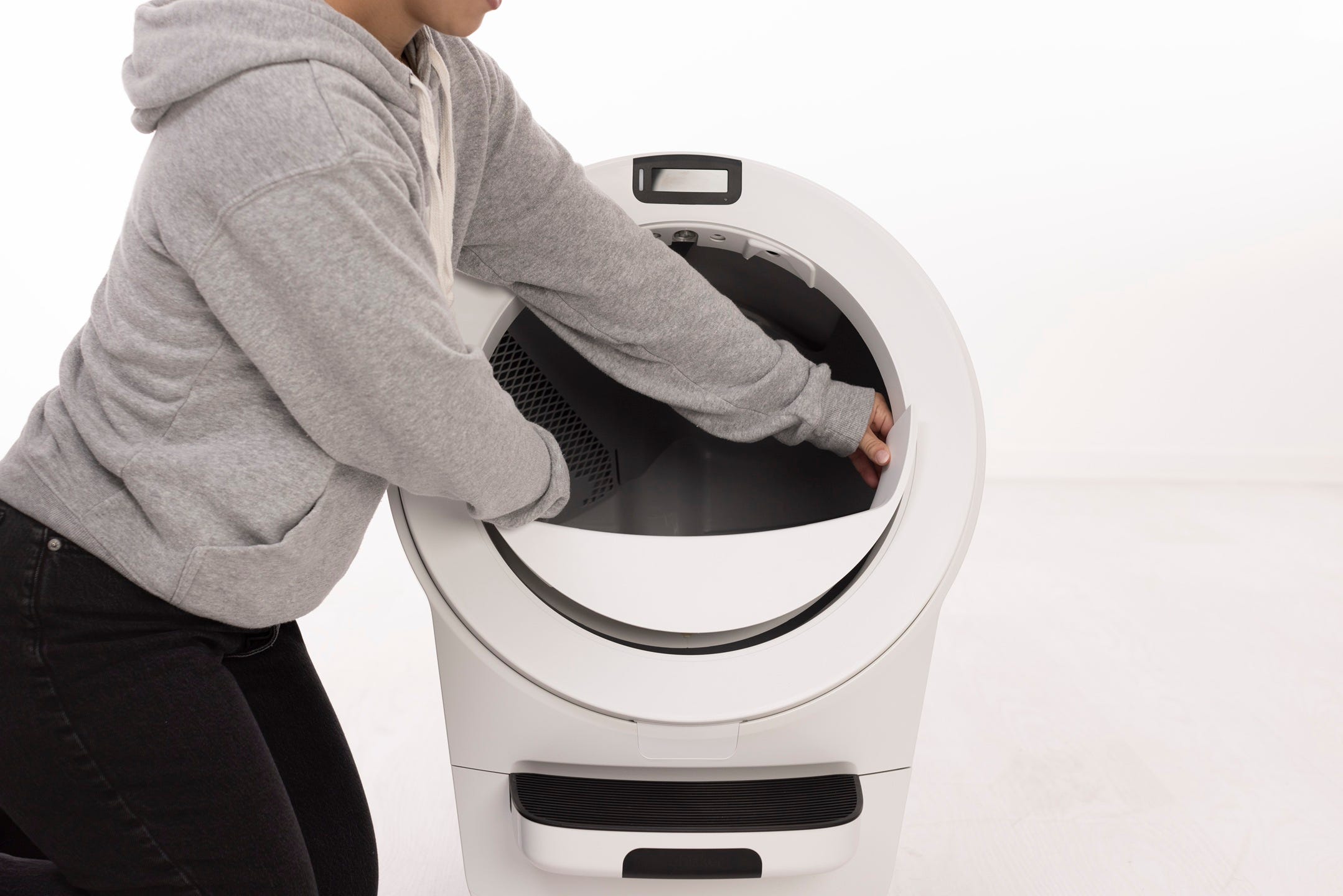
- Lift the globe by the handle while holding the globe key in place to keep it from falling into the waste drawer. Set both aside.

- If you had to replace the base, this is when you would remove the new base from the box and place it in the desired location near a power outlet.
- The new base, which has a new serial number, will need to be onboarded to the Whisker app.
- Open the Whisker app and follow the onboarding instructions. Once complete, your newly onboarded Litter-Robot 5 will appear as a new robot in the Whisker app.
- Delete your old robot: in the Whisker app, select your old Litter-Robot 5 unit from the dashboard, tap on the Settings gear in the top right corner, tap Delete Robot, then tap Yes.
Please note that deleting the robot will also remove any data associated.
Removing the bezel
- If you need to remove the bezel, squeeze the bezel at the 11 o'clock and 1 o'clock positions to disengage the top three snaps on the underside of the bezel.
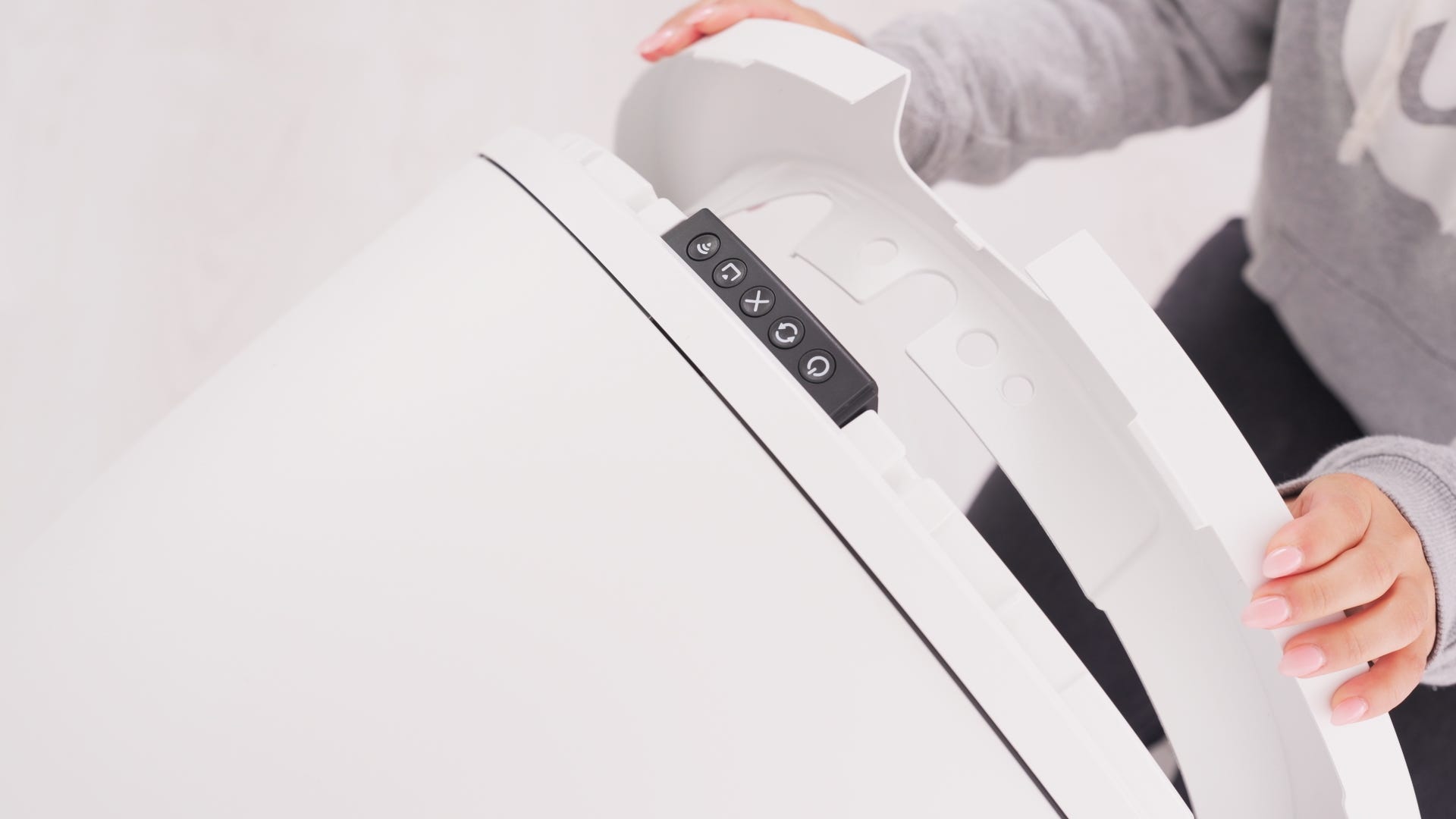
Pull the top of the bezel towards you to release the top three snaps.
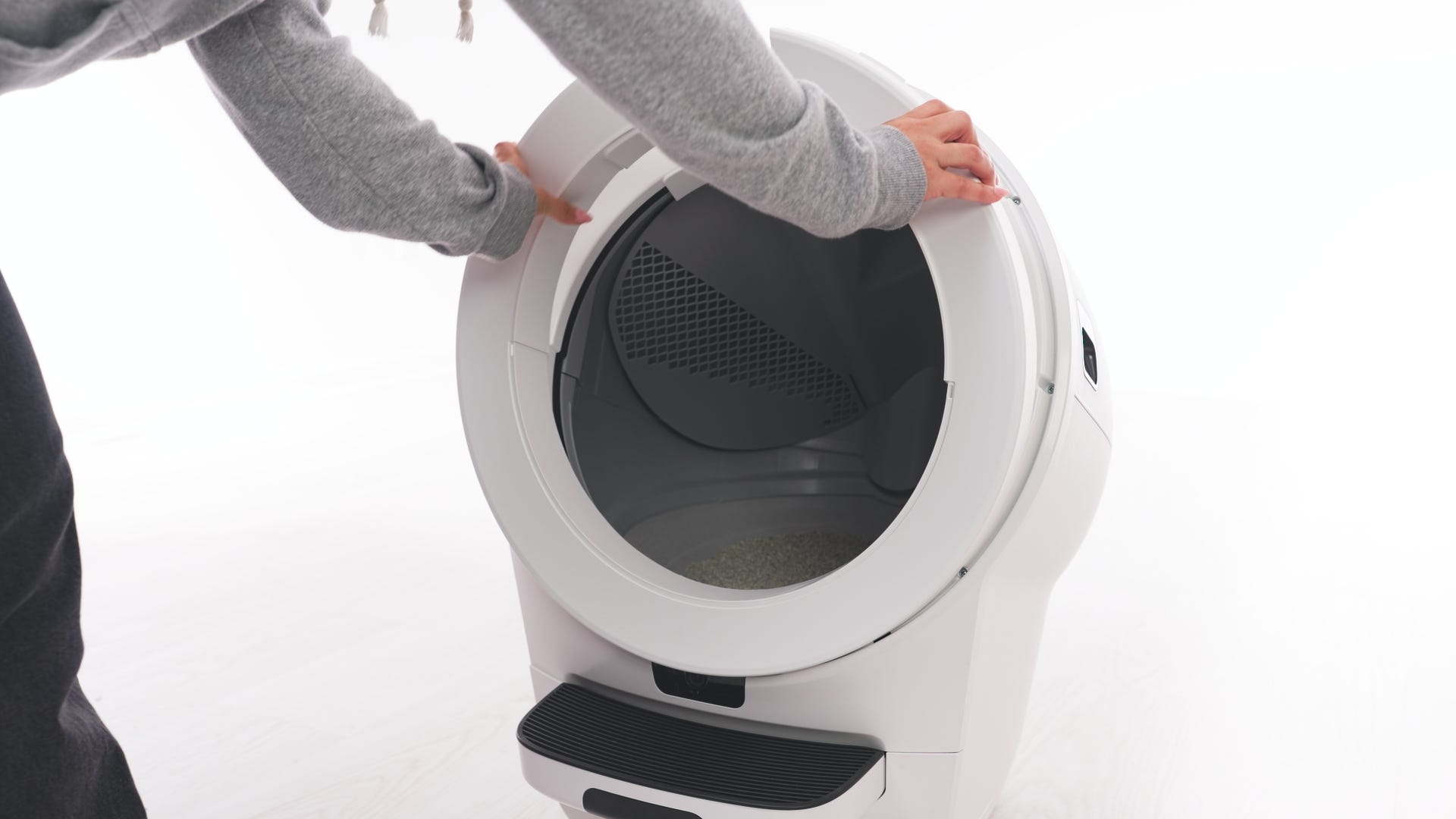
Once the top of the bezel is disengaged from Litter-Robot 5, pull up on the bezel to release the bottom two snaps and fully remove the bezel.
Assembly
Here’s how to reassemble Litter-Robot 5.
Installing the bezel
- If removed, replace the bezel by ensuring that all five snaps are engaged and the new bezel is seated flush to the front of Litter-Robot 5.
Installing the globe
- To install the globe, ensure that the globe key is installed in the back of the globe and oriented with the rectangular opening facing up.
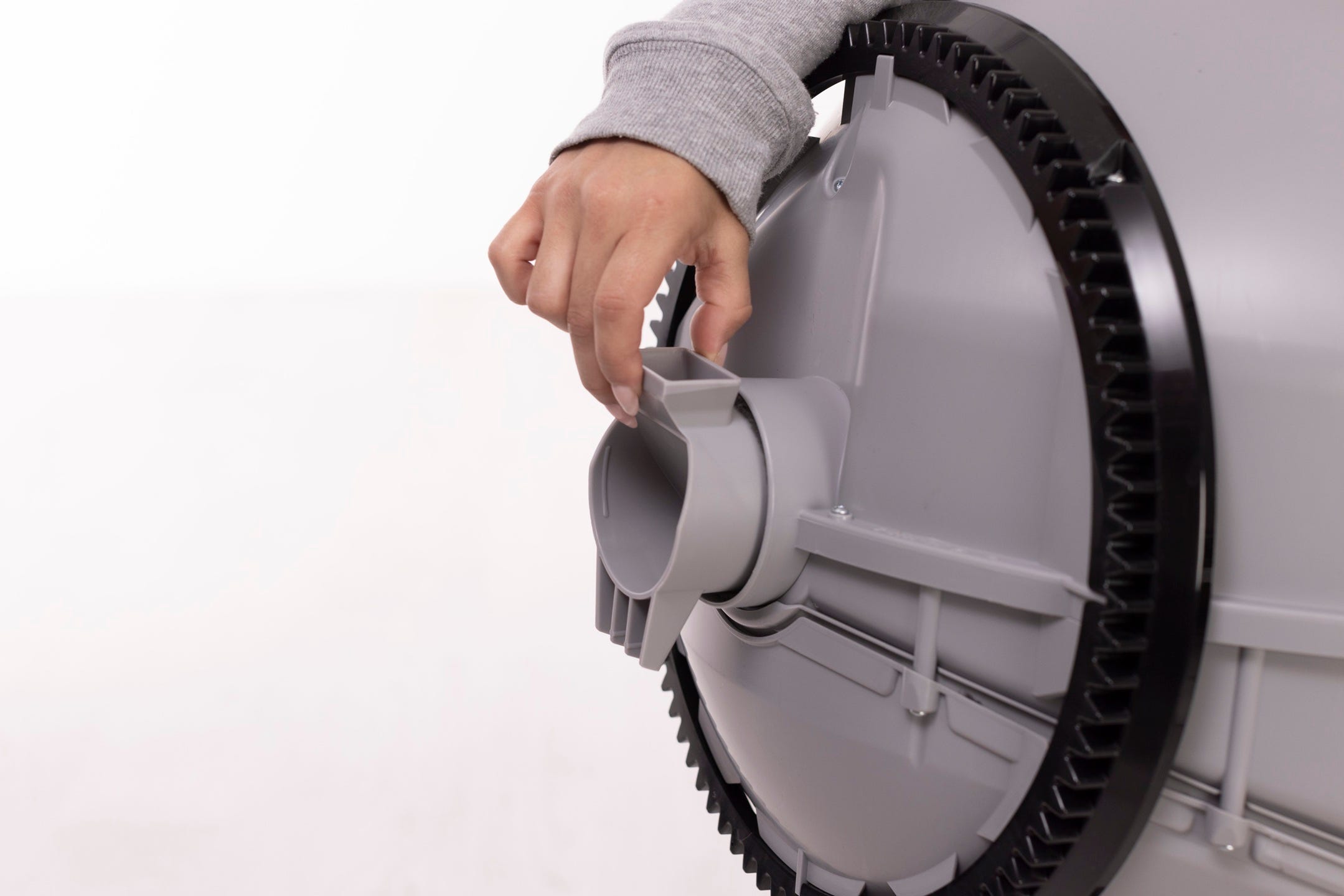
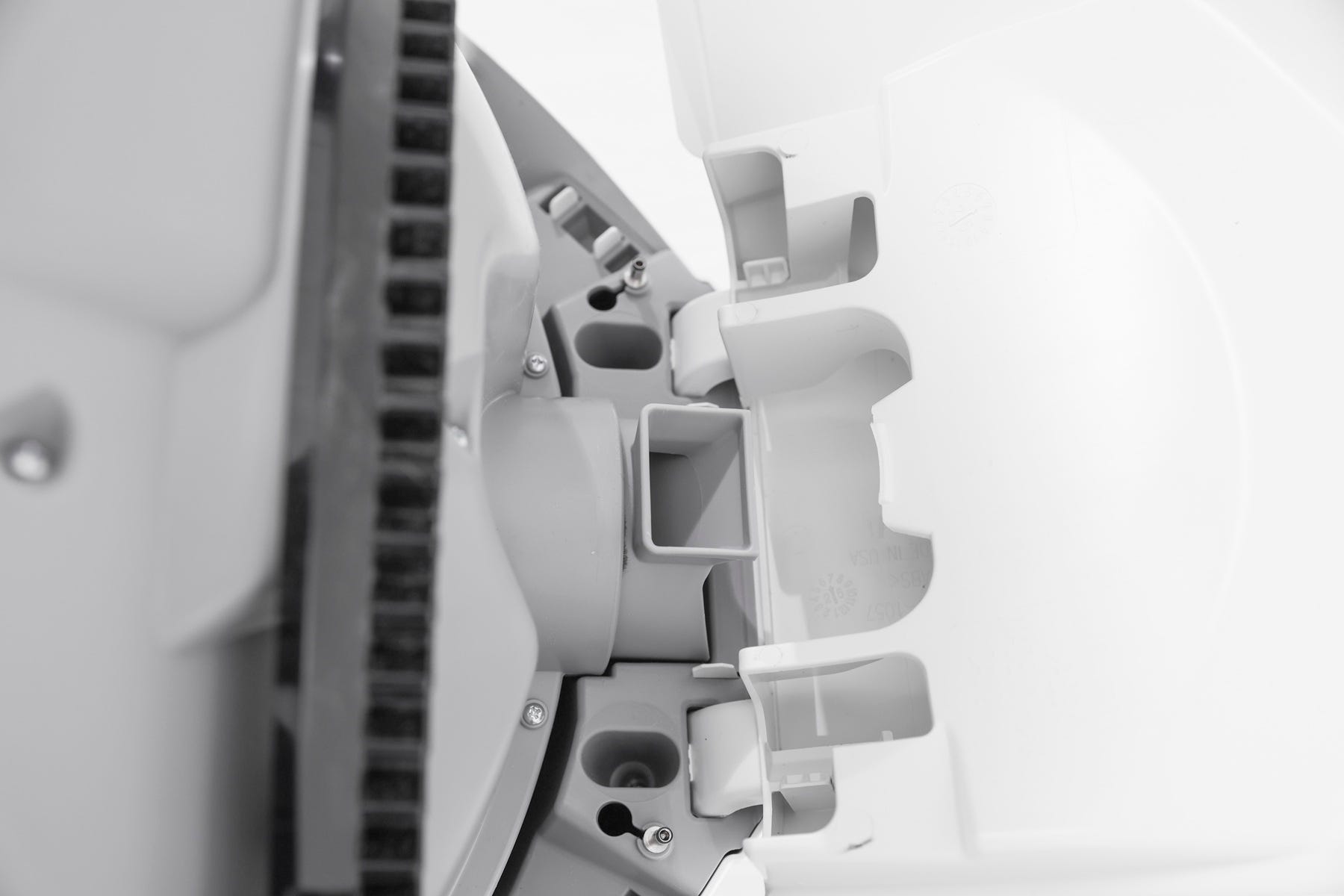
- While holding the key in place, lift the globe and place it back into the base. The key must drop down into the pocket completely.
- Keep the globe handle and waste port oriented toward the top to ensure the globe is close to the Home position.
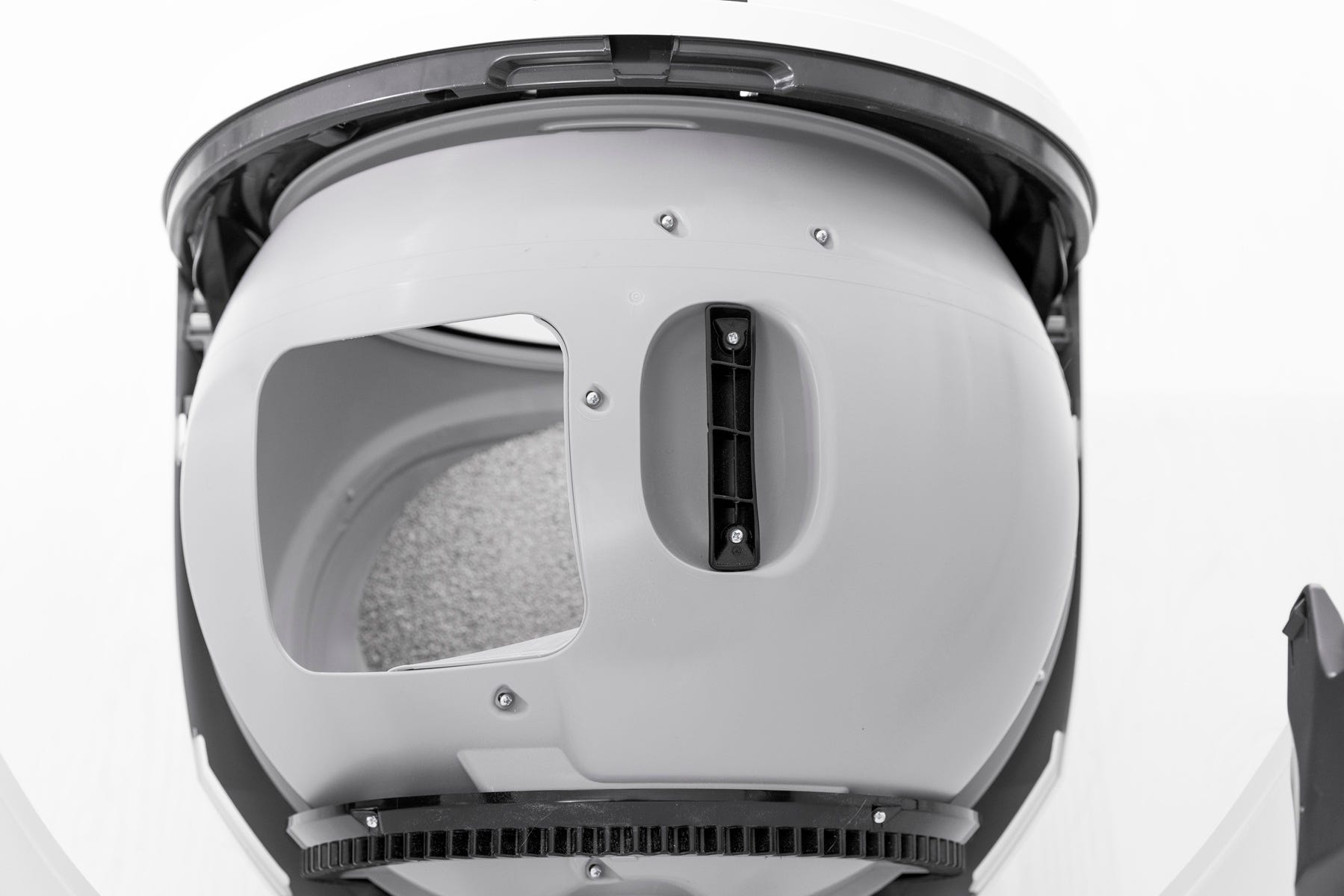
- The large black gear on the rear of the globe should easily engage with the smaller drive gear in the base.
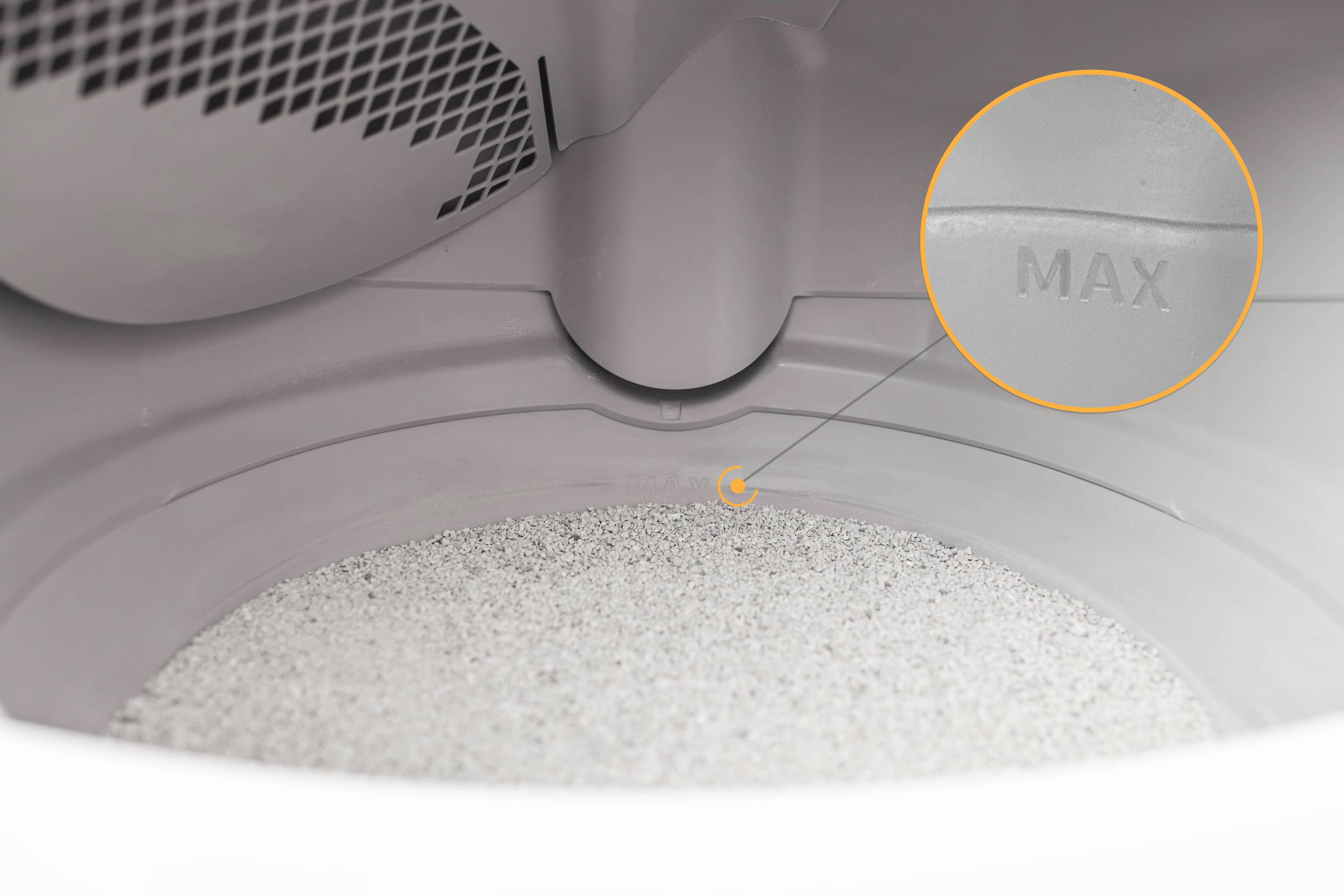
- Once the globe is installed, add litter until it reaches the MAX fill line inside the globe.
Installing the bonnet
- If the bonnet was completely removed, rotate the bonnet upward at a 45° angle and align the hinge feature of the bonnet at the back of the base.
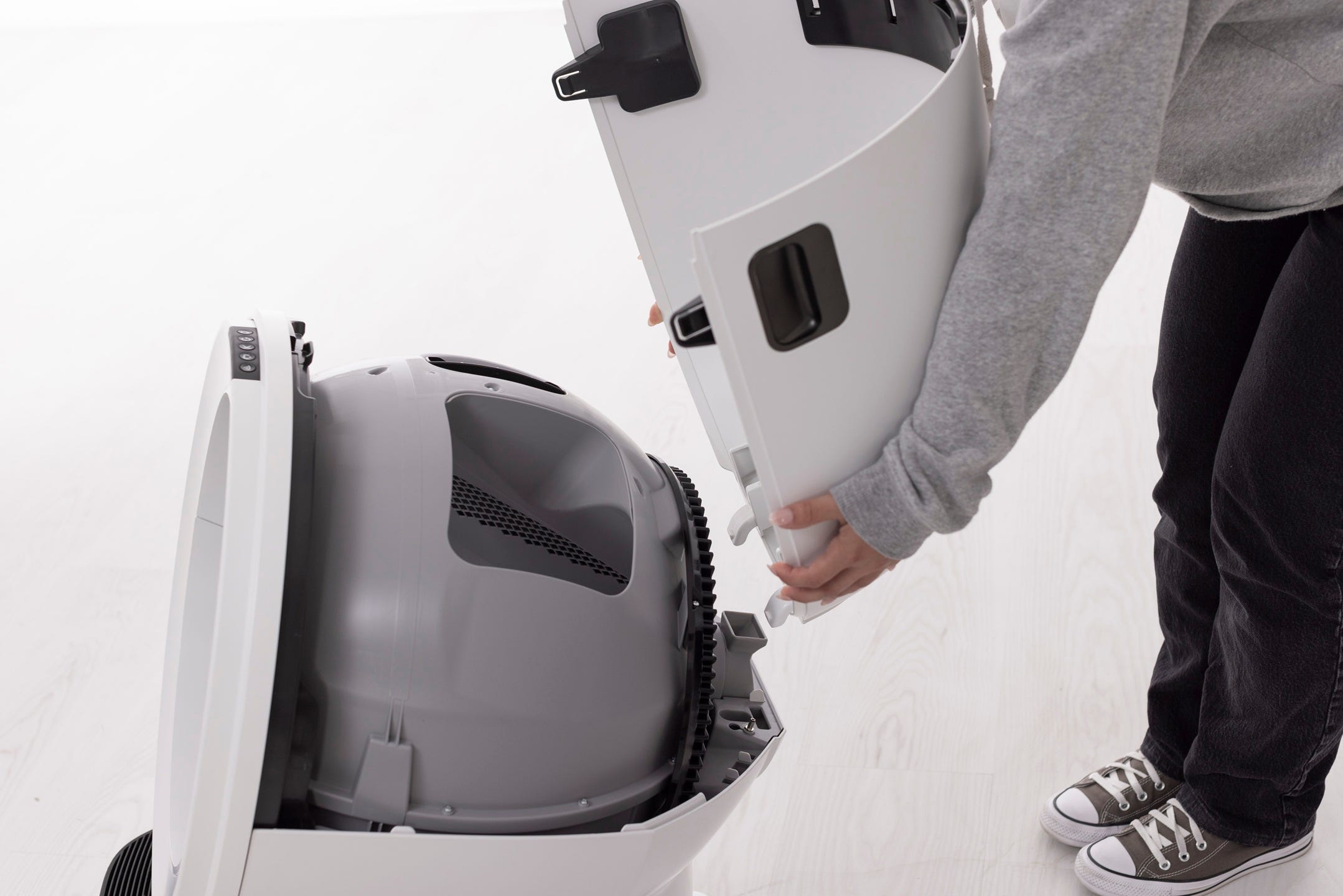
- To close the bonnet, rotate the bonnet downward over the globe. The bonnet should automatically latch into place; gently press on top to ensure it's latched and secure.
Final steps
Reinstall any accessories. Snap the fence onto the bezel at the globe entrance. Ensure that the fence is secure by matching up the tabs on each end of the fence with the corresponding slot and snapping into place.
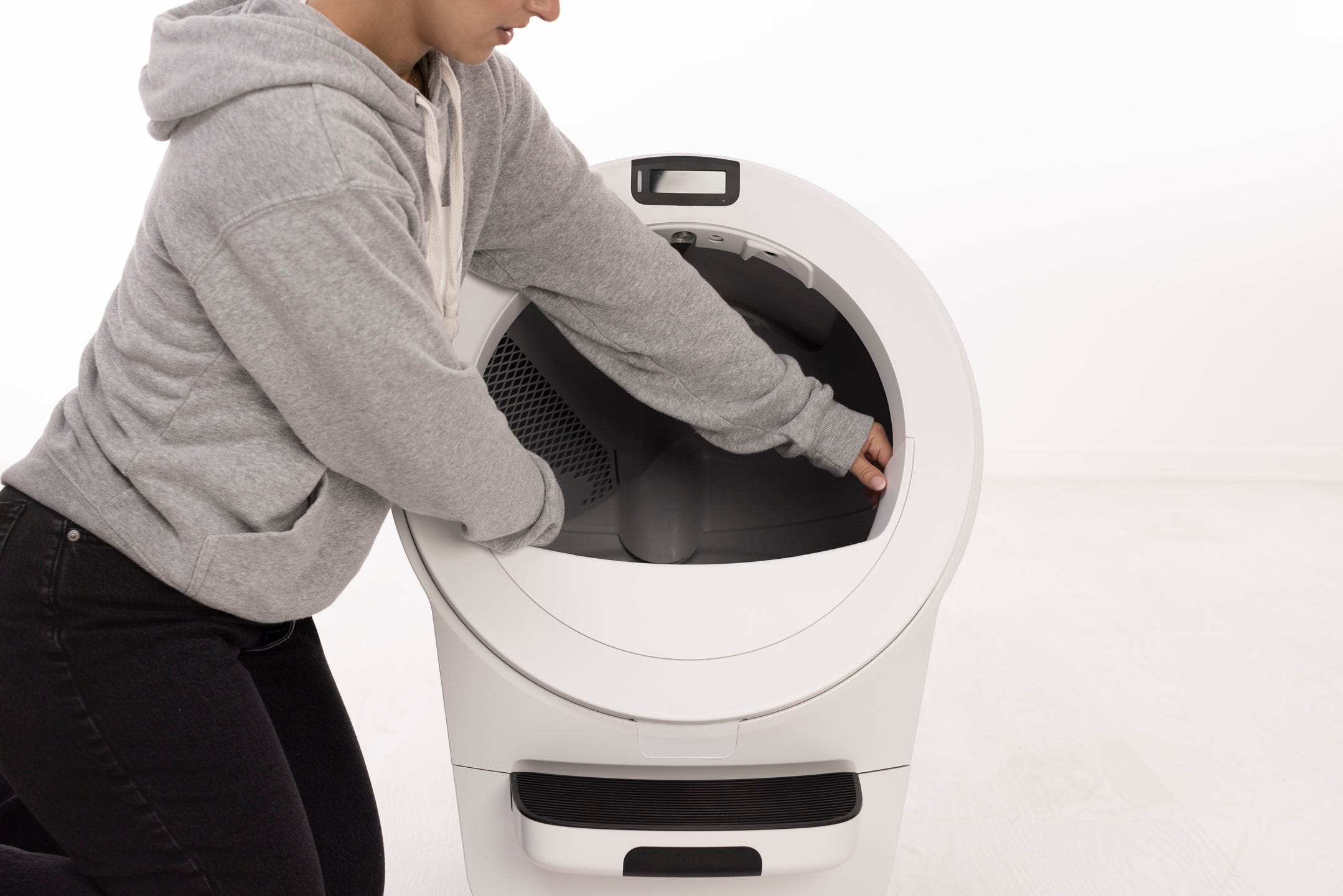
If your cat does not dig a lot or urinate near the opening of the globe the bezel guard is an optional accessory that can be purchased instead of the fence.

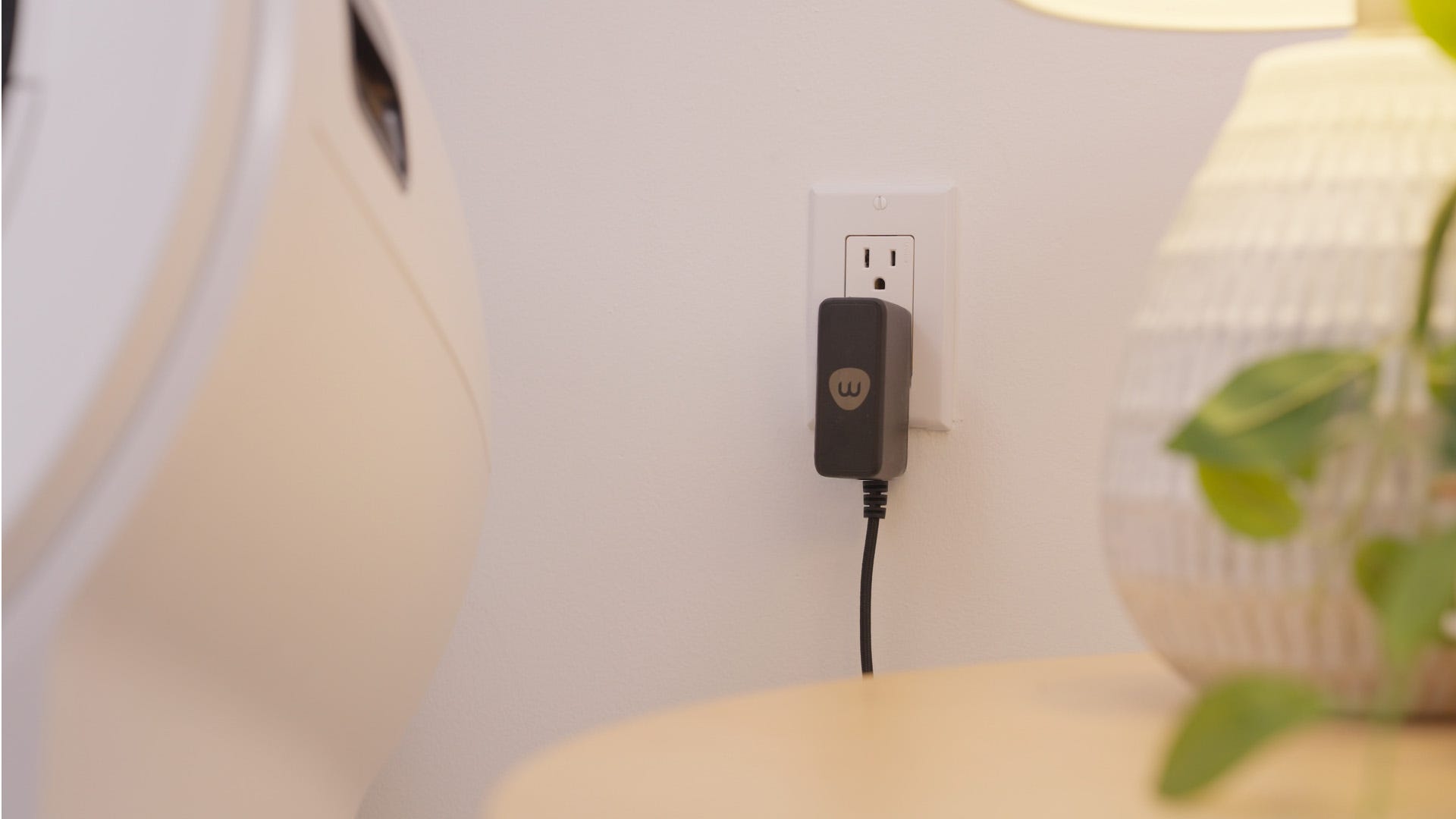
Plug the unit in and press the Power button.
Waste drawer
Every Litter-Robot 5 ships with a 5-pack of custom-fit waste drawer liners. These liners are made specifically for any Litter-Robot model, but a white 10-13 gallon (37-49L) trash bag will also work.
White bags work best.
Please note that waste level readings may be inaccurate when using a dark bag, especially when the drawer is empty. As clumps start to collect in the drawer, the readings will become more accurate. For the most precise waste level readings and a seamless experience, including drawstrings for easy disposal, we highly recommend using Litter-Robot Waste Drawer Liners.
Assembling the waste drawer
- Pull the waste drawer body out from the unit.
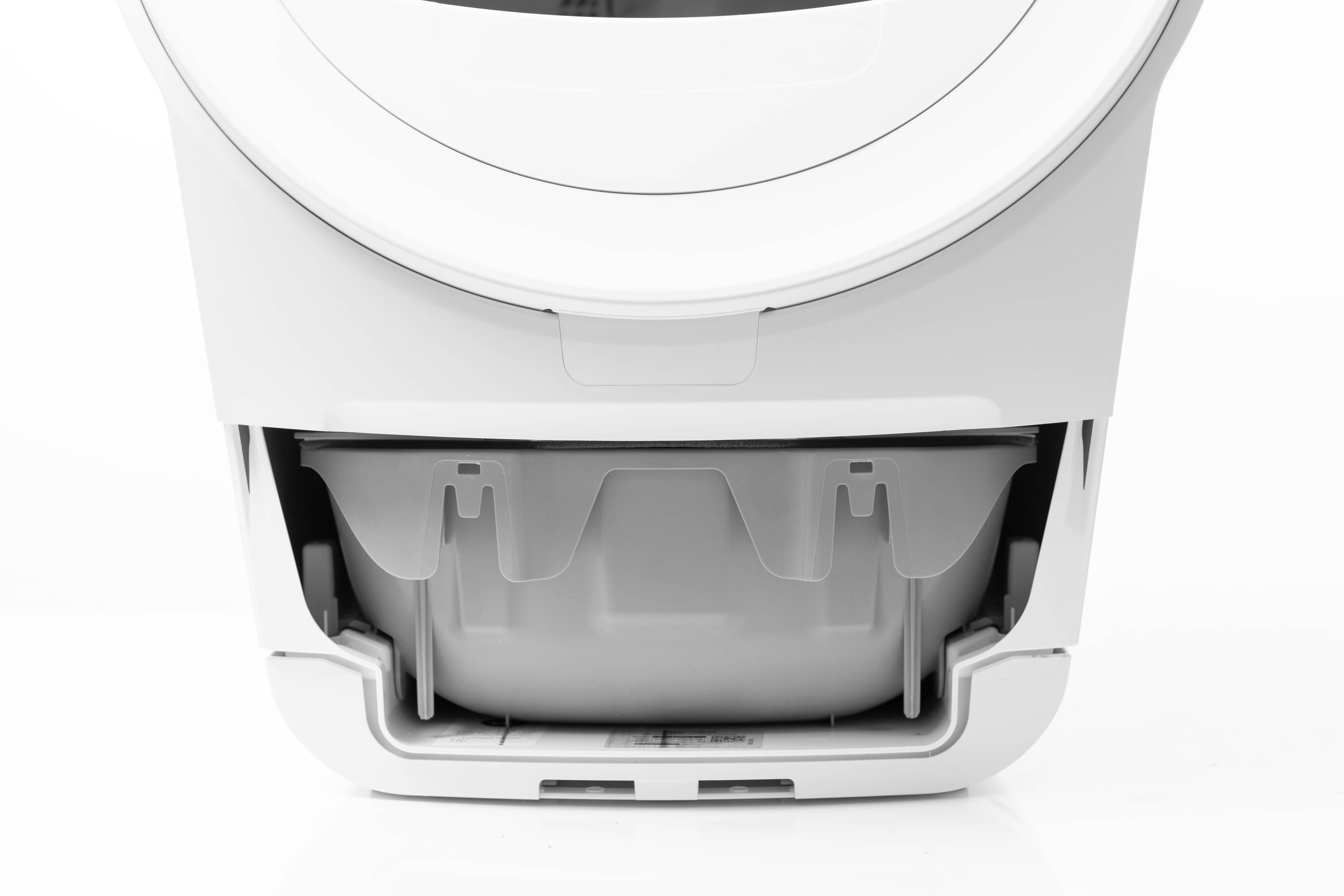
- The waste drawer has two alignment slots that correspond with the two alignment hooks on the step.
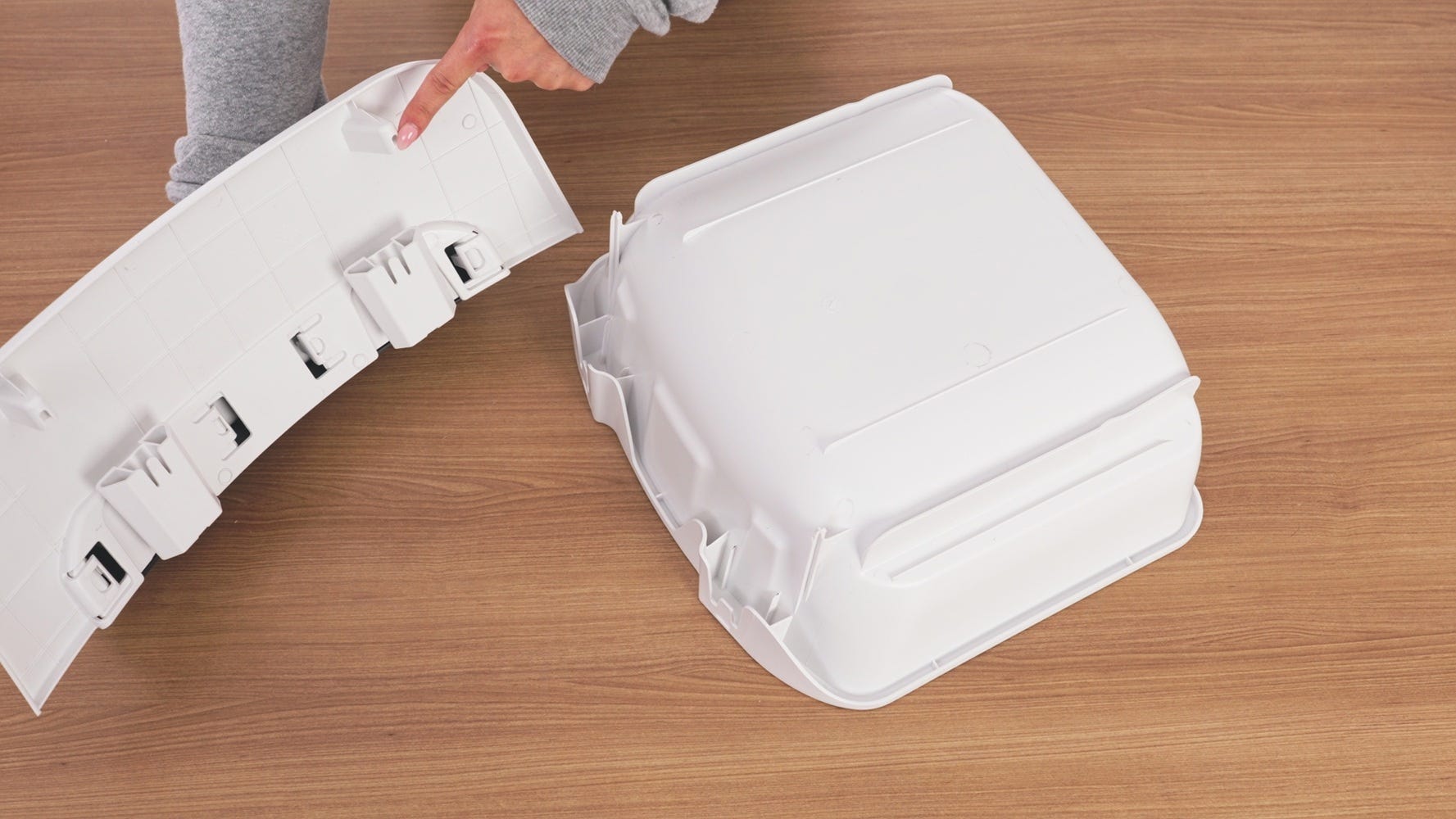
- Place the drawer body upside down on a flat surface, such as a table. Slide the step posts into the waste drawer pockets.
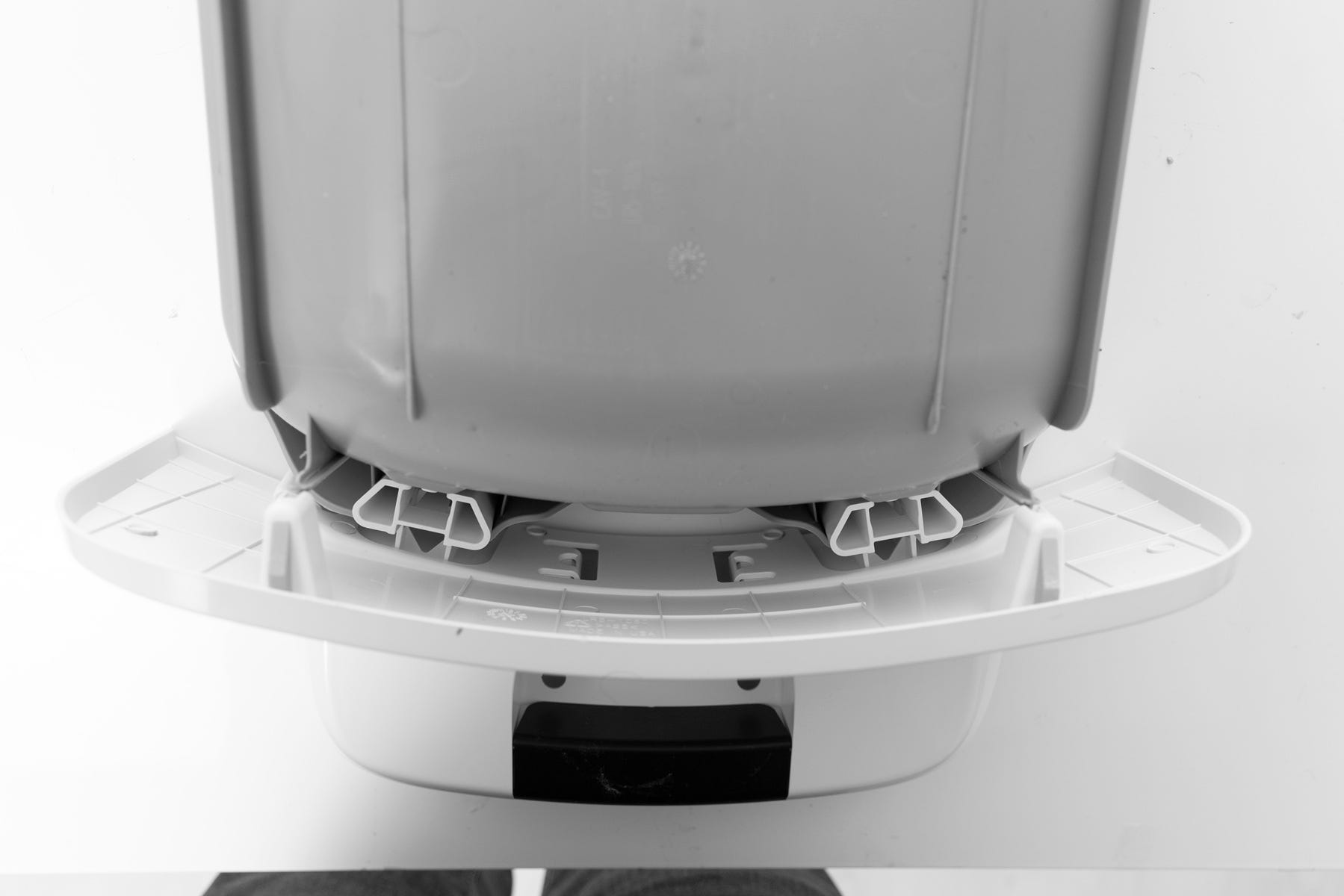
- Insert the pegs on the drawer body into the assembly pockets on the drawer front.
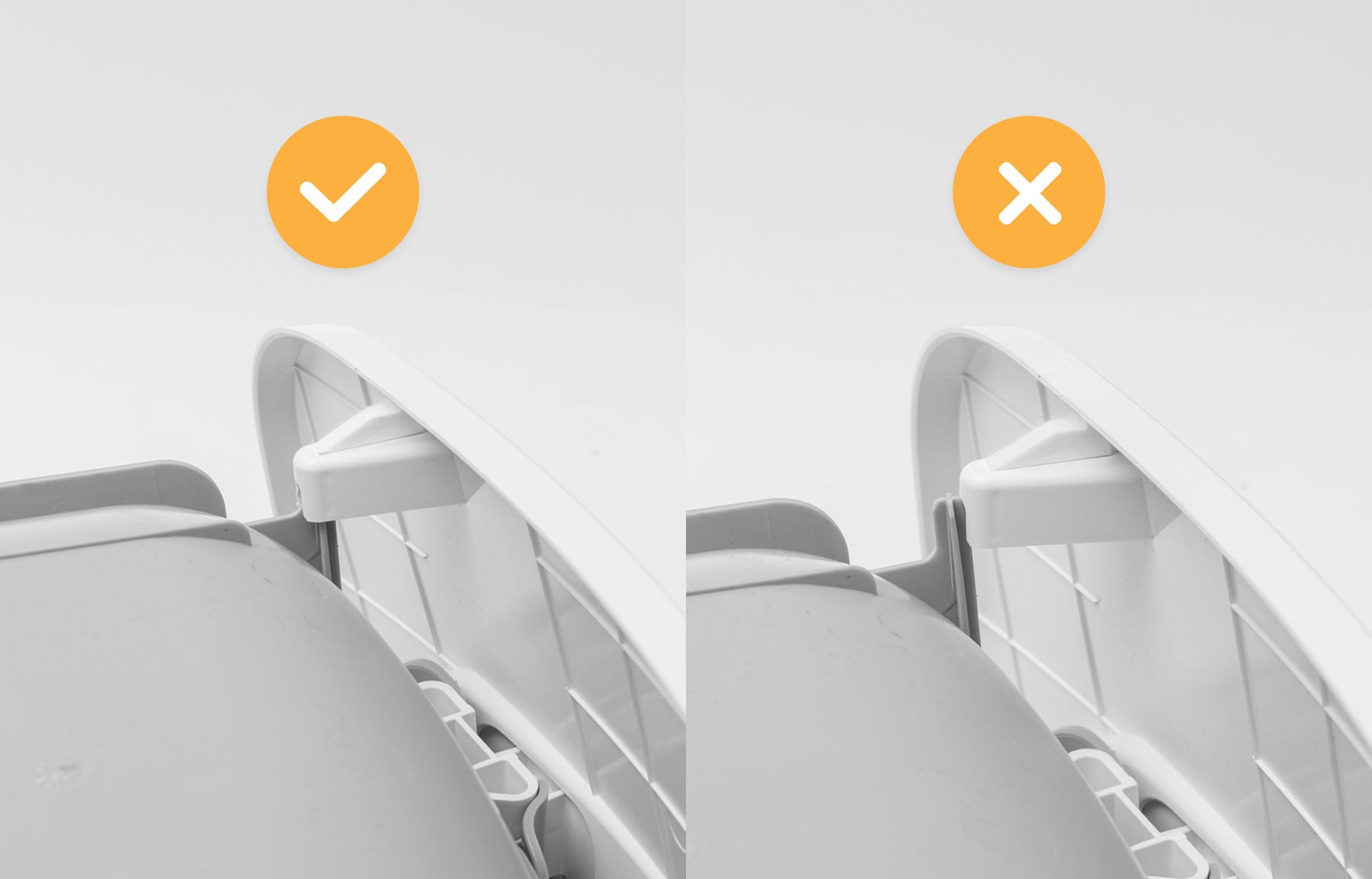
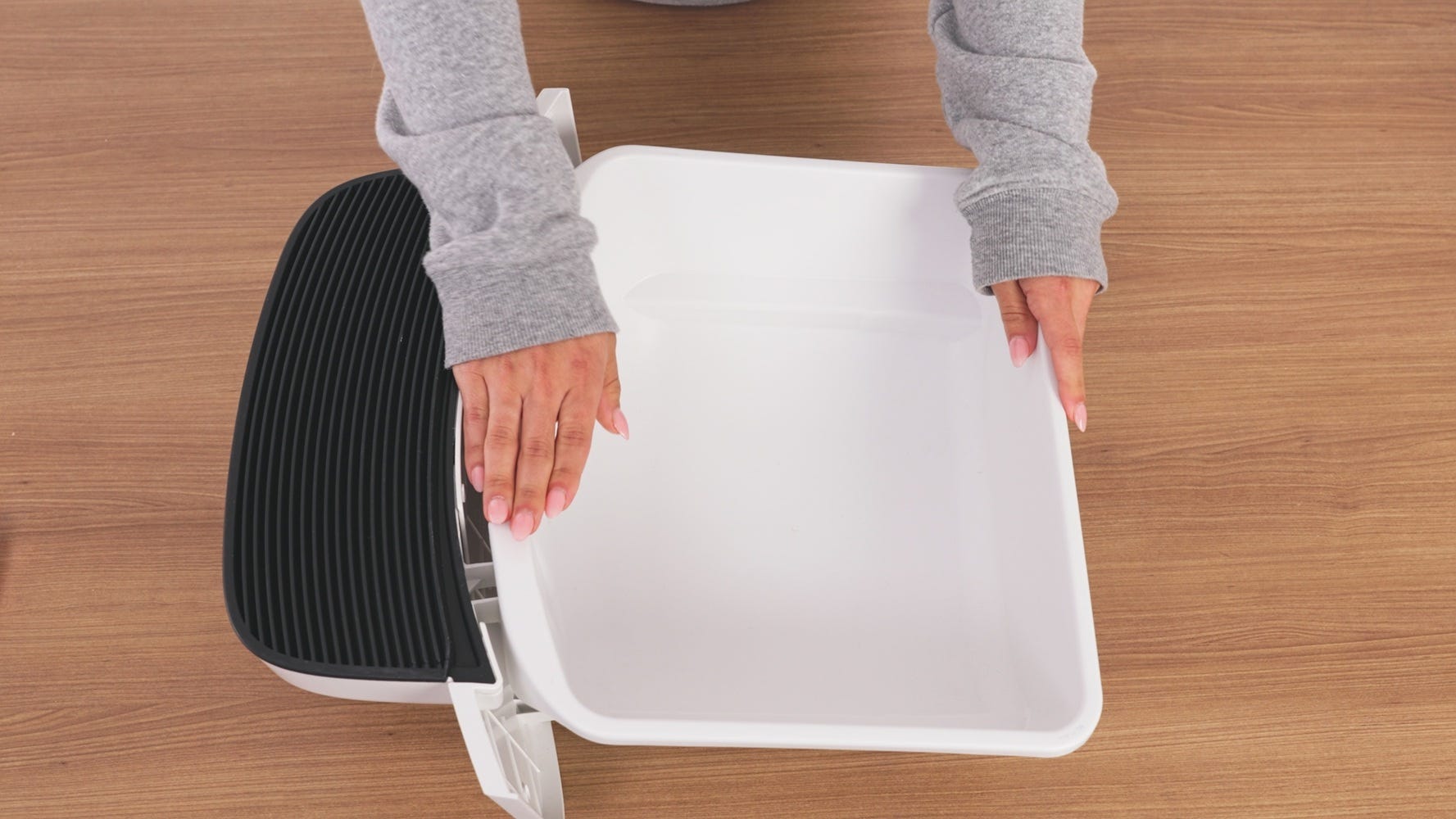
- While holding the pegs in place, flip the drawer so that it’s facing right side up. Push the drawer body down slightly until you hear or feel both pegs snap into place.
Installing the waste drawer liner
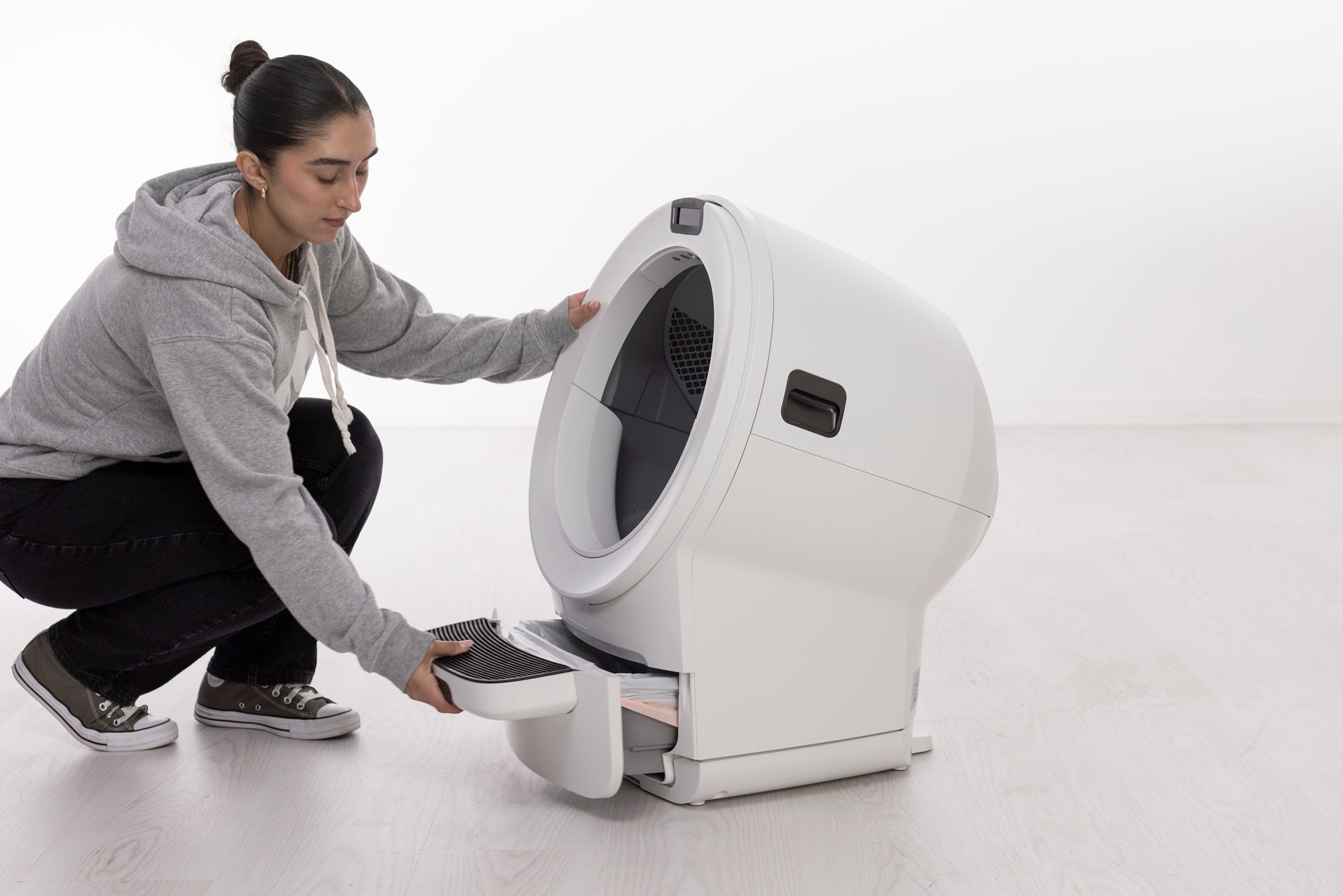
- To install a new waste drawer liner, you’ll need to remove the drawer from Litter-Robot. Simply grab the step and slide the drawer out until it’s clear of the unit.
- Now take your new waste drawer liner and open it all the way.
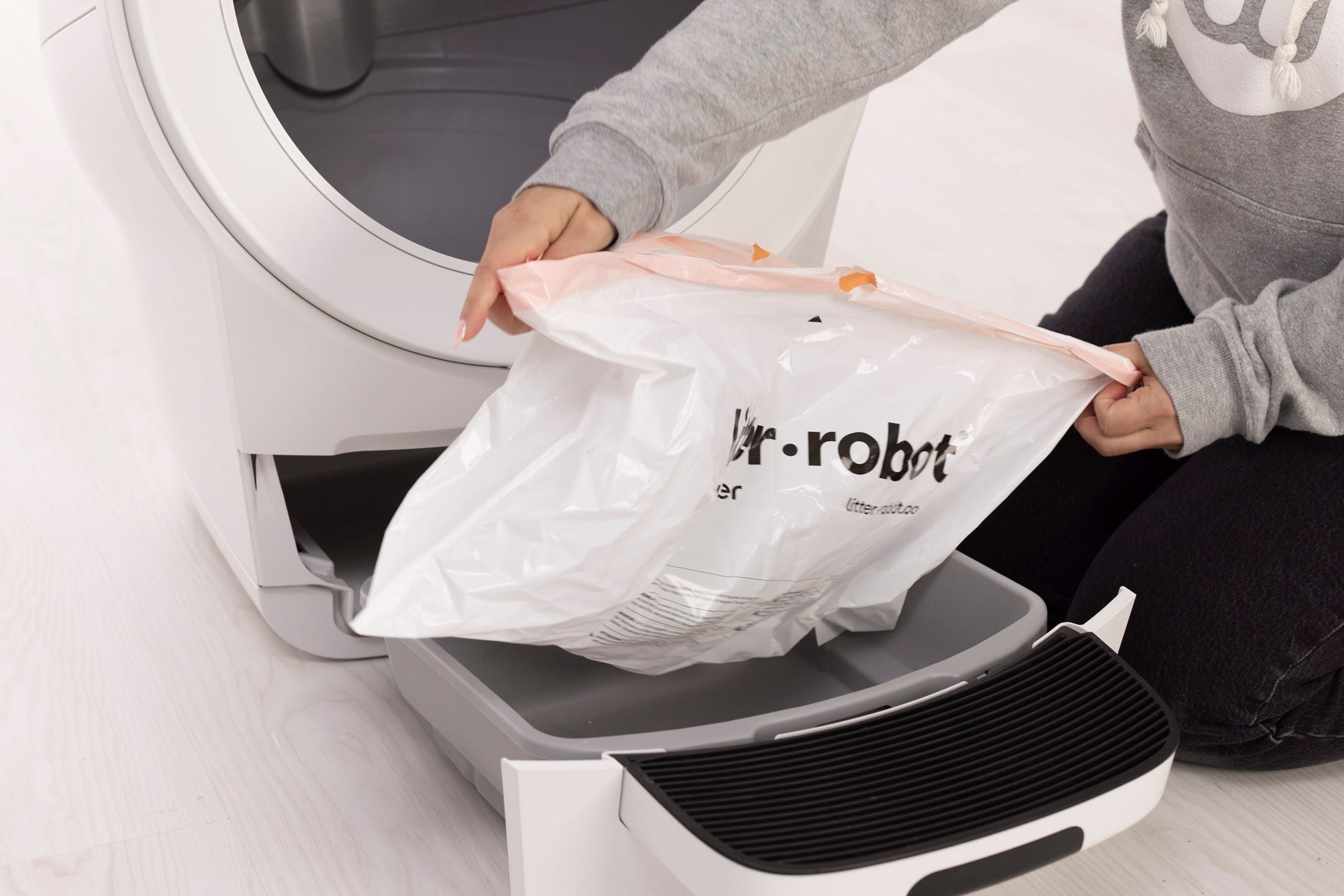
- Wrap the edges of the waste drawer liner or bag over the rim of the waste drawer.
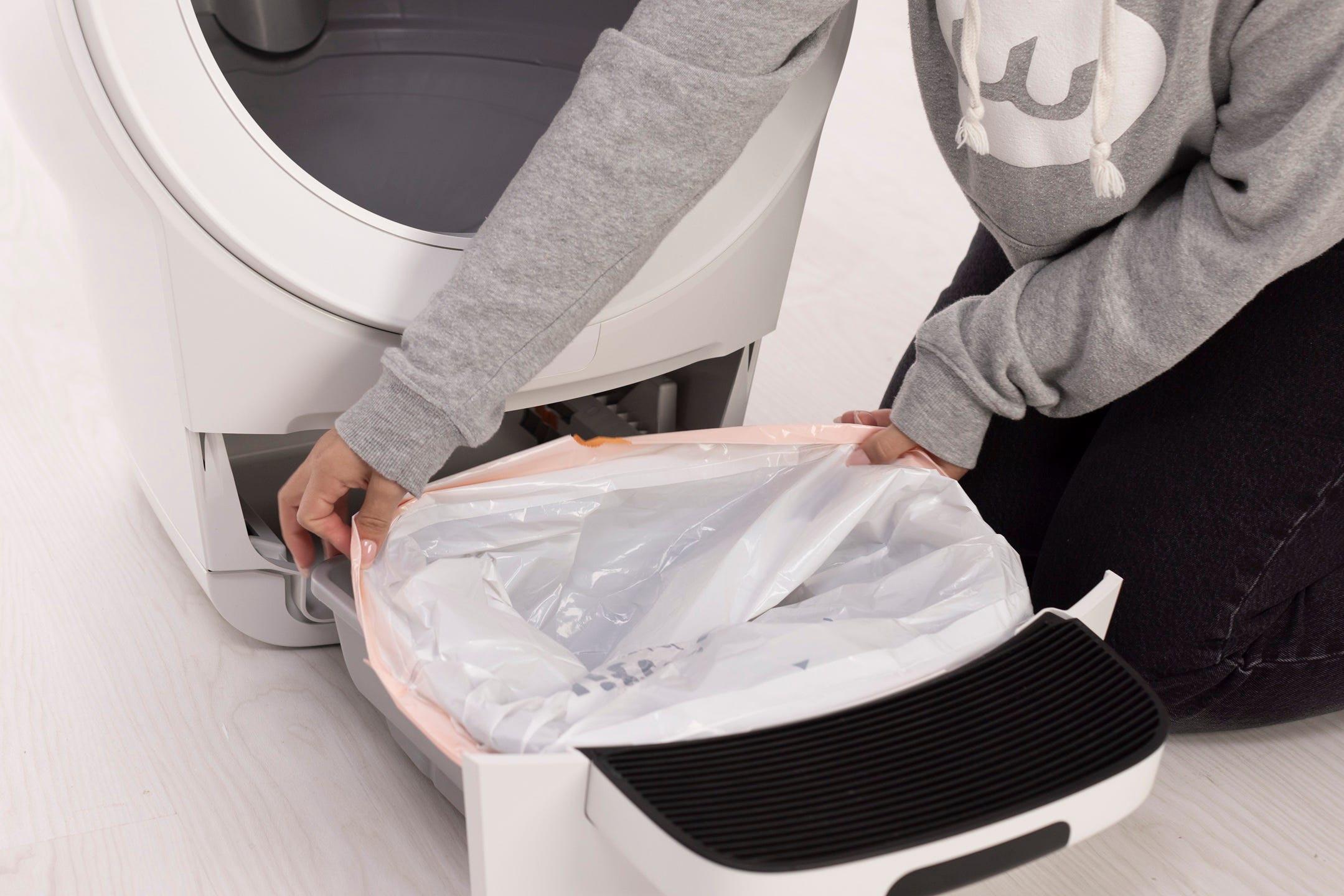
Litter-Robot 5 is equipped with OmniSense® detection that utilizes laser and weight sensor technology to provide real-time litter and waste drawer levels.
Stretched bags or bags not pressed flat will cause the OmniSense® detection to inaccurately measure the waste drawer level.
- Ensure the bag is pushed flat against the side walls and bottom of the drawer.
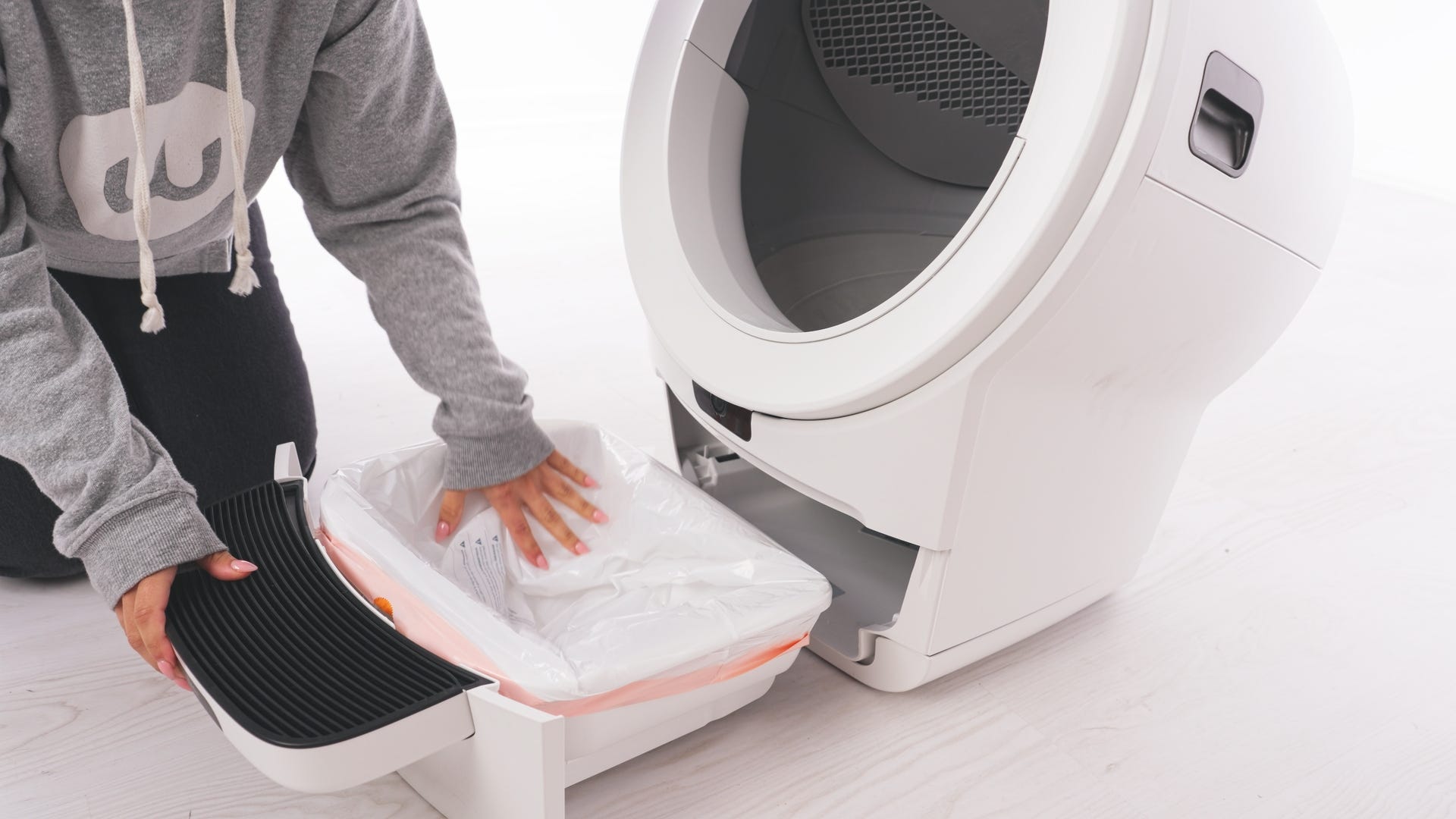
- Finally, push the drawer back into the unit.
- Short press the Cancel button to zero the weight sensors.
Carbon filter
Litter-Robot 5 is equipped with a carbon filter that is installed on the outside of the globe. When the globe is in the Home position, the filter sits directly over the waste drawer to absorb odors.
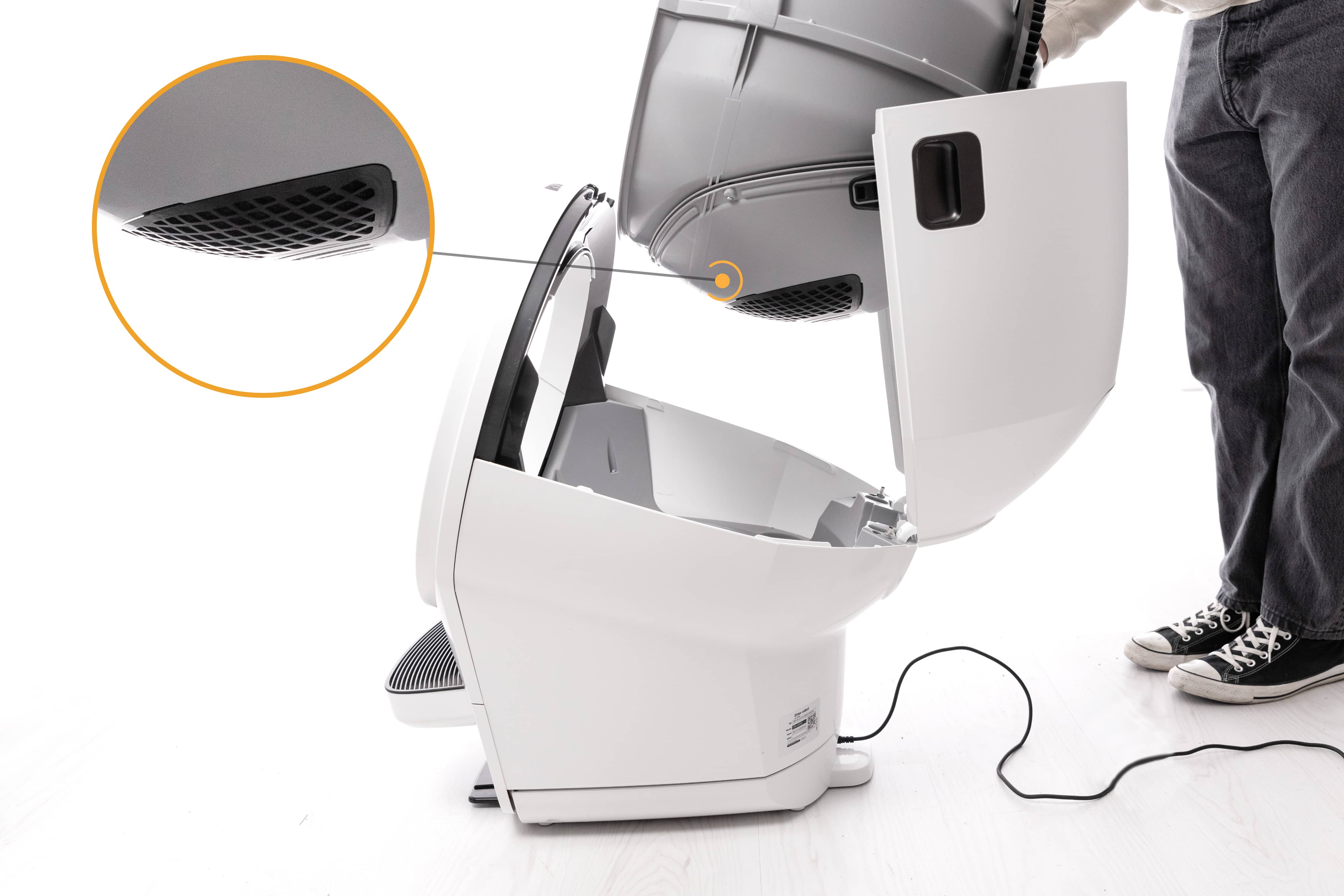
OdorTrap® Packs may also be used instead of the carbon filter. Neither the carbon filter nor OdorTrap® are required for operation.
The filter pocket holds one (1) carbon filter. If using an OdorTrap® holder, it can hold up to three (3) OdorTrap® Packs. The carbon filter and OdorTrap packs cannot be used together.
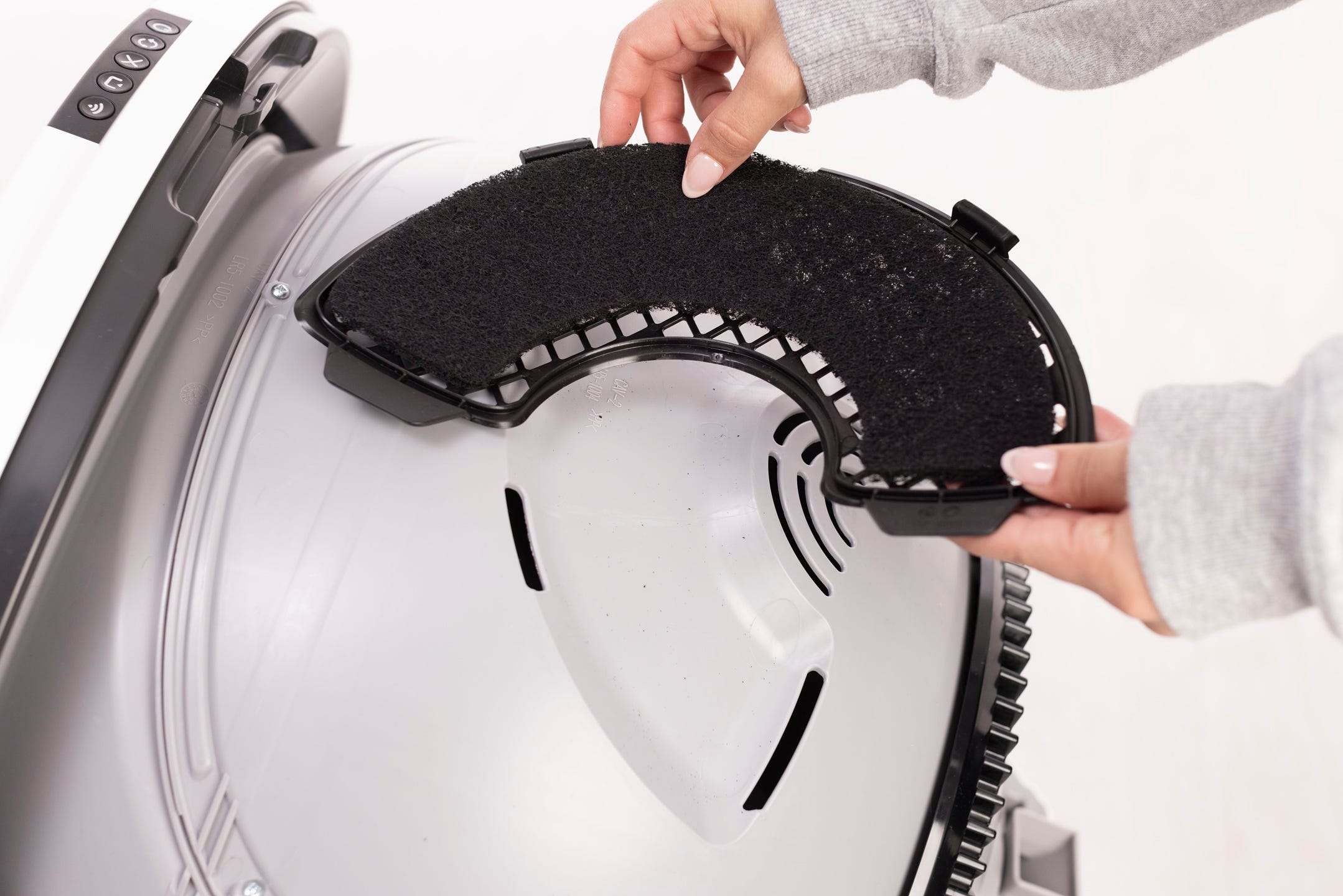
Installing the Litter-Robot carbon filter or OdorTrap® holder
Need more help?
Please contact Whisker Customer Experience for further assistance.
Didn't find what you're looking for?
Live support available Mon-Fri: 9AM-9PM EST and Sat-Sun: 9AM-5PM EST, or submit a ticket anytime.