The store will not work correctly in the case when cookies are disabled.

Litter-Robot 5 Pro: Camera LED indicator light
Litter-Robot 5 Pro includes two cameras:
A front-facing camera used for Live View, facial cat identification (available with Whisker+), and event recordings.
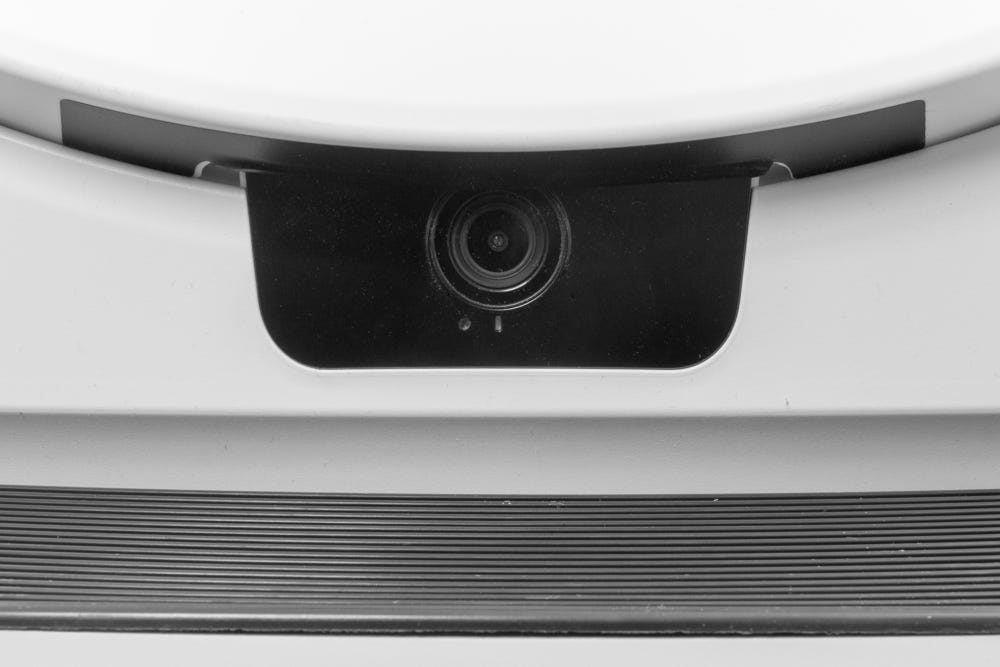
- An internal camera used to monitor activity inside the globe.
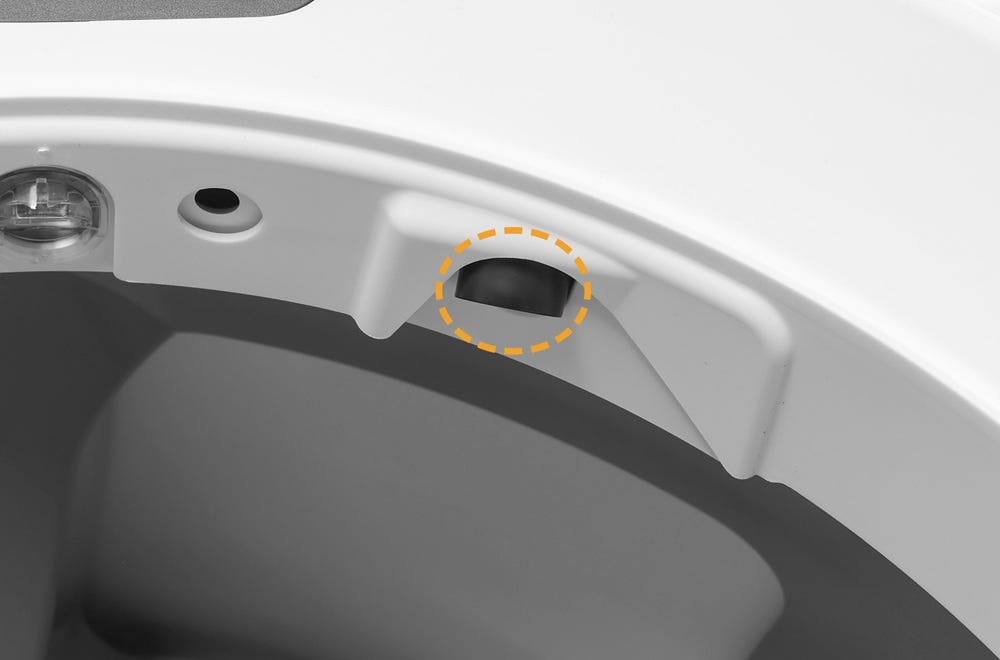
The camera indicator light applies only to the front-facing camera. This light provides status information related to camera connectivity, onboarding, and cloud communication.
If the camera LED is not showing the expected color—especially during onboarding—this guide explains what each light pattern means and what to do next.
This article applies only to Litter-Robot 5 Pro, which includes built-in cameras.
Quick links
How the camera LED indicator light works
The camera LED reflects what the camera is doing at that moment, such as preparing for setup, connecting to WiFi, recording activity, or cloud communication.
Some light patterns are normal and do not require action, while others indicate an issue that may prevent onboarding or connectivity.
Camera LED indicator lights (normal states)
These light patterns are expected behavior and do not require troubleshooting:
⚪Solid white
The front-facing camera is powered on and operating normally.
The camera is connected and ready.
Live View is available in the Whisker app.
🔵Blinking blue
The camera is in onboarding mode.
Note: The camera LED light must be blinking blue in order to scan the QR code during the onboarding process.
After the QR code is successfully scanned, the camera LED may briefly change as the connection process completes.
🟢Blinking green
The camera is actively recording.
⚫No camera LED (after onboarding)
If the camera LED is off after onboarding:
The camera may be turned off in the Whisker app
No action is needed if the camera was intentionally disabled. To turn the camera back on:
In the Whisker app: Select your Litter-Robot 5 Pro → View Camera → Controls → toggle Camera Power On
Camera LED indicator lights (attention required)
The following light patterns may prevent onboarding or connectivity and require attention or troubleshooting.
🟡 Blinking yellow (during onboarding)
What it means:
The camera was unable to connect to the WiFi network.
This commonly occurs if:
The WiFi credentials were entered incorrectly, or
There is a temporary network connectivity issue
What to do:
Wait for the camera LED to return to blinking blue, or unplug the power supply from the base for 15 seconds and plug it back in
Re-enter your WiFi password in the Whisker app
Make sure your phone is connected to the WiFi network you plan to connect your robot to.
Confirm your WiFi network is available and your router is working properly.
Retry onboarding
Note: If you are setting up the robot on a new WiFi network or recently changed your network name or password, a Factory Reset may be required before onboarding can be completed.
If the camera LED continues blinking yellow after confirming correct credentials:
→ Perform a Factory Reset and reattempt onboarding.
⚪ Solid white (stuck during onboarding)
What it means:
The camera is not entering onboarding mode.
What to do:
If the unit has recently been unplugged, wait at least 3 minutes after plugging the unit in
Perform a Factory Reset
Once the camera LED returns to blinking blue, retry onboarding
If the camera LED does not return to blinking blue after a Factory Reset
→ Contact Whisker Customer Experience
⚫ No camera LED (before onboarding)
What it means:
The camera is not actively signaling a state.
What to do:
Wait at least 3 minutes after plugging the unit in
Check the top control panel light:
If the top light is OFF → The unit may be powered off
→ Press the Power button and wait 2 minutesIf the top light is ON → Wait an additional 2 minutes, then check the camera LED again
Check the camera LED
If the camera LED remains off:
→ Perform a Factory Reset and reattempt onboarding.
🔵 Blinking blue (QR code won’t scan)
What it means:
The camera is ready for onboarding, but the QR code cannot be read.
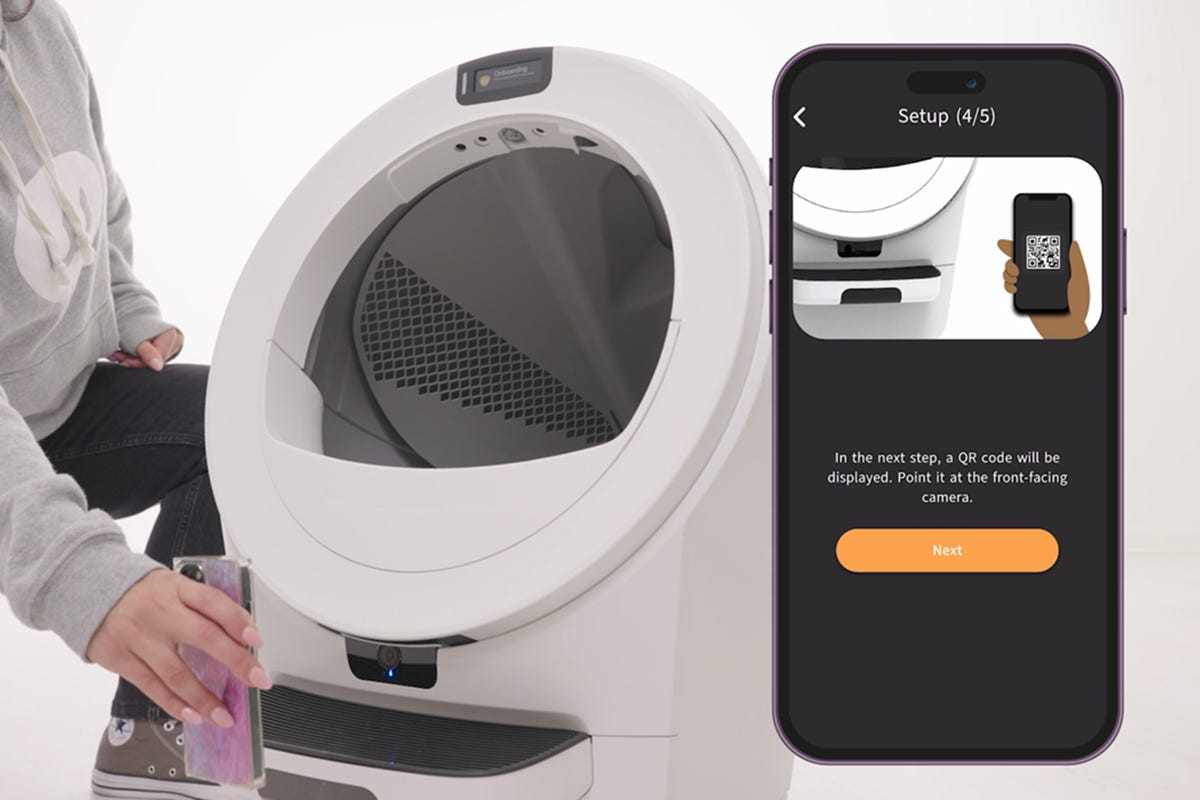
What to do:
Ensure the camera LED is blinking blue before scanning
Make sure the QR code is clearly visible
Hold the QR code in front of Litter-Robot’s camera (about 6 inches / 15 cm away).
Screen brightness should be set to 40% or higher. If the QR cannot be read, increase the brightness of the screen.
Retry scanning once properly aligned.
If you are still unable to scan the QR code, contact Whisker Customer Experience.
🔴Solid red (during Factory Reset)
What it means:
The camera is performing or has just completed a Factory Reset.
The solid red light may appear briefly (about 5–10 seconds) during the reset process
This is expected behavior
What to do:
No action is needed. Wait for the reset to complete.
🔴Blinking red (during Factory Reset)
In the process of performing Factory Reset this appears briefly. This is often temporary and may occur during a service disruption.
What to do:
Wait a few minutes for services to restore.
If blinking red persists, contact Whisker Customer Experience.
Factory Reset (camera LED troubleshooting)
Perform a Factory Reset if:
The camera LED continues blinking yellow after confirming correct WiFi credentials
The LED does not illuminate (ensure the camera is turned on)
In the Whisker app: Select your Litter-Robot 5 Pro → View Camera → Controls → confirm Camera Power is toggled on
The camera is stuck in solid white after turning on for 3 minutes
The QR code is not scanning
Steps
Press and hold the
 Cycle and
  Cancel buttons simultaneously for 3 seconds.
When prompted on screen, confirm the reset by pressing the
 Connect button.
The camera LED will be solid red.
Wait for the reset to complete. This takes approximately 2–3 minutes.
After the reset completes, the camera LED should return to blinking blue.
This means the camera is ready to be paired again.
Retry onboarding in the Whisker app.
Successful: The camera LED begins blinking blue, and onboarding completes successfully.
If the issue continues
Unplug the power supply from the base for 15 seconds.
Plug it back in.
Wait 90 seconds for the unit to reboot.
Confirm the camera LED is blinking blue.
Retry onboarding in the Whisker app.
Successful: The camera LED begins blinking blue, and onboarding completes successfully.
Unsuccessful: If the camera LED does not begin blinking blue after completing these steps, contact Whisker Customer Experience for further assistance.
Need more help?
Contact Whisker Customer Experience for assistance.
Didn't find what you're looking for?
Live support available Mon-Fri: 9AM-9PM EST and Sat-Sun: 9AM-5PM EST, or submit a ticket anytime.