The store will not work correctly in the case when cookies are disabled.

Litter-Robot 5 & Pro: Attention and error messages guide
Your Litter-Robot 5 and Litter-Robot 5 Pro display clear on-screen messages when
something needs your attention or when the robot cannot operate. This guide
explains all current Litter-Robot 5 Attention and Error messages and what they
mean.
Quick links
What the indicator lights mean
Your Litter-Robot 5 or Litter-Robot 5 Pro uses both an LCD screen and an LED indicator light to help you understand what the robot is doing. Before reviewing specific messages, here is a short guide to what each light color means:
|
⚪ White light Normal operation |
A solid white light means the robot is powered on and ready for use. Many system messages appear while the light remains white. |
|
🟡 Yellow light Attention required |
A yellow light means the robot needs attention but is not experiencing a critical issue. Examples include the waste drawer nearing capacity or the litter level being low. |
|
🔴 Red light Error state |
A red light means the robot has detected an error that prevents it from cycling. These messages must be resolved before the robot can operate again. |
|
🟢 Green light In use or cycle delay |
A blinking green light means the robot has detected weight inside the globe—usually a cat entering or exiting. After the cat leaves, the robot enters a Cycle Delay countdown before beginning a Clean Cycle. The light remains blinking green until the countdown finishes. |
|
🔵 Blue light Setup or connectivity |
A blue light is used during onboarding, network setup, or other configuration steps. You may see a blinking blue light when connecting the robot to WiFi or updating settings. |
Attention messages
These messages indicate that your Litter-Robot 5 needs attention but can still function normally. Take action soon to prevent unexpected interruptions.
| 🟡 Drawer almost full | The waste drawer is nearing capacity. The robot will continue cycling, but empty the drawer soon to prevent interruptions. |
| 🟡 Litter low |
Litter level inside the globe is below the recommended amount. Add
litter until it reaches the MAX fill line on the inside
of the globe. Press
 Cancel to zero the weight scale.
|
| 🟡 Disconnected | Robot is not currently connected to Wi-Fi. If it doesn’t reconnect automatically, check your router and internet connection. You can also update network settings in the Whisker app: select your device → Settings → Update Network. |
| 🟡 WiFi chip fault | Robot is unable to check in with its Wi-Fi module. Power cycle the robot (unplug for 30 seconds, plug back in). If the message returns, see WiFi chip fault. |
| 🟡 Replace filter soon |
Current filter is nearing end of life and should be replaced when
convenient. To rotate globe to the filter position, press and hold
Cancel for 3 seconds, then follow on-screen prompts.
|
| 🟡 New filter required |
A new OdorTrap® pack or carbon filter is required. Hold
Cancel for 3 seconds to rotate globe
to the filter replacement position, then follow on-screen prompts.
|
Error messages
These messages indicate that your Litter-Robot 5 cannot operate until the issue is resolved. Action is needed to resume functionality.
| 🔴 Drawer full |
The robot has detected that the waste drawer is full. Empty the drawer
and press
Cancel to dismiss the message.
Learn more.
|
| 🔴 Power fault | The robot is not receiving stable power. Ensure the power adapter is the original Whisker adapter and securely connected to both the unit and the wall outlet. Try a different outlet. If the issue persists, a new power supply or base may be needed. |
| 🔴 Motion in drawer |
Motion was detected in the waste drawer. The robot rotates the globe to
the dump position to allow anything inside to exit, then waits for
Cancel to be pressed or automatically returns Home
after five minutes.
Learn more.
|
| 🔴 Obstruction |
Something is preventing the globe from rotating. Remove the bonnet and
inspect the globe, base, and pinch bars for debris or clumps. Clear any
blockage and press
Cancel.
Learn more.
|
| 🔴 Motion in globe | Movement was detected inside the globe while the robot was at the Home position. Make sure no pets or objects are inside the globe. |
| 🔴 Board fault | A system board issue has been detected. Perform a Hard Reset by pressing and holding the Power button for six seconds. If the message returns, contact Whisker Customer Experience. |
| 🔴 Motor fault | The motor encountered resistance during rotation. Check for jams and ensure nothing is interfering with movement. |
| 🔴 Bonnet removed |
The bonnet is not correctly seated. Align the bonnet hinge and ensure
both latches click securely into place, then press
Cancel.
Learn more.
|
| 🔴 Hall Effect fault | The robot cannot reliably detect globe movement during rotation. Check that the globe is installed correctly and rotates freely. If the error returns, contact Whisker Customer Experience. |
| 🔴 Position fault |
The robot cannot find or maintain the correct globe position after three
attempts. Reseat the globe, power the unit back on, then press
Cancel and
 Cycle to run a test cycle.
Learn more.
Cycle to run a test cycle.
Learn more.
|
| 🔴 Refill litter |
The litter level is critically low. Add litter until it reaches the
MAX fill line, then press
Cancel to zero the weight scale.
|
| 🔴 Function unavailable | The requested action cannot be completed while the robot is in a restricted state. Resolve any current error messages or wait for the robot to return to the ready state. |
| 🔴 Cat detected or Cycle interrupted | A presence was detected during a cycle. Make sure the area inside and around the robot is clear. Learn more. |
| 🔴 Extended scale activity |
The scale detected activity for more than 30 minutes. Check inside the
globe and beneath the base for objects or uneven flooring, then press
Cancel.
Learn more.
|
| 🔴 Overloaded globe |
The globe is encountering resistance during rotation. Ensure the carbon
filter cover is properly seated and the seal strips are not catching on
the globe, then press
Cancel.
Learn more.
|
| 🔴 Scale not calibrated | Litter-Robot is equipped with a calibrated weight scale to accurately detect when a cat has entered the unit, as well as measure its weight. If this message appears, the unit has lost its factory scale calibration values. Contact Whisker Customer Experience for further assistance. |
Litter-Robot 5 Pro: What the camera indicator lights mean
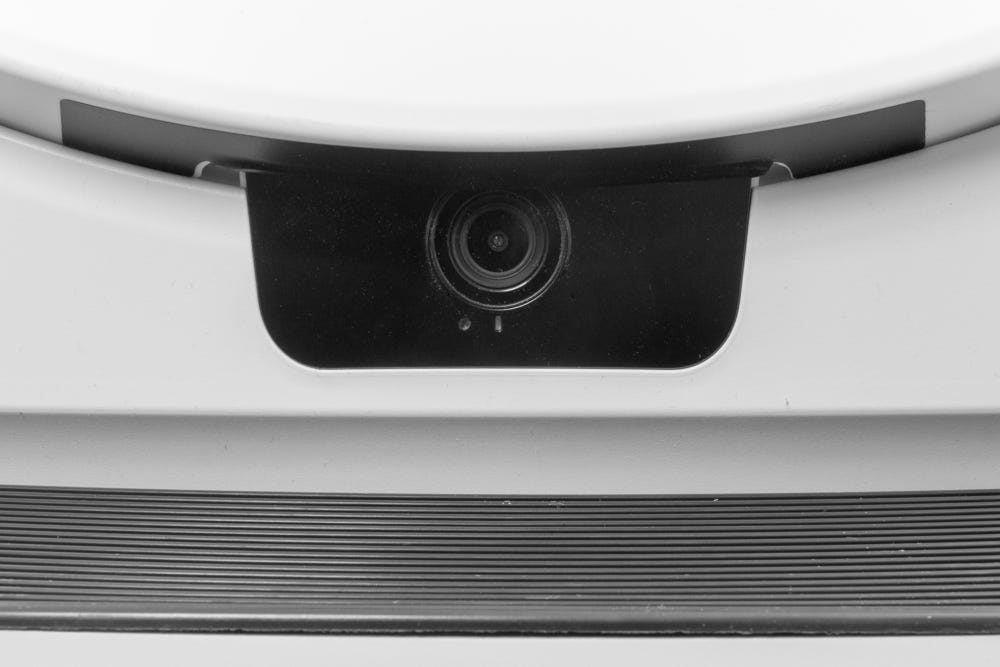
Litter-Robot 5 Pro includes two cameras:
-
A front-facing camera used for Live View and event recordings.
-
An internal camera used for monitoring activity inside the globe.
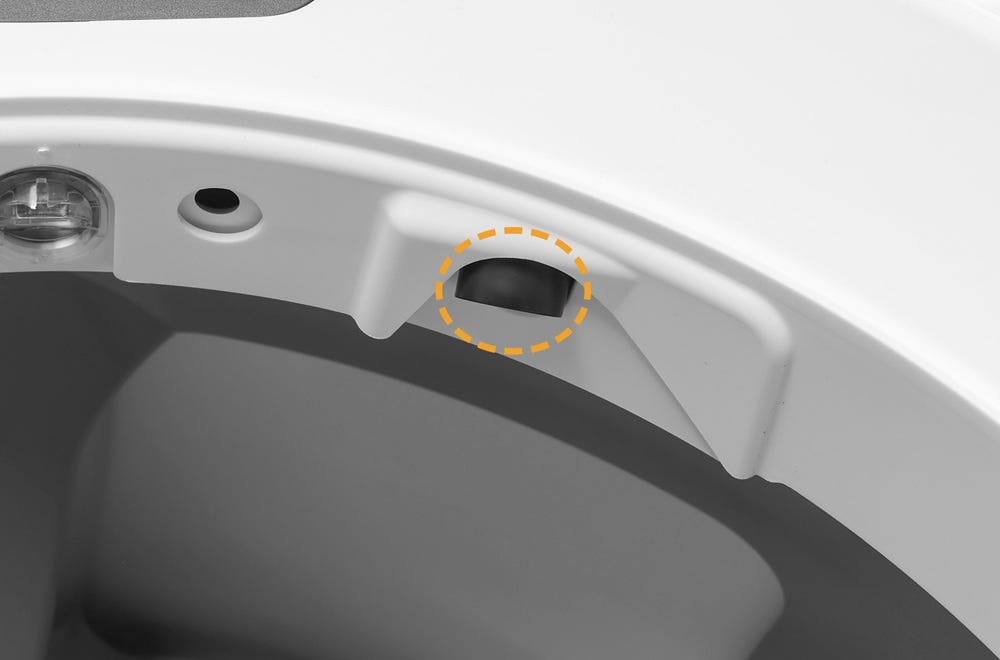
The camera indicator light applies only to the front-facing camera. This light provides status information related to camera connectivity, onboarding, and cloud communication.
Below is a guide to what each camera indicator light means and what to do next.
| ⚪ Solid white | The front-facing camera is powered on and operating normally. A solid white light means the camera is connected and ready. This light may also appear briefly while the device is starting up. |
| 🟢 Blinking green | The front-facing camera is actively recording video. This light may appear when Live View is open or when the camera is capturing an event. This is normal behavior and does not indicate a problem. |
| 🟡 Blinking yellow |
The camera was unable to connect to the WiFi network.
|
| 🔴 Blinking red |
The camera lost its connection to the cloud while already onboarded.
This is often temporary and may occur during a broader service
disruption. When this happens:
|
| 🔴 Solid red |
The camera is undergoing or has just completed a factory reset.
|
| 🔵 Blinking blue |
The camera is in onboarding mode or completing a firmware update.
|
What to do:
Continue onboarding in the Whisker app and ensure the correct WiFi credentials are entered.
Need more help?
Please contact Whisker Customer Experience for more assistance.
Didn't find what you're looking for?
Live support available Mon-Fri: 9AM-9PM EST and Sat-Sun: 9AM-5PM EST, or submit a ticket anytime.