The store will not work correctly in the case when cookies are disabled.

Litter-Robot 5 & Pro: LitterHopper® disconnected
If your Litter-Robot 5 LitterHopper is no longer connected, you may see a notification in the Whisker app, the LitterHopper may disappear from the Device Status page, or Device Activity may show that it’s disconnected.
Follow the steps below to restore the connection.
Quick links
- Check LitterHopper connection status
- Check LitterHopper installation
- Check connection and dispensing area
- Reinstall LitterHopper
Before you begin
Make sure:
- Unit is plugged in
- Unit is connected to WiFi and online
- Firmware is on the most current version
- If your firmware is not on the most current version, contact Whisker Customer Experience for assistance.
Check LitterHopper connection status
If LitterHopper is disconnected, you may notice:
- A push notification indicating the LitterHopper is disconnected
- A Device Activity status like “LitterHopper disconnected”
- The LitterHopper card is no longer visible on the Device Status page
Check LitterHopper installation
If LitterHopper is not fully seated, it may not be detected by the unit.
- Remove the LitterHopper by lifting it up and away from Litter-Robot.
Note: If the LitterHopper contains litter, place a container underneath before removing to prevent spillage.
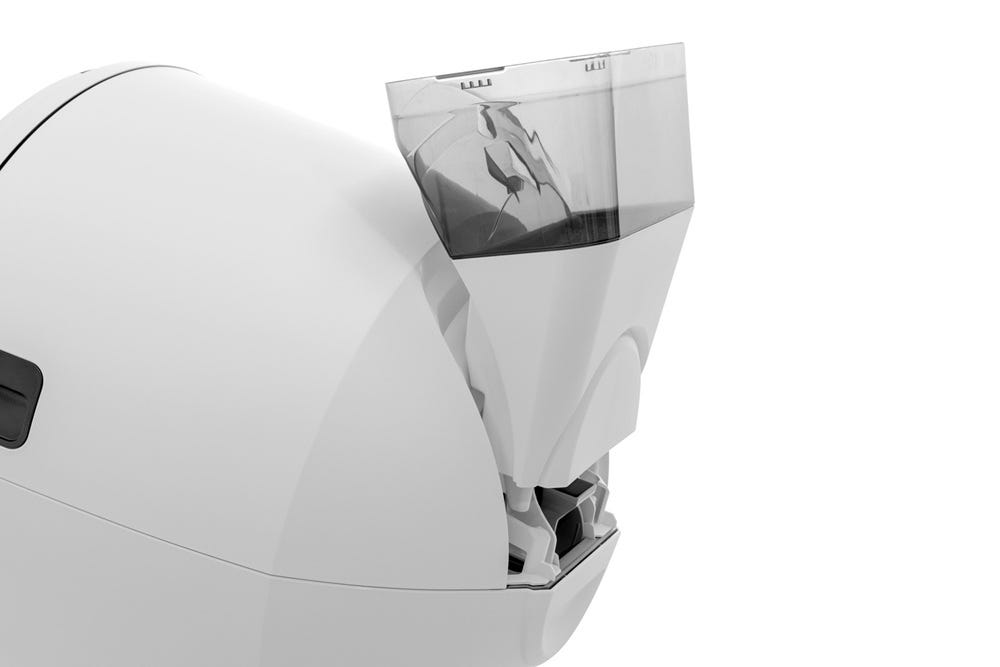
Check the following areas on the unit:
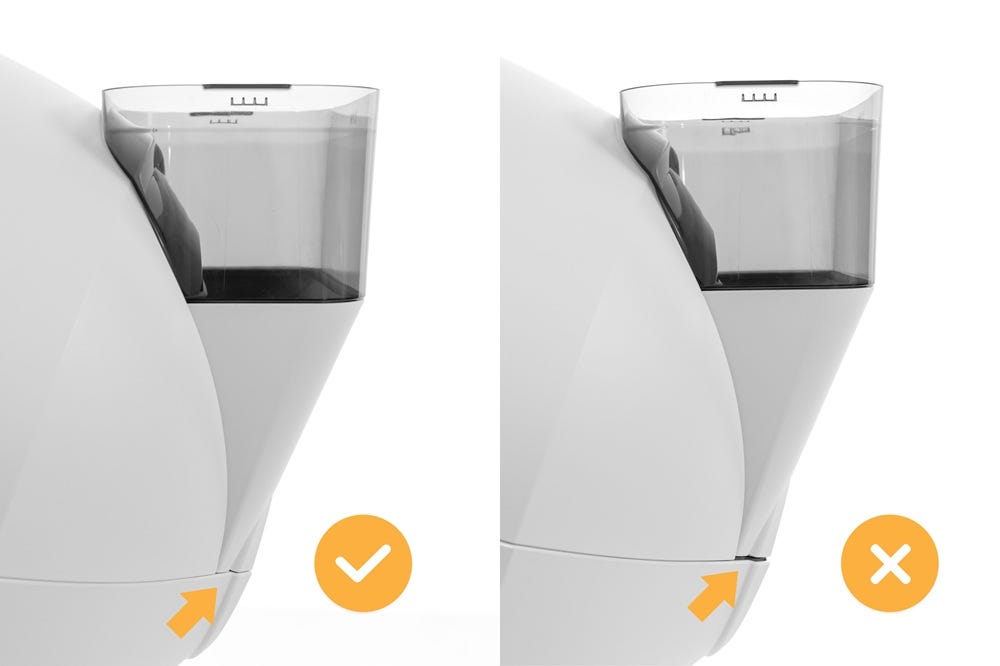
- Ensure there is no gap between the bonnet and the base
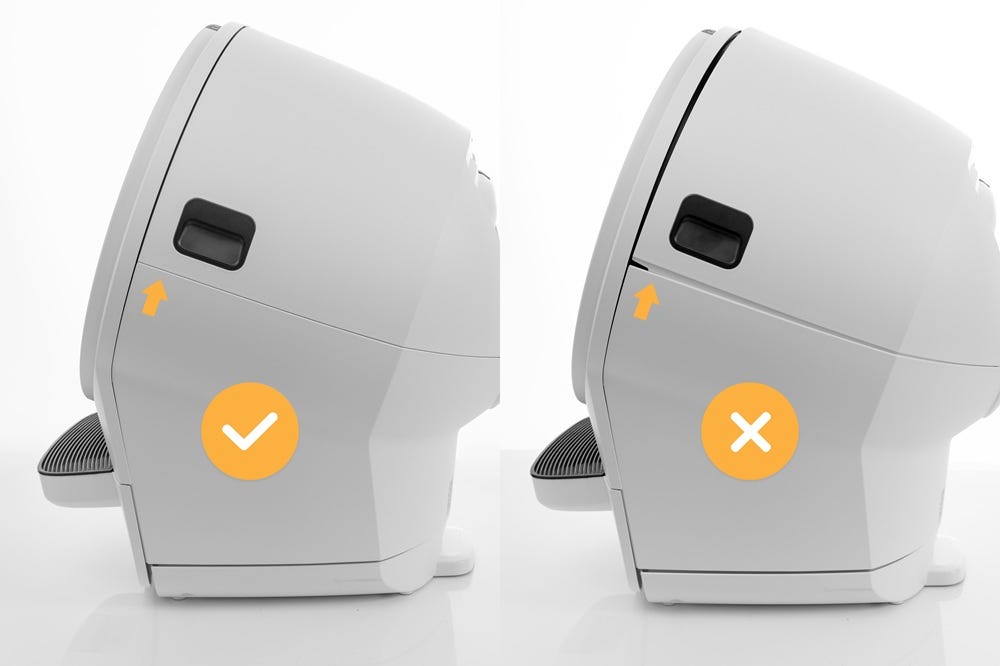
- Ensure the bonnet hinge is fully seated in the base hinge pocket
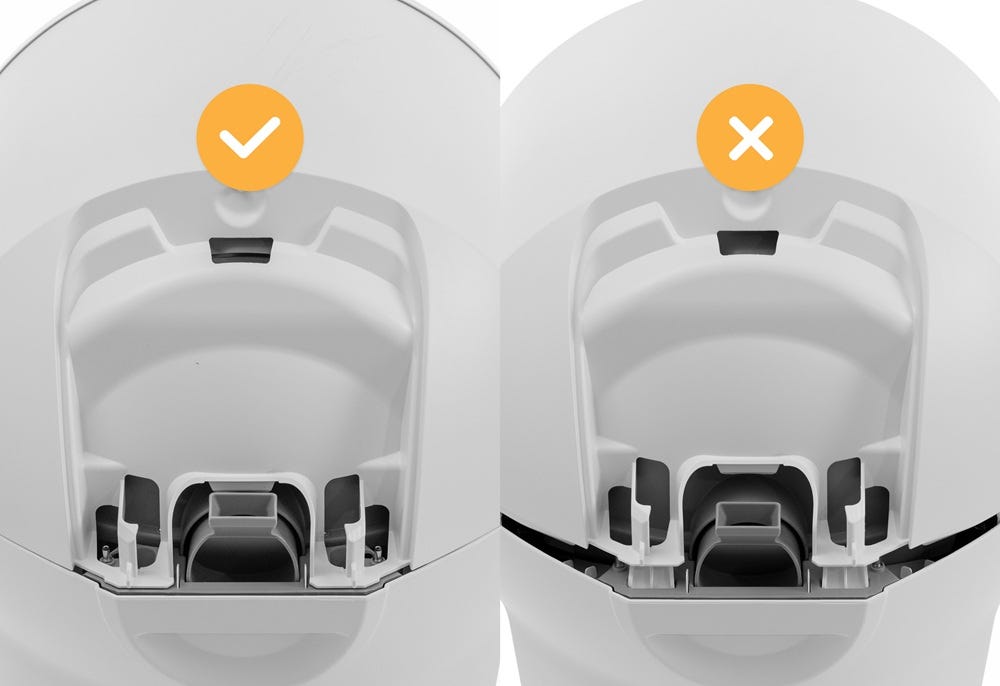
Check connection and dispensing area
Debris in the connection or dispensing areas may prevent the LitterHopper from being detected or properly connecting.
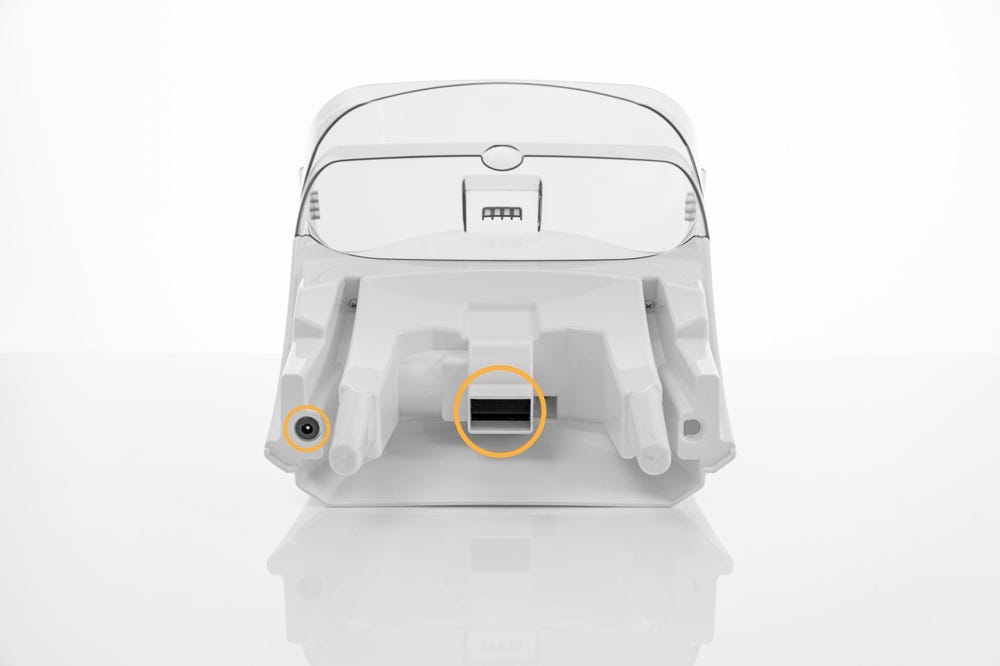
Inspect the following areas and clear them of any litter, clumps, or debris:
- The dispensing area and metal prong on the LitterHopper
- Ensure the metal prong is visible, clean, and not damaged.
- The dispensing area on the base
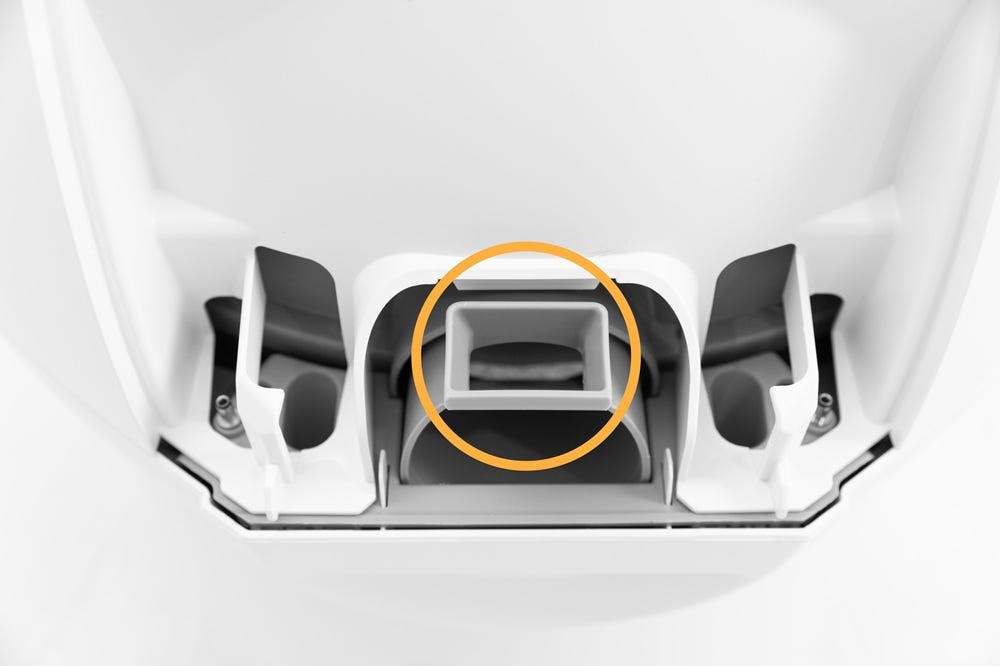
Note:
If any debris or litter is visible in the circular pockets, remove the bonnet for easier access. Vacuum the circular pockets to ensure the posts can fully make proper contact.
Regularly inspect and vacuum the dispensing area and circular pockets on both sides of the dispensing area to avoid errors.
Reinstall LitterHopper
If the bonnet was removed, reinstall it by aligning the bonnet with the hinge on the back of the base and rotate it downward until it is fully seated and latched.
- The key must protrude through the opening in the back of the bonnet.
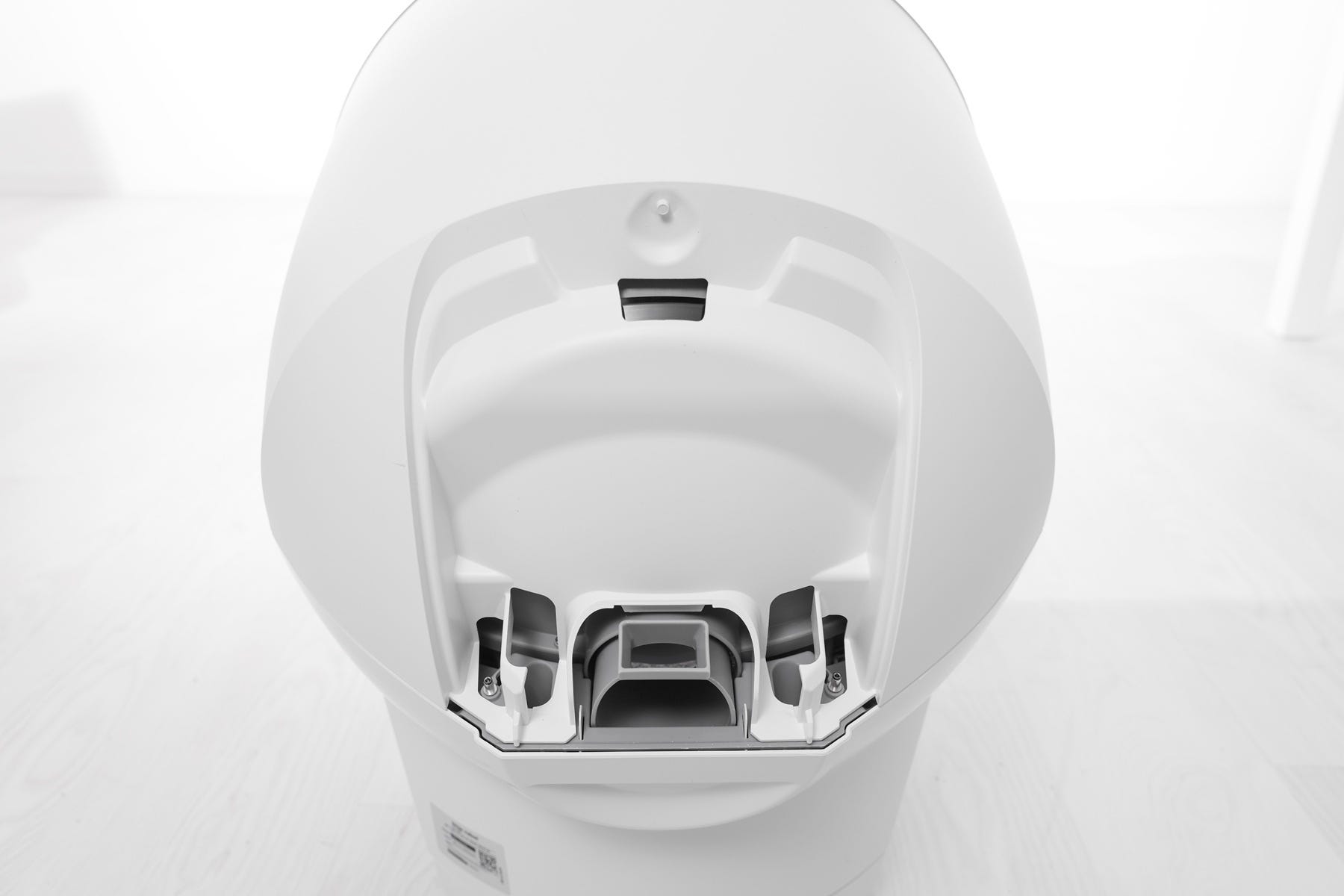
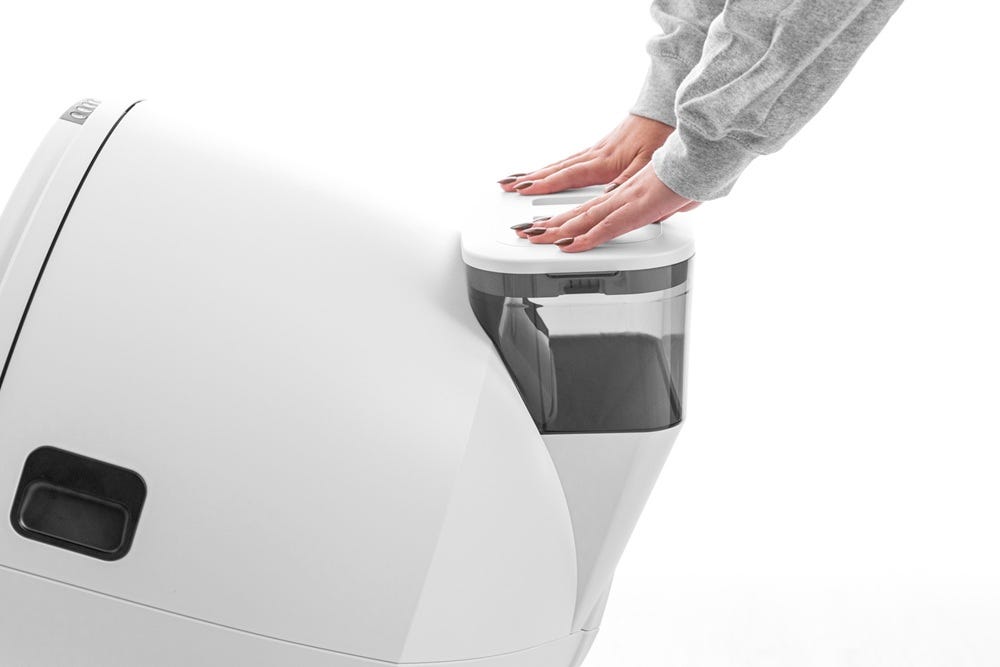
- Align the posts on the LitterHopper with the circular pockets and lower it into place
- Ensure there is no gap between the bottom of the LitterHopper and the base.
- Check that the mounting tab is fully seated in the slot on the bonnet.
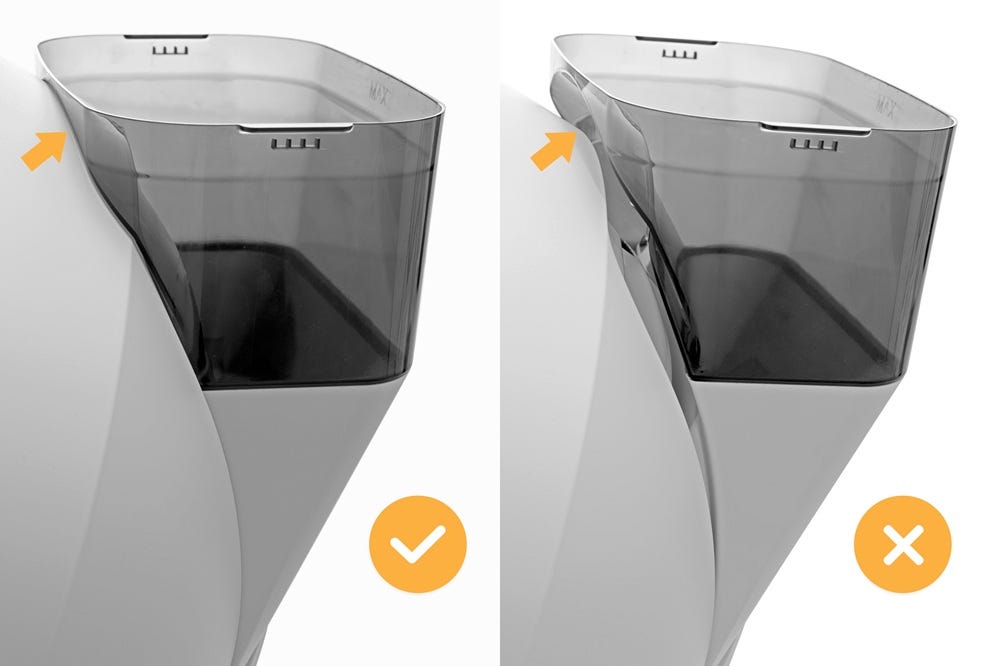
- When fully installed, there should be no gaps around the top, bottom, or sides of the LitterHopper and bonnet. The LCD Screen will display a “LitterHopper detected” message.
In the Whisker app, you will also see confirmations that the LitterHopper is connected:
- A push notification indicating the LitterHopper is enabled
- “LitterHopper detected” and “LitterHopper enabled” in the History page under Device Activity
- A LitterHopper card on the Device Status page
- Press the
 Cancel button to zero the weight scale.
Successful:
Litter-Robot displays a “LitterHopper detected” message on the LCD screen and a notification is sent in the Whisker app.
Unsuccessful:
Litter-Robot does not detect the LitterHopper, and the LitterHopper does not appear on the Device Status page in the Whisker app. Ensure the LitterHopper is properly in place, then repeat the installation steps.
Need more help?
If additional support is needed, please contact Whisker Customer Experience.
Didn't find what you're looking for?
Live support available Mon-Fri: 9AM-9PM EST and Sat-Sun: 9AM-5PM EST, or submit a ticket anytime.