The store will not work correctly in the case when cookies are disabled.

Litter-Robot 5 Pro: Camera detection tips
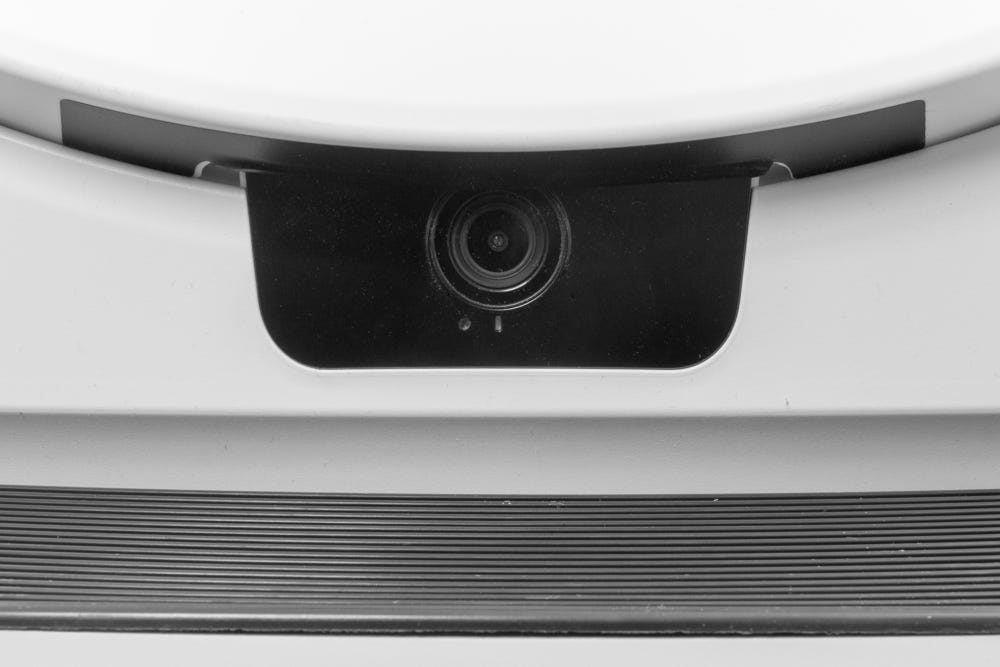
The Litter-Robot 5 Pro’s integrated camera uses advanced detection technology to identify your cat. If you’ve noticed missed detections, “Unidentified Cat” notifications, or inconsistent identification, a few simple adjustments can help improve your camera’s performance.
Follow the steps below to optimize Litter-Robot 5 Pro’s cat detection accuracy, reduce false triggers, and ensure your camera captures each event clearly.
Note: If Live View opens but shows a black screen, this is typically related to network connectivity rather than camera detection. For more information, see Litter-Robot 5 Pro: Integrated Camera setup FAQ.
Quick links
Before you begin
Before getting started, make sure your Litter-Robot 5 Pro is updated and properly connected. These quick checks help ensure any changes you make to improve detection will work effectively.
Make sure your Litter-Robot 5 Pro is placed on a flat, stable surface.
- Confirm the robot is connected to WiFi and updated to the latest firmware.
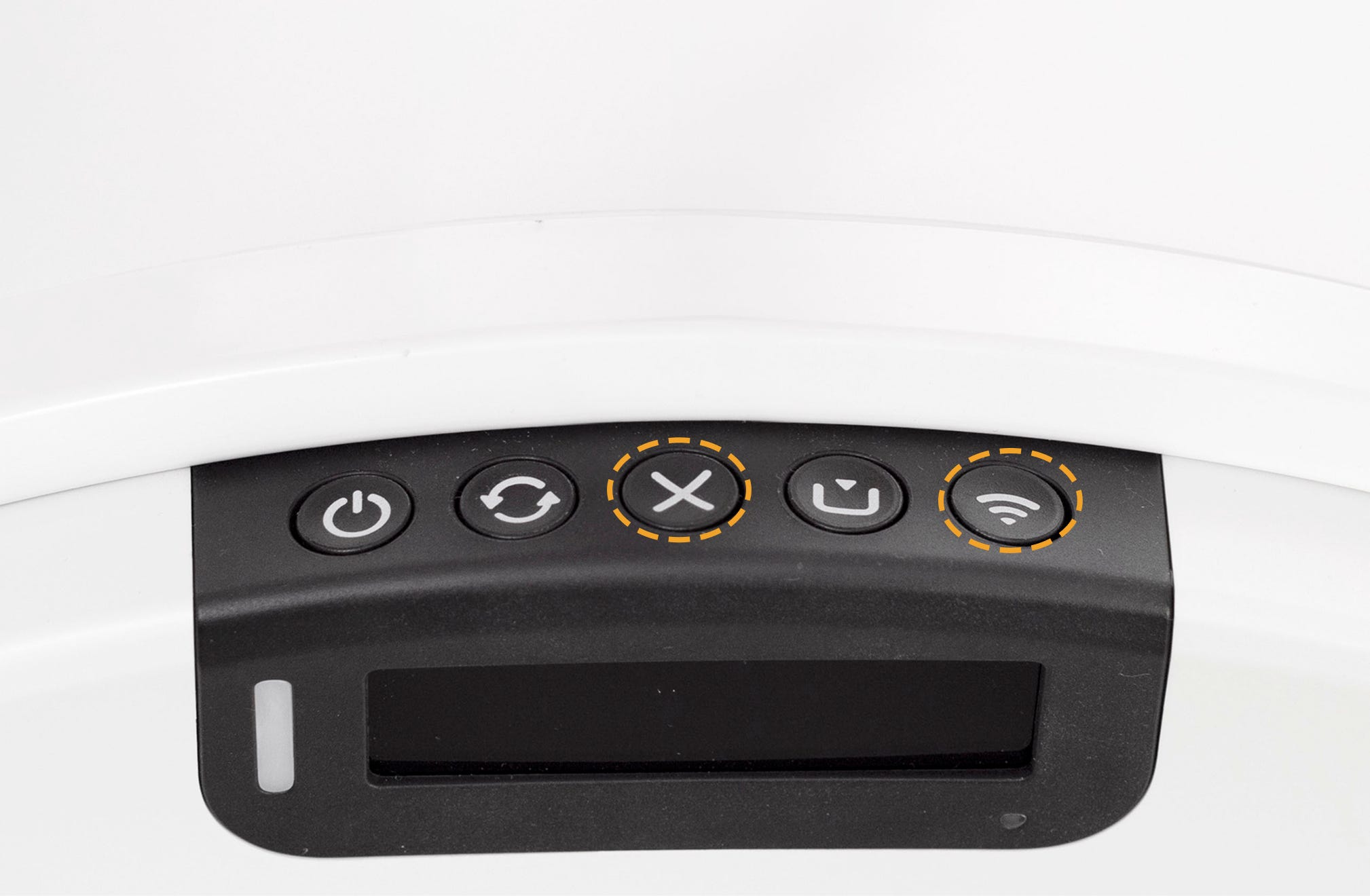
To check the current firmware version on your Litter-Robot press and hold the Cancel and Connect buttons together for 3 seconds.
The tips below can help improve detection and identification performance while reducing missed detections, false positives, or incorrect identifications over time.
Optimize room and lighting setup
Good lighting and placement are key to helping your Litter-Robot 5 Pro camera detect your cat accurately. The camera performs best in evenly lit rooms with minimal shadows or glare.
Choose a room with consistent lighting and minimal background movement.
Avoid dimly lit areas or extreme changes in brightness throughout the day.
Position your Litter-Robot so pets appear medium-sized in the frame (about 20–50%).
Better lighting helps the camera accurately capture details, improving both detection and identification.
Avoid reflections and bright screens
Reflections, bright screens, or images of cats in the camera’s field of view can trick the camera into thinking it sees movement or a pet. Reducing these visual distractions helps prevent false detections.
Keep the camera’s view clear of mirrors, windows, shiny floors, or other reflective surfaces whenever possible.
Reflections, glare, or sudden changes in light can cause the camera to interpret movement incorrectly.
If a TV or monitor is visible, it may trigger false detections, especially if a cat appears on the screen.
Be mindful of printed or photographed images of cats (such as pictures on bags of litter, posters, or wall art). If these images are large or detailed enough, the camera may detect them as a real cat.
Angle Litter-Robot slightly to reduce reflections, bright light sources, or visual distractions hitting the camera lens.
Night vision and low-light behavior
The Litter-Robot 5 Pro camera automatically switches to infrared (IR) mode in low-light environments. Understanding how this feature works can help explain variations in image color and detection at night.
- The camera switches to infrared (IR) mode automatically in dark conditions; this setting cannot be manually adjusted.
- If the thumbnail image appears in color, the IR LEDs were off (daytime mode). If the image appears black and white, the IR LEDs were on (night mode).
- Even with night vision active, the camera performs best with some ambient light. A dim light source in the room — like a wall sconce, a small lamp, or indirect light from a window — can improve detection. Avoid overly bright light, which can create shadows or cause the camera to switch out of night mode unexpectedly.
- If Litter-Robot is in a darker room, avoid facing it toward a bright doorway, as this can also affect detection consistency.
- If detection seems inconsistent at night, try slightly repositioning Litter-Robot so your pet's face and upper body are clearly visible within the camera's field of view.
Ensure proper camera view and placement
Your camera performs best when it has a clear, unobstructed view of your cat. Obstructions or partial angles can make it difficult for the system to recognize movement correctly.
Make sure your pet’s face and upper body are visible in the camera’s view.
Avoid placing Litter-Robot behind furniture, near clutter, or anywhere the pet’s face may be frequently obscured.
If you notice that detections are inconsistent or seem to miss fast movement, try slightly repositioning Litter-Robot so pets remain in the camera’s field of view for a longer period of time. This increases the chances of a clear capture, especially when pets move quickly across the frame.
Clear visibility of your pet’s face greatly improves detection reliability.
Select PawPrint™ images
PawPrint™ is Whisker's advanced cat identification system designed to recognize and monitor individual cats in multi-cat households. One of the ways it does this is through the external camera, which analyzes your cats' facial features for precise identification. Reviewing and selecting images of your cats is how you turn on the camera's facial recognition to help make your cat’s PawPrint™ more accurate.
When does PawPrint enrollment become available?
PawPrint enrollment becomes available once all of the following are true:
You have an active Whisker+ subscription
The camera has captured enough new, unidentified cat images
At least one cat profile is active and not fully enrolled
When these conditions are met, the PawPrint card will automatically appear at the top of the Events screen in the Whisker app.
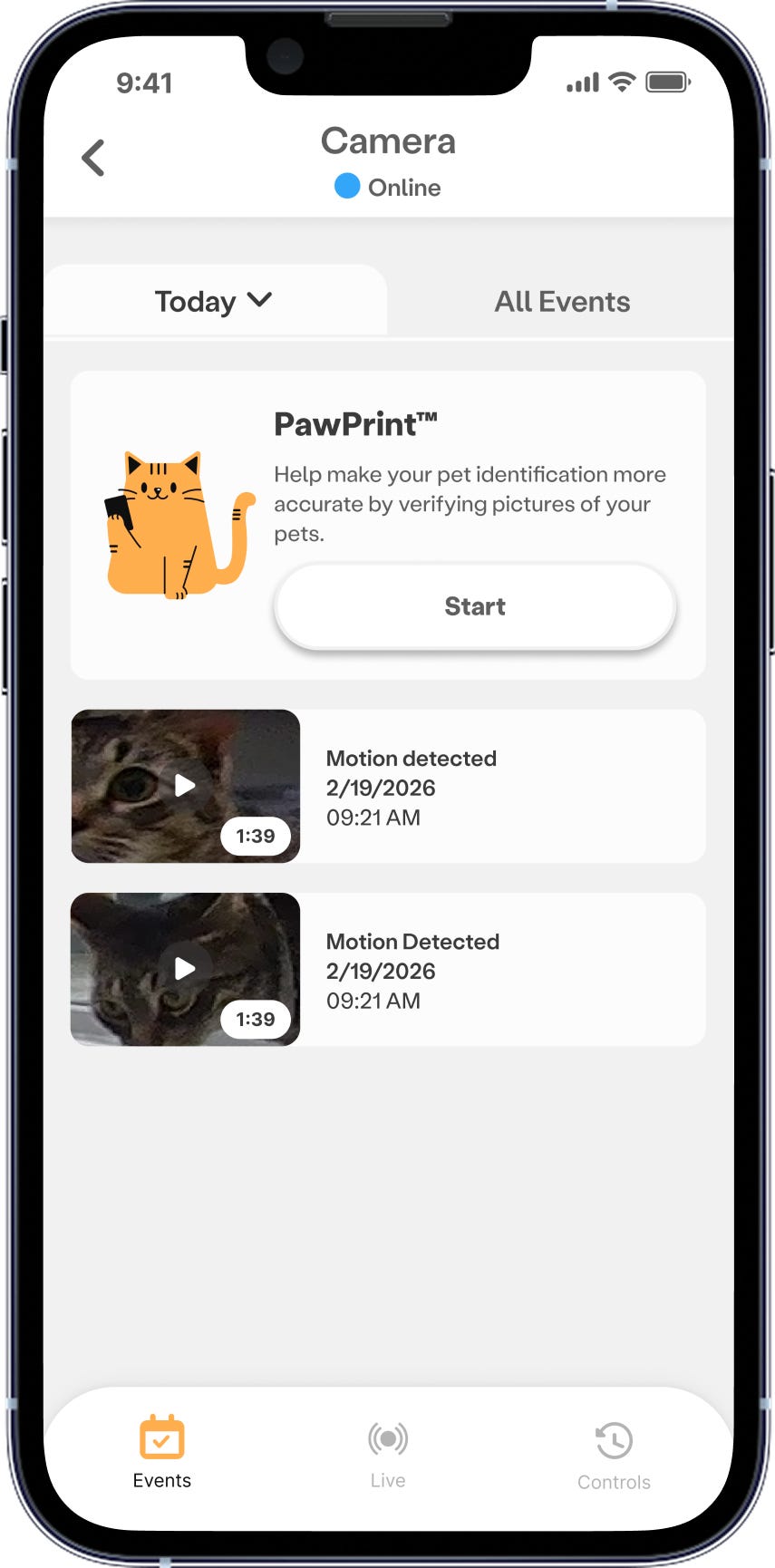
If you don’t see the card yet, continue using your Litter-Robot as usual, it will appear once images are ready for review.
Once the PawPrint card appears on the Events screen:
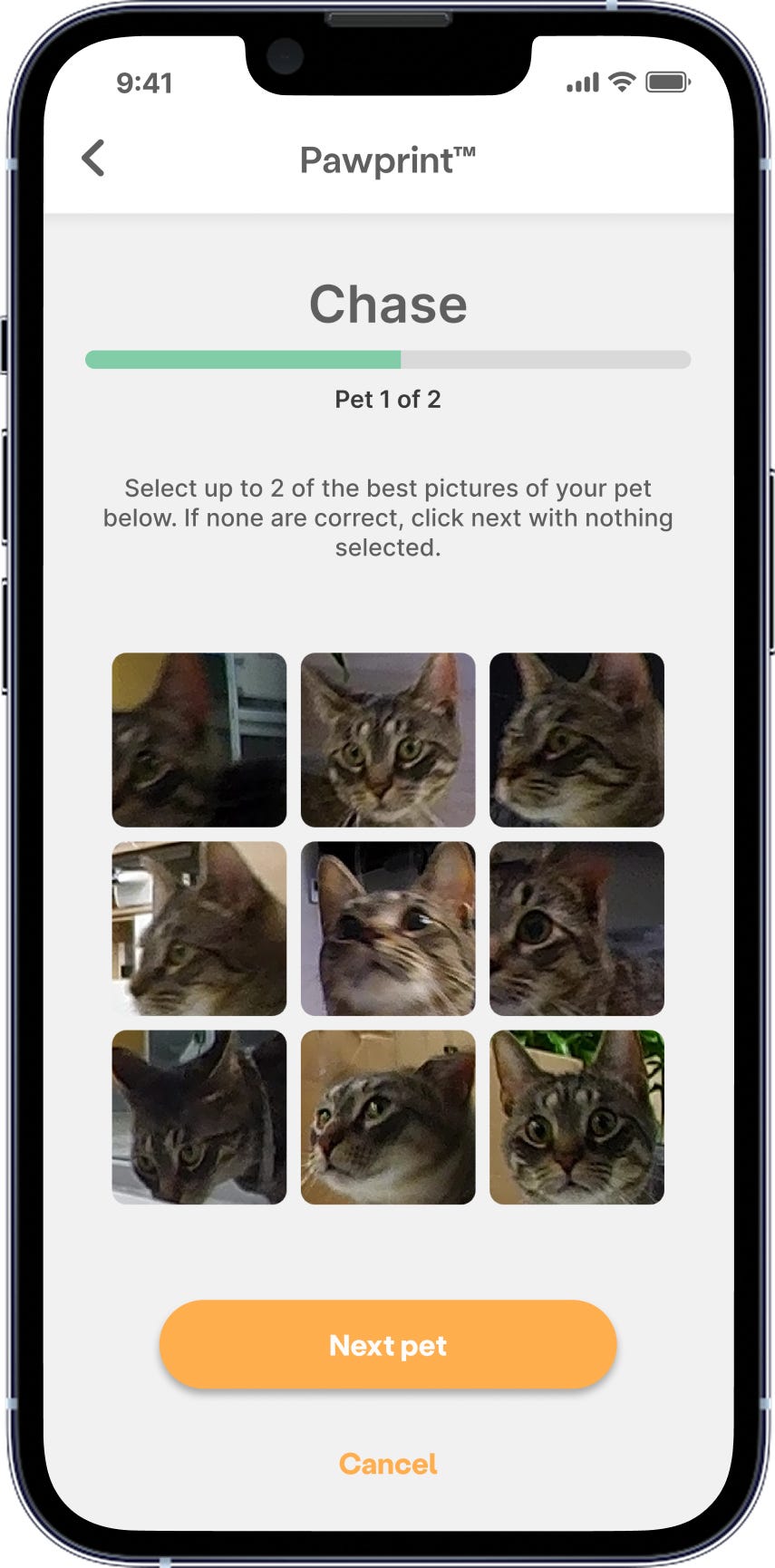
Select the PawPrint card at the top of the Events screen to assign images to each cat.
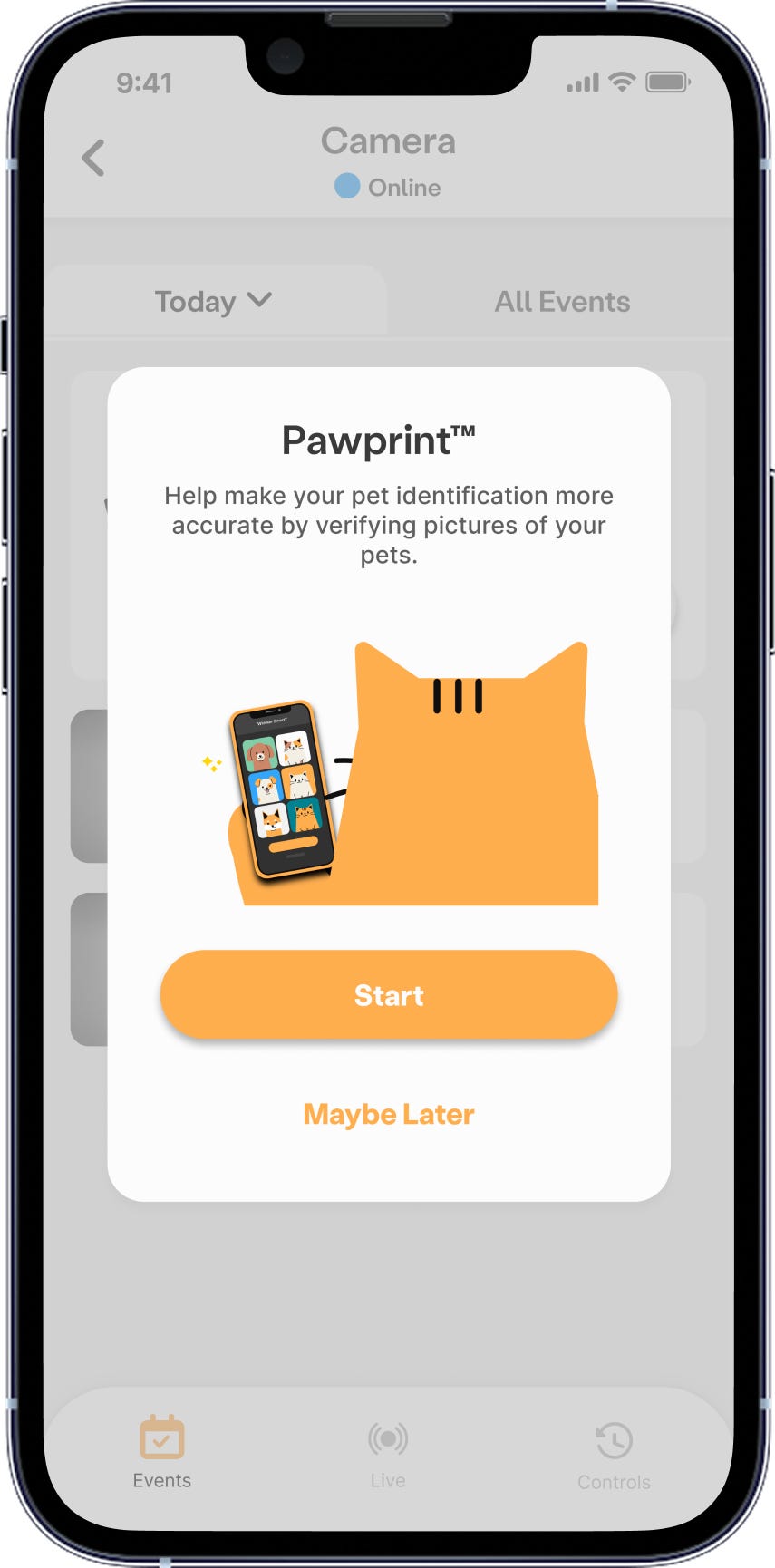
- Each cat should have two selected images (clear facial photos are best for accurate identification). The top row should feature the clearest images. Avoid choosing images of your cat that appear too similar.
Troubleshooting detection issues
If you’re still seeing missed detections or “Unidentified Cat” notifications, the following tips can help identify what’s happening. Most detection issues fall into three categories: missed detections, false positives, or wrong identification.
Missed detection
If the camera did not detect a pet or activity that clearly occurred:
Make sure the cat’s entire face was visible during the event.
Confirm lighting is adequate and not overly dim or backlit.
Ensure you have selected PawPrint thumbnails for each of your cats.
If you don’t see the PawPrint card at the top of the Events screen, your cats may already be enrolled, there may not be enough new images available yet, or you may not have an active Whisker+ subscription.
Slightly rotate or reposition the Litter-Robot so the pet moves directly across the frame.
False positives
If the camera detected something that wasn’t actually a pet:
Check for moving shadows, reflections, or TV screens within the frame.
If you receive an “Unidentified Cat” notification, confirm what the camera might have seen (another animal, reflection, or object).
If your dog is triggering an event, reach out to Whisker Customer Experience and share the dog’s breed so we can assist.
Wrong identification
If the camera detected a pet correctly, but misidentified the pet:
If a cat is consistently labeled as another, ensure that you have completed PawPrint enrollment for each cat in your household.
Confirm or correct PawPrint Pet Identification in the Events screen to help our Engineering team improve the model in future updates.
If you don’t see the PawPrint card at the top of the Events screen, your cats may already be enrolled, there may not be enough new images available yet, or you may not have an active Whisker+ subscription.
Consider adding more light near Litter-Robot or adjusting the angle slightly.
Reset PawPrint™ facial ID
If you've tried the steps above and your cats are still being missed or misidentified, you can reset PawPrint™ facial ID. Resetting clears the facial recognition data used to identify each cat so the camera can capture new images and you can select better photos.
Important: Resetting clears the facial recognition data for every cat on your Litter-Robot and can't be undone. Your cats won't be identified by name until you set a new PawPrint™ ID.
To reset PawPrint™ facial ID:
- Open the Whisker app and select your Litter-Robot 5 Pro.
- Go to the Controls tab, then open the Camera controls.
- Select Reset PawPrint facial ID.
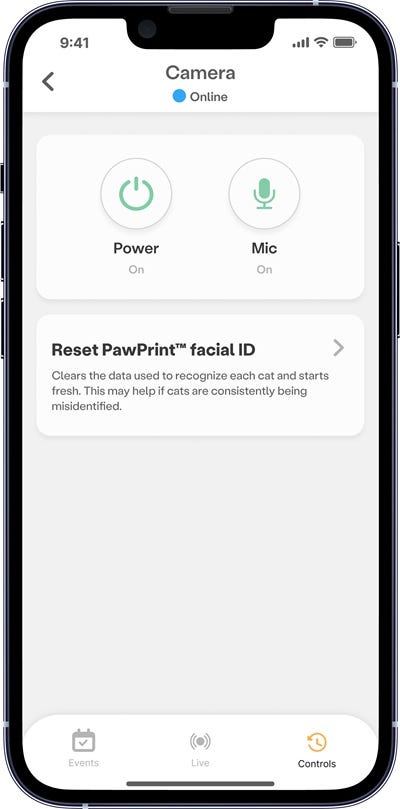
- Review the confirmation message, then select Reset now.
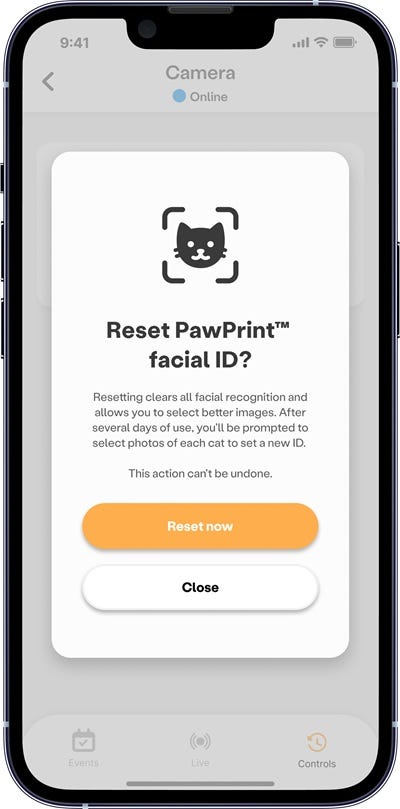
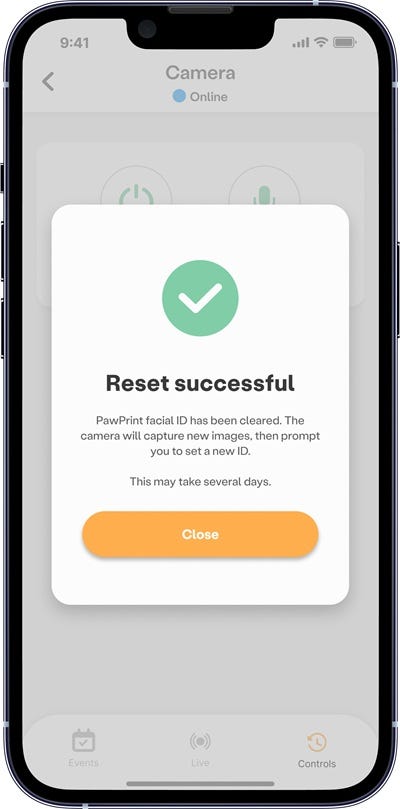
- Wait for the reset to finish. This may take a few minutes.
What happens next
- Your cats will show as unidentified until PawPrint™ has collected enough images.
- Over the next several days, the camera captures new images as your cats use Litter-Robot.
- Once enough images are available, you'll be prompted to select photos of each cat to set a new PawPrint™ ID.
Successful: You see Reset successful, and you're prompted to select new photos for each cat after several days of use. Identification accuracy should improve once the new PawPrint™ ID is set.
Unsuccessful: The reset doesn't complete, or your cats are still misidentified after you've set a new PawPrint™ ID. Continue to When to contact support.
When to contact support
If you've completed the steps above, including resetting PawPrint facial ID, and are still experiencing repeated detection issues:
Contact Whisker Customer Experience and share a brief description of the event, including what appeared in the thumbnail.
If possible, provide screenshots or short clips (avoiding personal or sensitive information).
Let us know when you reset PawPrint facial ID and whether you've been prompted to select new photos since.
Our team will review the details and pass along patterns or edge cases to Engineering for further analysis.
Didn't find what you're looking for?
Live support available Mon-Fri: 9AM-9PM EST and Sat-Sun: 9AM-5PM EST, or submit a ticket anytime.