The store will not work correctly in the case when cookies are disabled.

Litter-Robot 5 Pro: Offline
If your Litter-Robot 5 Pro has already been onboarded to the Whisker app but
may have lost connection, you can check the WiFi status by short pressing the
 Connect button on the control panel.
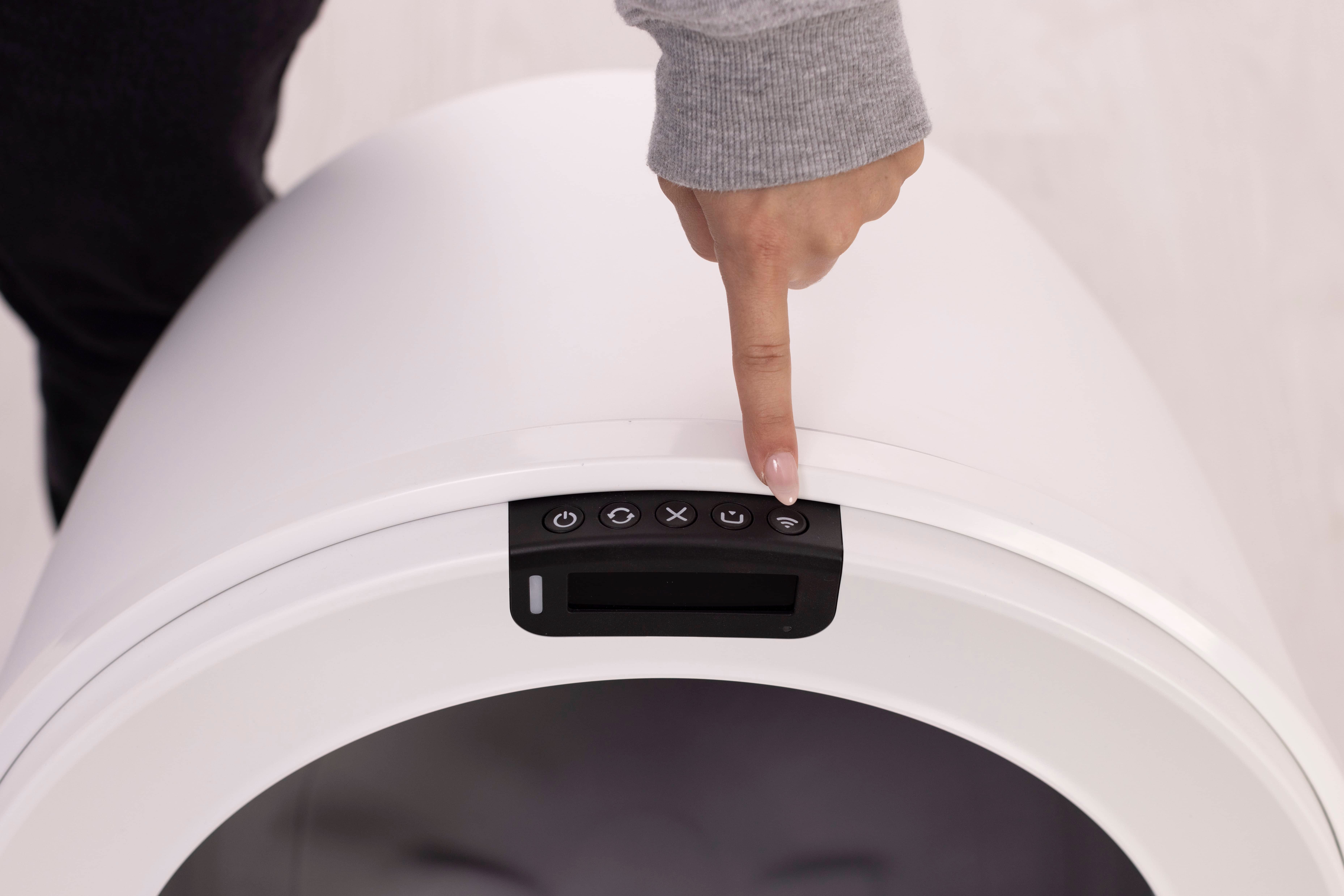
The LCD screen will display the current connection status (for example, “Disconnected”). You can also check the connection status in the Whisker app.
If your WiFi network has recently changed, follow these steps to update your
network and restore the connection.
Need help with connecting your
Litter-Robot 5?
Quick links
Understanding the WiFi Disconnected state
When your Litter-Robot 5 Pro loses WiFi connection:
-
The Whisker app will display an Offline status
To check the connection status on the unit:
-
Short press the
Connect button on the control panel
-
The LCD screen will provide the current status.
-
If the unit is offline, the LCD screen will display:
Disconnected
Reconnecting, check router, or update network in app.
-
The robot will automatically attempt to reconnect using the last saved network credentials. If reconnection fails after several minutes, further action may be required. If your WiFi network has changed (for example, a new router), you will need to perform a Factory Reset and reconnect the unit in the Whisker app.
Before you begin
-
Verify that your home WiFi network is active and stable.
-
Confirm other devices can connect to the same network.
-
Ensure your router is within range of the Litter-Robot.
-
Note: If your router or WiFi credentials have changed, please follow the steps to update your network and restore the connection
Check your WiFi network
-
Make sure your internet connection is working.
-
Confirm your network name (SSID) and password haven’t changed. If they have, you will need to perform a Factory Reset before reconnecting.
-
Litter-Robot 5 Pro supports both 2.4 GHz and 5 GHz.
-
Reboot your router by unplugging it for 30 seconds, then plugging it back in.
-
Move the unit closer to the router during reconnection attempts.
Reconnect your Litter-Robot 5 Pro
When the unit displays Disconnected, the robot automatically begins a
reconnect attempt:
-
When pressing the
Connect button, the LCD shows “Disconnected”
for roughly 5 seconds.
-
The screen then updates to “Reconnecting, check router or update network in app”
for about 10 seconds while the robot attempts to re-establish connection.
-
If reconnection succeeds, the LED and camera LED Indicator Light turns solid
white and the LCD will update
to “Connected”.
- If the yellow blinking light persists after attempting to reconnect, continue to the next section to verify network details. If your WiFi network has changed, a Factory Reset is required before reconnecting.
Confirm successful reconnection
-
When connection is restored, the LED and camera LED Indicator Lights will be solid white.
-
Open the Whisker app and confirm your Litter-Robot shows Ready.
Send a manual Cycle command in the app to ensure communication is active.
-
Tap your device → Controls→ Cycle
Success: Your Litter-Robot 5 Pro performs a cycle and returns to the Home position with a solid white light.
Unsuccessful: The device status will appear as “Offline” in the Whisker app, and remote commands will not function. Continue to the next steps.
Update or change your network (if needed)
If your WiFi network has changed (for example, a new router, updated password, or new location), your Litter-Robot will not reconnect automatically.
At this time, updating WiFi credentials requires a Factory Reset.
Factory Reset and reconnect
-
Delete the robot from the Whisker app
-
Select your device → tap Settings → tap Delete Robot → tap Yes
-
-
On the control panel: Press and hold the
 Cycle and
 Cancel buttons simultaneously for 3 seconds.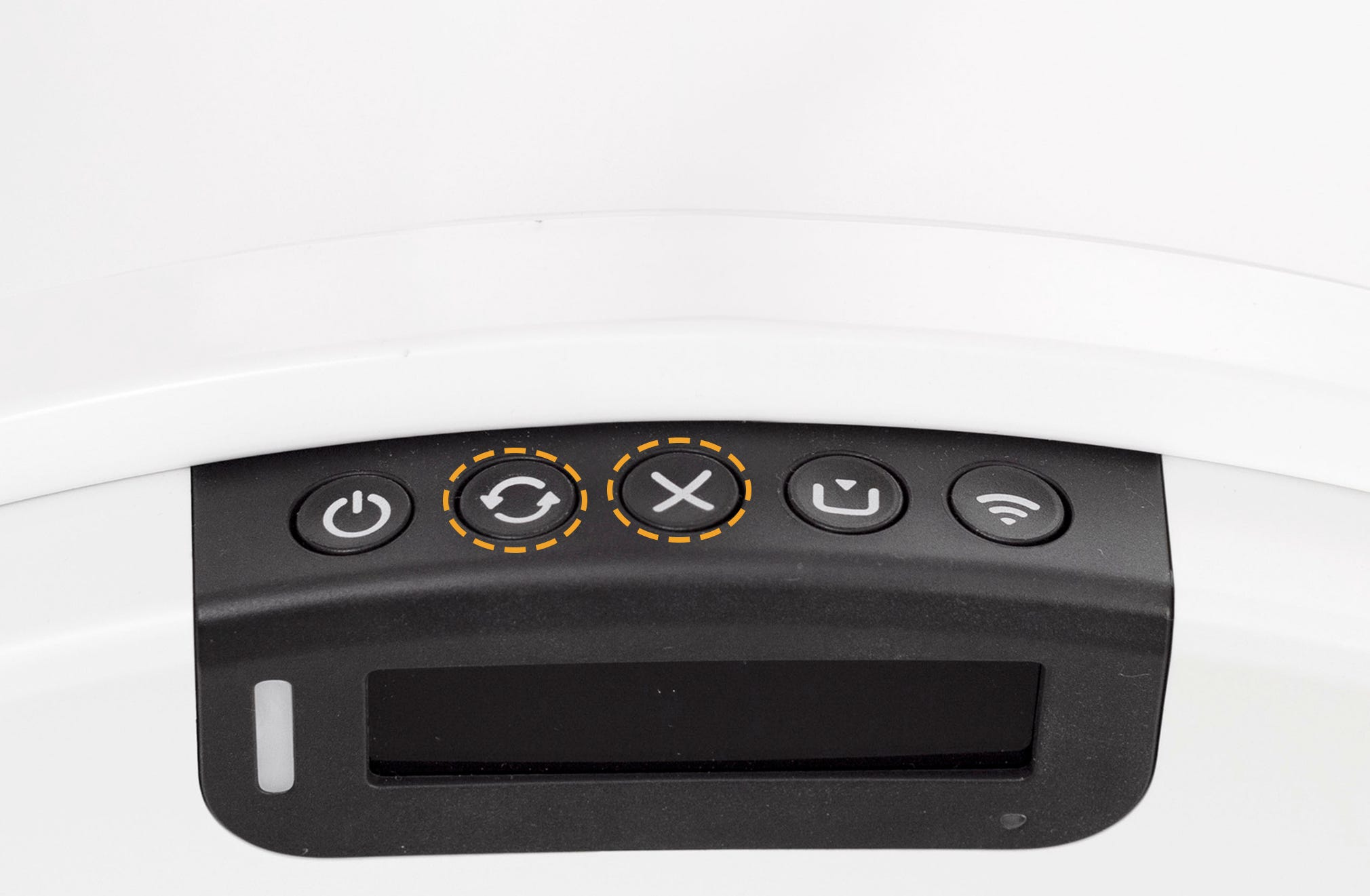
-
If prompted, confirm the reset on the screen.
-
The LED indicator light will blink red.
-
-
Wait 2–3 minutes for the reset to complete.
-
When the camera LED light returns to blinking blue, the unit is ready to pair again.
Open the Whisker app and complete onboarding again.
Network tips
-
Litter-Robot 5 Pro supports both 2.4 GHz and 5 GHz Wi-Fi.
-
Use 5 GHz for faster camera performance and lower latency.
-
Use 2.4 GHz if your robot is far from the router or signal is weak.
-
Need more help?
If your Litter-Robot 5 Pro continues blinking yellow or shows “Disconnected” after following these steps:
-
Please note your phone model/OS, router brand and model, and what steps you’ve already tried.
-
Contact Whisker Customer Experience for additional assistance.
Didn't find what you're looking for?
Live support available Mon-Fri: 9AM-9PM EST and Sat-Sun: 9AM-5PM EST, or submit a ticket anytime.