The store will not work correctly in the case when cookies are disabled.

Litter-Robot 5 & Pro: WiFi chip fault

If you’re seeing a “WiFi Chip Fault” message on your Litter-Robot, please select Litter-Robot 5 or Litter-Robot 5 Pro and follow the steps below for support.
Select your product
Litter-Robot 5
If you have a Litter-Robot 5, please contact us by phone or live chat and have the following items ready.
What to have ready
- Your Litter-Robot serial number
- You’ll find it on the sticker on the base of your unit (near the power inlet) or on the box it arrived in.
- Your serial number begins with LR5-01.
- The firmware version number
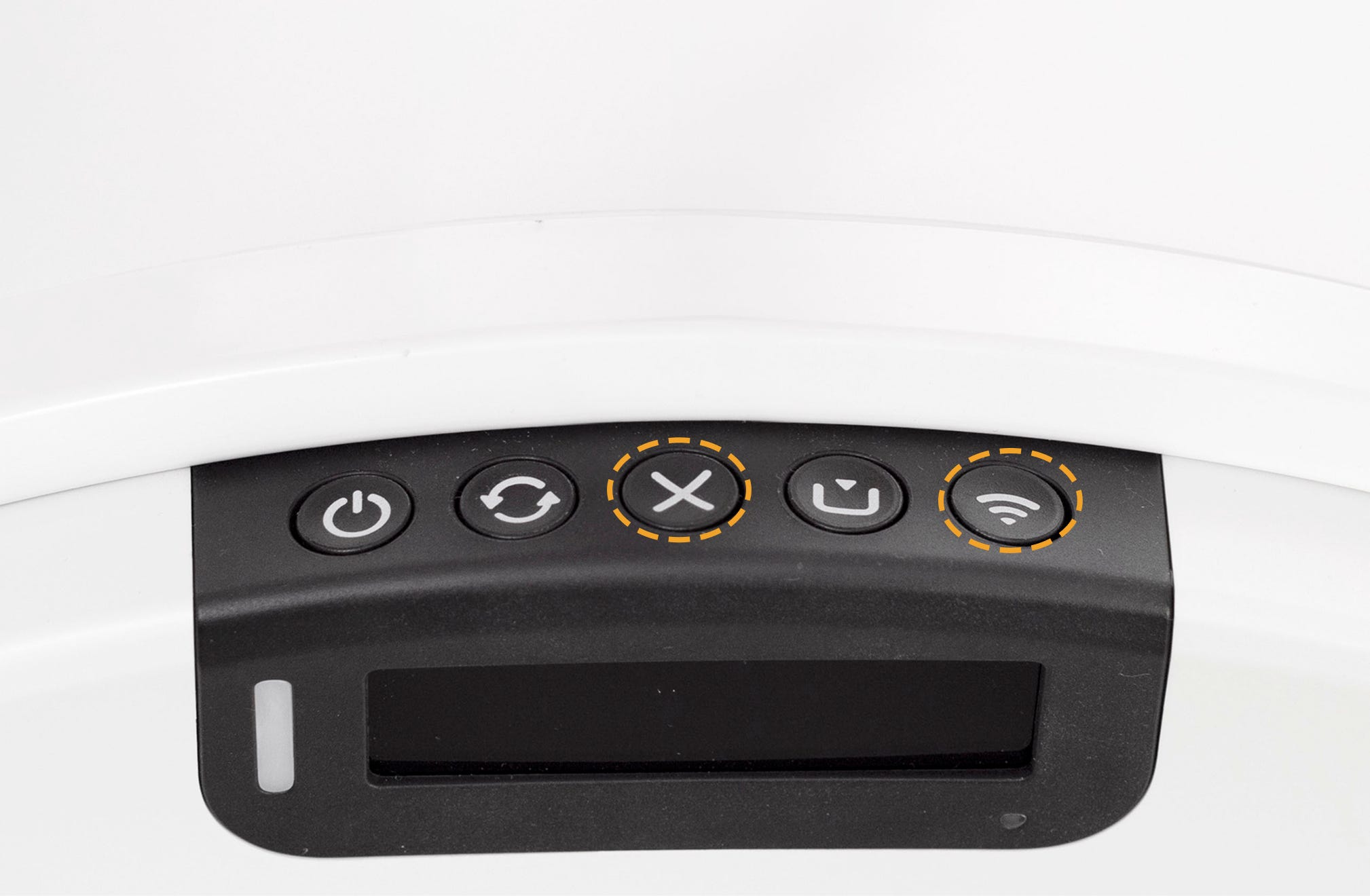
- Press and hold the Cancel and Connect buttons together for 3 seconds.
- Note down or take a photo of exactly what appears (including if no number is shown).
- Several firmware version numbers should appear on the screen. These will auto-dismiss after about 10 seconds.
Litter-Robot 5 Pro
If the "WiFi Chip Fault" message is encountered, try the following steps to resolve the issue:
Hard power cycle
- Unplug the power supply from the base (do not press the power button).
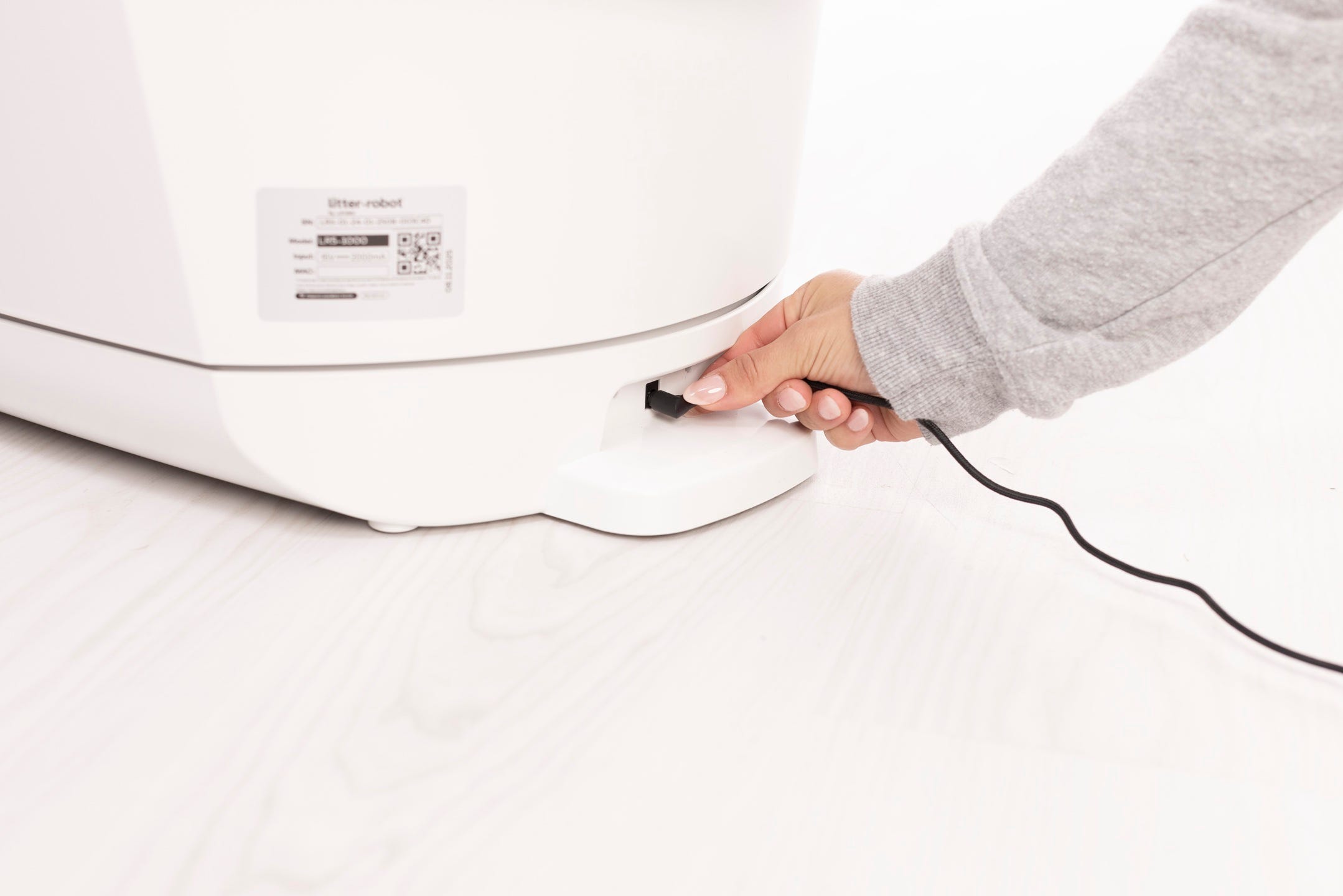
Wait 15 seconds.
Plug back in. The unit should automatically power on (both the camera and the display).
Wait for 60 seconds. The camera should chime once the unit has rebooted.
Check firmware version
Press and hold the Cancel and Connect buttons (at the same time) for 3 seconds to display the current firmware versions.
The IoT firmware version will be displayed at the bottom of the screen. Take note of the number.
If the IoT firmware displays as: 0.0.0, 0.0.0-0 retry the hard power cycle and then check the firmware version again.
Successful: If your unit displays an IoT firmware version (Example: 1.5.8, 1.2.2-1220) proceed with the onboarding steps below.
Unsuccessful: If your unit displays an invalid firmware version (Example: 0.0.0, 0.0.0-0) please review the What to have ready section below and contact Whisker Customer Experience for more assistance.
Onboarding
- Now attempt onboarding by pressing the Connect button for 3 seconds and then following the onboarding instructions.
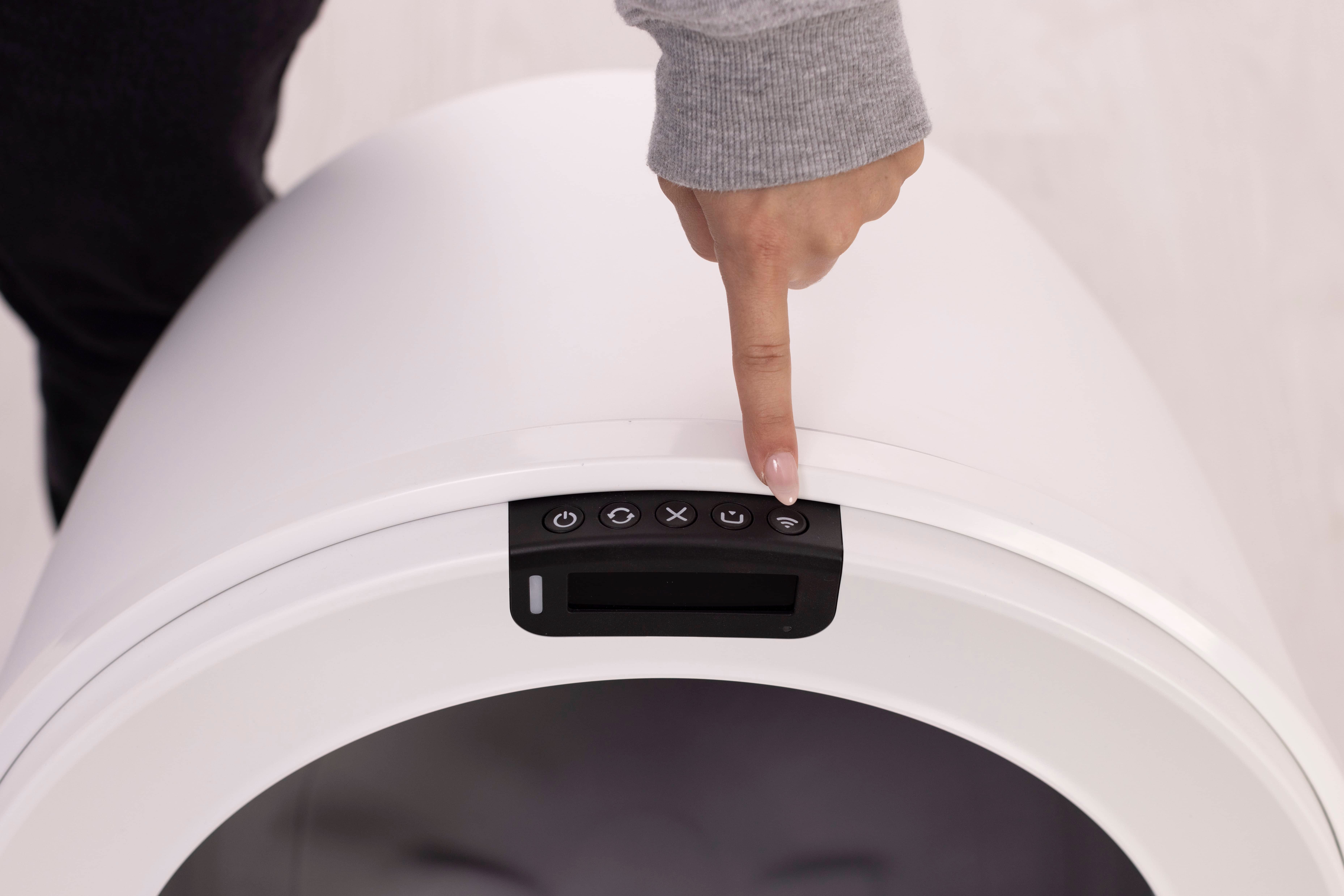
During the onboarding process, take note of the camera LED light– it should be blinking blue.
If your camera LED turns blinking yellow this indicates that an incorrect WiFi password has been entered:
Wait up to 60 seconds for the robot to return to blinking blue and restart the onboarding flow. Only retry onboarding once the blinking blue light resumes.
If the camera LED does not return to blinking blue, reattempt the hard power cycle and retry onboarding again.
If your camera LED light doesn’t illuminate or turn blinking blue there is likely an issue with your Litter-Robot.
Once onboarded, the camera LED should change to solid white and your unit will perform a firmware update. Please allow 15-30 minutes for the update to complete before interacting with your Litter-Robot.
If the camera LED is solid white, but the app shows an onboarding error this means your Litter-Robot has been successfully onboarded.
Restart the app and your Litter-Robot 5 Pro should appear correctly in your device list.
Successful: Your Litter-Robot 5 Pro shows that it's online and no longer displays the "WiFi Chip Fault" message.
Unsuccessful: If the LED light does not appear or turn blinking blue during onboarding and you are unable to connect to the Whisker app, please proceed with the next steps.
What to have ready
- Your Litter-Robot serial number
- You’ll find it on the sticker on the base of your unit (near the power inlet) or on the box it arrived in.
- Your serial number begins with LR5-02.
- The firmware version number
- Press and hold the Cancel and Connect buttons together for 3 seconds.
- Note down or take a photo of exactly what appears (including if no number is shown).
- Several firmware version numbers should appear on the screen. These will auto-dismiss after about 10 seconds.
Contact us via phone or live chat
Mon-Fri: 9AM-9PM EST and Sat-Sun: 9AM-5PM EST, or submit a ticket anytime and include the above details.
Didn't find what you're looking for?
Live support available Mon-Fri: 9AM-9PM EST and Sat-Sun: 9AM-5PM EST, or submit a ticket anytime.