The store will not work correctly in the case when cookies are disabled.

Litter-Robot EVO: Motion in drawer
If your Litter-Robot EVO displays a Motion in Drawer message on the LCD screen, the waste drawer may need attention.
Quick links
Before you begin
Make sure:
Your unit is plugged in.
Your unit is connected and online (if you use the Whisker app).
Your firmware is up to date. (If the app does not give you the option to update, you already have the latest version.)
How it appears
The Litter-Robot EVO is equipped with Drawer Full Indicator (DFI) sensors located inside the base, above the waste drawer to monitor the waste level and motion.
If motion is detected inside the drawer while the globe is at Home:
The LCD screen will display “Motion in Drawer."
The globe will rotate to the Dump position to allow the object to exit. Press the Cancel button to return the globe to the Home position.
You will also receive a notification in the Whisker app if connected.
This can be triggered if:
The drawer was removed and reinserted multiple times in a short period.
You were recently cleaning near the drawer area.
A foreign object or excess litter is inside the drawer.
First, check inside the waste drawer for anything that could be activating the sensor. Then short‑press Cancel to clear the fault.
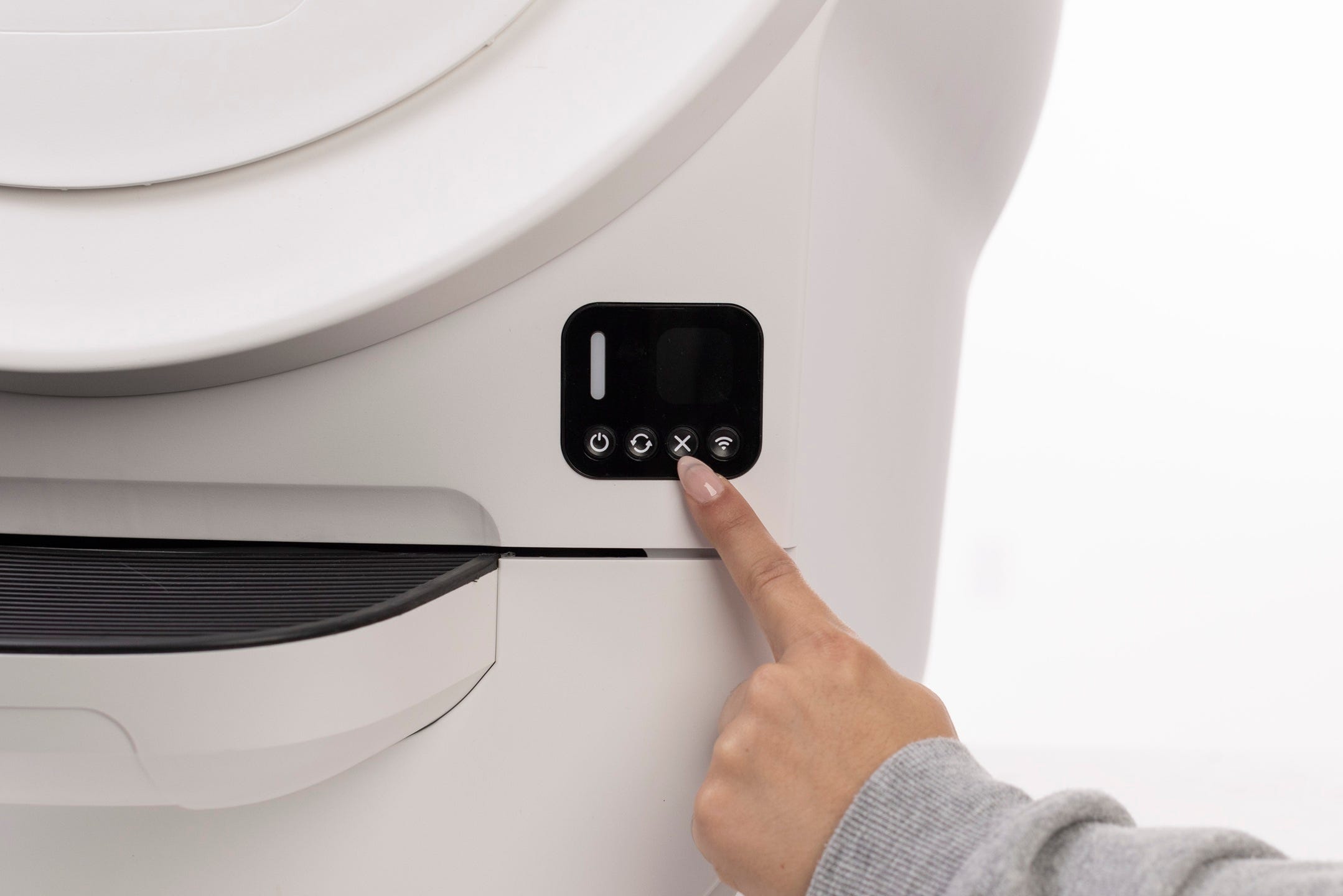
Successful: Unit returns Home with a solid white light.
Unsuccessful: If LCD displays “Motion in Drawer” message, continue to Troubleshooting.
Remove bonnet, globe, and drawer
We’ll check for anything that may interfere with the sensors during the cycle.
Ensure the unit is at the Home position.
- Press Power to turn the unit off, then unplug it.
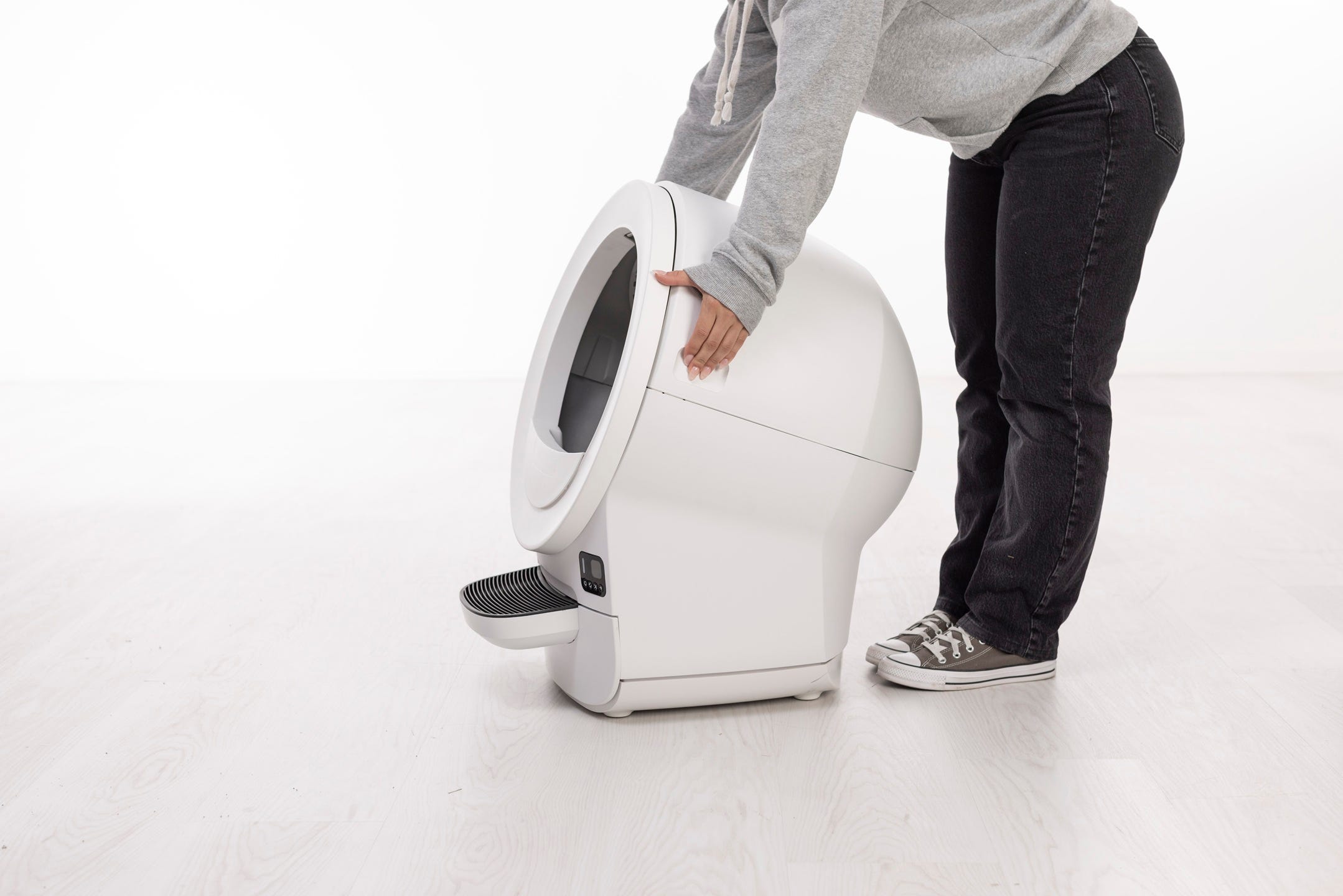
- Open the bonnet by using the handles on both sides of the bonnet to lift and rotate it upwards to its open position.
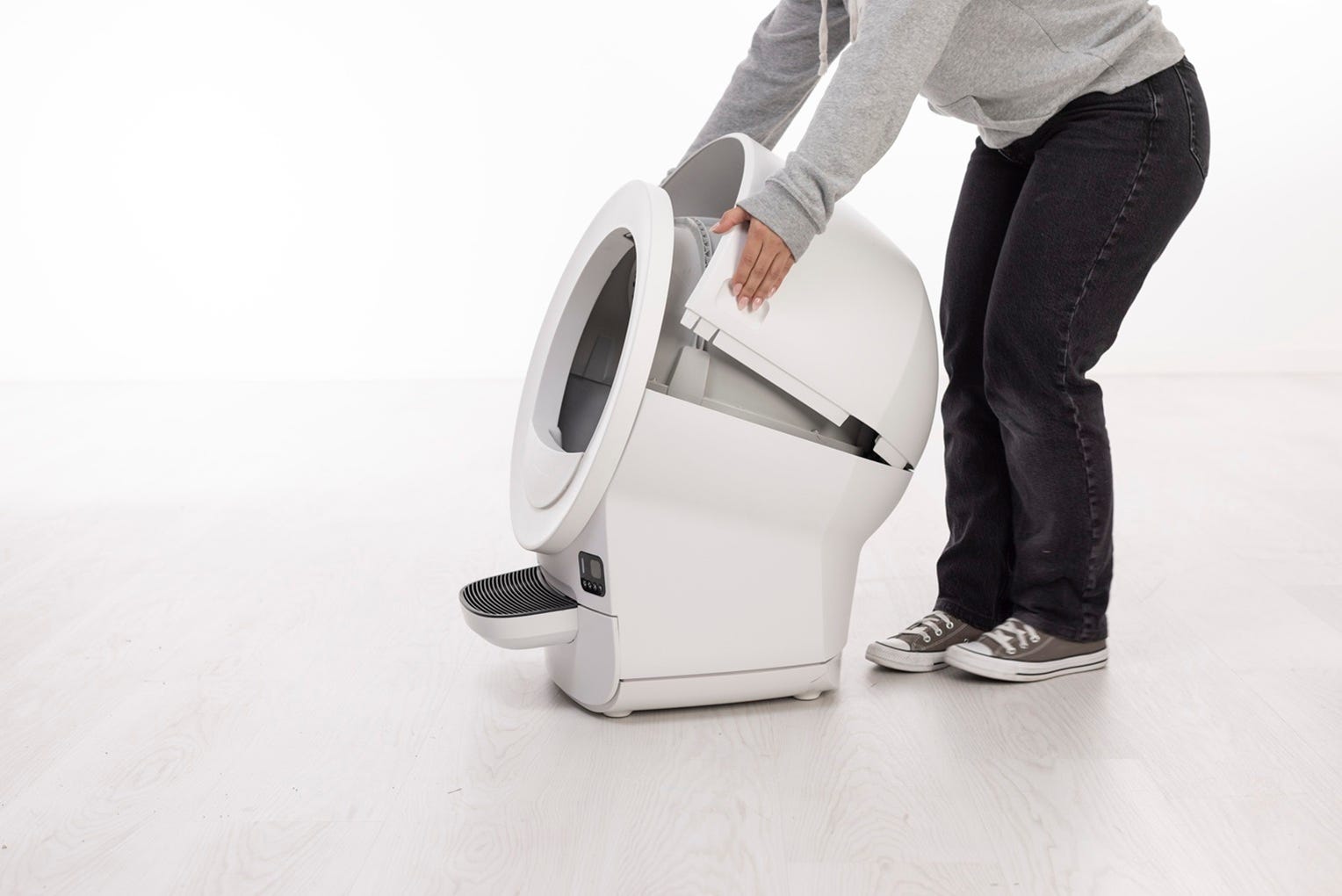
Remove the bonnet and set it aside.
- Remove any accessories (such as the fence).

- Lift the globe out of the base by the rib at the top of the entrance and set aside.
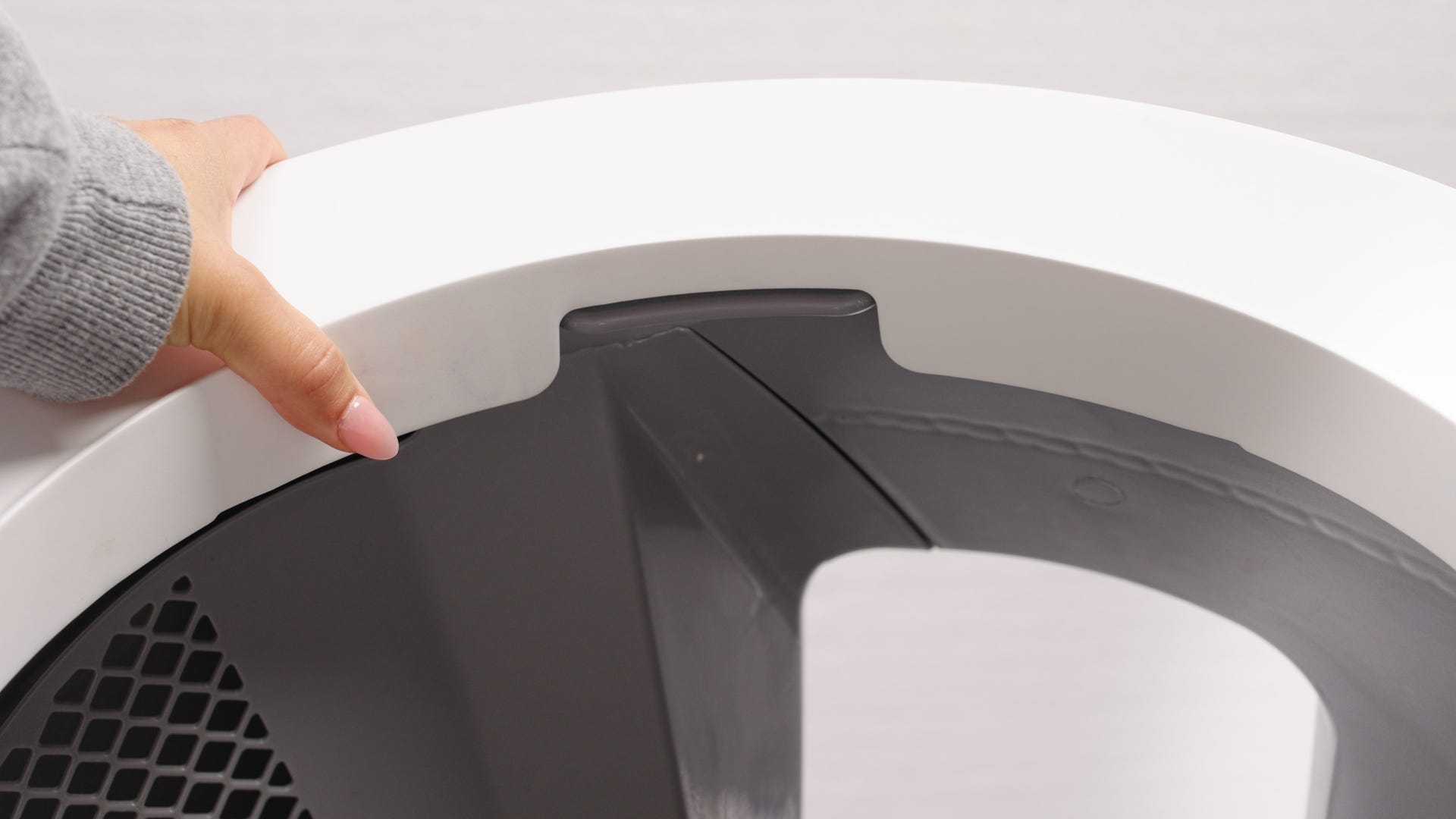
Remove the waste drawer and set it aside.
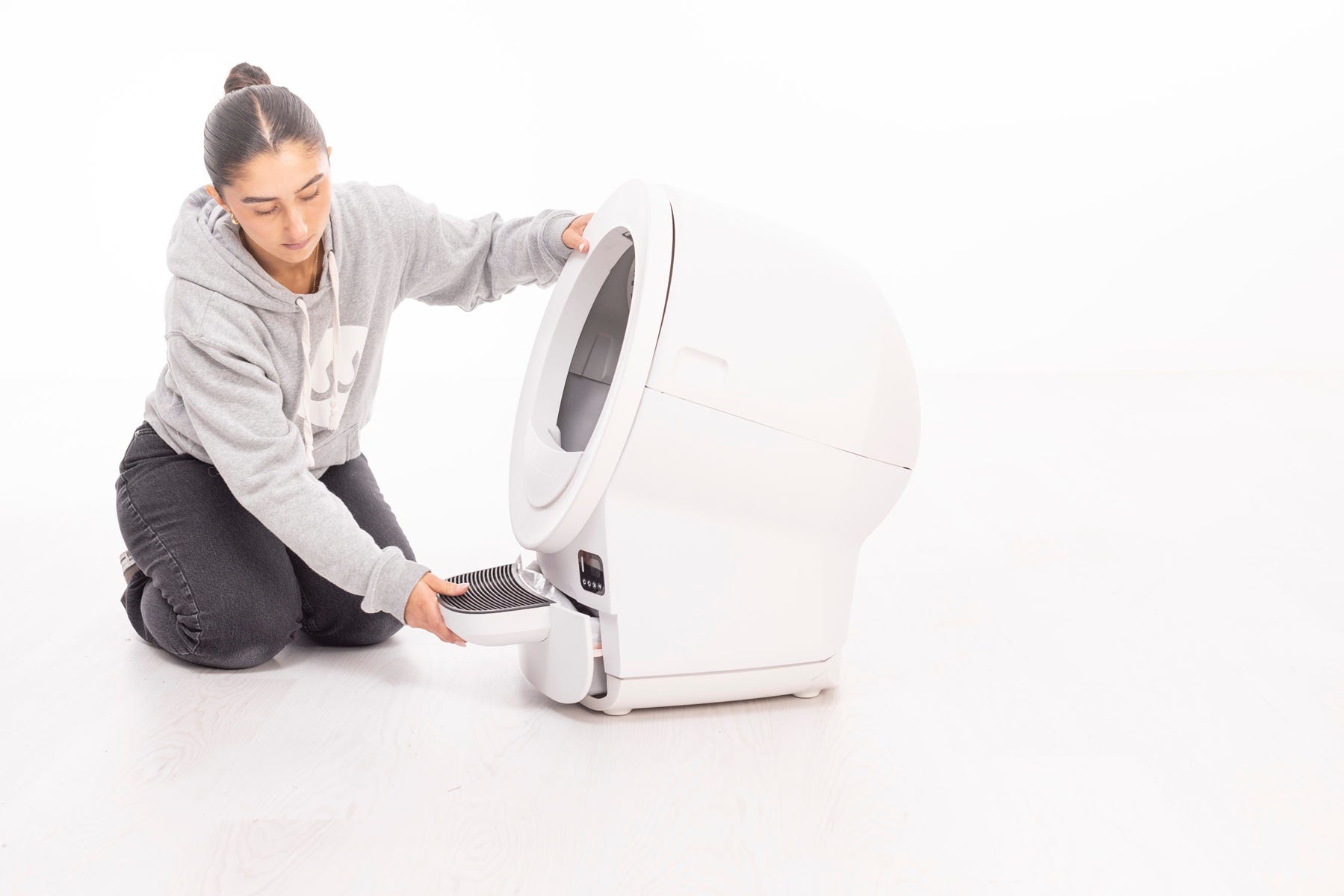
Inspect sensors
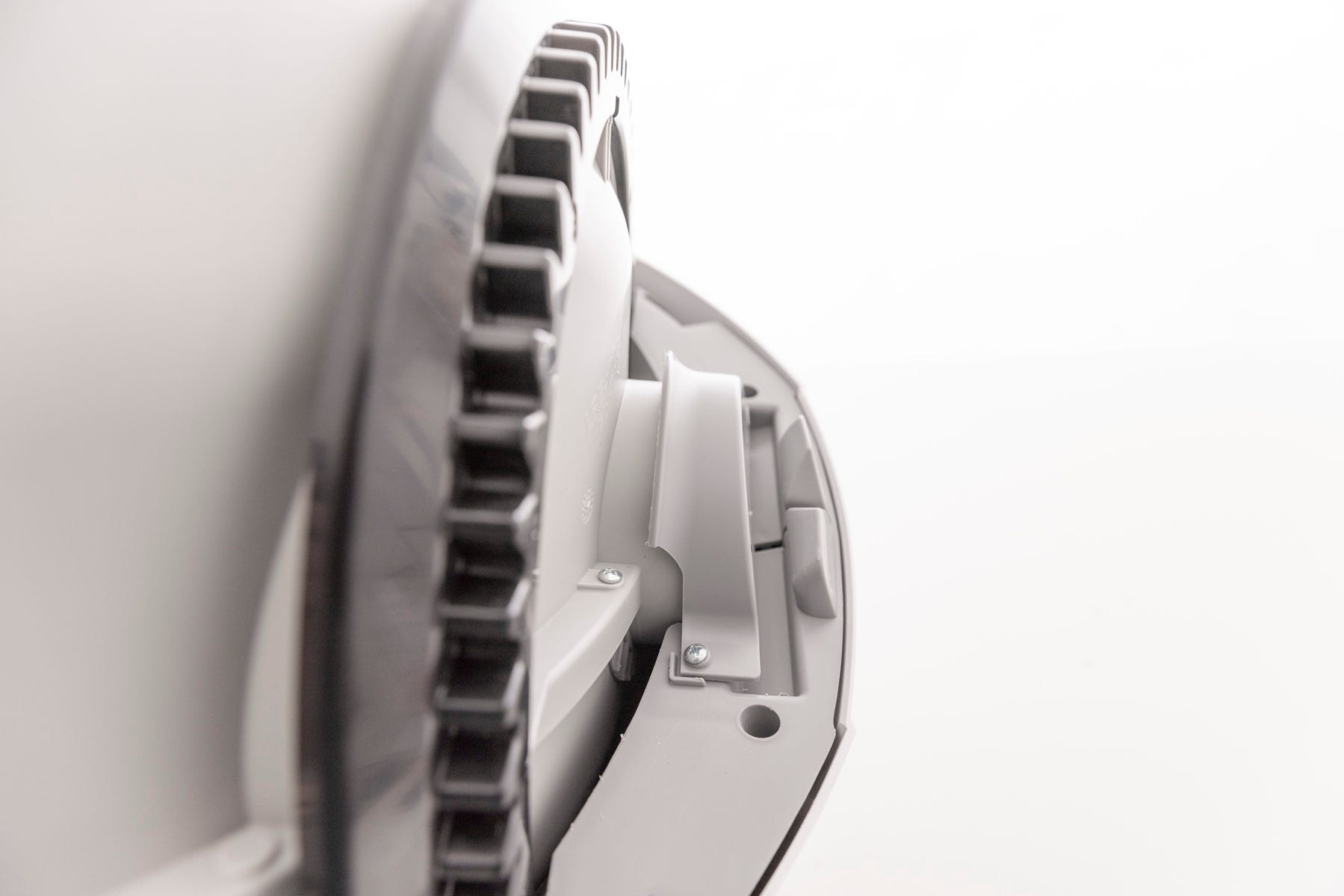
- Cat Presence Motion Sensor: Looks inside the drawer and detects motion. Inspect the sensor area for debris or damage.
- Obstruction detection sensors: Located at the sides of the dump port within the base. Make sure they are free of debris.
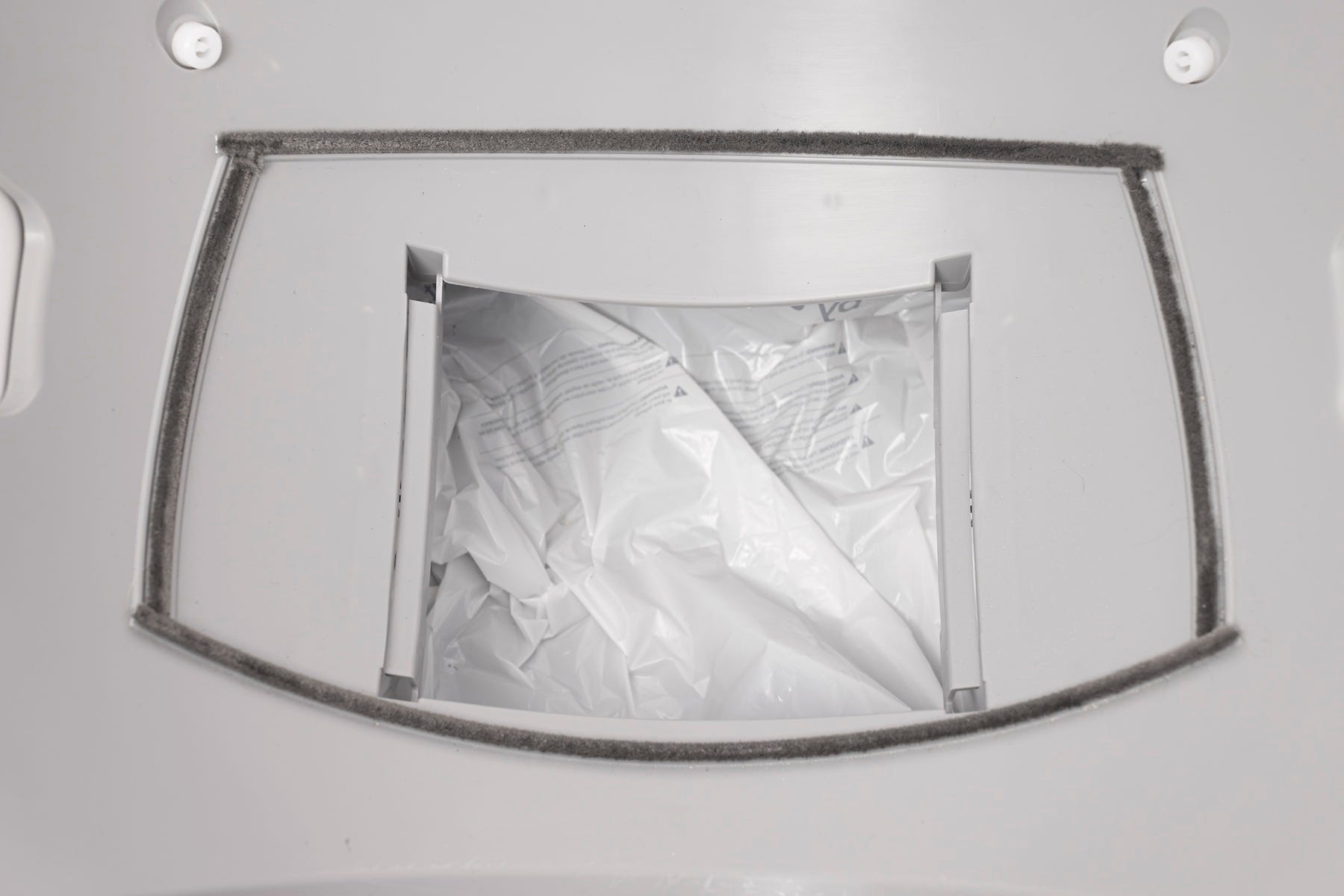
Press inward on each pinch bar—you should hear an audible click. This confirms the sensors are working.
Check for any liquid damage or corrosion on sensor components.
Clean the area
- Wipe the inside of the waste drawer cavity with a dry cloth.
- Ensure no clumps, liner edges, or debris are obstructing sensors.
- Confirm the waste drawer slides in fully without resistance.
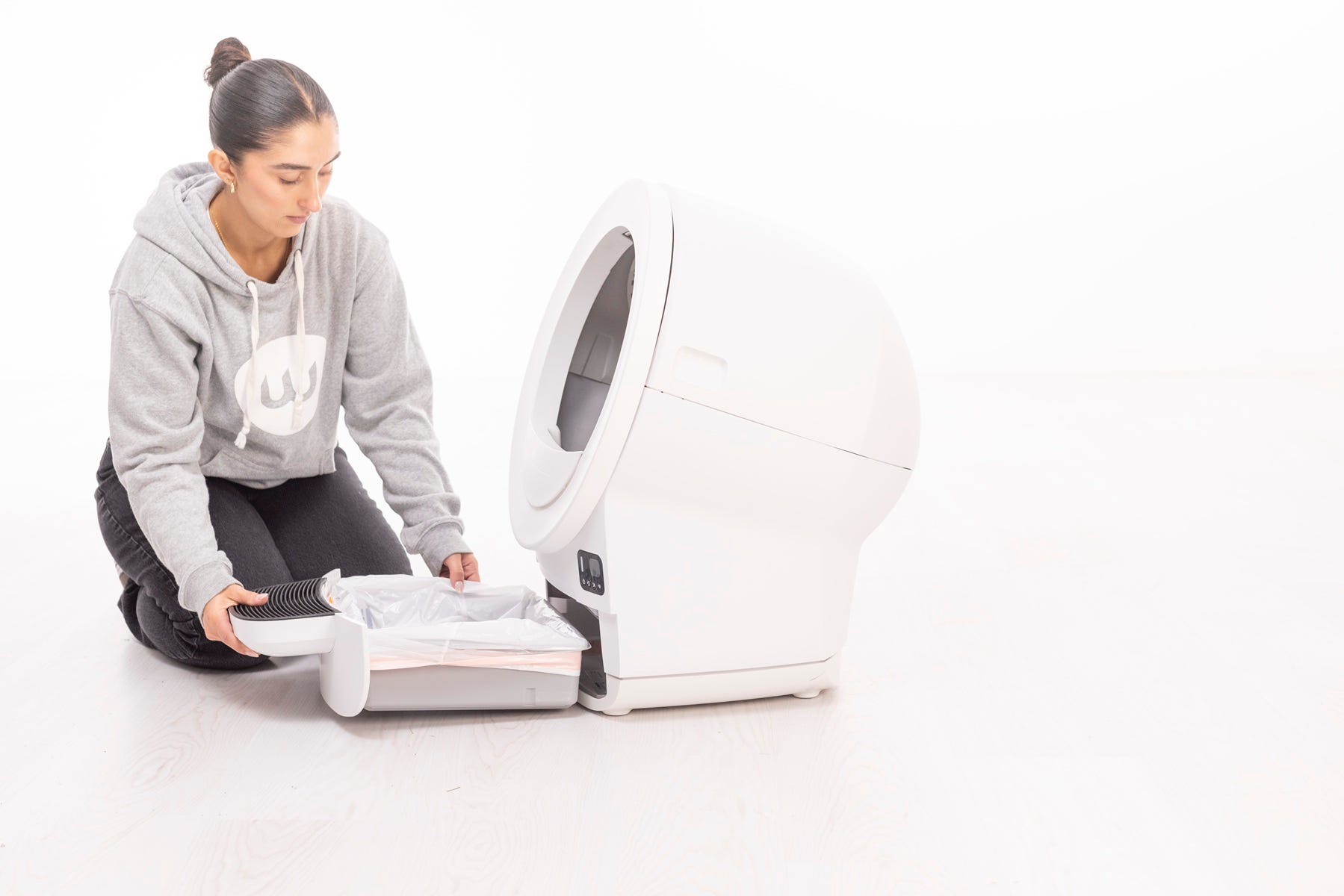
Reassembly
- Place the globe back in the base with the waste port oriented toward the top (near Home).
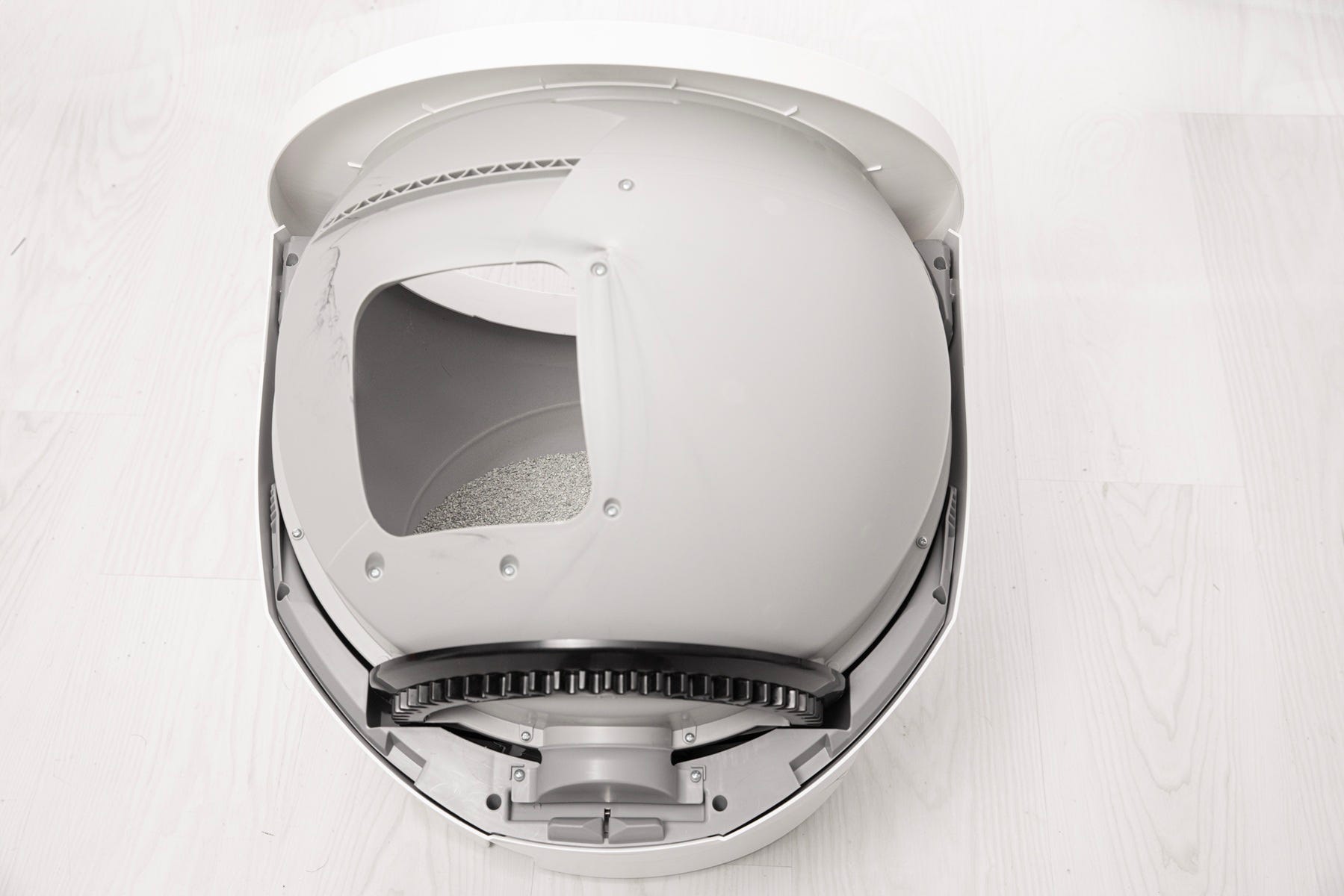
- Ensure the cylindrical end of the globe is seated properly under the rear retaining bracket and that the gear track engages the drive gear.
- Reinstall the bonnet until both side latches are secured.
- Reinstall any accessories.
Plug the unit in and power on.
- Now, let's run a test cycle:
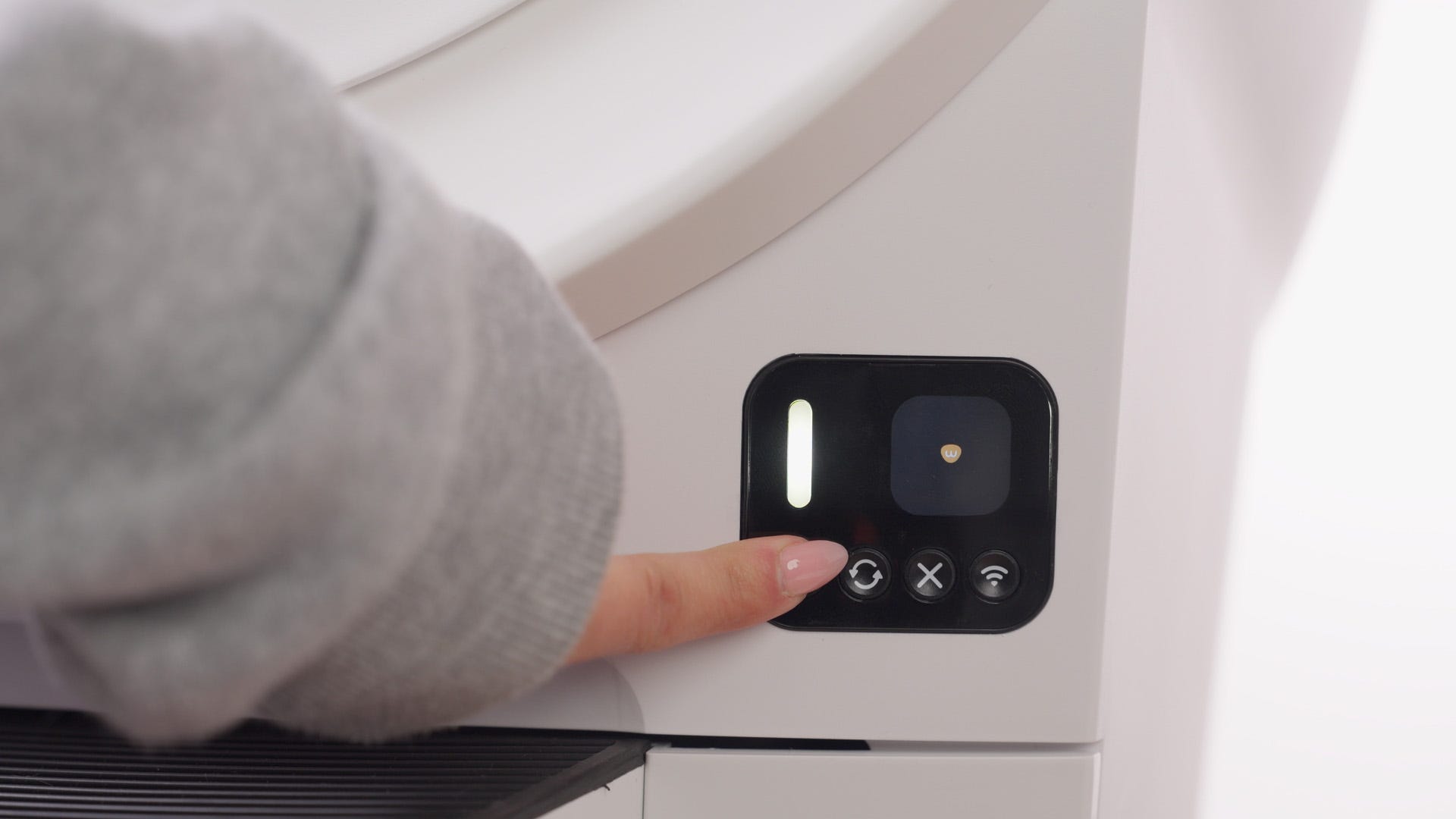
- Short press the Cancel button.
- Short press the Cycle button to run a Clean cycle.
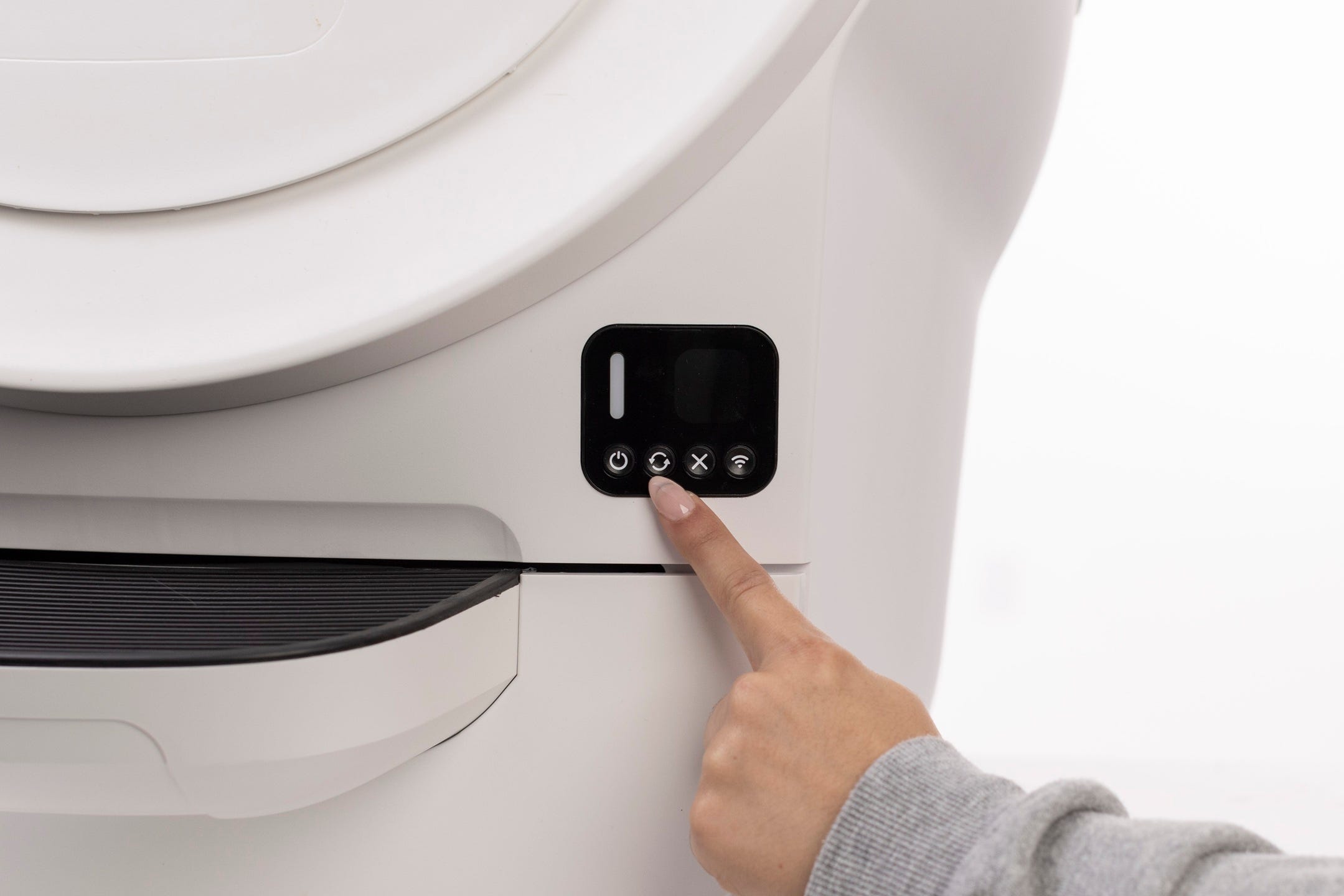
Successful: Solid white light at Home position.
Unsuccessful: If LCD screen displays a “Motion in Drawer” message, continue to next steps.
Need more help?
If your unit continues to show a Motion in Drawer message, please contact Whisker Customer Experience.
Didn't find what you're looking for?
Live support available Mon-Fri: 9AM-9PM EST and Sat-Sun: 9AM-5PM EST, or submit a ticket anytime.