The store will not work correctly in the case when cookies are disabled.

Whisker PetTag: Onboarding and connecting to WiFi
Sign in/Register
- Open the Whisker app. You will need to log in or register an account.
- You can use the username and password you used when purchasing your robot.
- If you did not set up an email and password, select Register to create one.
- Once logged in, tap Add a device to add a new robot. Select the Whisker product you want to add to the Whisker app—choose PetTag.
Setup Mode
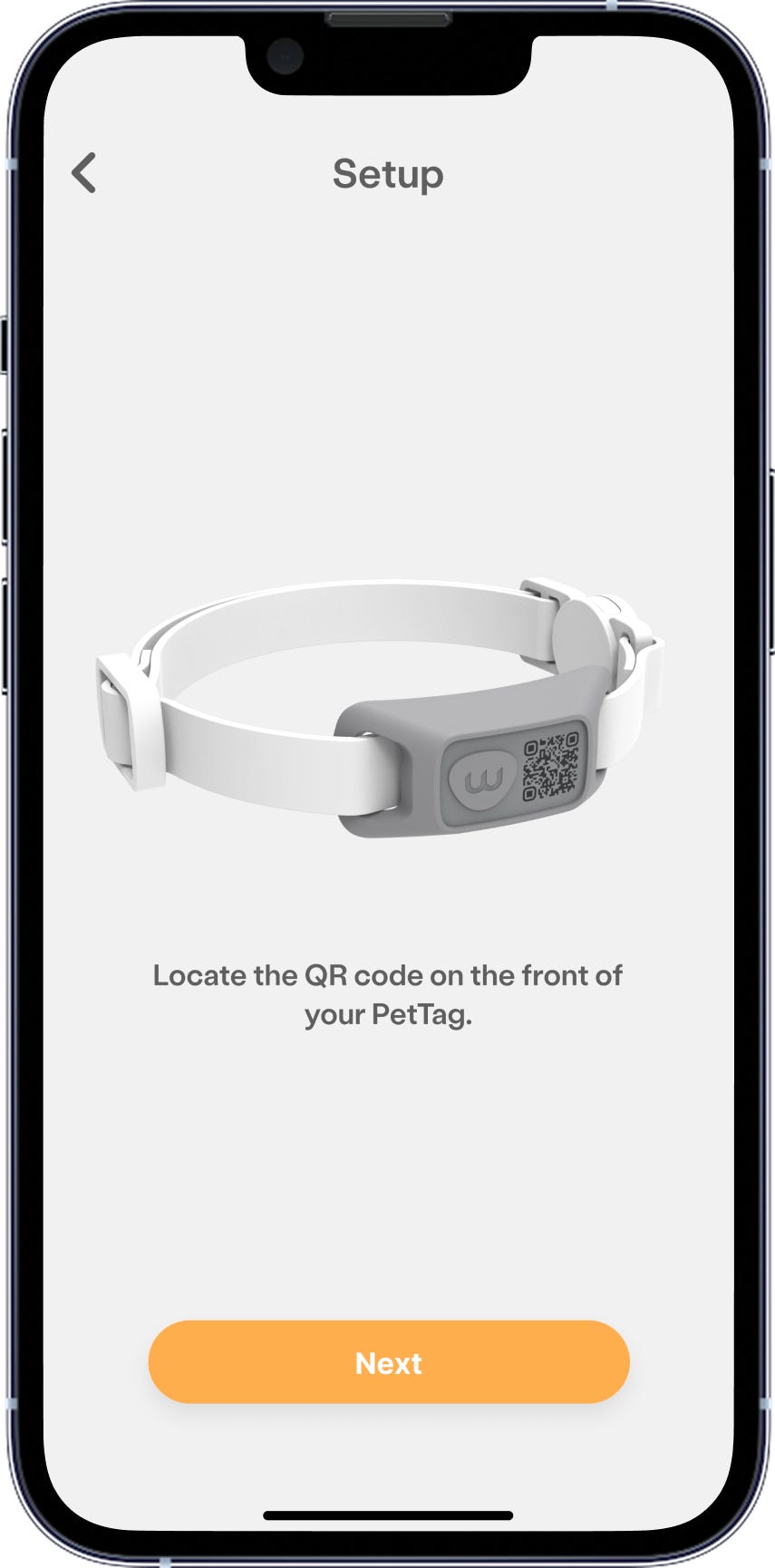
- Locate the QR code on the front of the PetTag.
Scan
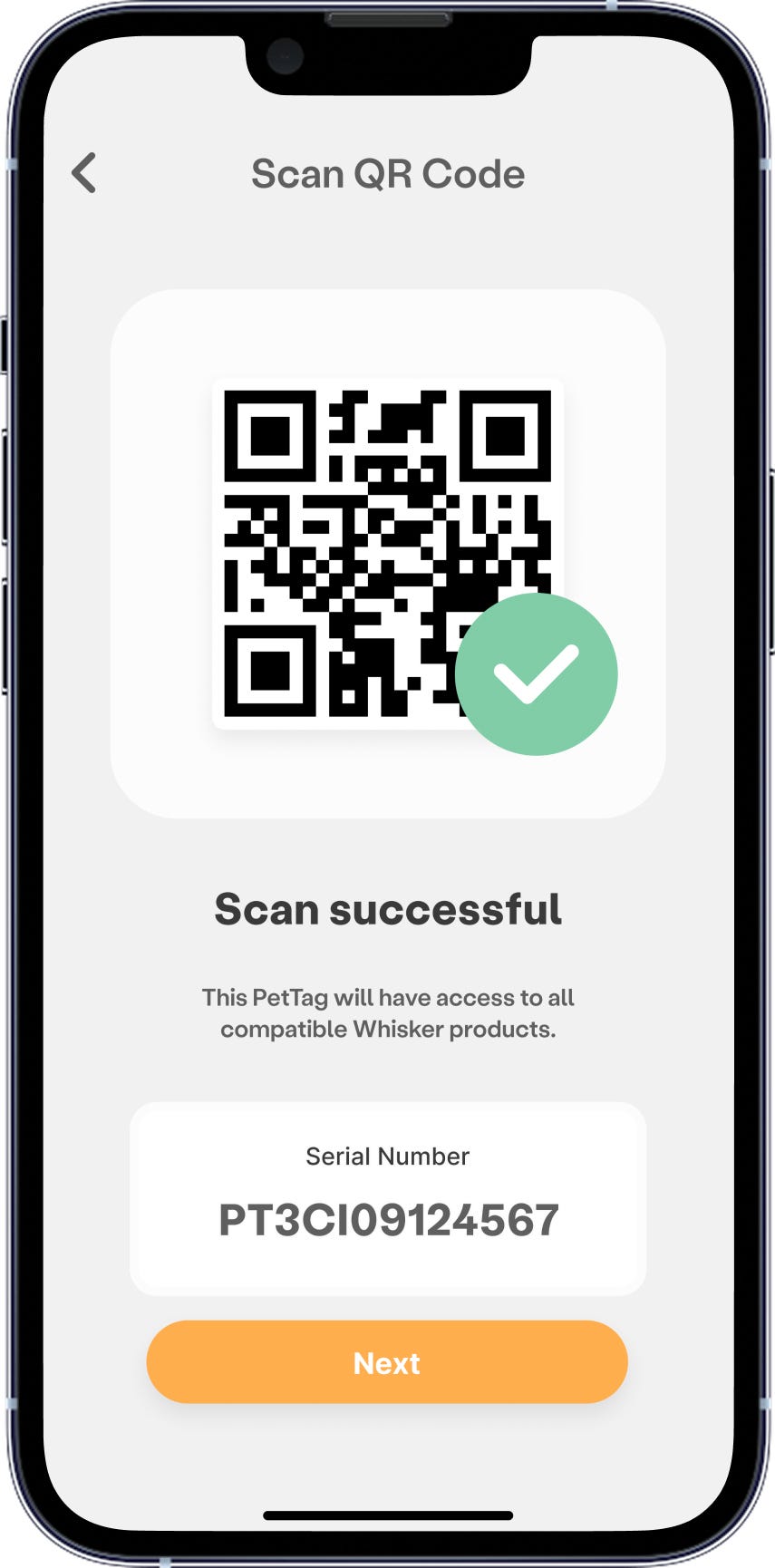
- Position the QR code on your PetTag within the frame to scan and add your tag.
Assign Pet
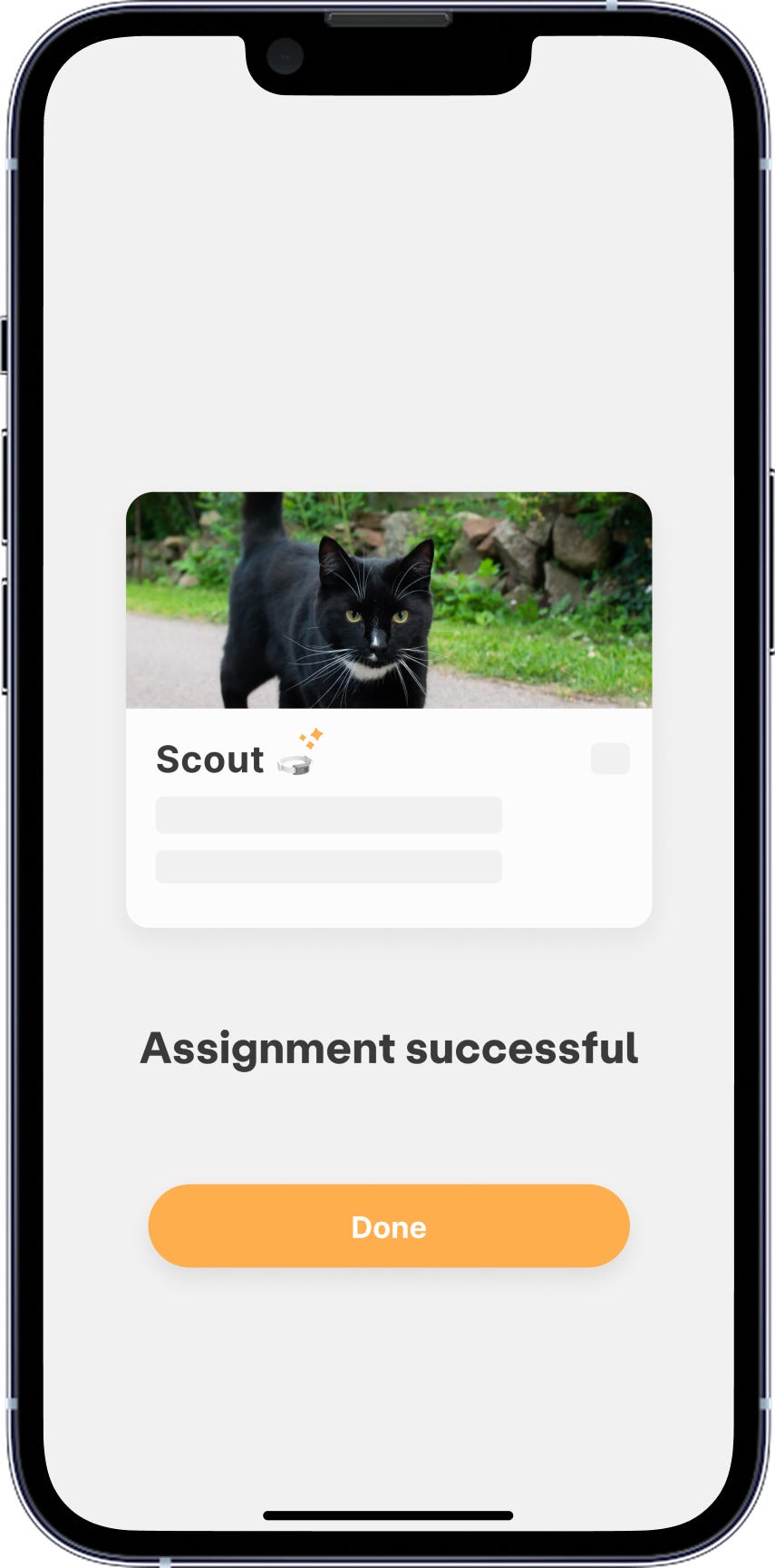
- Now that you've added your PetTag, you can assign it to a specific pet.
- This ensures all robot interactions and behavioral insights are linked to that individual pet—especially helpful in multi-cat households.
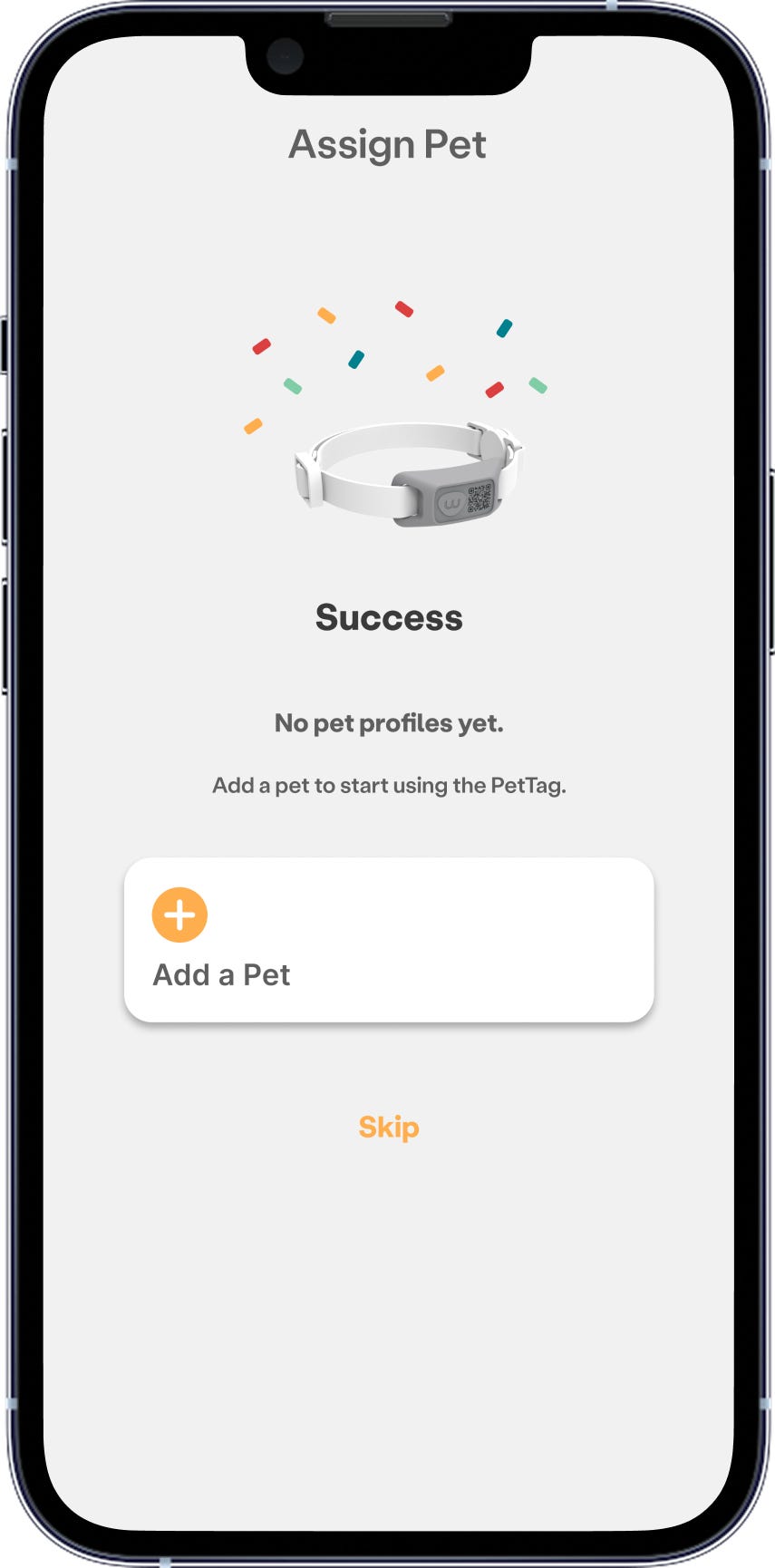
- If you haven’t added a pet yet, you can do this now.
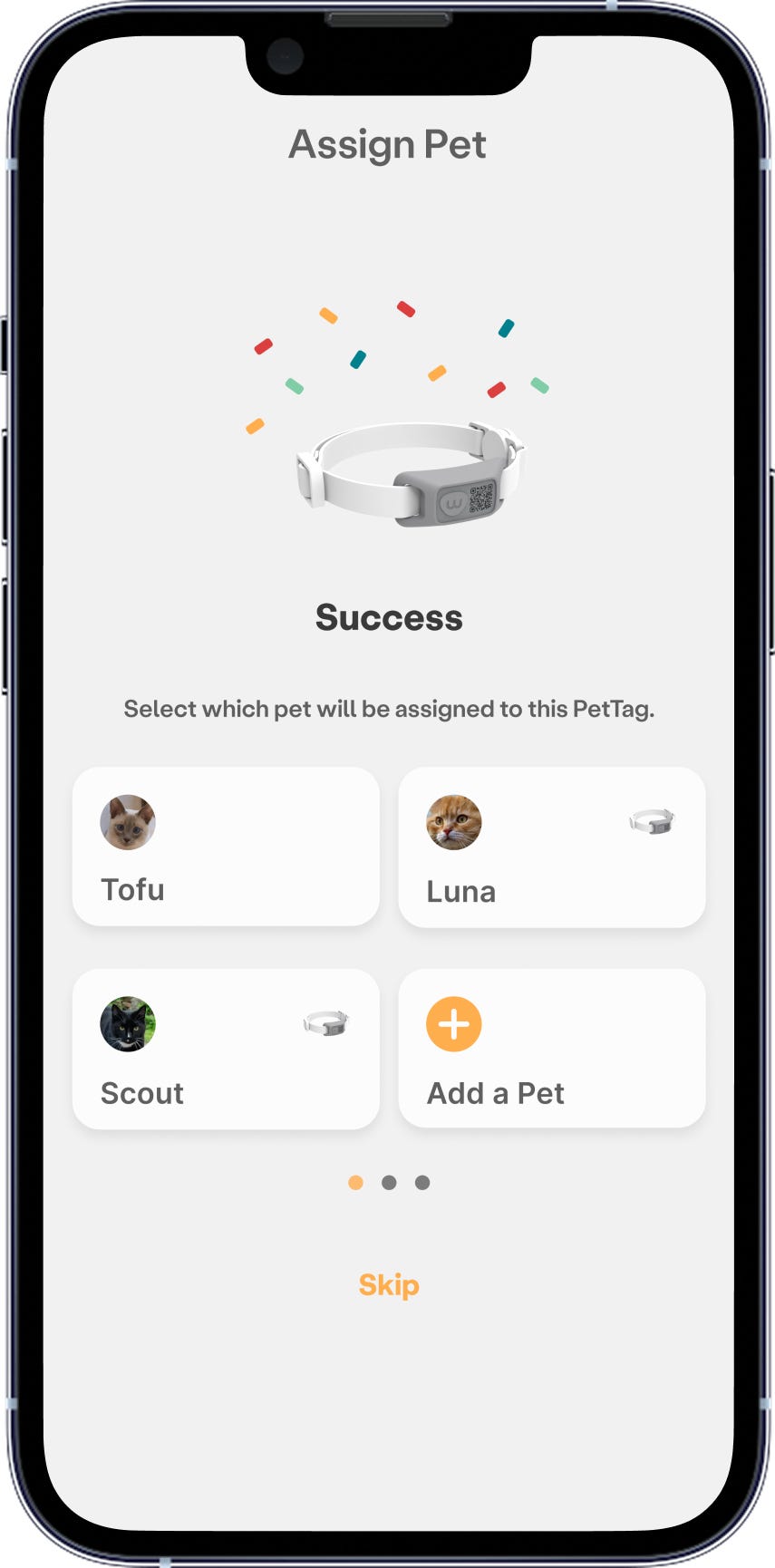
For homes with multiple pets, select the profile you want to link to this tag. Pets that already have a tag display a small PetTag icon—tap one of these if you’d like to re-assign the new tag to that pet instead.
Assigning each PetTag correctly ensures accurate tracking for every pet in your household.
Congratulations! Your PetTag is connected and ready to use.
Manage PetTags
- After onboarding your tag, you can manage it anytime from the PetTag Manager in the app.
You can:
- View tag status (e.g., Assigned, Unassigned).
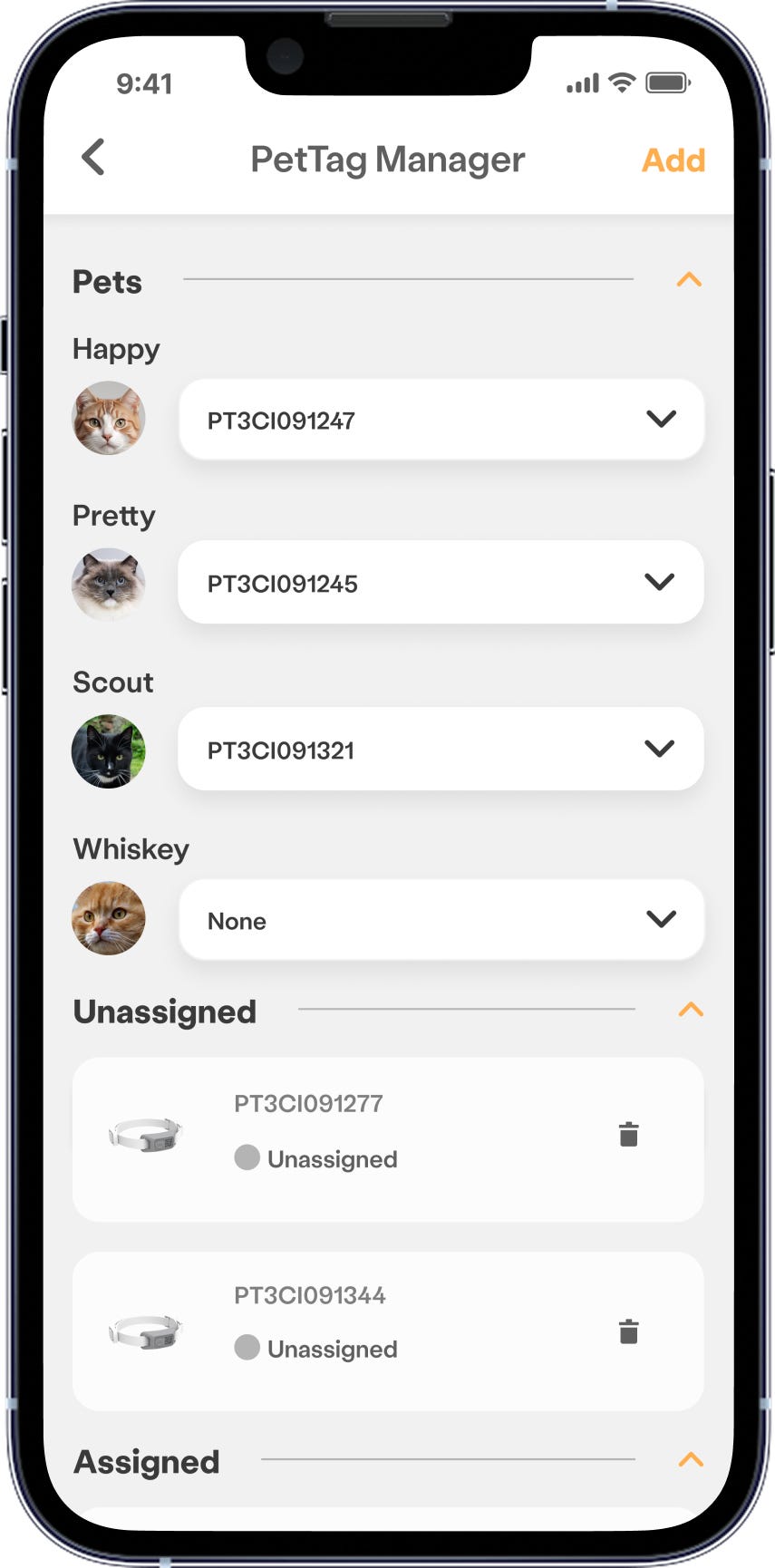
Note: If you have multiple pets that are being misidentified, confirm that the PetTag is assigned to the correct cat in the PetTag Manager screen.
- Delete the tag from your account if it’s no longer in use.
Need more help?
Contact Whisker Customer Experience for assistance.
Didn't find what you're looking for?
Live support available Mon-Fri: 9AM-9PM EST and Sat-Sun: 9AM-5PM EST, or submit a ticket anytime.