The store will not work correctly in the case when cookies are disabled.

Litter-Robot EVO: Onboarding and connectivity
Congratulations on your new automatic litter box! Now, let’s walk you through how to connect Litter-Robot EVO to the Whisker app.
Whisker app onboarding requirements:
Whisker app version: 1.31.0 or newer.
Camera permissions: Required in app to scan QR code.
Location permissions: “While using the app” must be enabled.
Network: 2.4 GHz WiFi signal (5 GHz WiFi signal not supported) with IPv4 or IPv6 addressing (varies by internet service providers, router, and modem).
Operating System: Check the Whisker app in your device’s app store for the latest OS version requirements.
Open the Whisker app. You will need to log in or register an account on the app.
You can do this using the username and password you used when purchasing your robot.
If you did not set up an email and password, simply select ‘register’ to create one.
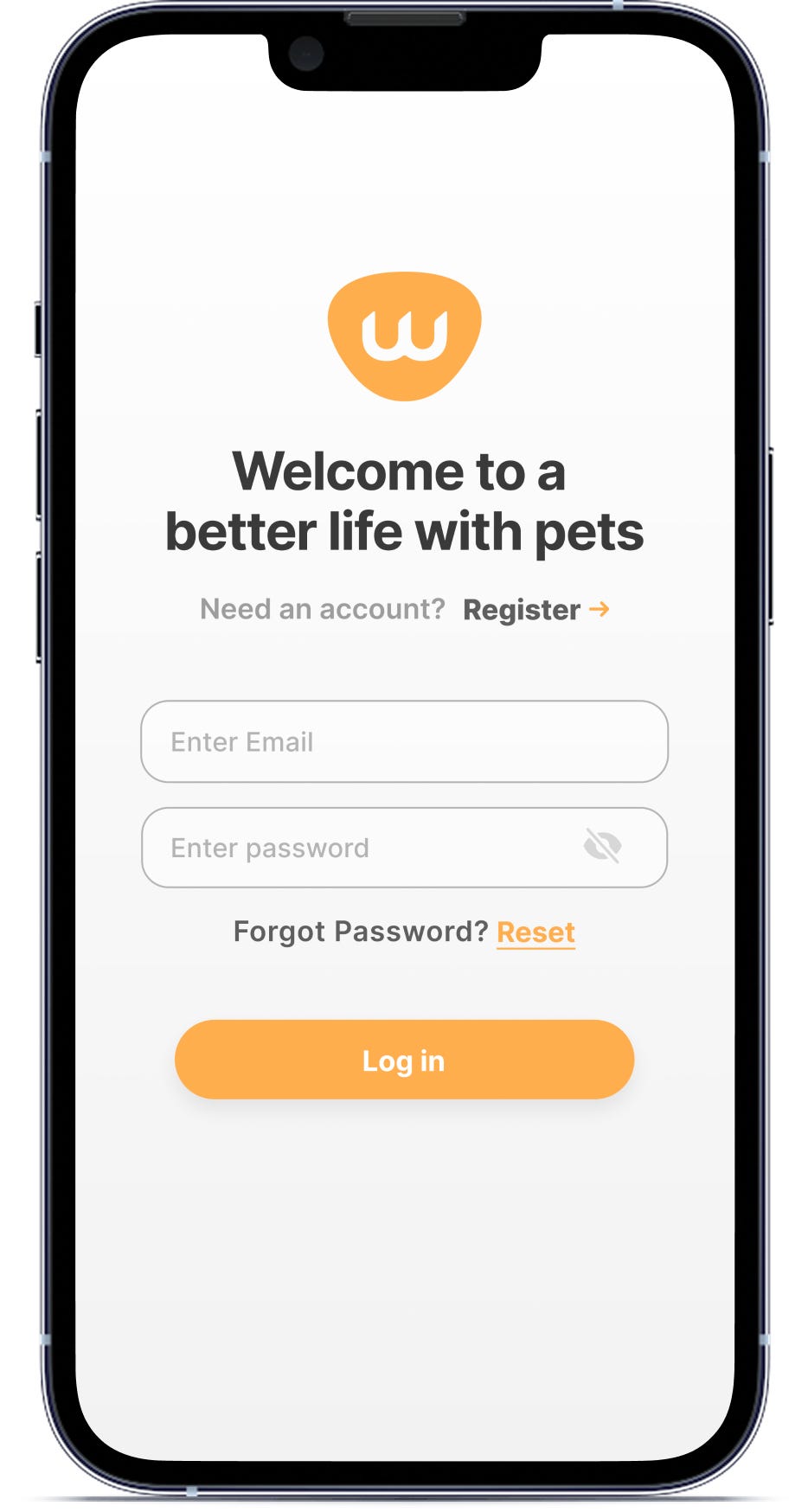
Once logged in, tap ‘add a device’ to add a new robot.
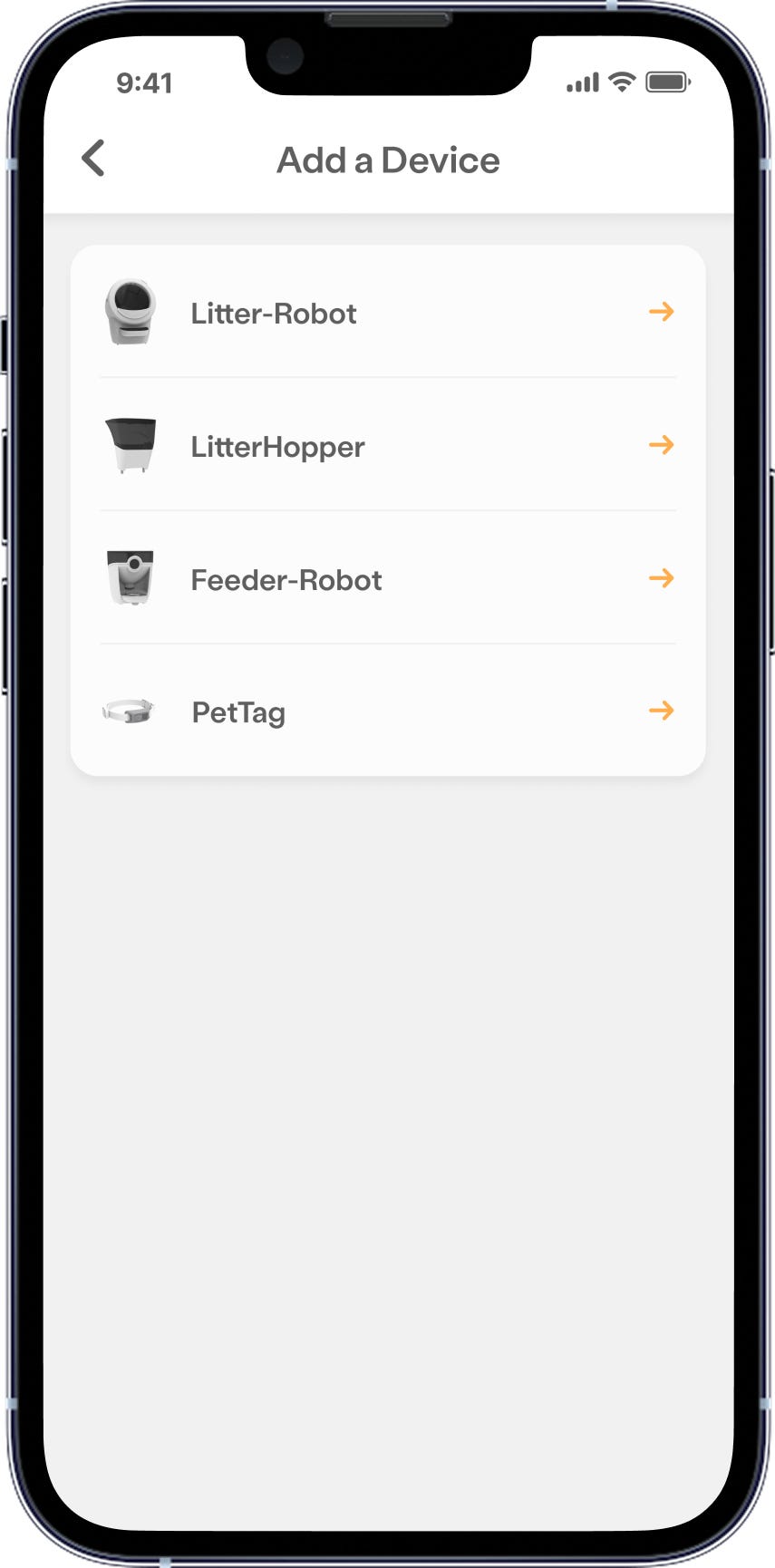
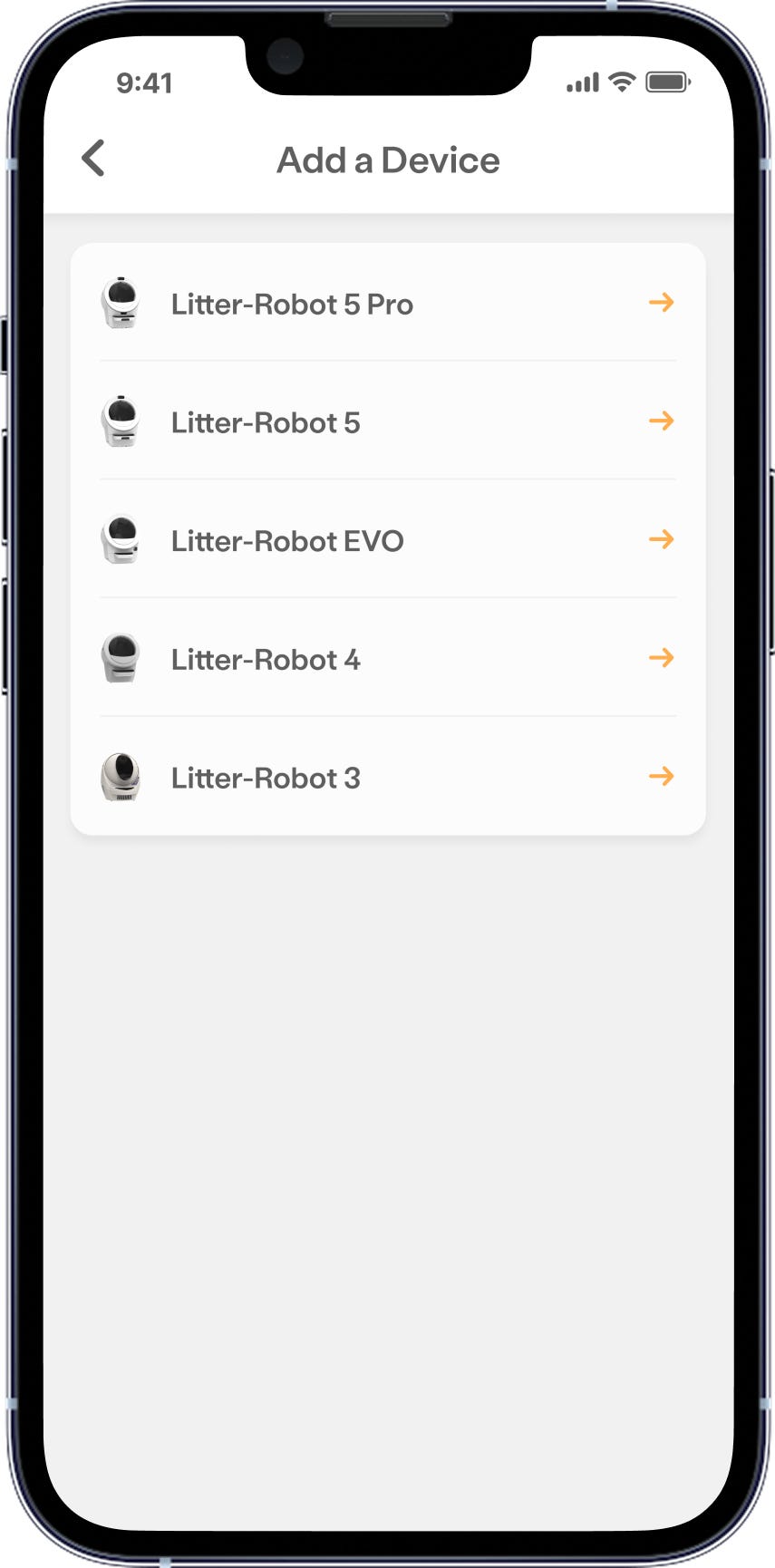
You’ll need to select the Whisker product you want to add to the Whisker app. In this case, select Litter-Robot EVO.
- Whisker requires your location to connect to the network devices in your home. You may have to open your settings on your mobile device and ensure that the location services are enabled for ‘Whisker’. Verify the setting ‘Allow Location Access’ is set to ‘While using the app’.
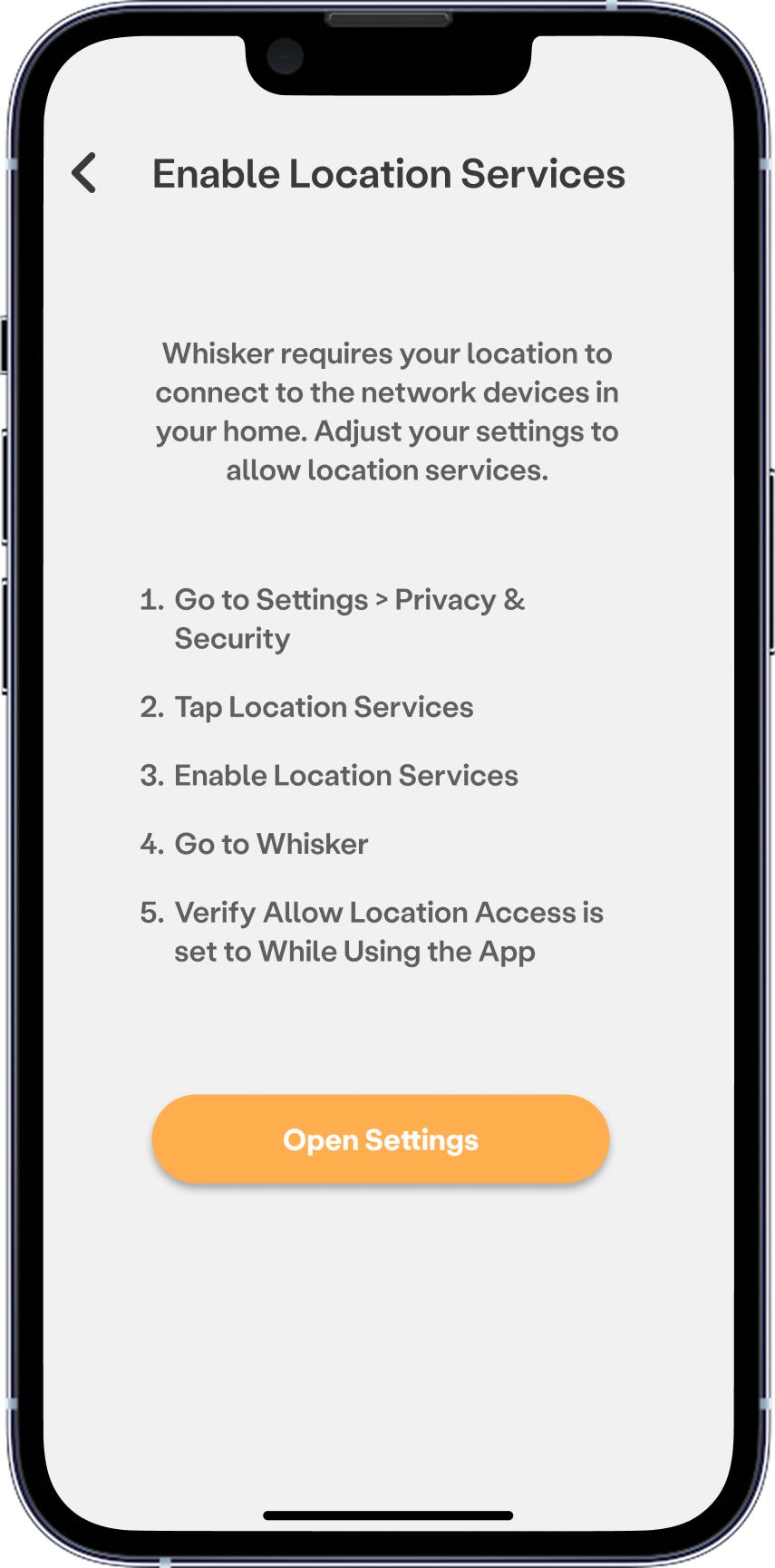
If you select “Don’t Allow”, you will not be able to onboard your robot.
- Next, select your home WiFi network and enter your password.
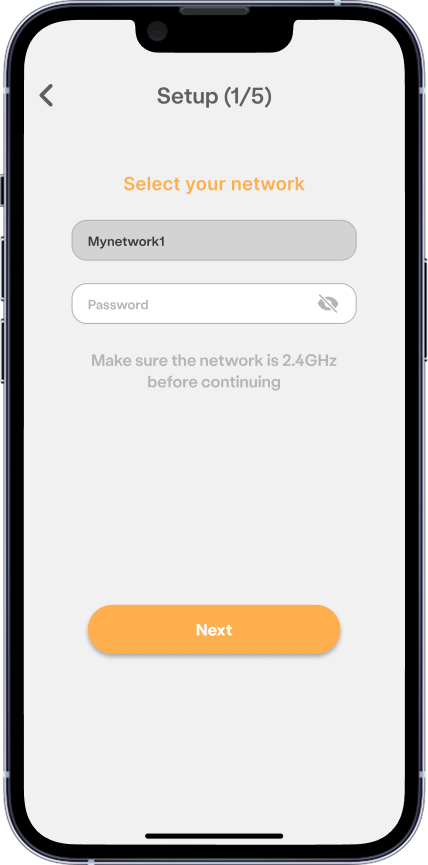
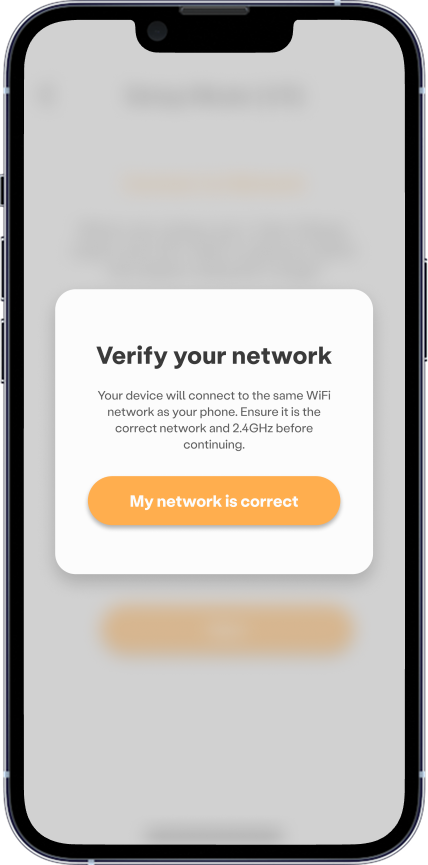
- iOS: Litter-Robot will connect to the same WiFi network as your phone. Make sure your phone is on a 2.4 GHz network.
Android: Select your 2.4 GHz WiFi network.
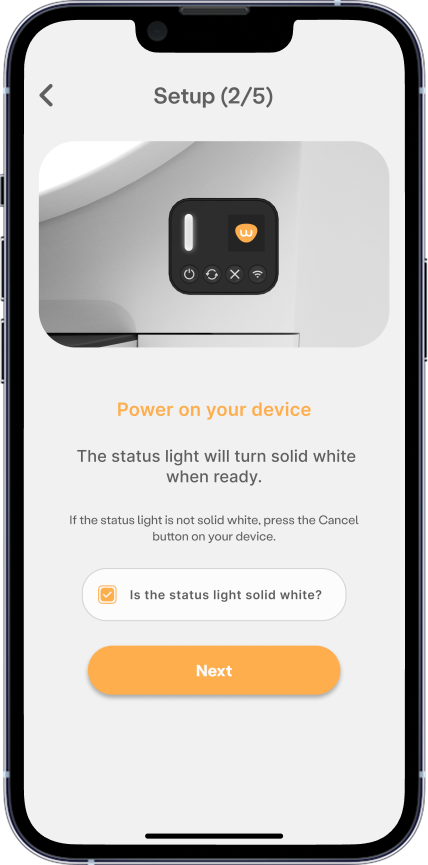
- Ensure your Litter-Robot is plugged in and press the Power button. The status LED will turn solid white when powered on.
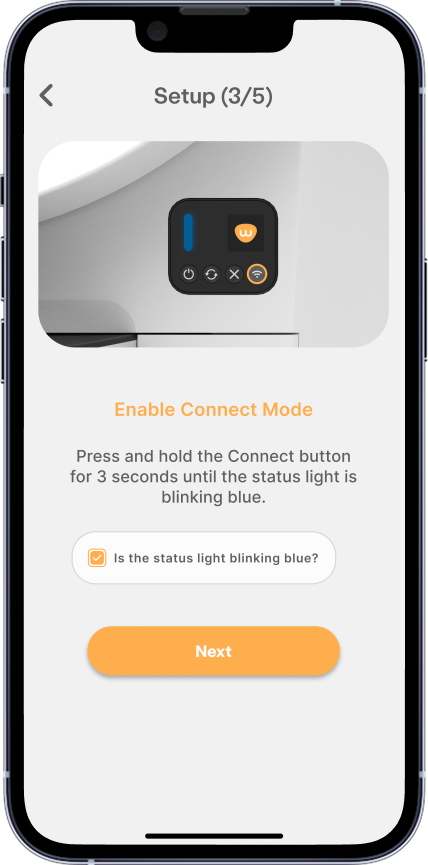
- Enable Onboarding Mode by pressing the Connect button for 3 seconds until the status light turns blinking blue.
- Register your robot by scanning the QR code on the back of the unit to link the serial number to your app. It's also located on the box it came in.
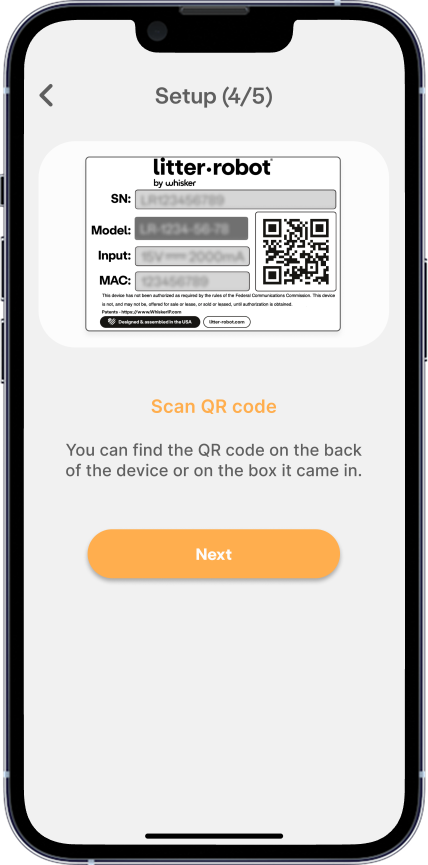
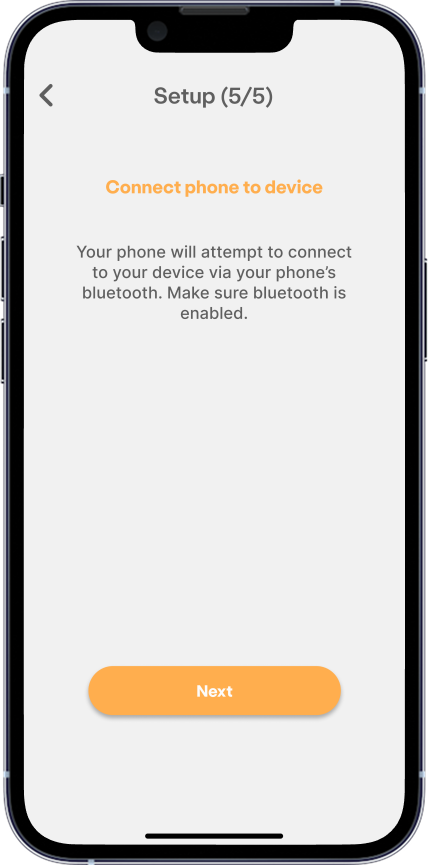
- Now, connect your phone to Litter-Robot via your mobile device's bluetooth.
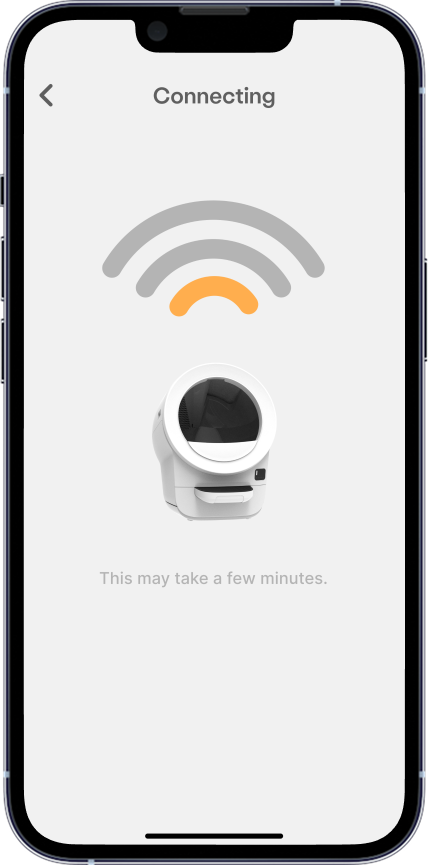
- Keep the app open while your Litter-Robot connects. This may take a few minutes.
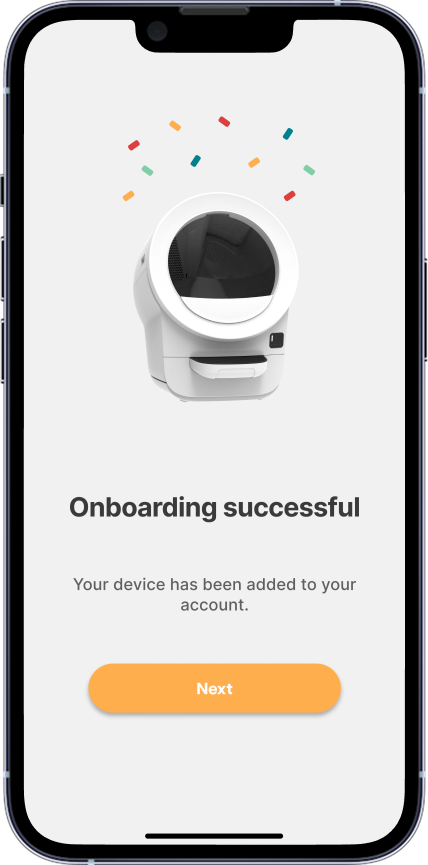
- When successfully connected, the status light will show solid white and your Litter-Robot is ready to use.
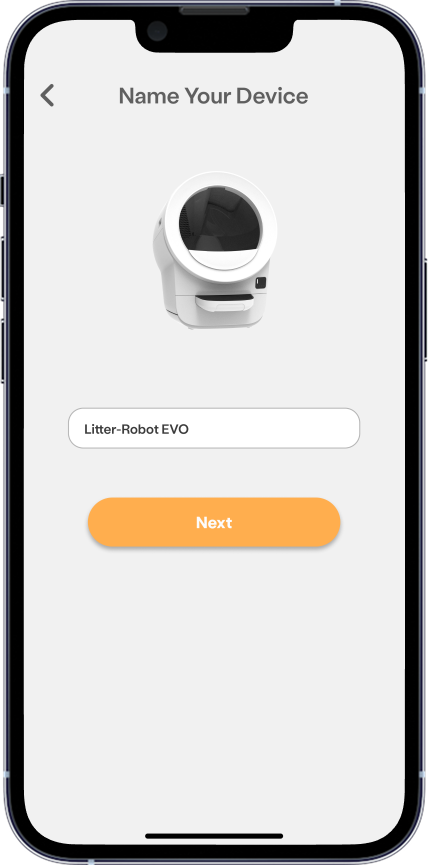
- Next, it’s time to name your Litter-Robot. If you have more than one robot, this will make it easy to identify.
- Next, your firmware will automatically update. Please do not power off or interact with your Litter-Robot until this is finished.
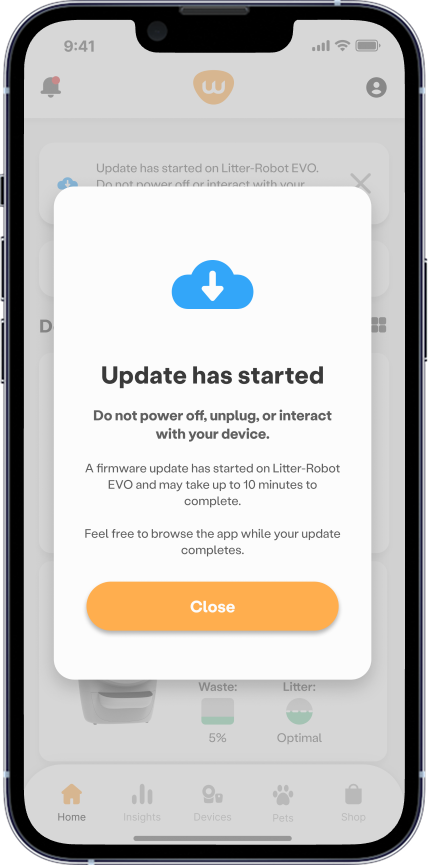
The firmware update may take up to 10 minutes.
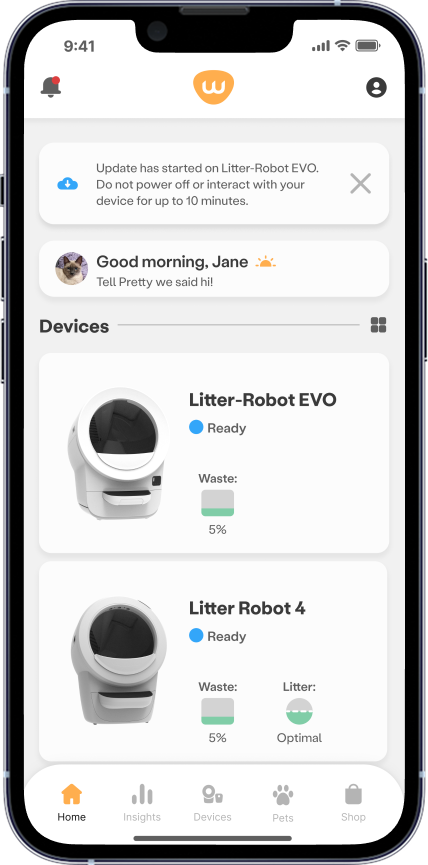
- Now you can finish setting up your new Litter-Robot and enabling SmartScale by creating profiles for your pets.
Congratulations! Your Litter-Robot EVO is connected and ready to use.
Need more help?
Please contact Whisker Customer Experience for further assistance.
Didn't find what you're looking for?
Live support available Mon-Fri: 9AM-9PM EST and Sat-Sun: 9AM-5PM EST, or submit a ticket anytime.