The store will not work correctly in the case when cookies are disabled.


Litter-Robot 4: Laser board installation guide
Learn how to remove and install the Litter-Robot 4 Laser Board.
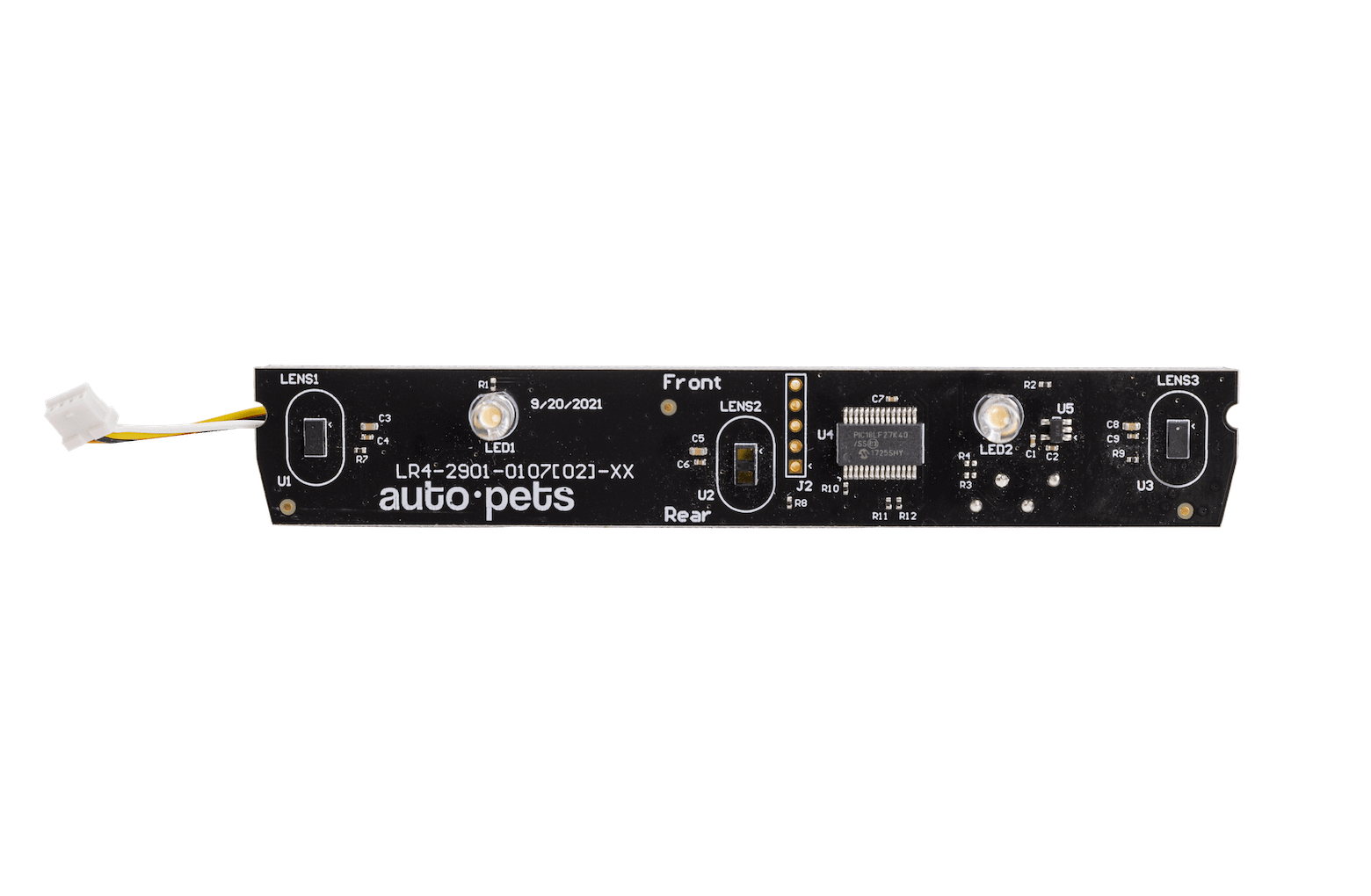
Litter-Robot is equipped with curtain sensors looking downward across the unit opening and into the globe that detect when a cat enters or exits the globe while in the Home position.
You will need:
- Phillips-head screwdriver
-
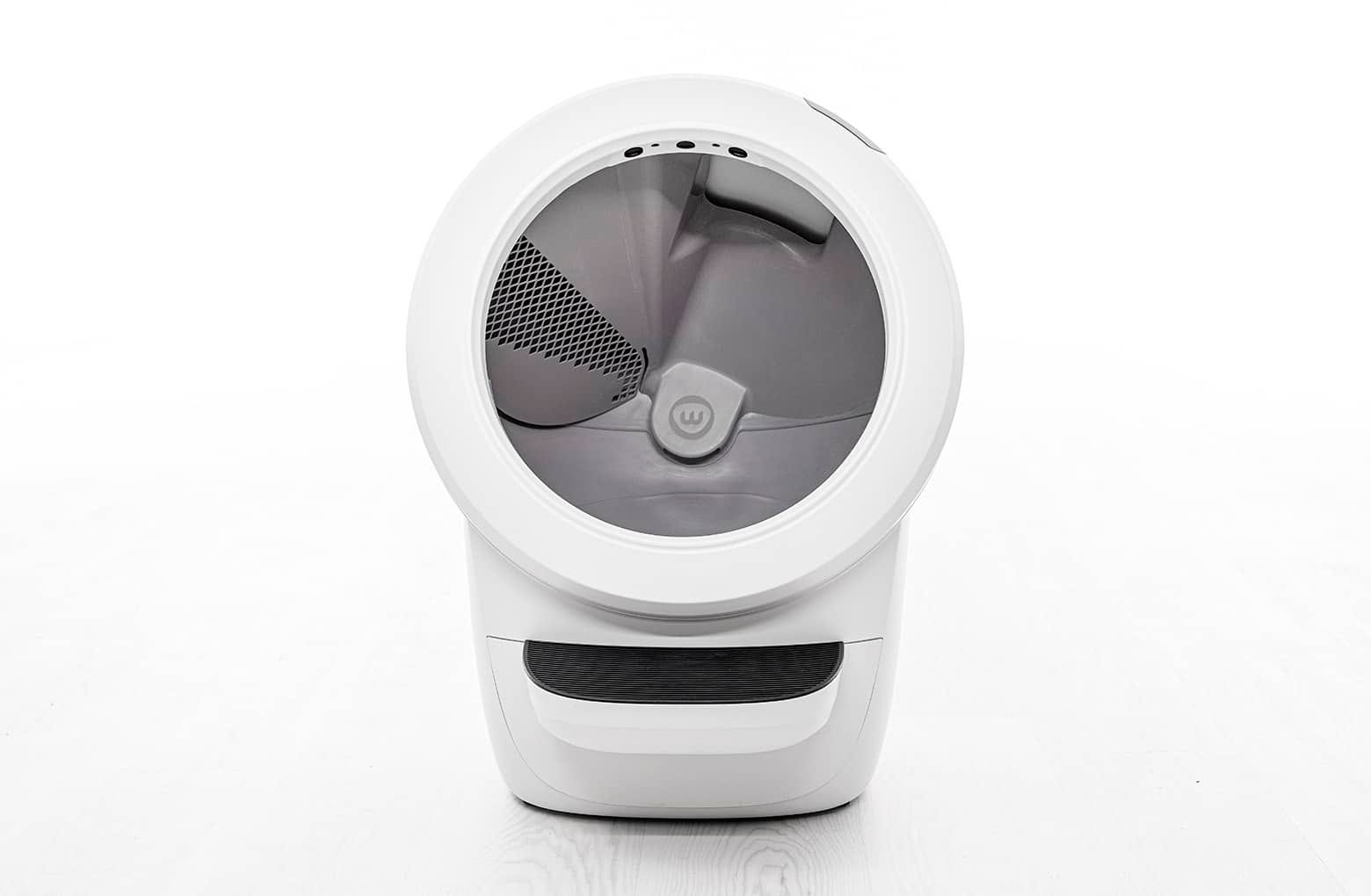
Make sure the unit is in the Home/Ready position.
-
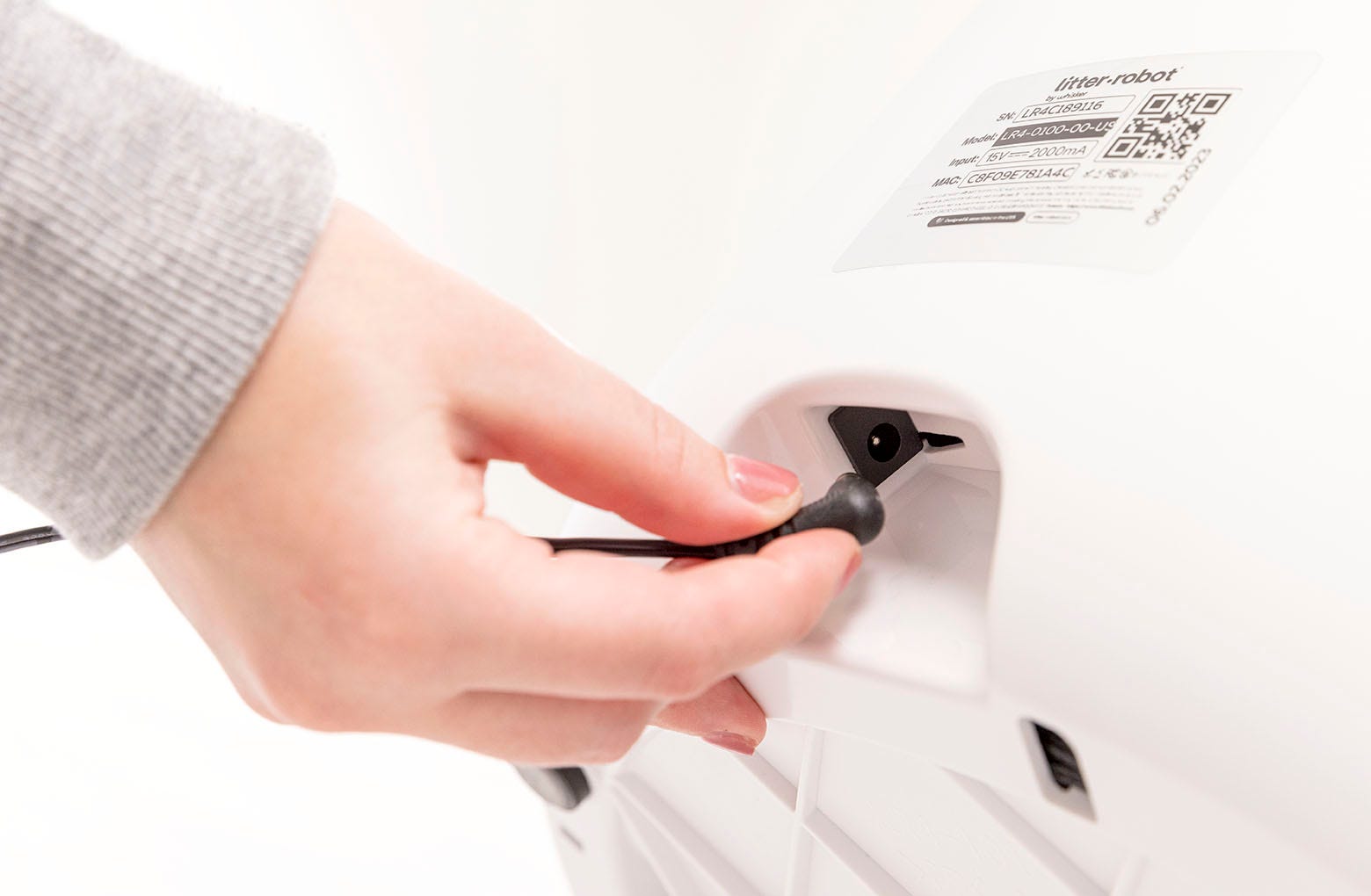
Press the Power button to turn the unit off, then unplug the unit.
-
Remove the bonnet:
-
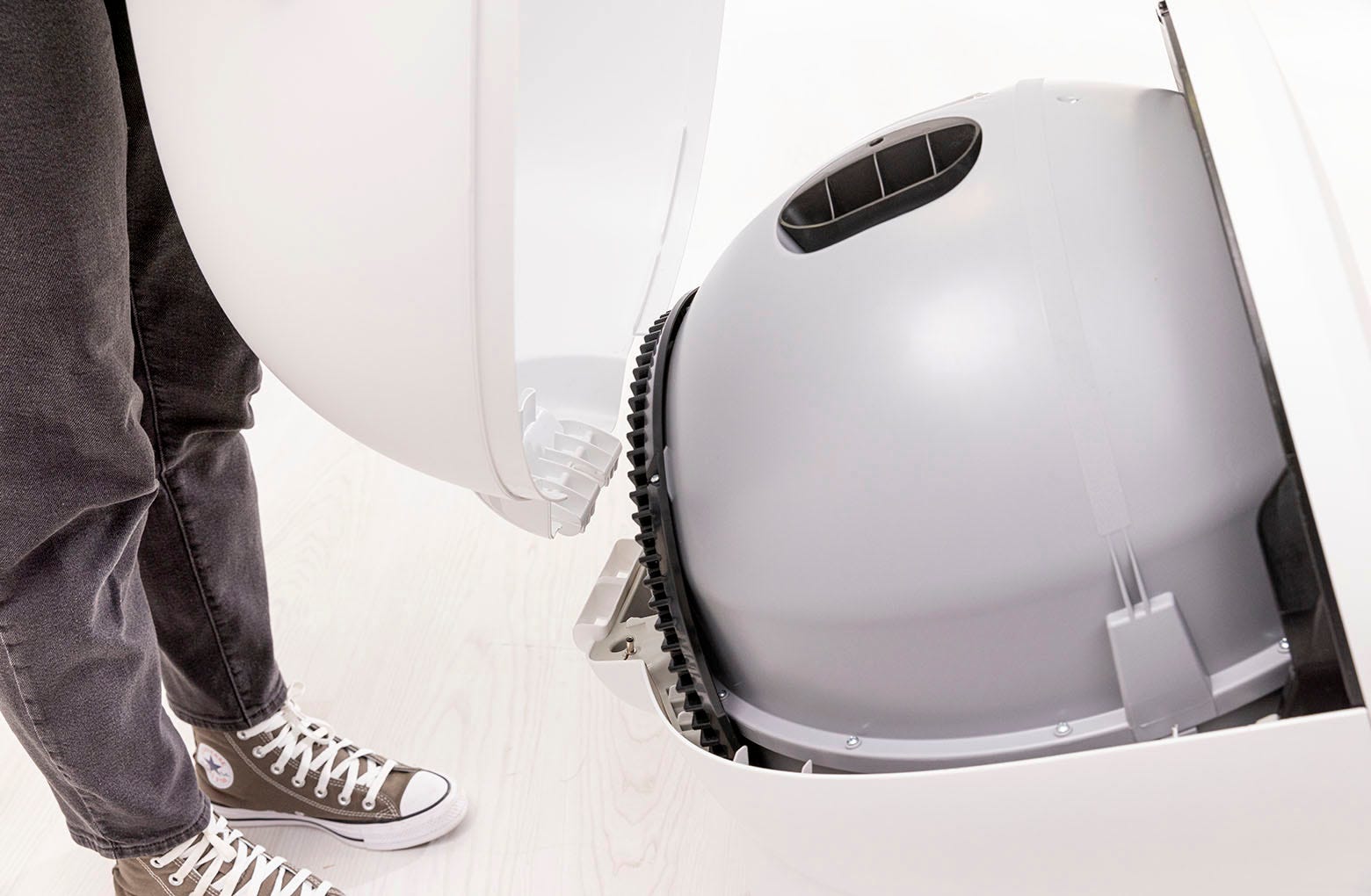
Press and hold the latches on both sides of the bonnet, then lift and
rotate the bonnet to its open position.

-
Lift the bonnet up and out of the hinge to remove.
-
Press and hold the latches on both sides of the bonnet, then lift and
rotate the bonnet to its open position.
-
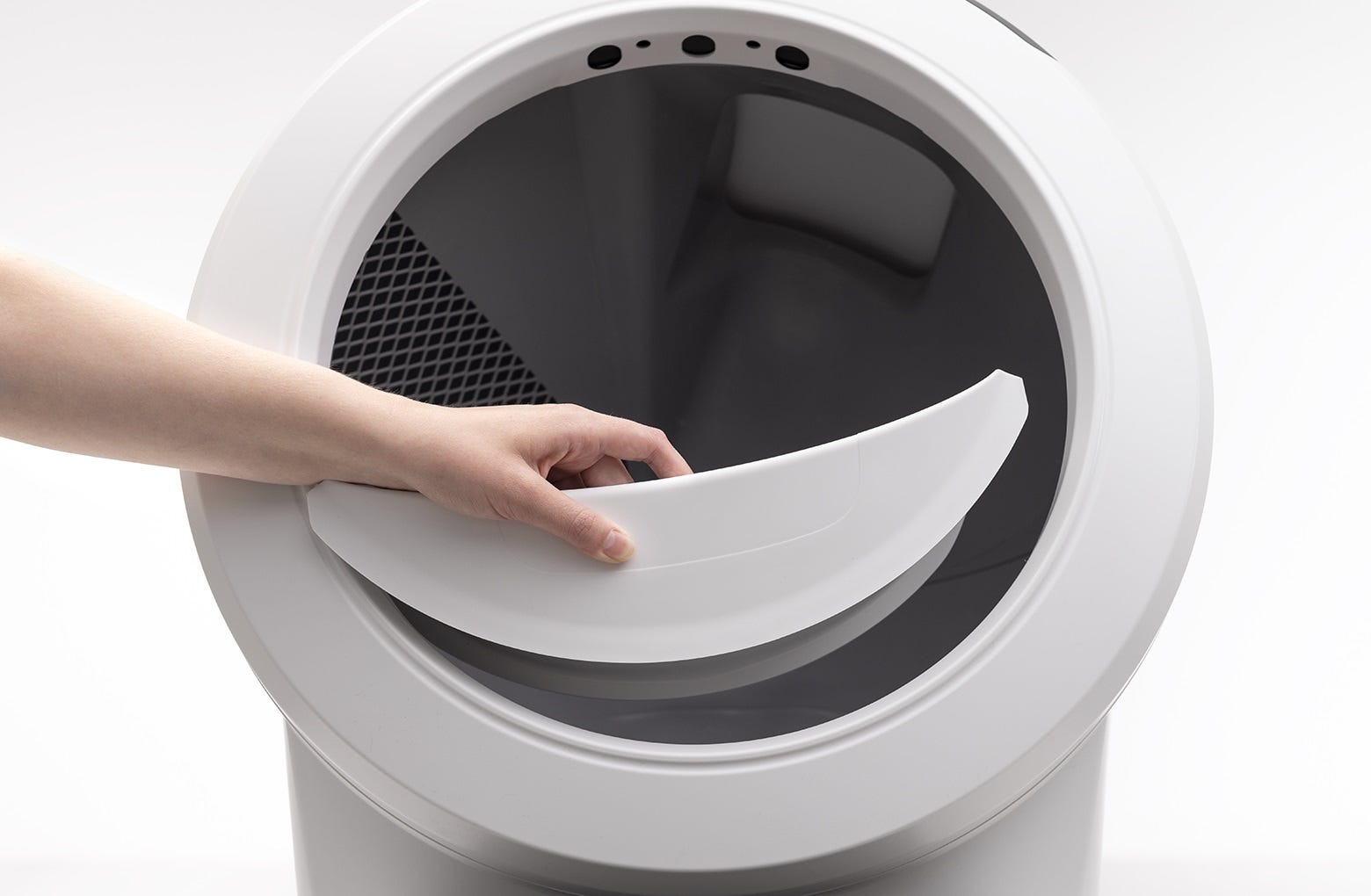
Remove the fence from the bezel at the globe entrance (if installed).
-
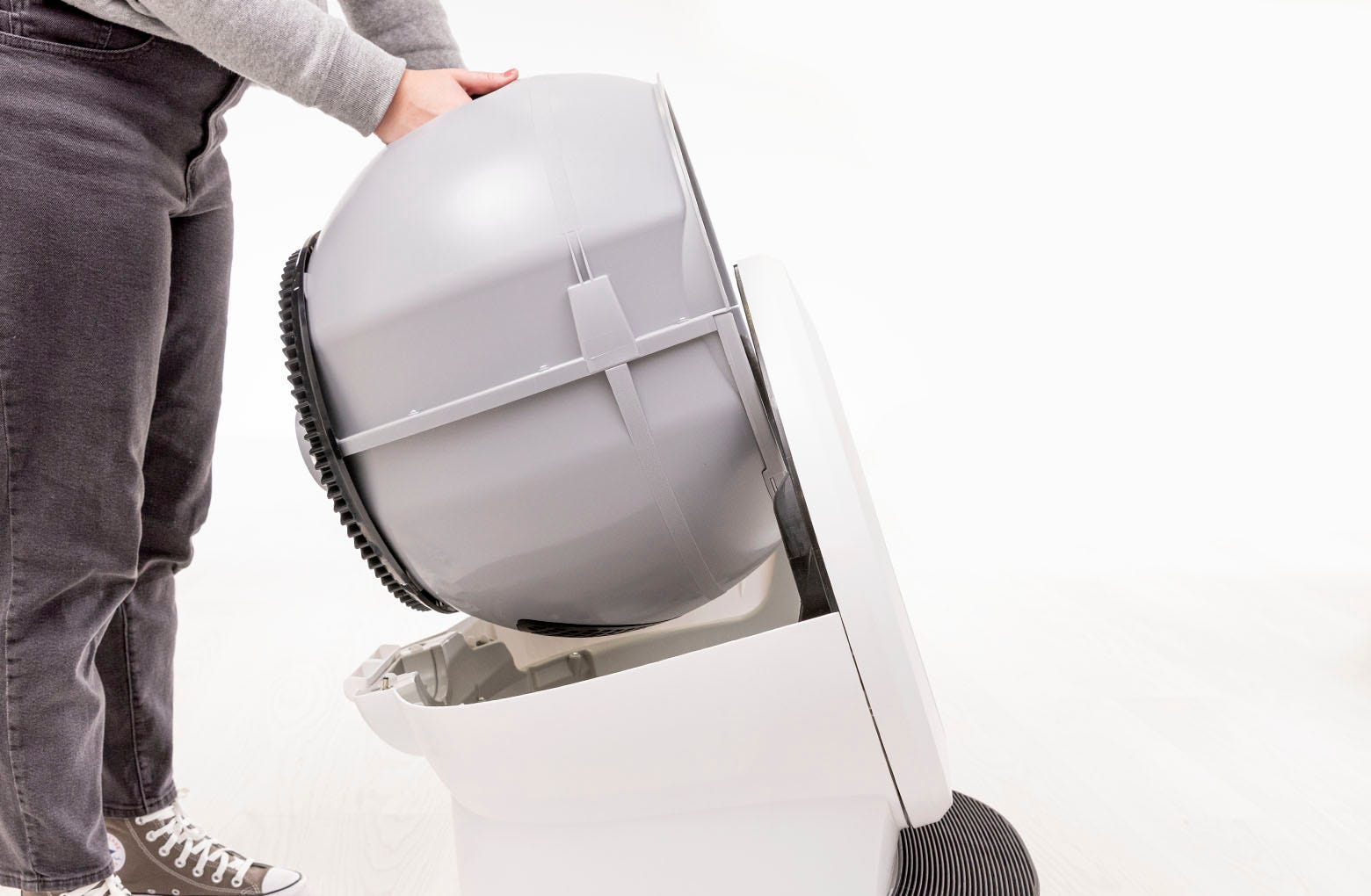
Remove the globe: Grab the black handle located on top of the globe, lift
the globe up and out of the base, and set it aside.
-
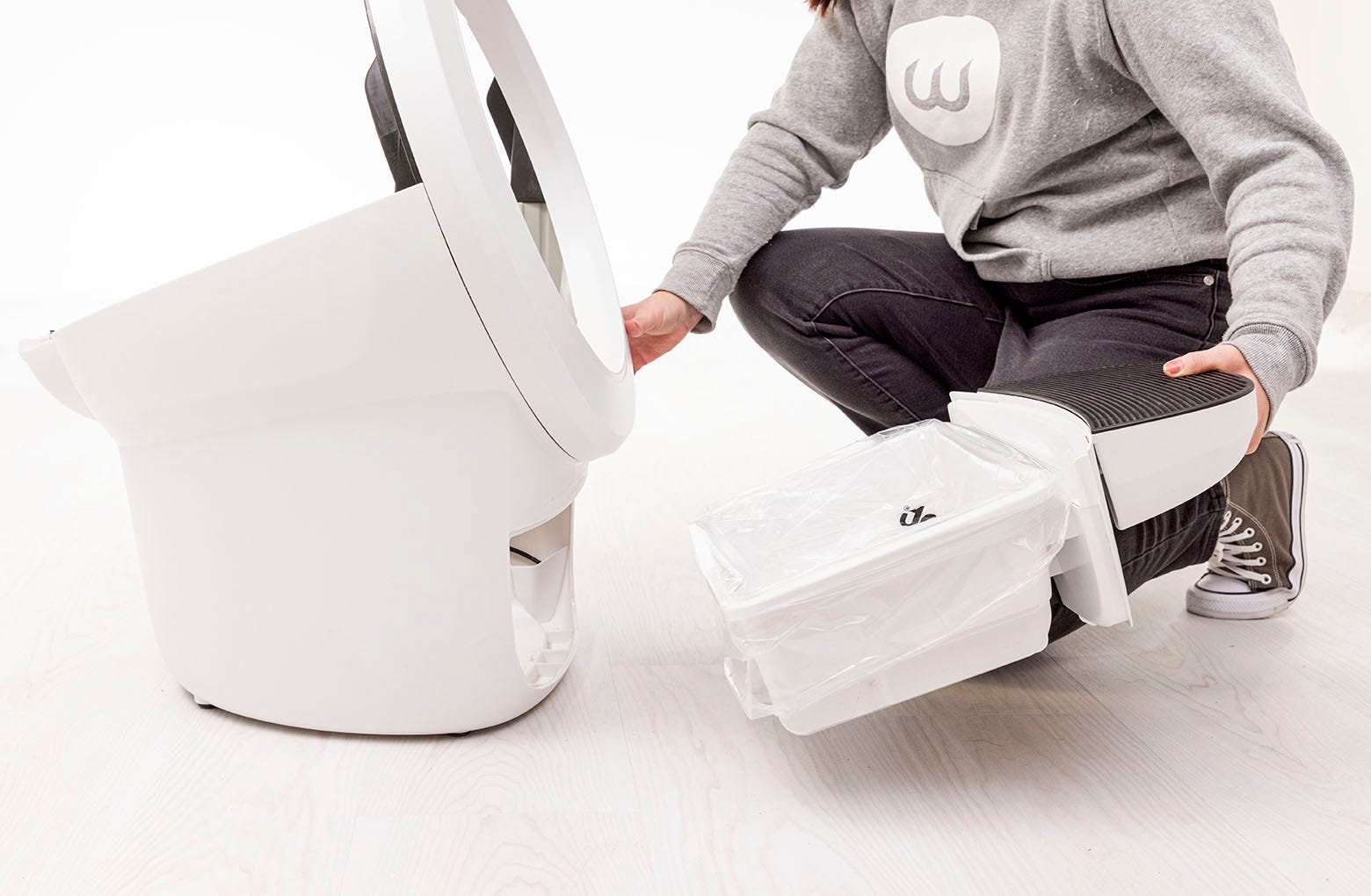
Remove the waste drawer and set it aside.
-
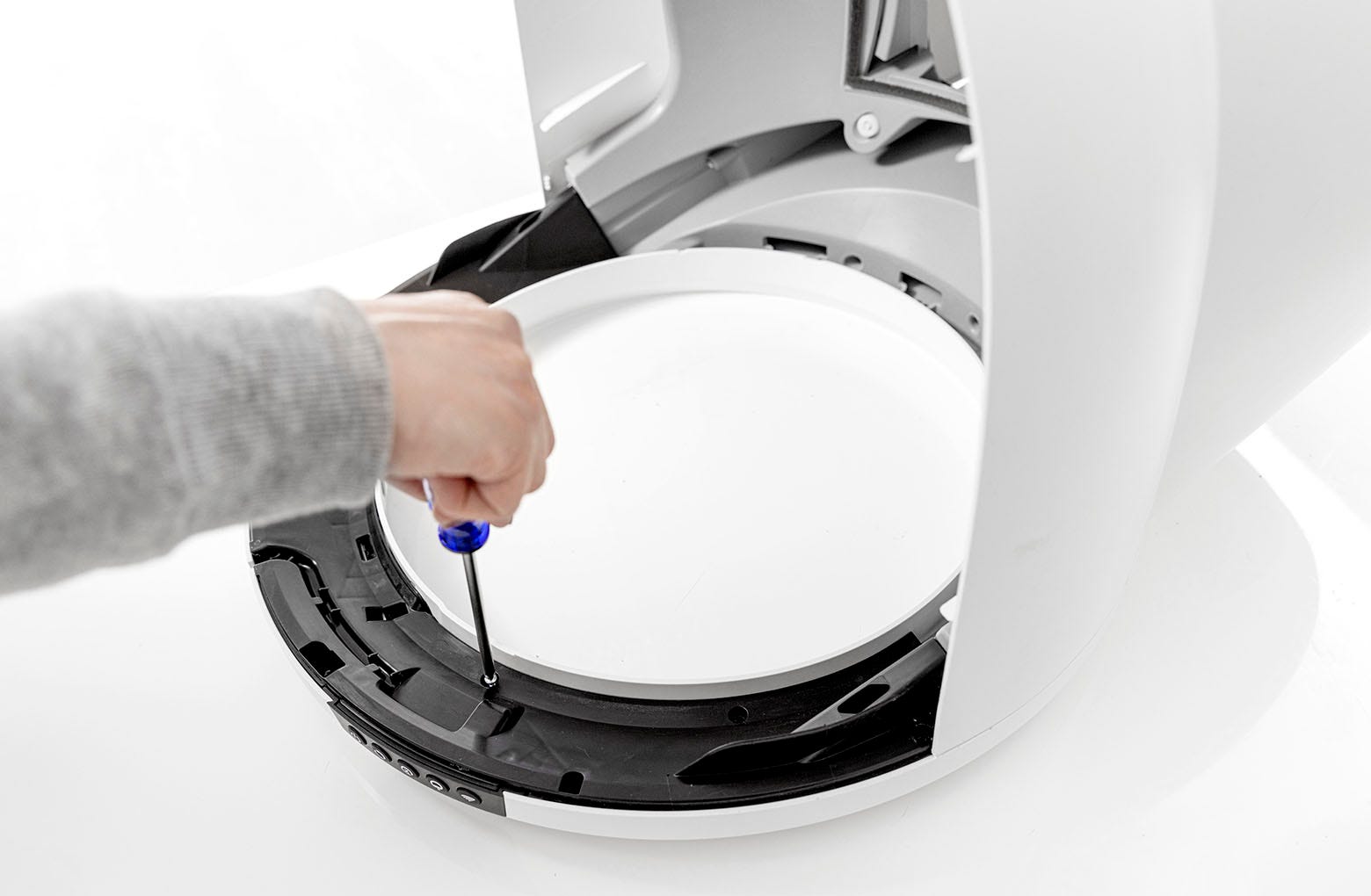
Place the unit facedown (bezel down) on a solid, flat surface. Use a
magnetized screwdriver and/or tips for ease of screw removal:
-
Remove the ten (10) screws from the black bridge (what the bezel is
attached to).
-
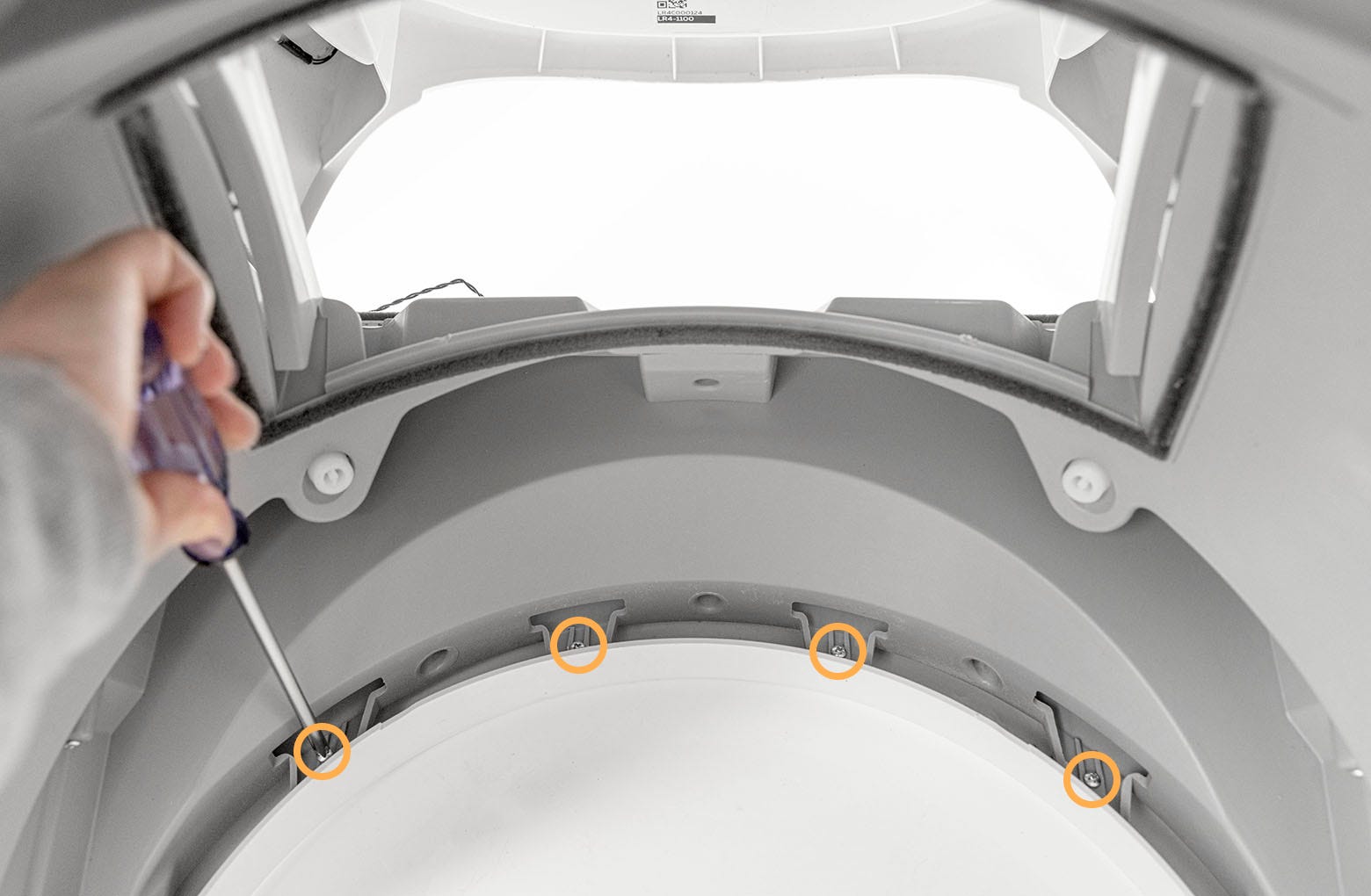
Remove the four (4) screws behind the seal strips attached to the bezel
(the top of the bezel as it is presently situated).
-
Remove the ten (10) screws from the black bridge (what the bezel is
attached to).
-
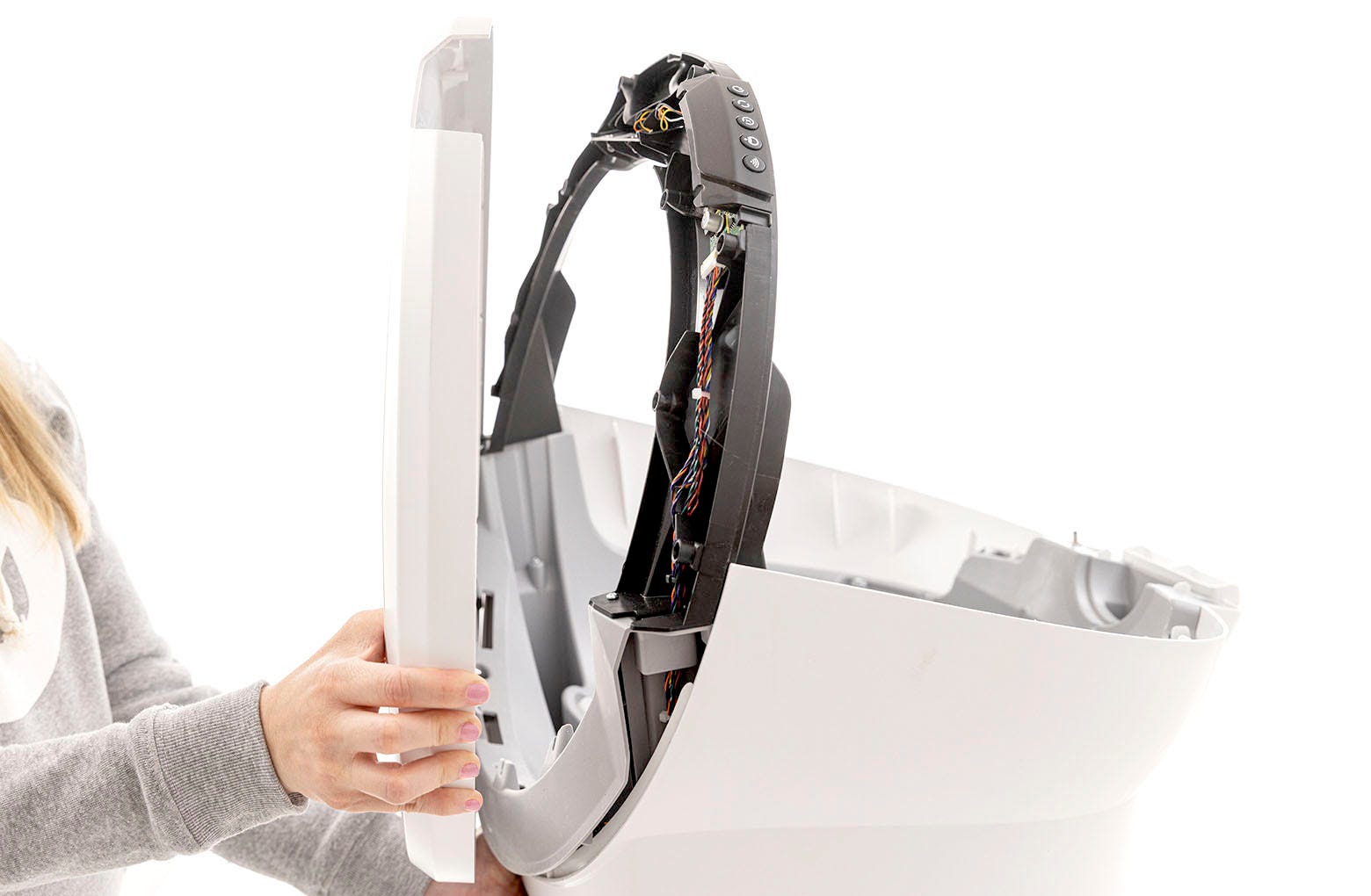
Tip the unit upright. With a hand on the drawer opening of the base,
carefully pull out on one side of the bezel to begin separation from the
bridge. Now pull out on the other side and remove the bezel completely.
-
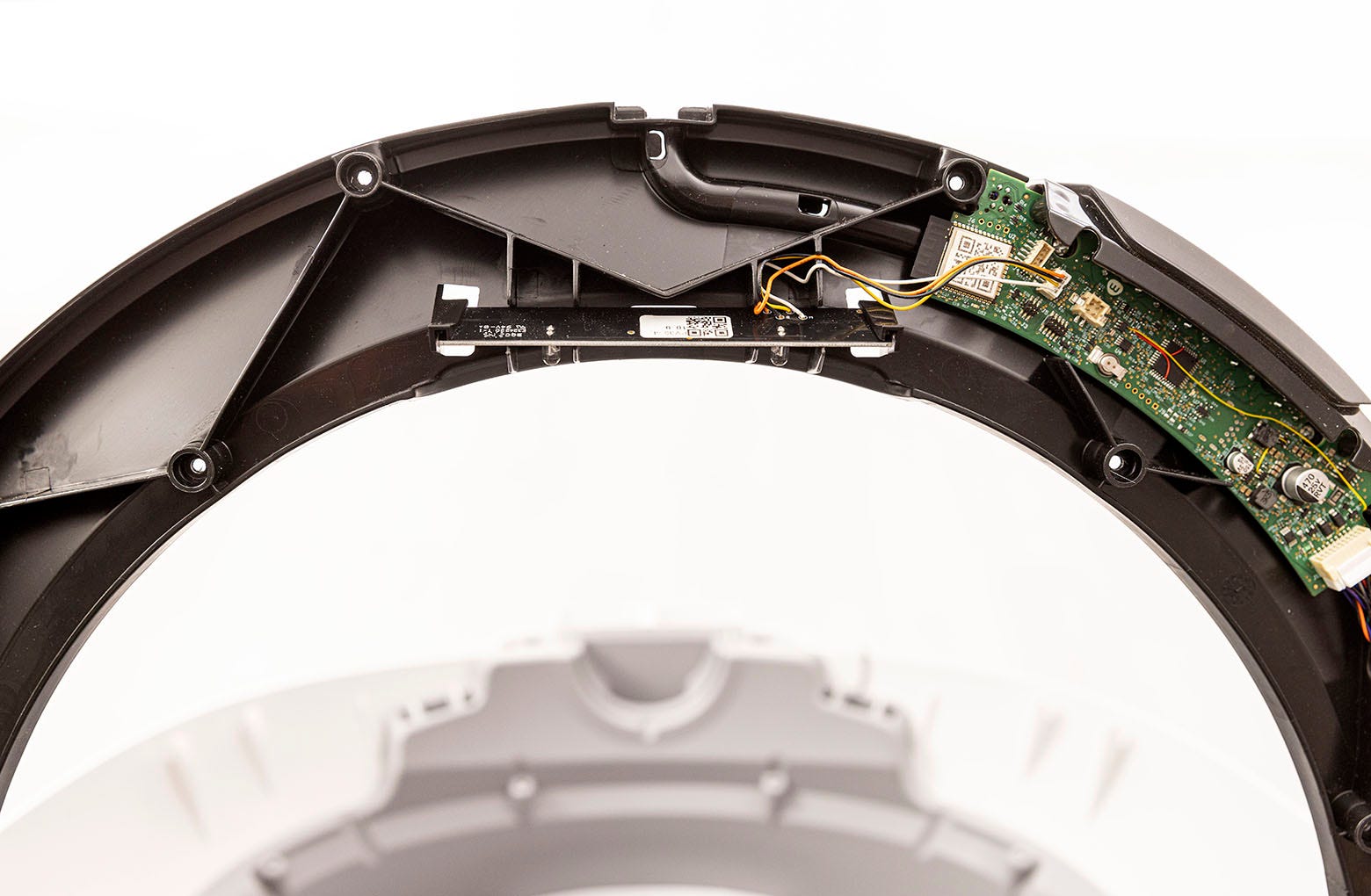
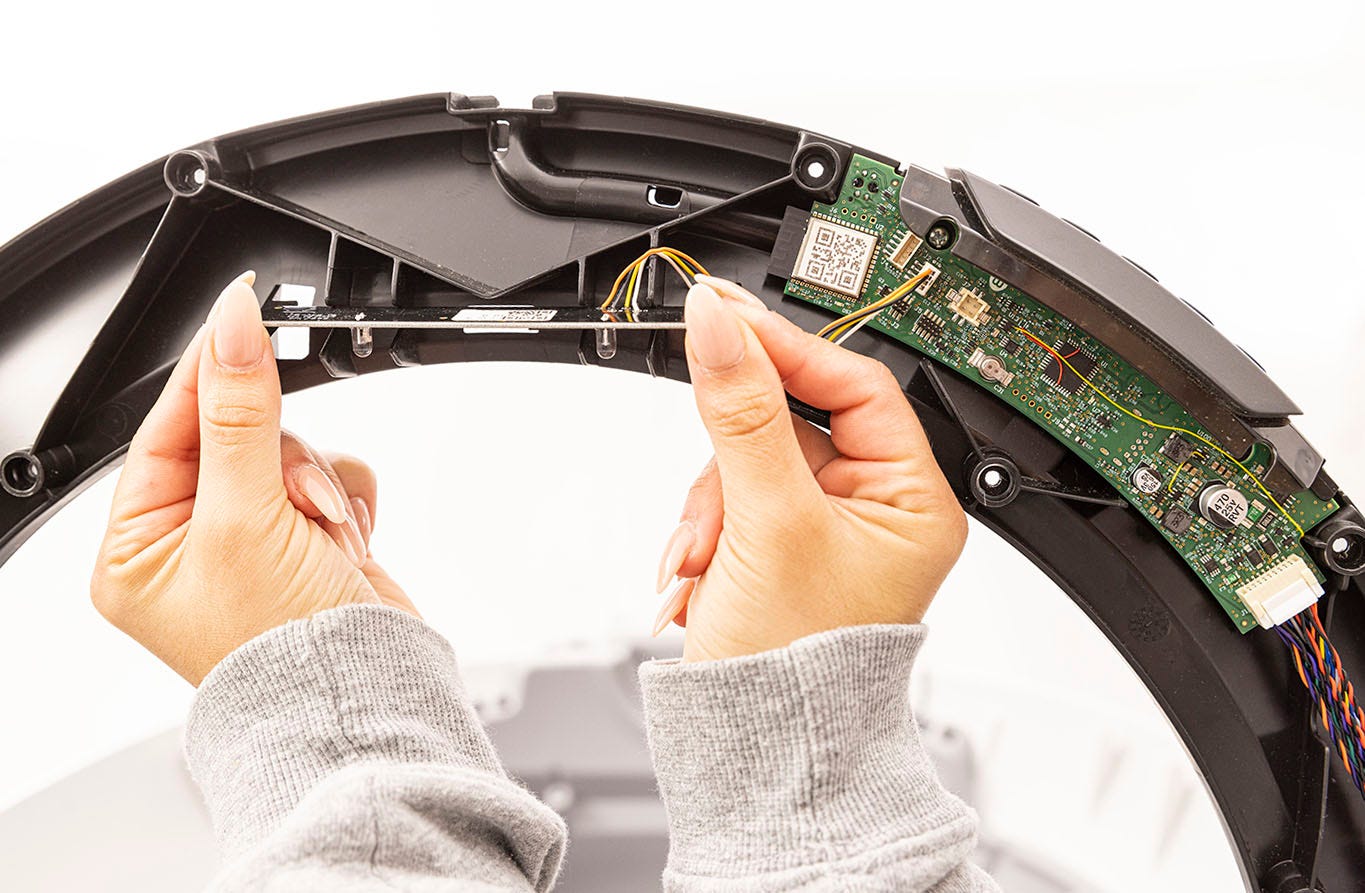
Locate the laser board at the top center of the unit.
-
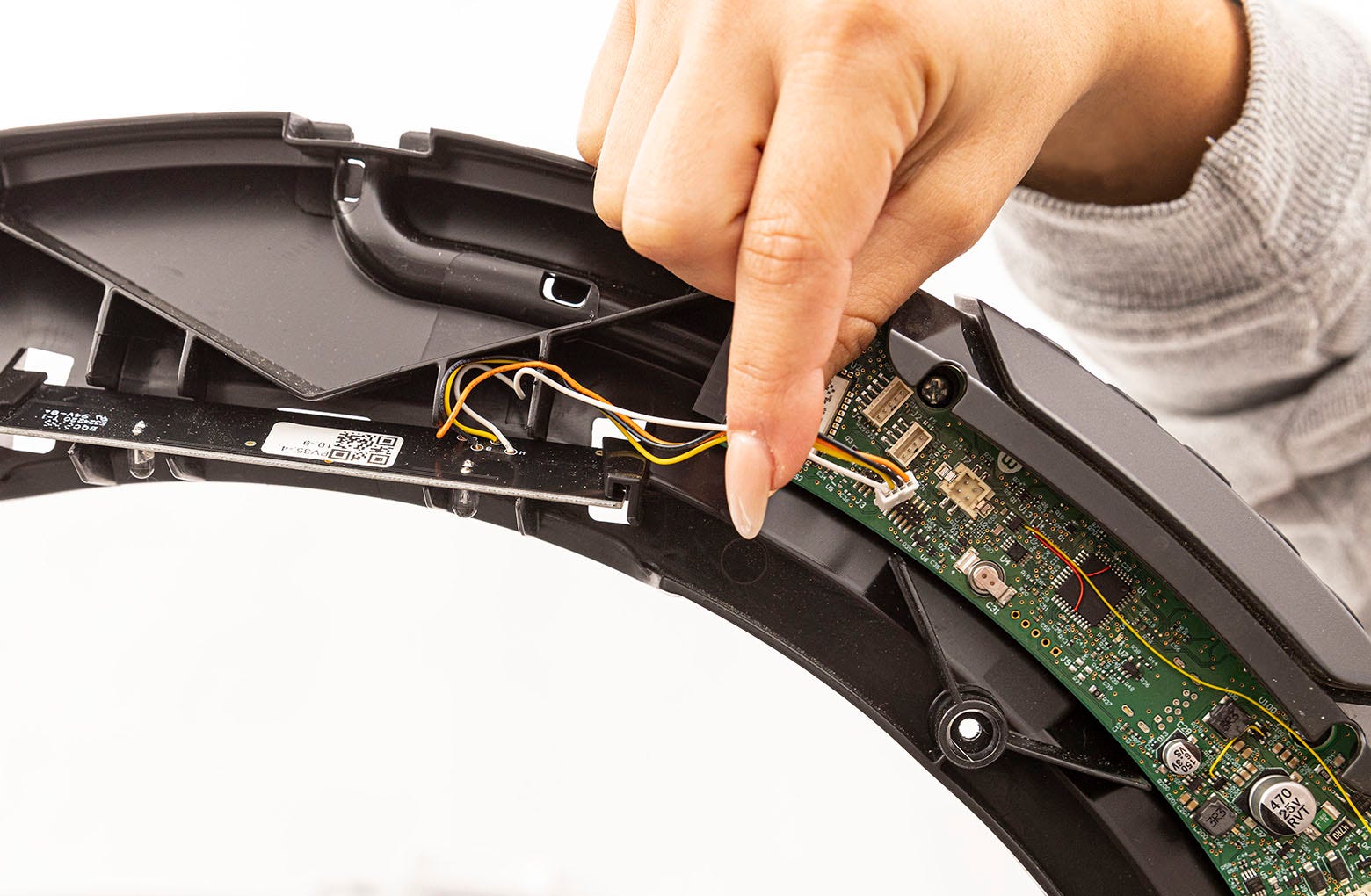
Gently disconnect the laser board from the main board by releasing the
connector.
-
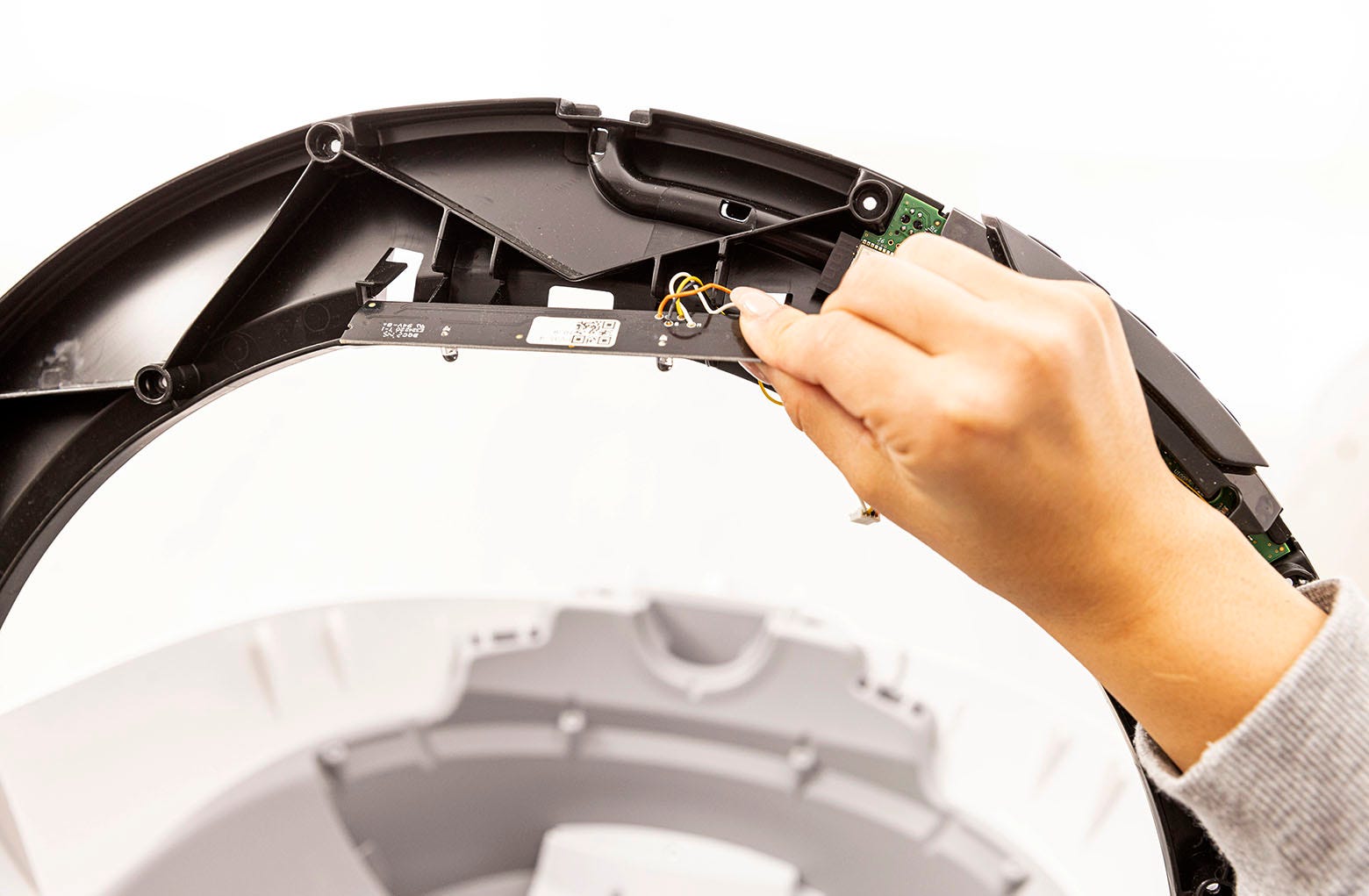
Remove the old laser board.
-
Install the new laser board: Remove the tape covering the three (3) sensors
on the board. Connect the laser board connector to the main board. Ensure
the wires from the laser board are not in front of screw locations and are
in the retention slots.
-
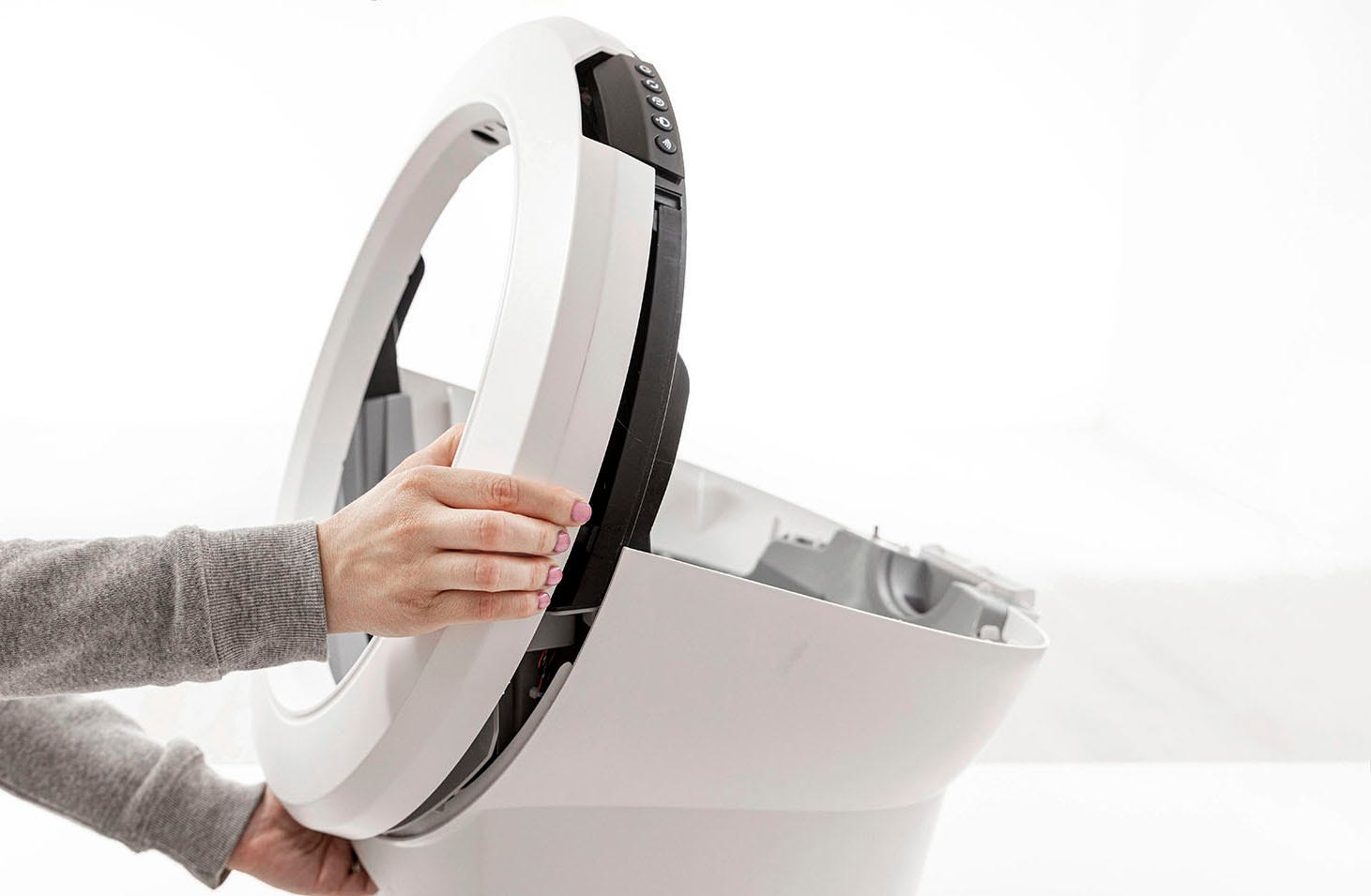
Replace the bezel and place the unit facedown, bezel on a solid surface.
-
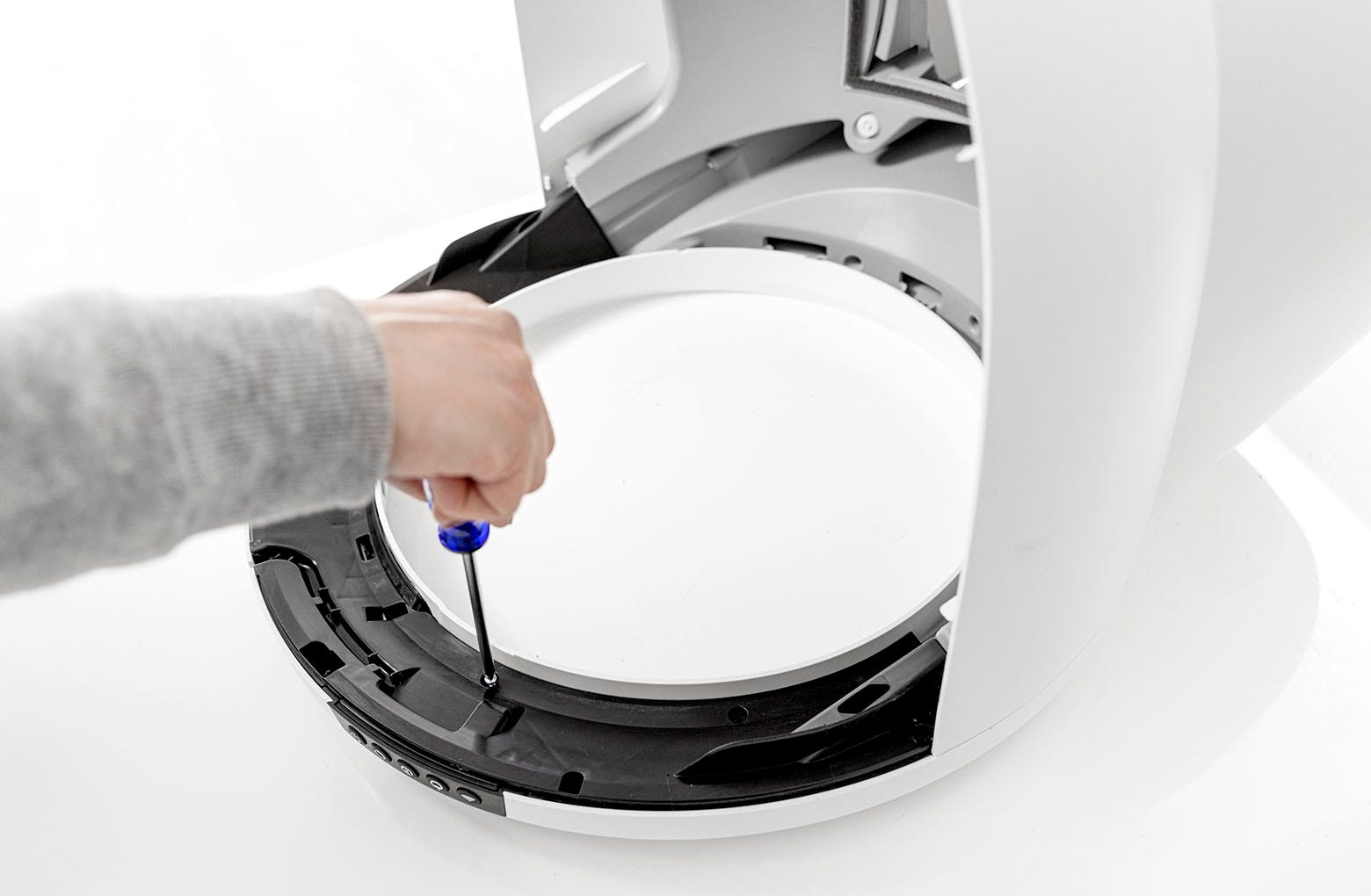
Replace the fourteen (14) screws into the bridge.
-
Replace the fourteen (14) screws into the bridge.
-
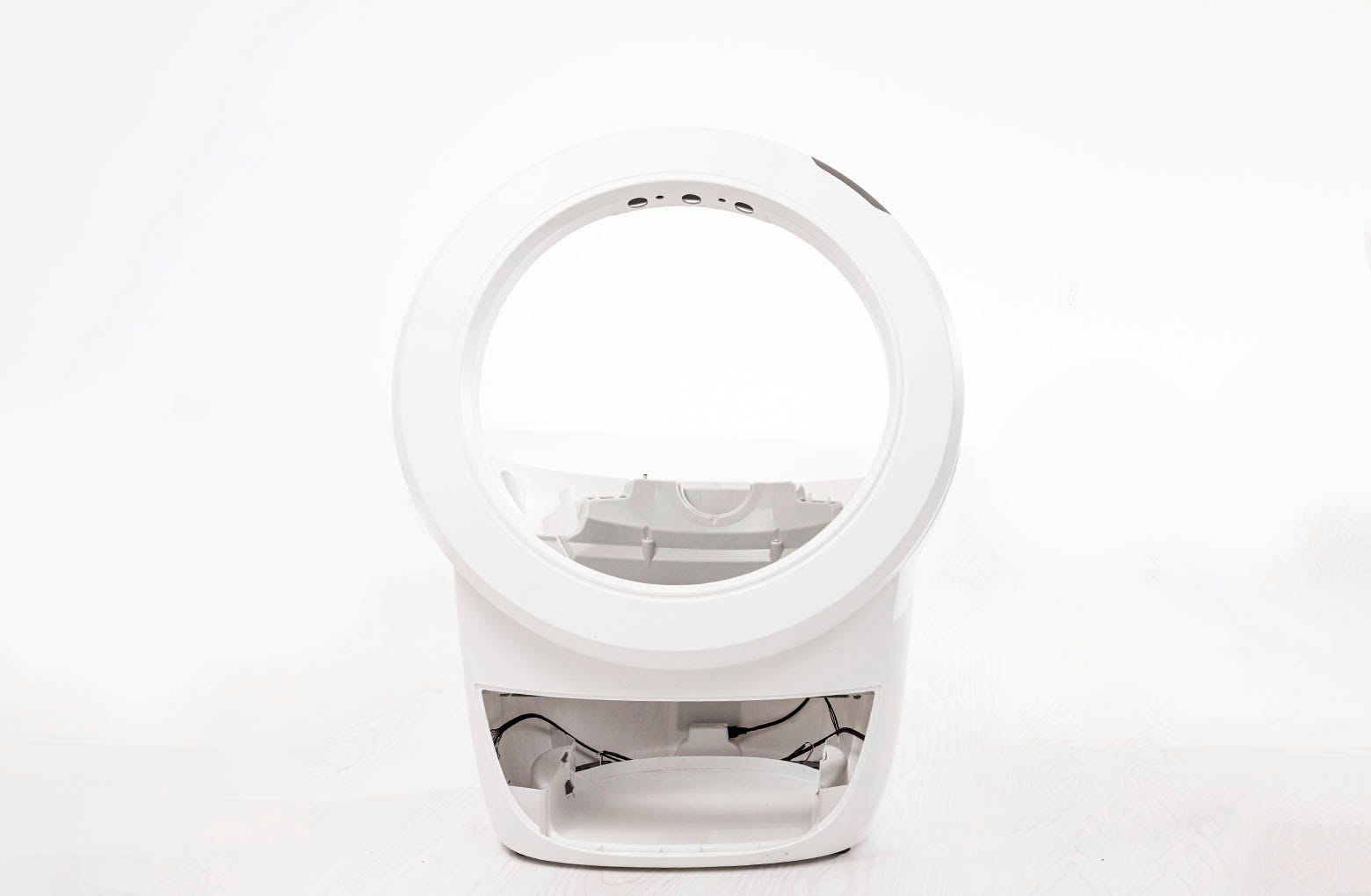
Place the base right-side up again.
-
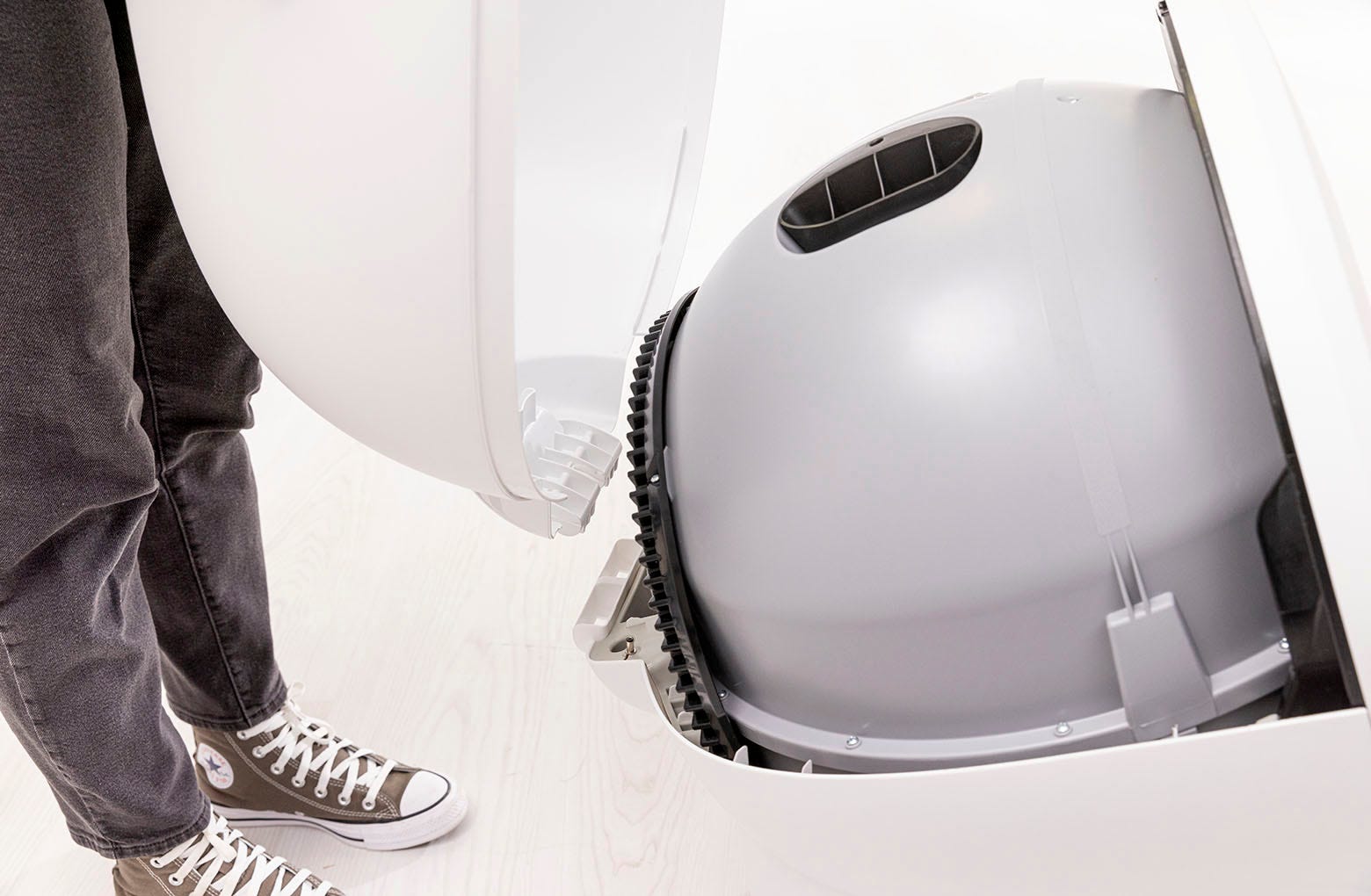
Replace the globe: Hold the globe by the handle and slide it back into the
base. Ensure the back of the globe is sitting flush in the rear bearing
pocket. The large black gear on the rear of the globe will line up with the
small white gear in the base.

-
Replace the bonnet:
-
Place the bonnet into the hinge behind the robot as shown.
-
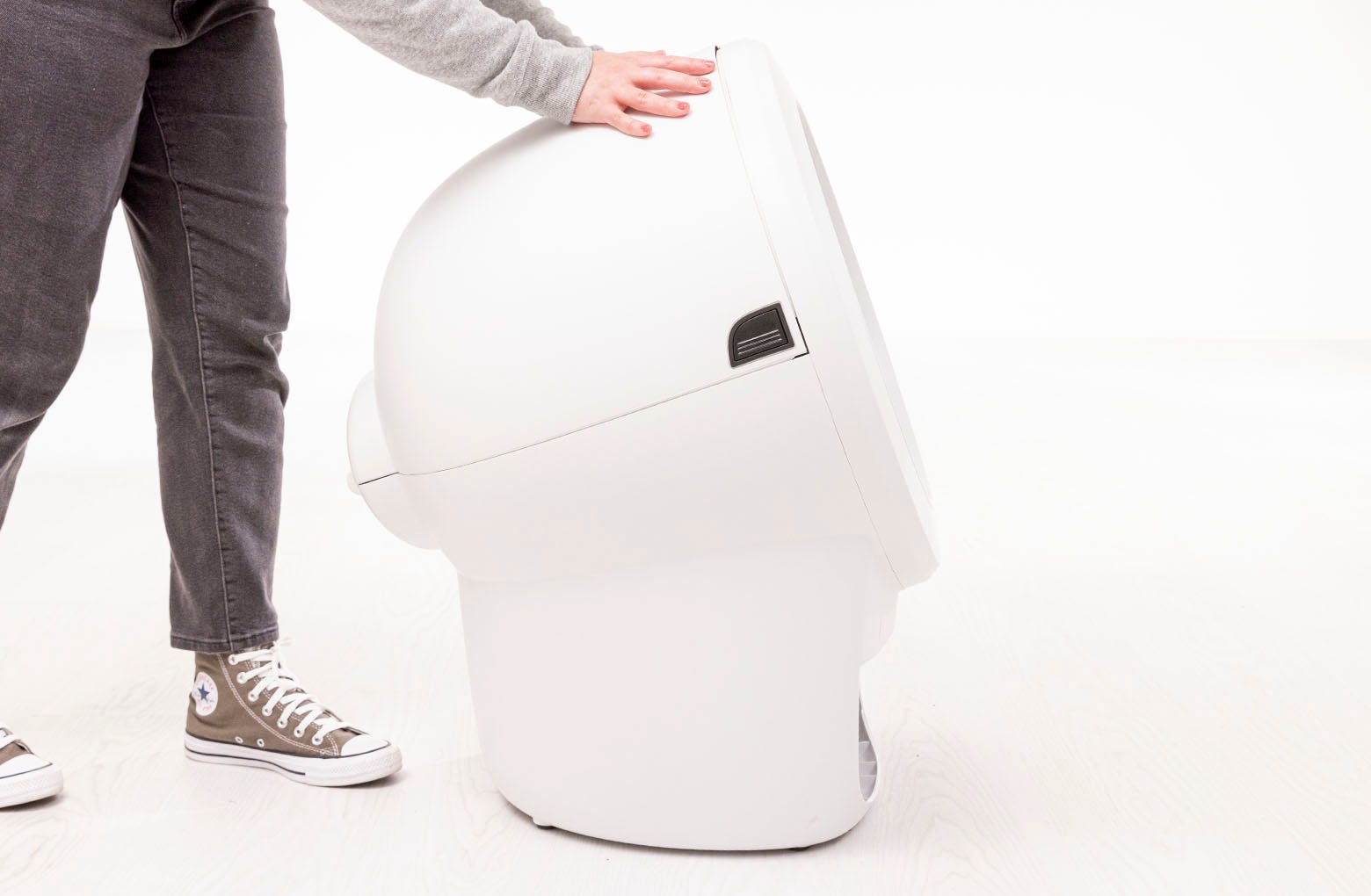
Rotate the bonnet downward over the globe and push down on the bonnet
from the top to make sure it is latched and secure.
-
Place the bonnet into the hinge behind the robot as shown.
-
If desired, re-install the fence by snapping it onto the bezel at the globe
entrance.

-
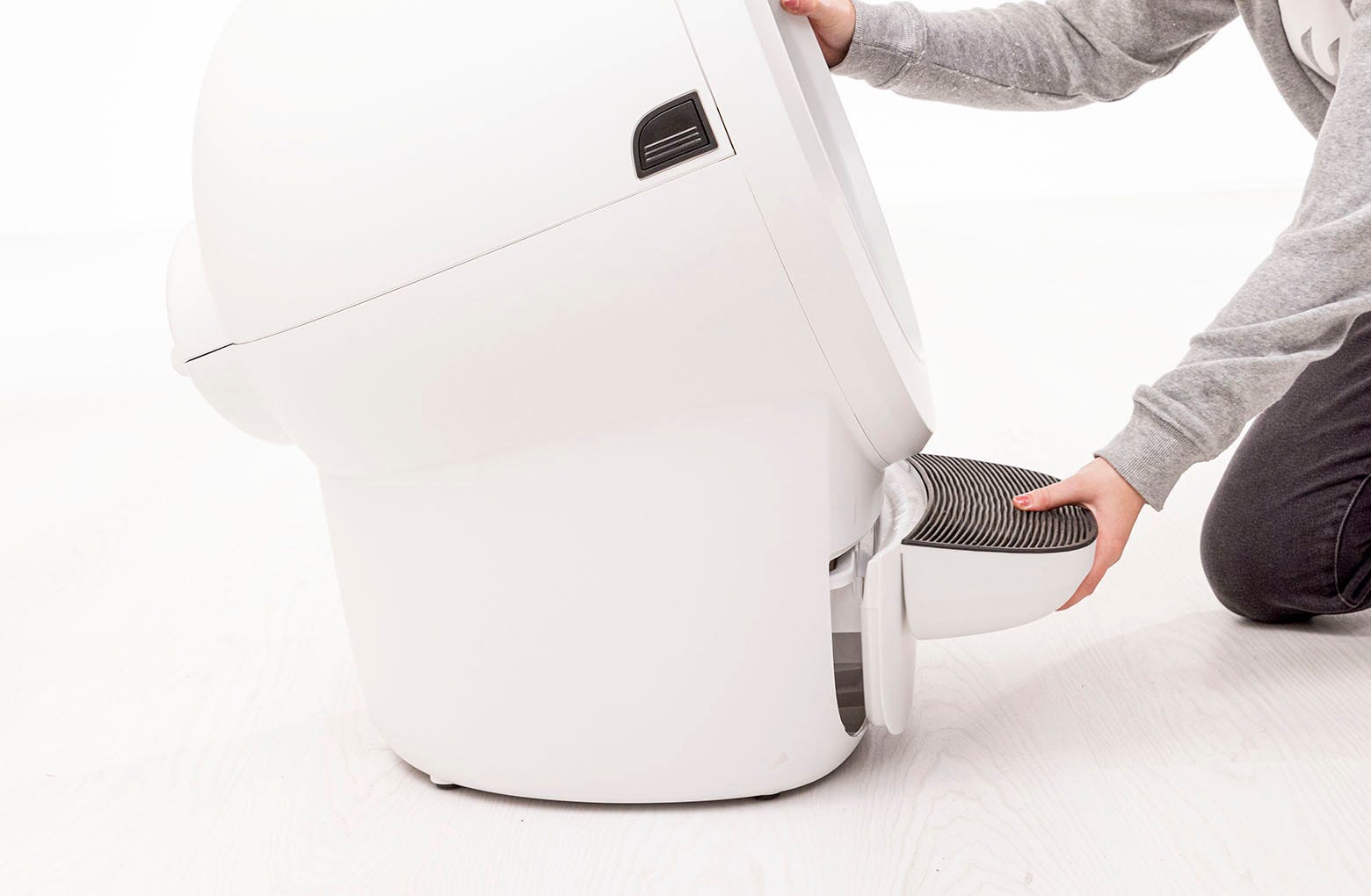
Slide the waste drawer back into the base.
-
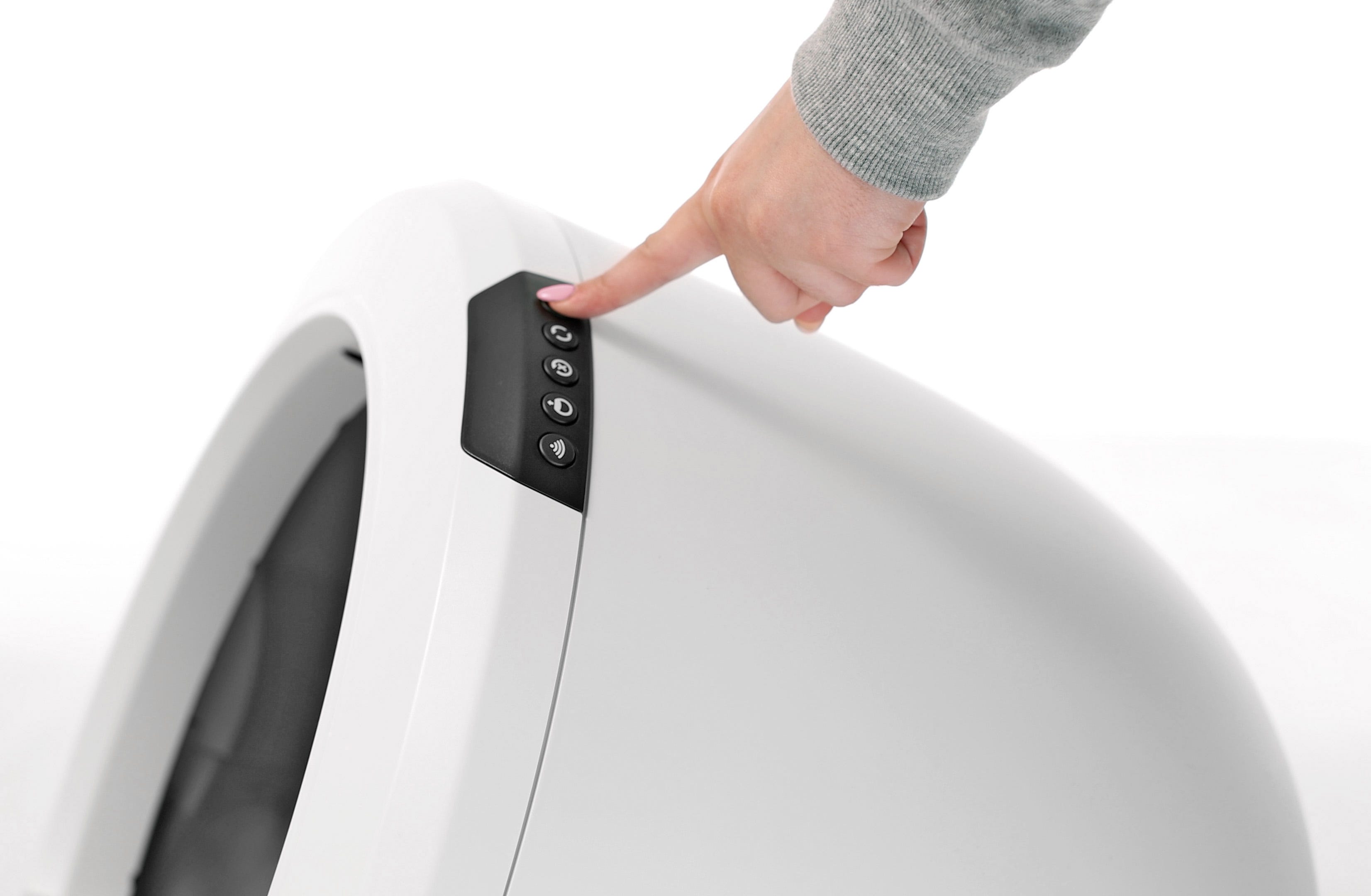
Plug the unit back in and power it on.
Didn't find what you're looking for?
Phone and Chat support available Mon-Fri: 9AM-9PM EST and Sat-Sun: 9AM-5PM EST, or submit a ticket anytime.