The store will not work correctly in the case when cookies are disabled.

Litter-Robot 5 / Pro: Calibrate the litter level
If the litter level in your Whisker app or on the LCD screen after a cycle doesn’t match the actual litter bed level in your Litter-Robot 5, follow this guide. These steps explain how to calibrate the Litter-Robot 5 litter levels, how the sensors measure the litter bed, and how to troubleshoot when the readings are inaccurate.
Quick links
Before you begin
Make sure:
Your unit is plugged in.
Your unit is connected and online.
Your firmware is up to date. (If the app does not show an update option, you already have the latest version.)
How the litter level system works
Litter-Robot 5 is equipped with:
OmniSense® detection: Combines optical and weight sensors to provide real-time litter and waste monitoring.
- Curtain sensor: Located in the bezel, this measures the litter bed level in the globe and monitors waste drawer levels.
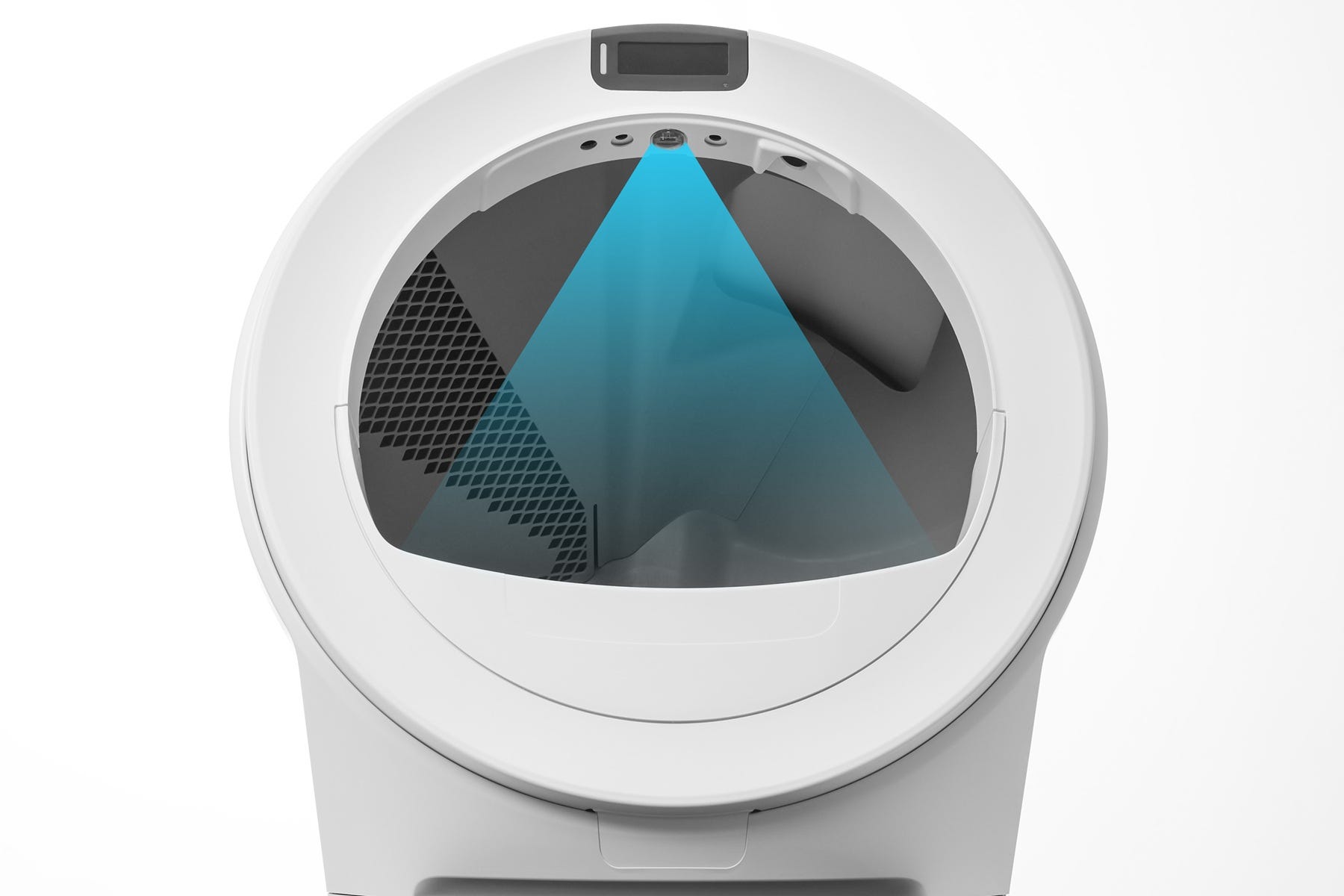
SmartScale® weight sensors: In the base, these ensure accurate cat detection and weight calibration.
During each Clean Cycle, the robot measures the litter bed level. If it detects a low litter level, the Whisker app and LCD screen on the robot will recommend adding more litter.
Translucent or white-colored litter (most often seen in crystal litter) may impact the litter level and Drawer Full Indicator (DFI) accuracy.
Measure updated litter level
Running a Clean Cycle ensures the robot measures and records the updated litter bed level.
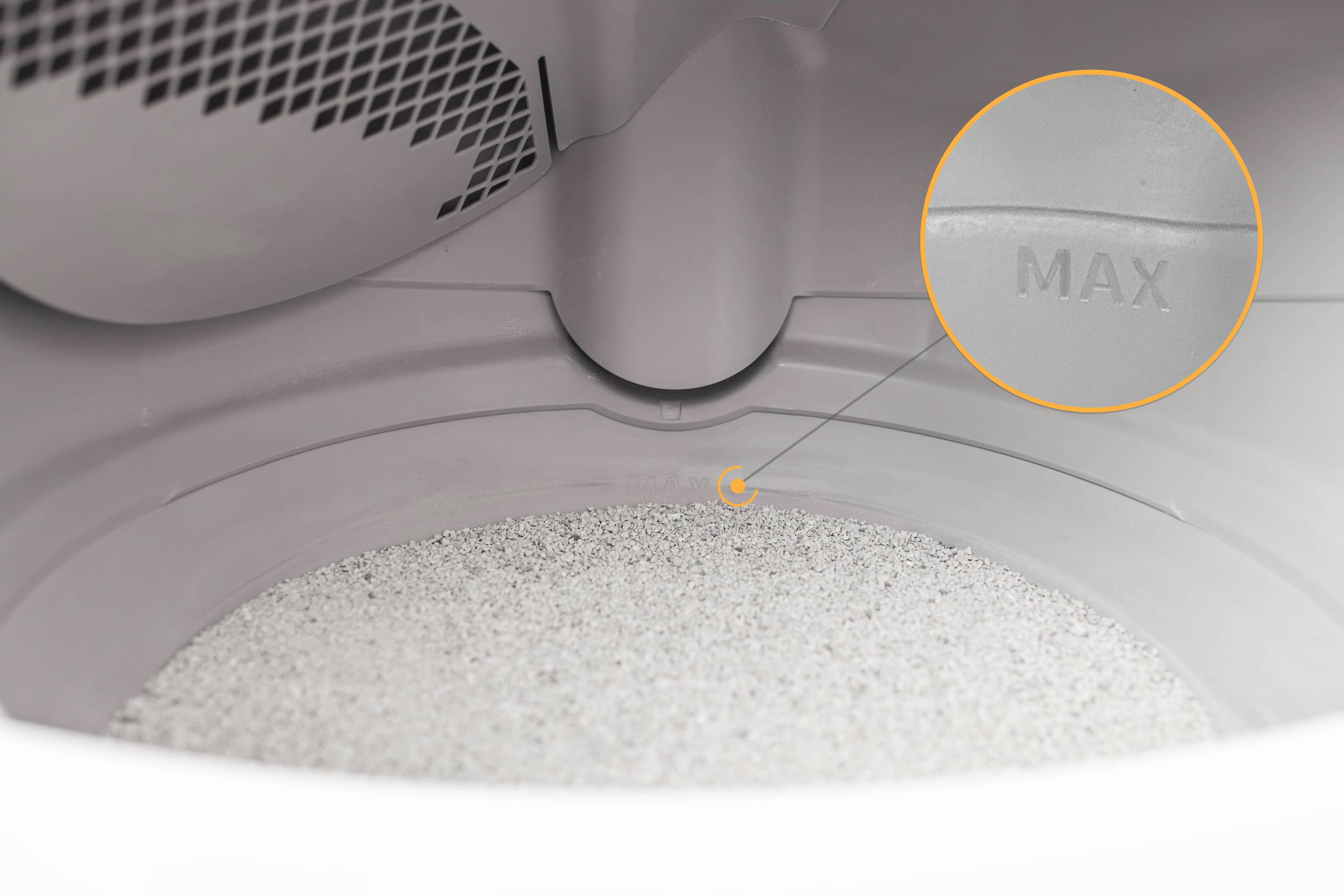
- Add litter up to the raised MAX fill line inside the globe.
- Short press the Cancel button to zero the SmartScale.
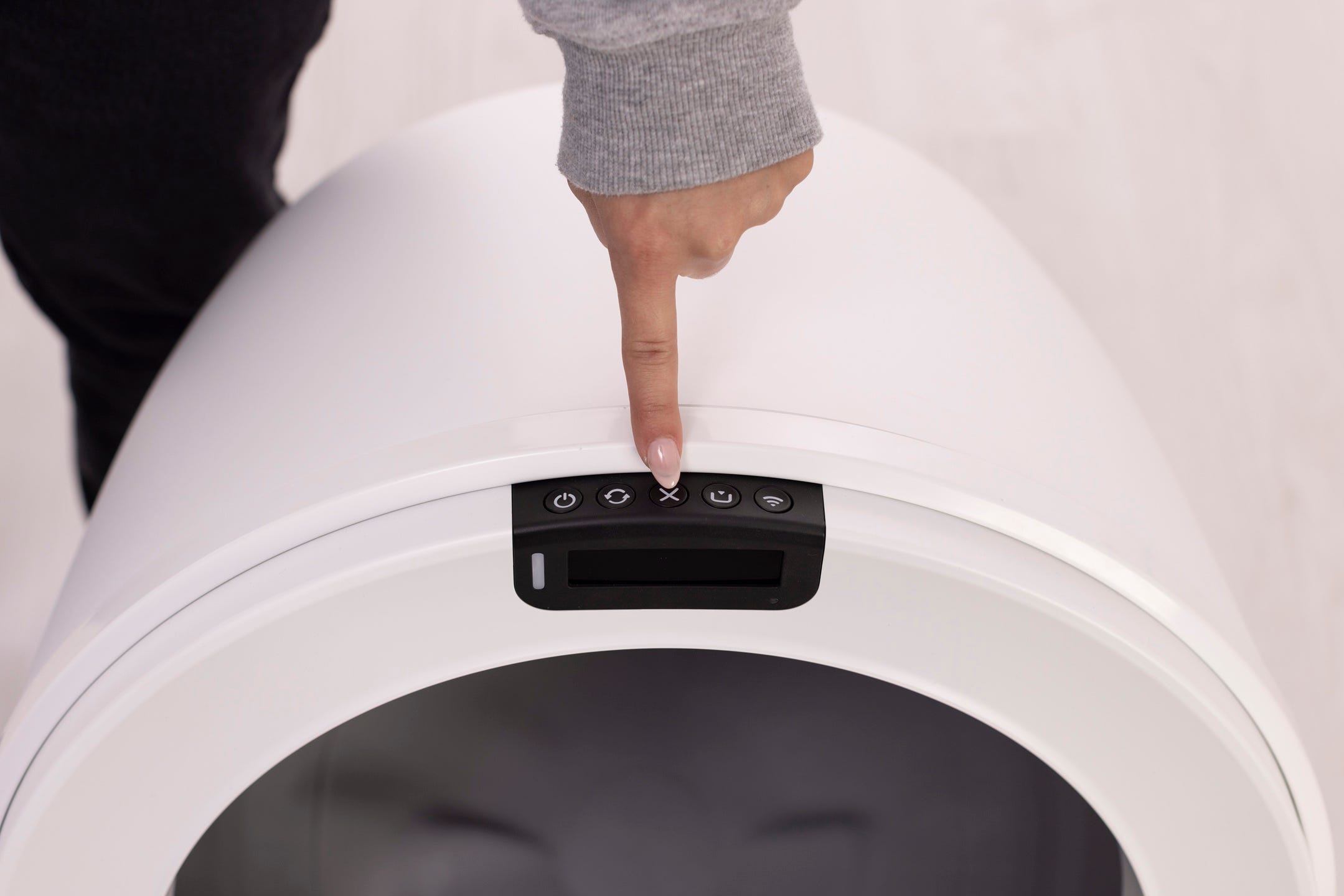
Important: Any time you affect the weight or placement of the unit (including emptying the waste drawer, adding or removing litter, or cleaning or moving the unit), press the Cancel button to ensure the weight sensors will detect your cat and cycle properly. Do not rest on the unit while pressing Cancel, or your weight may affect calibration.
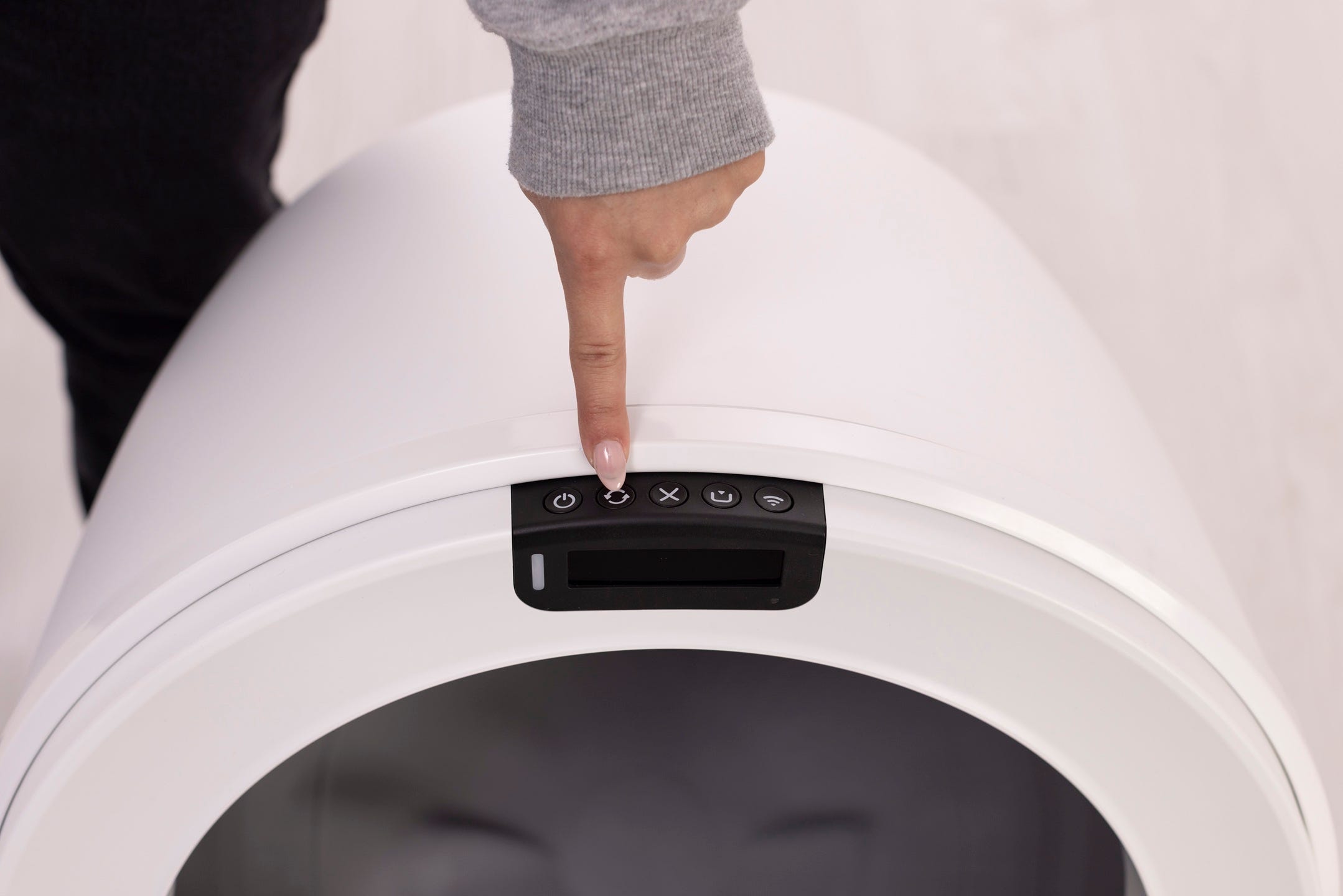
Short press the Cycle button to run a Clean cycle.
The robot will measure the litter level during the cycle and save it to memory.
Successful: The unit displays a solid white light, and the Whisker app or LCD screen indicates that the litter level is optimal.
Unsuccessful: If the app or LCD screen still shows inaccurate readings, continue to the next step.
How to calibrate the litter level
If the app or LCD screen continues to show inaccurate readings, calibration may be required.
Preparation
Confirm your firmware is up to date in the Whisker app.
- Ensure the litter inside the globe is filled to the MAX line — this will become the new “default” litter bed level.
Gently wipe the curtain sensor cover with a dry microfiber cloth according to our laser sensor cleaning instructions. Dust, fur, debris, or scratches on the lens cover can interfere with sensor readings.
Important: The bezel contains sensitive electronic components. To prevent damage, do not use water, liquids, disinfectant wipes, or damp cloths when cleaning. Avoid using a vacuum or compressed air as well, since this may interfere with the sensors.
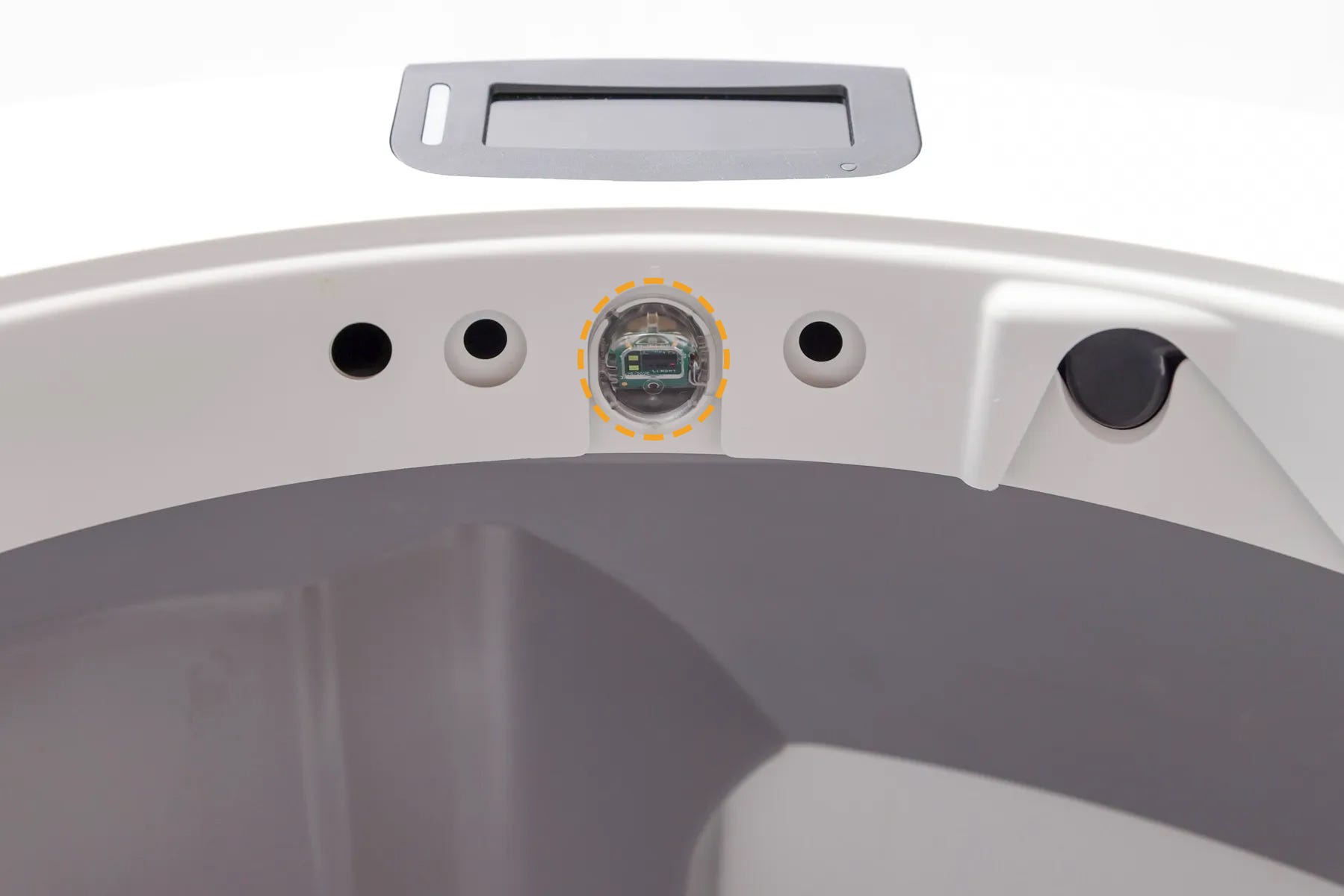
- Short press the Cancel button to clear any alerts. The unit will display a solid white light, indicating it is ready for calibration.
To calibrate Litter-Robot 5
- Simultaneously press and hold the Cycle, Cancel, and Empty buttons for 3 seconds.
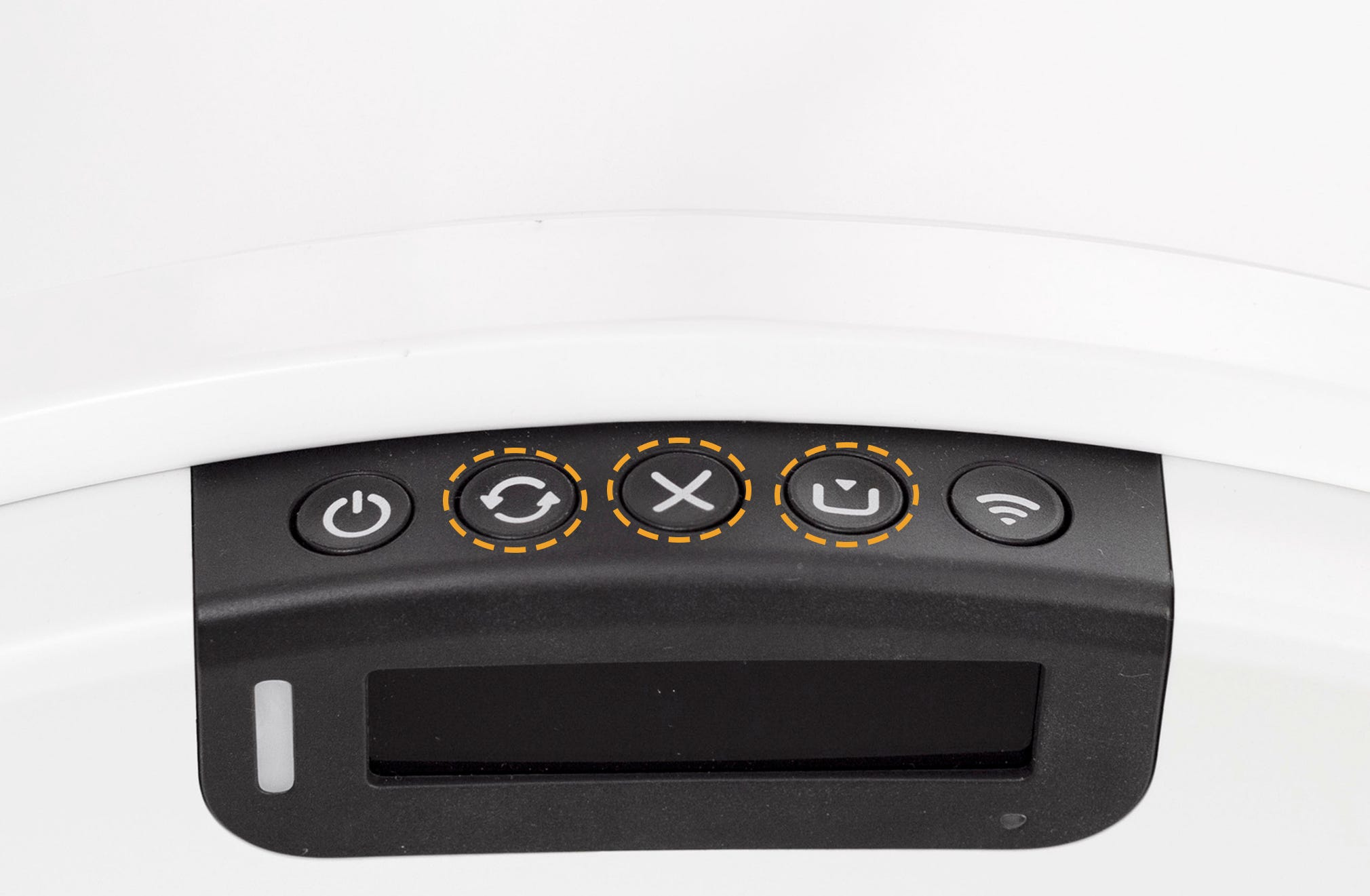
The robot will perform a Clean Cycle and calibrate the optimal litter bed level.

Successful: The unit displays a solid white light, and the Whisker app and LCD screen indicate that the litter level is optimal.
Unsuccessful: If the app or LCD screen still shows incorrect readings, there’s likely an issue with your Litter-Robot.
Need more help?
If you are still experiencing inaccurate litter level readings after calibration, please contact Whisker Customer Experience for further assistance.
Didn't find what you're looking for?
Phone and Chat support available Mon-Fri: 9AM-9PM EST and Sat-Sun: 9AM-5PM EST, or submit a ticket anytime.