The store will not work correctly in the case when cookies are disabled.

Litter-Robot 5 & Pro: Control panel buttons and functions
If your LCD screen looks fuzzy or discolored after powering on, don’t worry—this is usually caused by a clear protective film applied during shipping.
Check the screen for a thin, transparent film and gently peel it off if present. Once removed, the display should appear normal.
If the screen still looks fuzzy after 15–20 minutes, gently wipe it with a dry cloth.
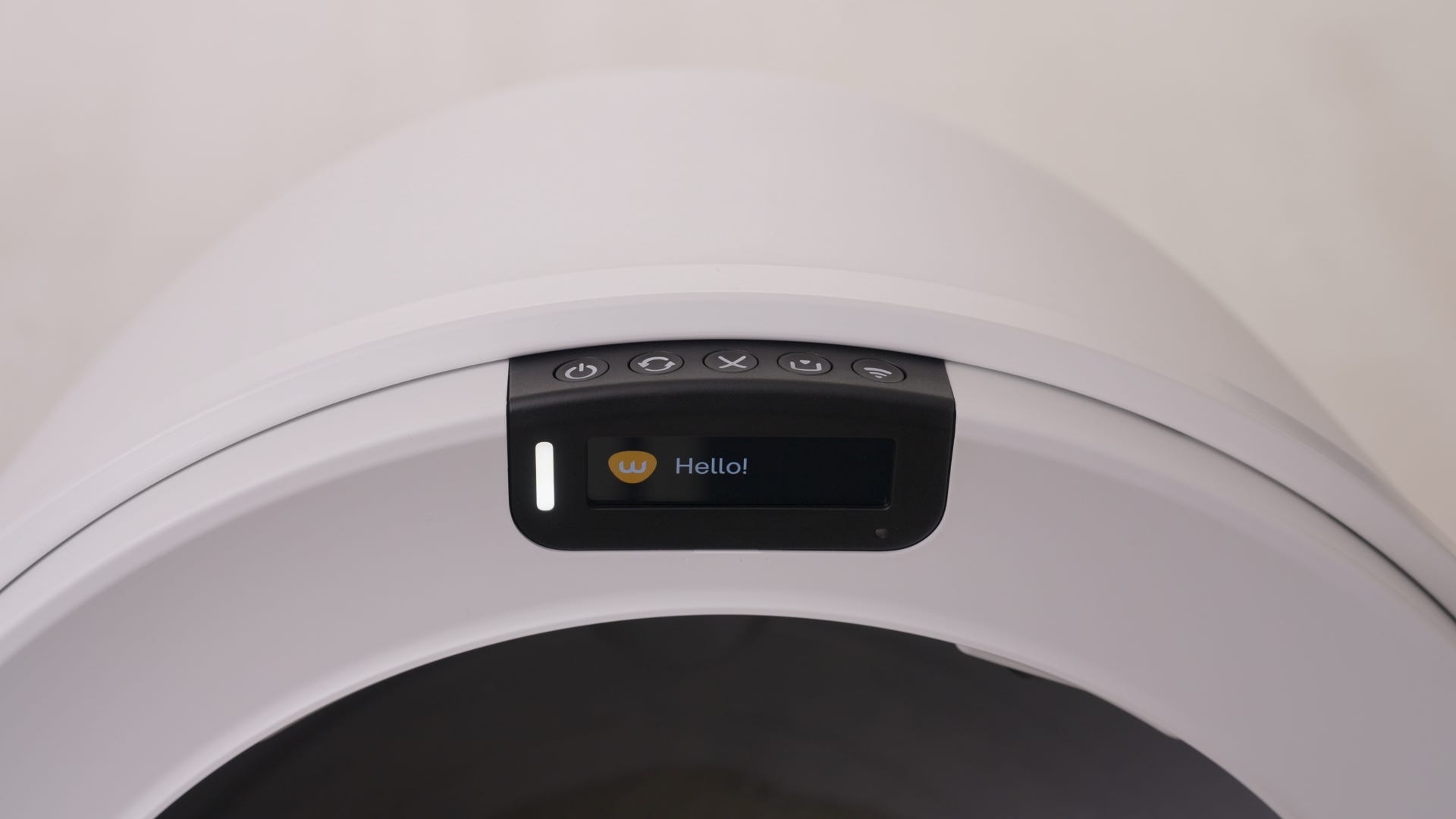
Control Panel

Power

Cycle

Cancel

Empty

Connect
LED indicator light
- Solid white: Online and ready
- Blinking blue: Setup mode (onboarding, language selection, etc.)
- Blinking green: Robot running (cycling, emptying, etc.)
- Blinking yellow: Attention required (waste drawer almost full, filter replace needed, etc.)
- Blinking red: Product fault (waste drawer full, waste drawer removed, etc.)
Camera LED indicator light (Litter-Robot 5 Pro models)
- Solid white: Online and ready
- Blinking blue: Setup mode (onboarding, firmware update, etc.)
- Blinking green: Recording event
- Blinking yellow: Attention required (invalid WiFi credentials or network connectivity error)
- Blinking red: Attention required (cloud connectivity or cloud service error)
- Solid red: Factory Reset mode
Power button functions
Power On/Off
Short press - Press the Power button to turn the unit power on or off. When turning the unit on, the LED indicator light will be solid white.
Disable Control Panel Lockout
3-second long press - With the unit powered on, a 3-second long press of the Power button will disable Control Panel Lockout when it is activated in the Whisker app.
Hard reset
6-second long press - A hard reset is similar to unplugging the unit and plugging it back in. With the unit powered on, a 6-second long press of the Power button will do a hard reset of Litter-Robot. If an error is encountered and powering the unit On/Off does not resolve the issue, a hard reset can be used to further troubleshoot Litter-Robot.
Cycle button functions
Short press - Press the Cycle button to start a Clean Cycle.
Cancel button functions
Cancel functionality
Short press - Press the Cancel button to cancel a paused Clean or Empty cycle. Pressing the Cancel button in the Home position will also dismiss any resettable (yellow and some red) alerts on the display.
Zero the weight sensors
Short press - A short press of the Cancel button while the globe is at the home position will reset the SmartScale. Zero the SmartScale after doing anything that affects the unit’s weight, such as adding litter or emptying the waste drawer.
Filter Replacement Position
3-second long press - A 3-second long press of the Cancel button will activate a cycle that rotates the globe to the Replace Filter position. In this position, the carbon filter/OdorTrap holder at the bottom of the globe will face upward, making it easy to replace the carbon filter or OdorTrap Packs. Follow the prompts on the LCD screen to confirm and activate the cycle.
Empty button functions
Short press - During an Empty Cycle, press the Cycle, Cancel, Empty, or Connect button to pause the cycle. When paused, press the Empty button to resume the cycle or press the Cancel button to abort the cycle and return the globe to the Home position.
Connect button functions
The Connect button is used as part of the WiFi onboarding process. Download the Whisker app, tap “Add a device” within the Whisker app, and follow the prompts within the app to onboard and connect your Litter-Robot to your WiFi network.
If Litter-Robot loses WiFi connection, the LED indicator light will blink yellow. It will automatically attempt to reconnect to WiFi after an outage. The LED indicator light will change to solid white once Litter-Robot has reestablished connection. A short press of the Connect button will also display the connectivity status.
Control Panel Lockout
Control Panel Lockout disables button functions to prevent unwanted changes. Litter-Robot functions normally in Automatic Mode. A 3-second long press of the Power button will disable Control Panel Lockout.
When the unit is powered On, you can lock or unlock the Control Panel from the Whisker app by selecting your device and navigating to the Controls.
Factory reset
A factory reset can be used to restore the Litter-Robot’s factory settings during troubleshooting or before transferring ownership of your robot. The latest firmware downloaded onto Litter-Robot will be maintained following a factory reset to ensure proper operation.
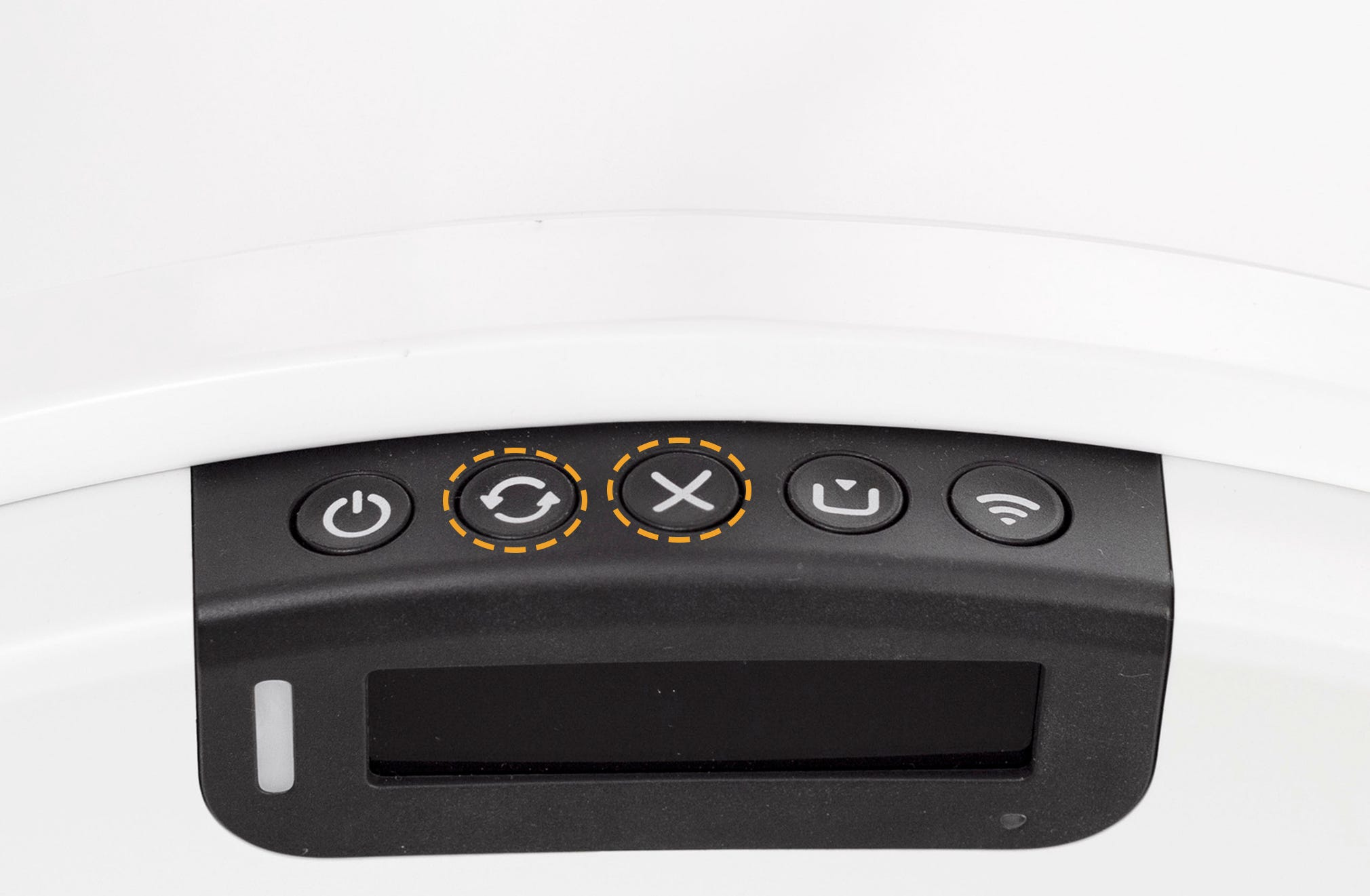
With the unit Powered ON, simultaneously press the Cycle and Cancel buttons for 3 seconds to conduct a factory reset of Litter-Robot. The LED indicator light will blink red and instructions will be provided on Litter-Robot’s LCD screen to confirm and complete the process.
Hopper disconnected
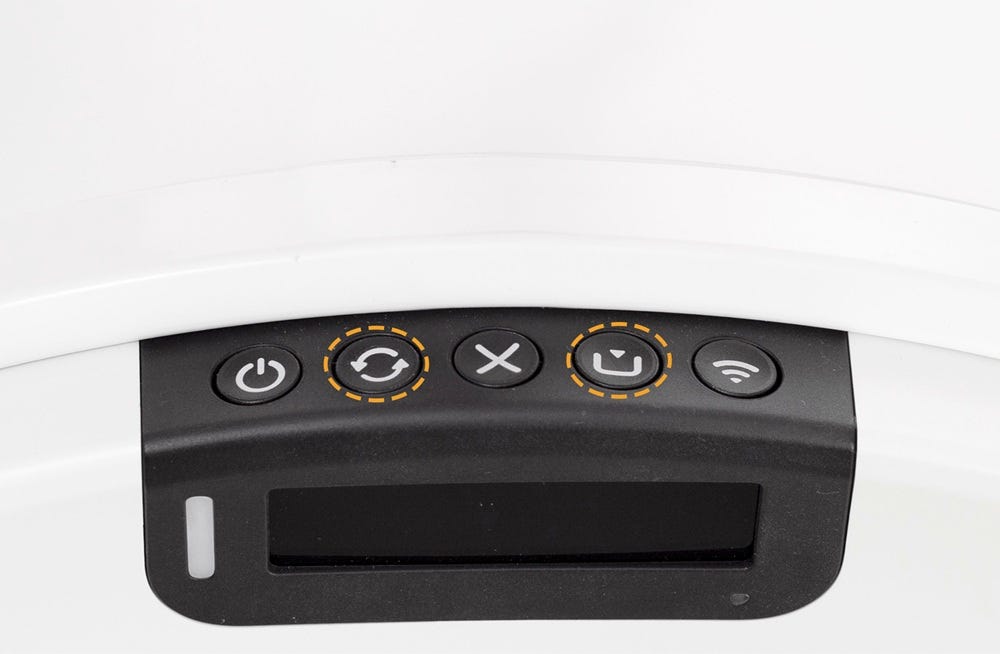
If the LCD screen displays a “Hopper Disconnected” message, short-press the Cancel button to clear the message. Next, press and hold the Cycle and Empty buttons simultaneously for 3 seconds (the LCD screen will stay black). Lastly, short-press the Cycle button to run a Clean Cycle and confirm the message has cleared.
LitterHopper accessory coming in 2026.
Need more help?
Please contact Whisker Customer Experience for further assistance.
Didn't find what you're looking for?
Live support available Mon-Fri: 9AM-9PM EST and Sat-Sun: 9AM-5PM EST, or submit a ticket anytime.