The store will not work correctly in the case when cookies are disabled.

Litter-Robot 5 & Pro: Why is my Litter-Robot not cycling?
Litter-Robot 5 might not be cycling if:
- The waste drawer is full
- Litter-Robot is in sleep mode
- Excess weight or the litter level is too high
- The cat sensor is dirty or malfunctioning
- The unit is not on a level surface or placement is incorrect
- There is a mechanical issue with the motor or gear mechanism
If your Litter-Robot 5 is not cycling as intended, the error messages on the LCD screen will help you determine what the issue is.
Quick links
Why is my Litter-Robot 5 not cycling?
If your Litter-Robot 5 is not cycling, stops mid cycle, or is stuck upside down, it could be due to excess weight, cat sensors, or various other settings. Here’s how to troubleshoot when your Litter-Robot 5 won’t cycle.
Wait time settings
The default cycle delay is 7 minutes after the OmniSense® or weight sensors detect when a cat exits the unit so ensure that time has elapsed.
To cancel the wait time countdown, short-press the Cancel button.
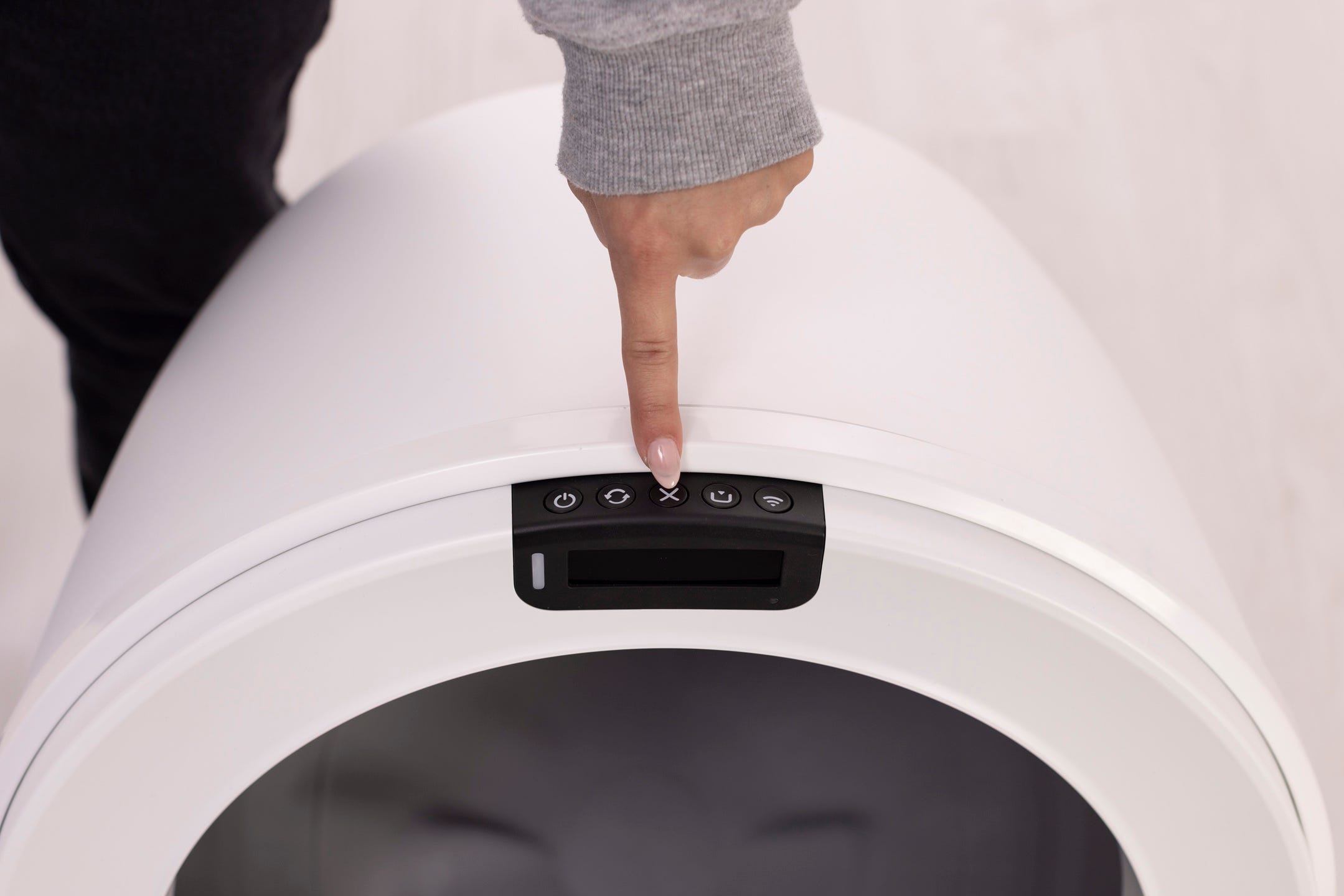
You may also change the wait time setting for 3, 7, 15, 25, or 30 minutes. This can be done in the Whisker app by tapping on your device card > Controls > Cycle Delay.
Sleep mode
During the sleep period, the unit will monitor for a cat using the unit but will not perform a clean cycle.
The Whisker app offers customizable Sleep Mode programming options.
Blinking green light
If your unit’s status indicator light is blinking green, this indicates that the cat sensor has been triggered (a cat has entered the globe). The unit will cycle once the cycle delay countdown is up or if you press the Cancel button.
Excess weight detected
If your Litter-Robot 5 displays an Extended Scale Activity alert on the LCD screen, this indicates that the scale has been triggered for more than 30 minutes.
If your unit displays an Overloaded Globe notification on the LCD Screen, the weight scale could be detecting additional weight in Litter-Robot 5. If you’ve recently moved the unit or added too much cat litter it could cause Litter-Robot to think a cat is inside.
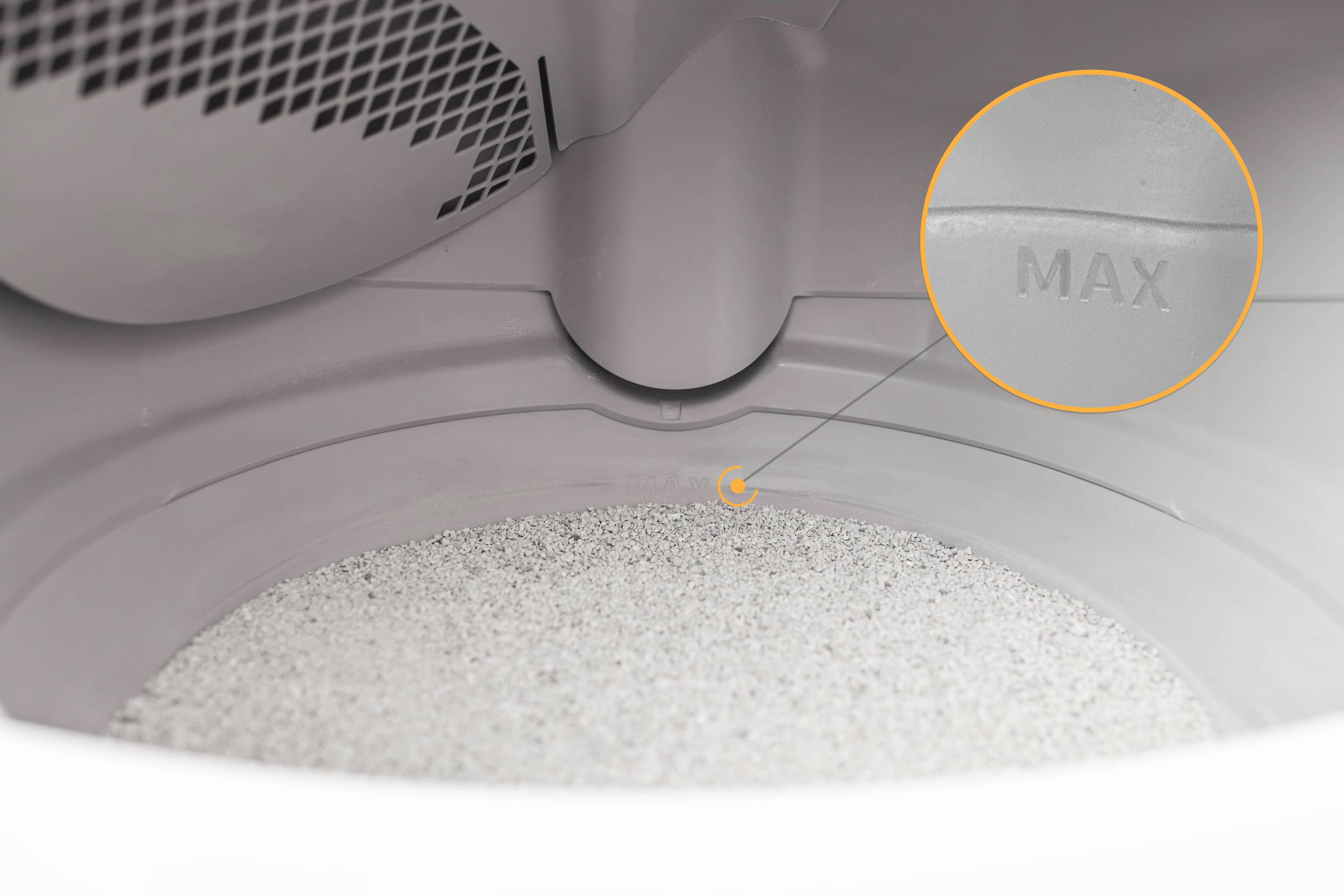
Remove excess litter if it's above the fill line.
Ensure the automatic litter box is not on a litter mat, a power cord, in a grout line, or touching any walls.
From the Home position, short-press the Cancel button to zero the weight scale.
If your unit is stuck during a cycle, short-press press the Cancel button to zero the weight scale.
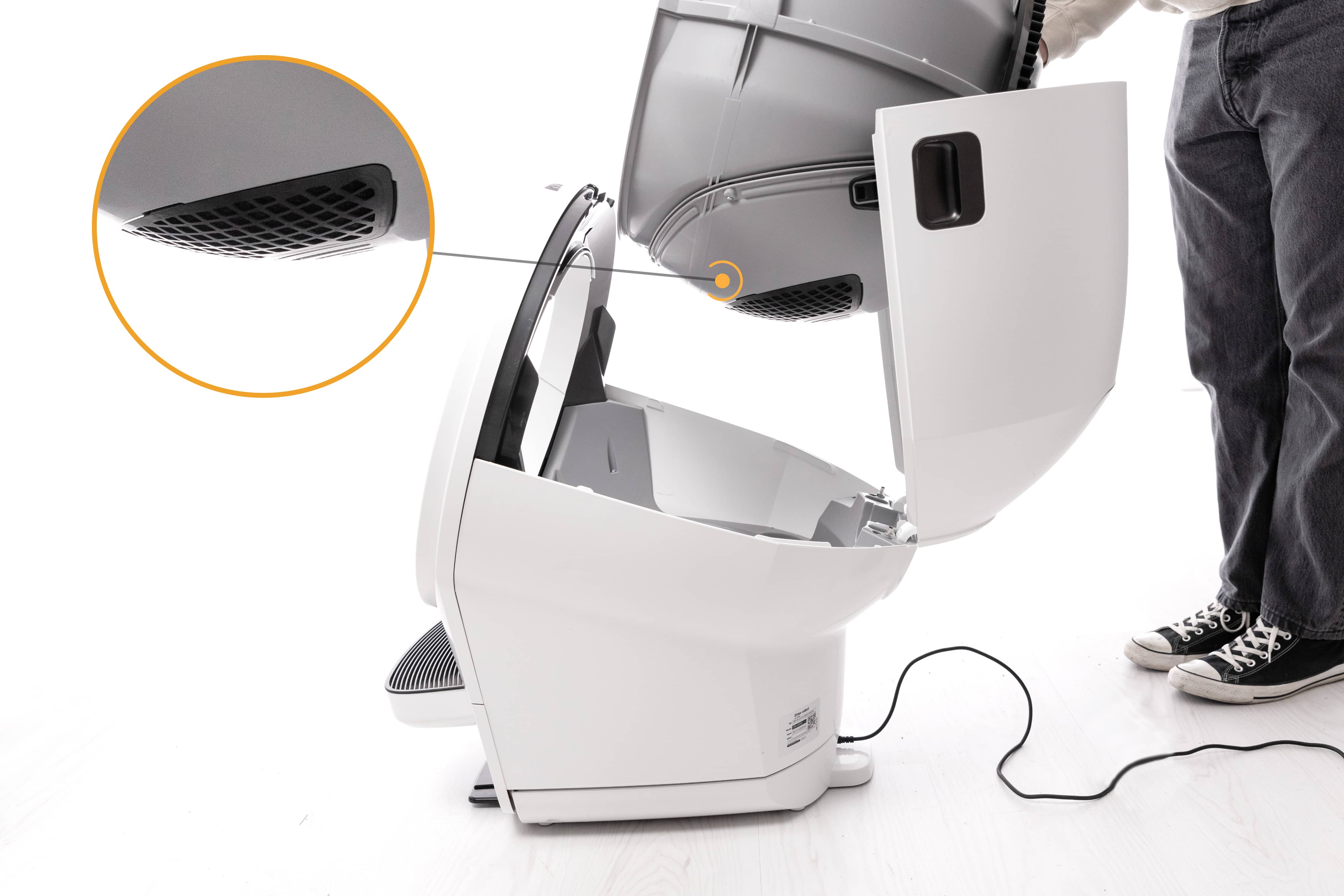
Check the carbon filter to ensure that it's properly seated.
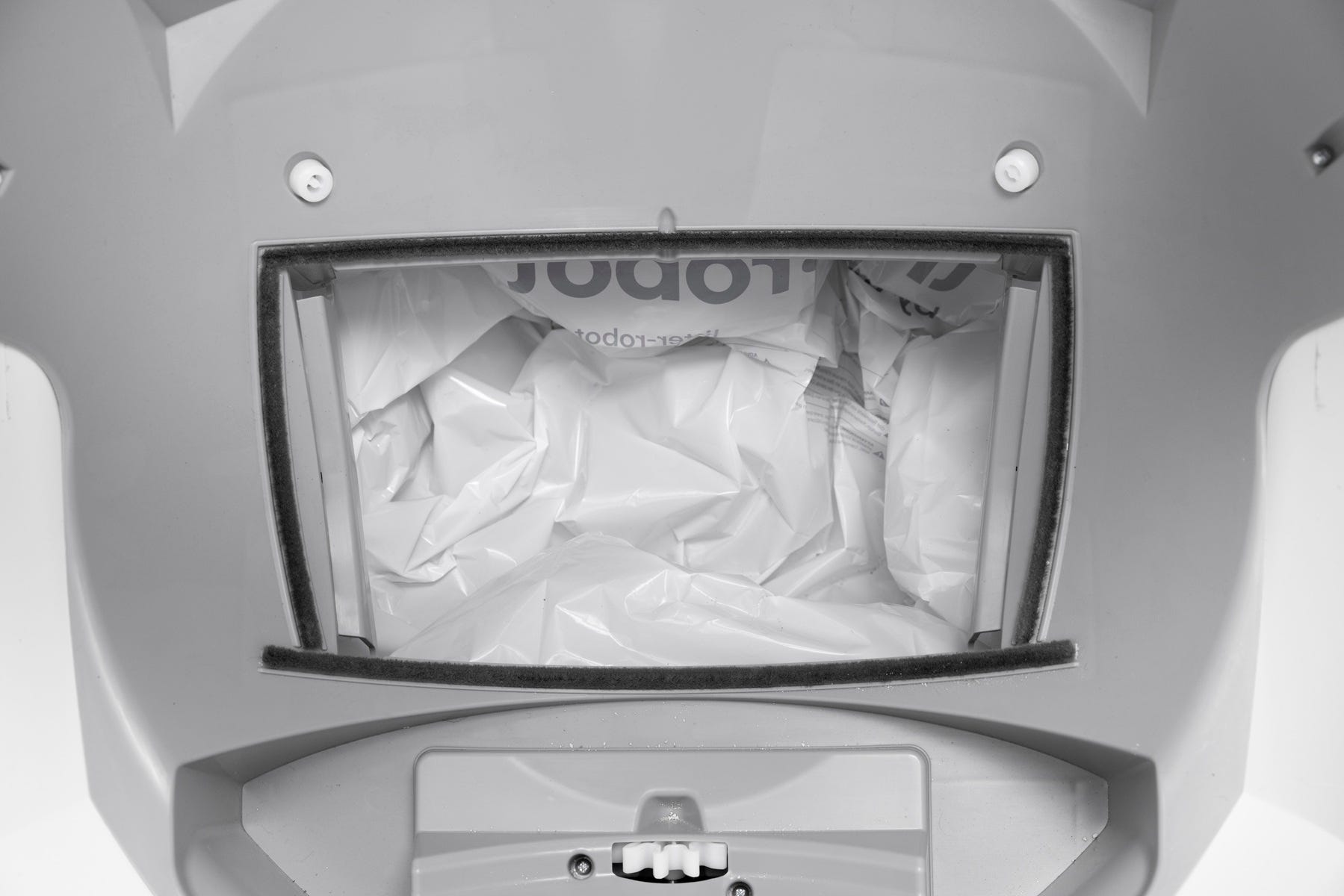
Inspect the waste port to ensure that no seal strips are peeling and that nothing is obstructing the waste port.
Incorrect placement
Place the unit on a level surface. Litter-Robot 5 has a built-in carpet tray, but it’s best to avoid uneven flooring for accurate weight measurements.
If using a litter mat, place your litter mat completely in front of the unit, not partially underneath.
All sides of the robot should not touch any walls or other surfaces.
Check that all four feet can move freely and clear any litter or debris that may be stuck in or around the feet.
Check that none of the four feet are resting on top of a cord or in a grout line.
Cat sensor
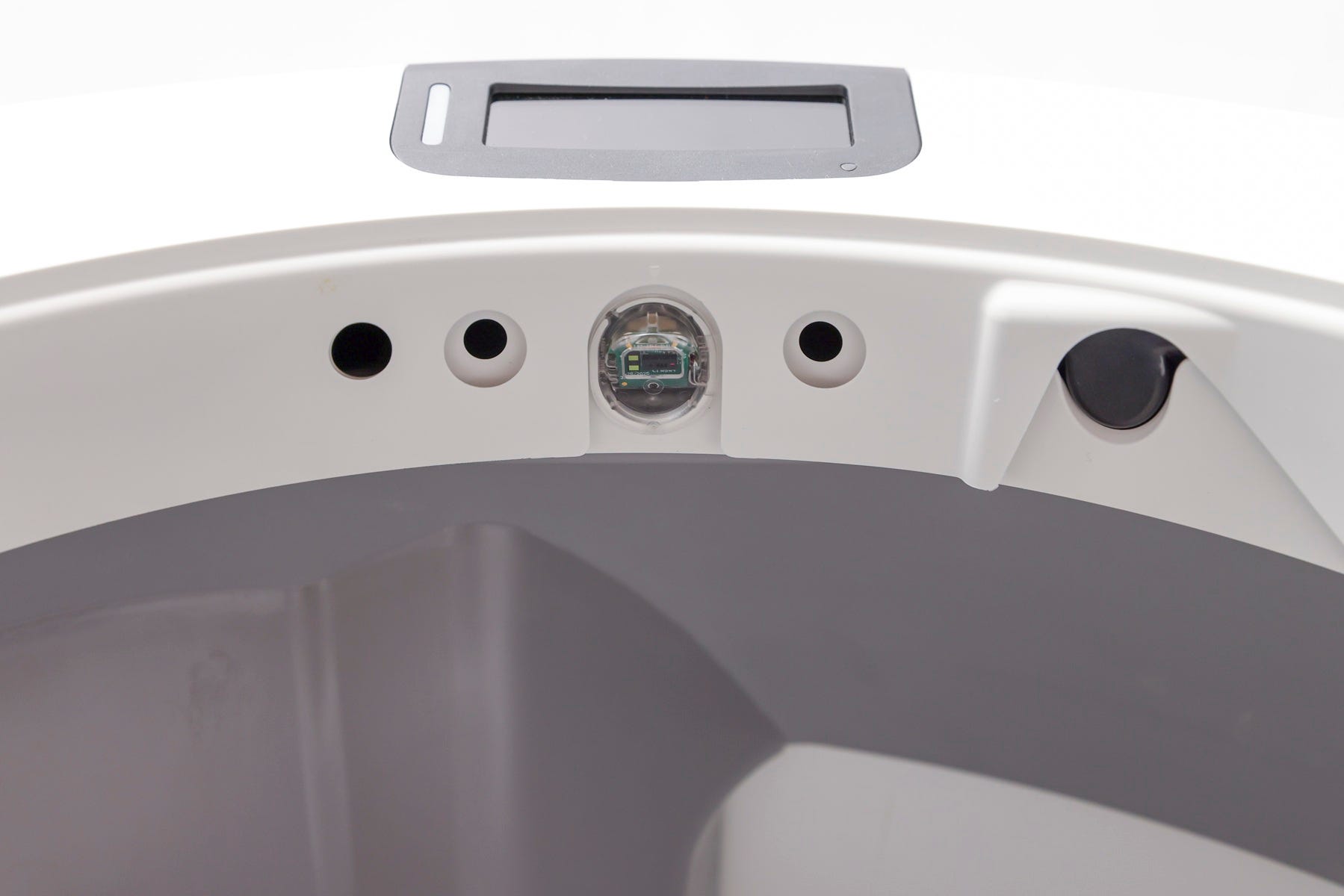
Debris (dust, cat fur, etc.) can interfere with the sensors in the waste drawer and the sensors in the bezel. This can cause the unit to inaccurately measure the waste drawer level and litter level, as well as cause false cat detections.
Motor fault
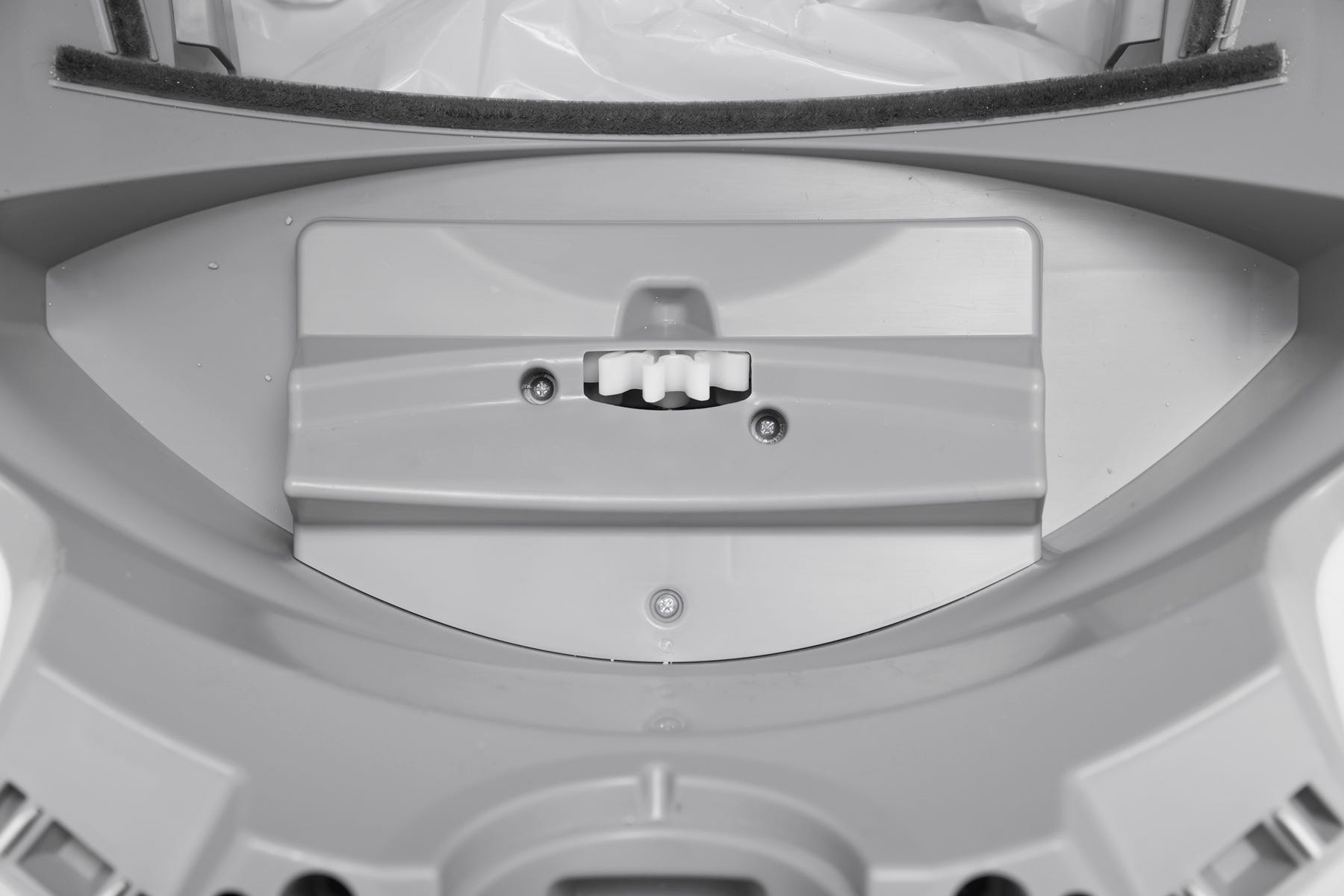
If the unit displays a Motor Fault error message on the LCD screen, there is an issue with the motor, which affects the rotation of the globe.
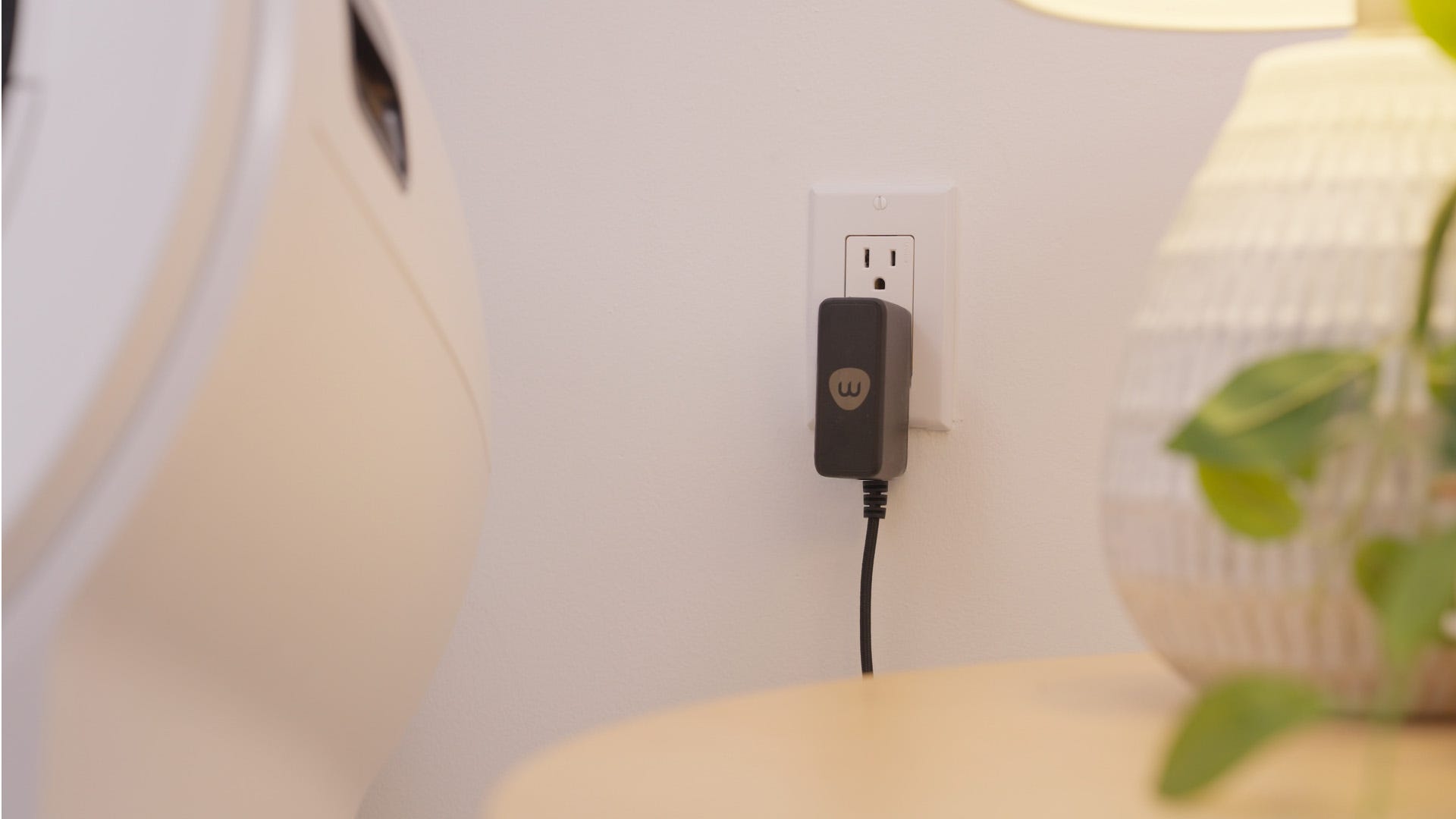
Make sure the device is plugged in and connected.
Confirm your firmware is up to date in the Whisker app.
Ensure the motor is securely connected.
Successful: If your Litter-Robot 5 displays a solid white light, you've been successful.
Unsuccessful: If you are still seeing an error message there's likely an issue with your Litter-Robot 5.
Need more help?
If you've followed these steps and still experience issues with your Litter-Robot 5 not cycling, contact Whisker Customer Experience for more help.
Didn't find what you're looking for?
Live support available Mon-Fri: 9AM-9PM EST and Sat-Sun: 9AM-5PM EST, or submit a ticket anytime.