The store will not work correctly in the case when cookies are disabled.

Litter-Robot 5 Pro: Unable to onboard
If your Litter-Robot 5 Pro won’t complete onboarding in the Whisker app or is not connecting to your WiFi, follow this guide for step-by-step troubleshooting and error-specific fixes.
If your WiFi network has recently changed, you may need to perform a Factory Reset before reconnecting.
Need help with onboarding your Litter-Robot 5?
Quick links
Before you begin
- Place the robot near your WiFi router for setup.
- Install or update the Whisker app to the latest version (version 1.31.0 or newer) and sign in.
- Have your WiFi name (SSID) and password ready.
- Allow required permissions (Location/Nearby Devices).
- Power on the automatic litter box. The LED should be solid white.
- Keep your phone within a few feet of the robot. Avoid VPNs or captive-portal networks.
Onboarding checklist (recommended order)
- Open the Whisker app → Add a Device → follow prompts.
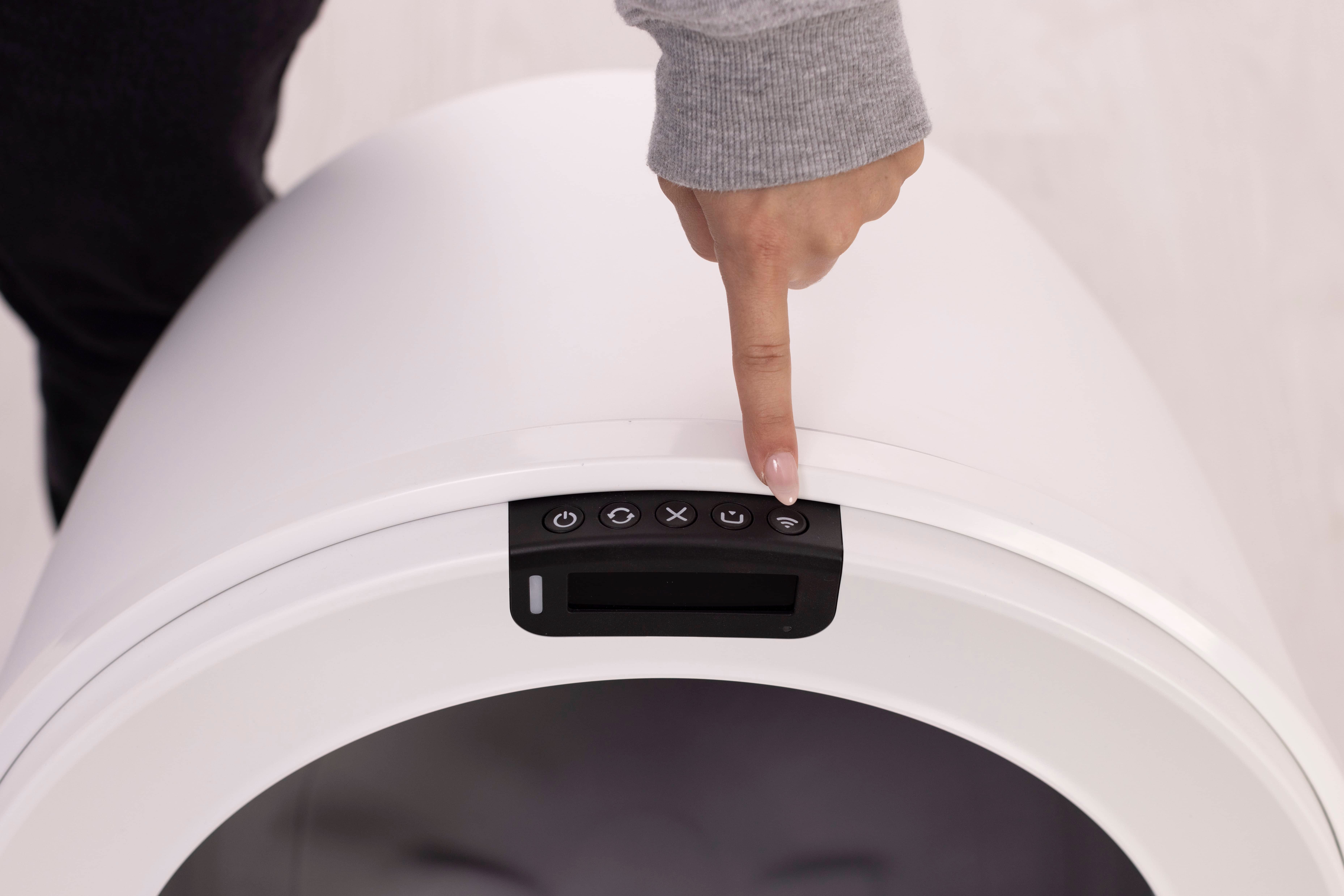
- Press the Connect button on the Control Panel for 3-5 seconds (or until the LED status light begins blinking blue) to enter pairing mode. The indicator light should blink blue.
- Select the correct WiFi network and carefully re-type the password.
Note: If the camera LED indicator light turns blinking yellow after the QR code is scanned, this likely means incorrect WiFi credentials have been entered. Please confirm your WiFi network’s name and password and retry.
- Keep the app open while the unit connects.
- When onboarding completes, the LED shows solid white (ready).
Send a manual Cycle command in the app to ensure communication is active.
Tap your device → Controls → Cycle.
Error messages and fixes
Typical onboarding error messages include:
- "An Error Occurred. Something went wrong, please try again."
- “The serial number is invalid or already in use.”
Use the following sections to address each category.
WiFi credential / network errors
- Verify SSID and password are exact (case-sensitive; avoid pasted spaces).
- Ensure you are on a private home network.
- Move the robot closer to the router for setup.
- Turn off VPNs or firewalls blocking new devices.
Reboot your router by unplugging it for 30 seconds, then plugging it back in.
If your WiFi network has recently changed (for example, a new router, updated password, or new location), you will need to perform a Factory Reset before reconnecting. The unit cannot update WiFi credentials automatically.
If your network has not changed and onboarding still fails, try a Hard Reset:
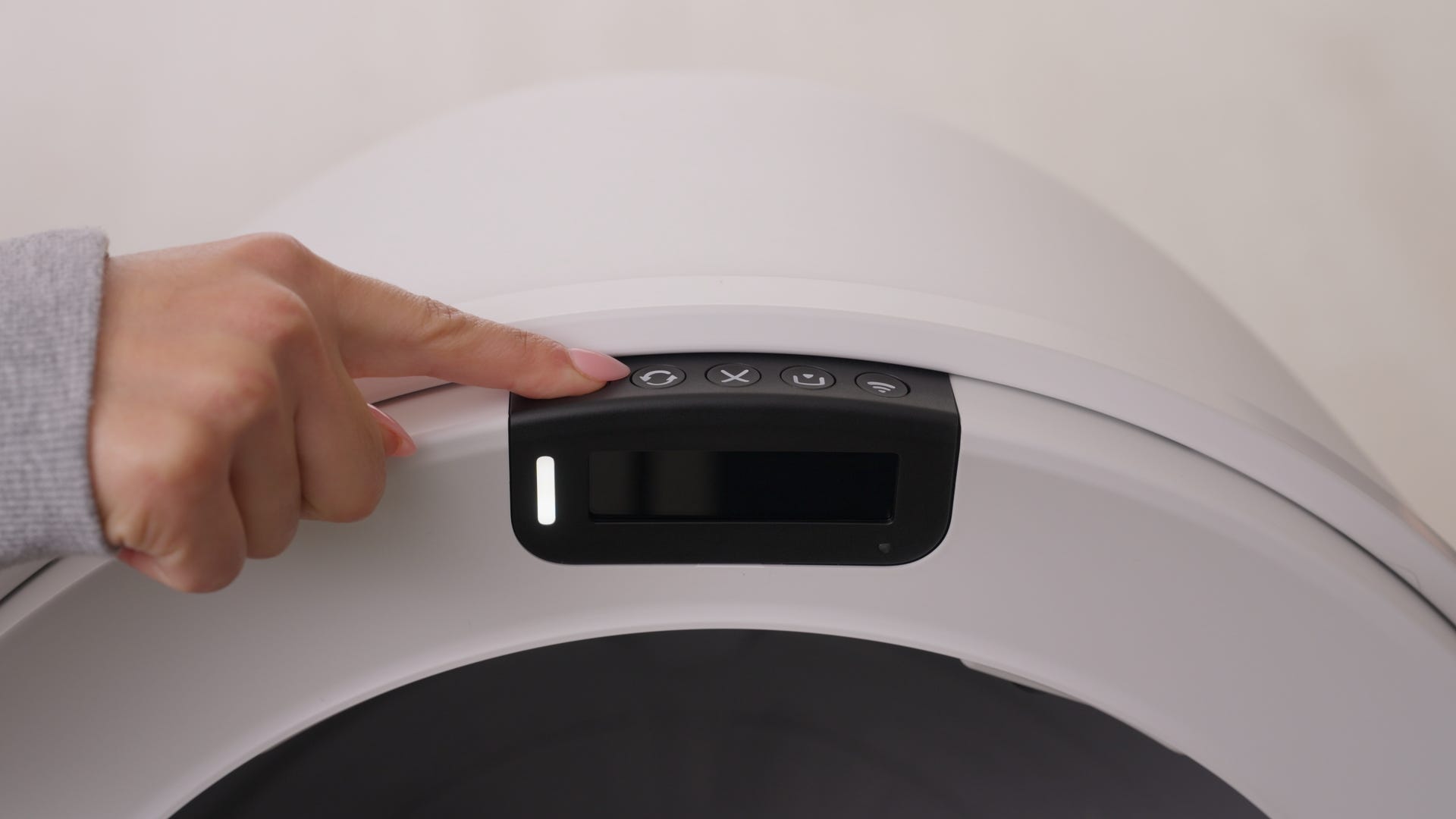
Press and hold the Power button for 6 seconds. Wait 90 seconds for the unit to reboot, then restart onboarding in the Whisker app.
Timeouts or device didn’t reboot
- Keep the Whisker app open during setup (do not switch apps).
- Ensure a stable WiFi connection and proximity to the router.
- Perform a Hard Reset: hold the Power button for six seconds, release, wait 60 seconds for the unit to reboot, then restart onboarding.
Serial number or cloud errors
- Ensure you are signed in to the correct Whisker account.
- Confirm the serial number isn’t already claimed under another account.
- Verify your internet connection is active and unrestricted (no captive portal or VPN).
- Retry onboarding after a Hard Reset (instructions below).
- If you see “Something went wrong” message or similar, perform a Factory Reset (instructions below) and try again.
- If you have purchased the robot second-hand, submit a Support Request form for further assistance.
Hard Reset and Factory Reset
If your WiFi network has changed (new router, password, or location), a Factory Reset is required before reconnecting. The unit cannot update WiFi credentials automatically.
- Hard Reset: With the unit powered ON, hold Power for six seconds, release, wait 60 seconds for reboot.
- Factory Reset:
- Delete the robot from the Whisker app
- Select your device —> tap Settings → tap Delete Robot → tap Yes
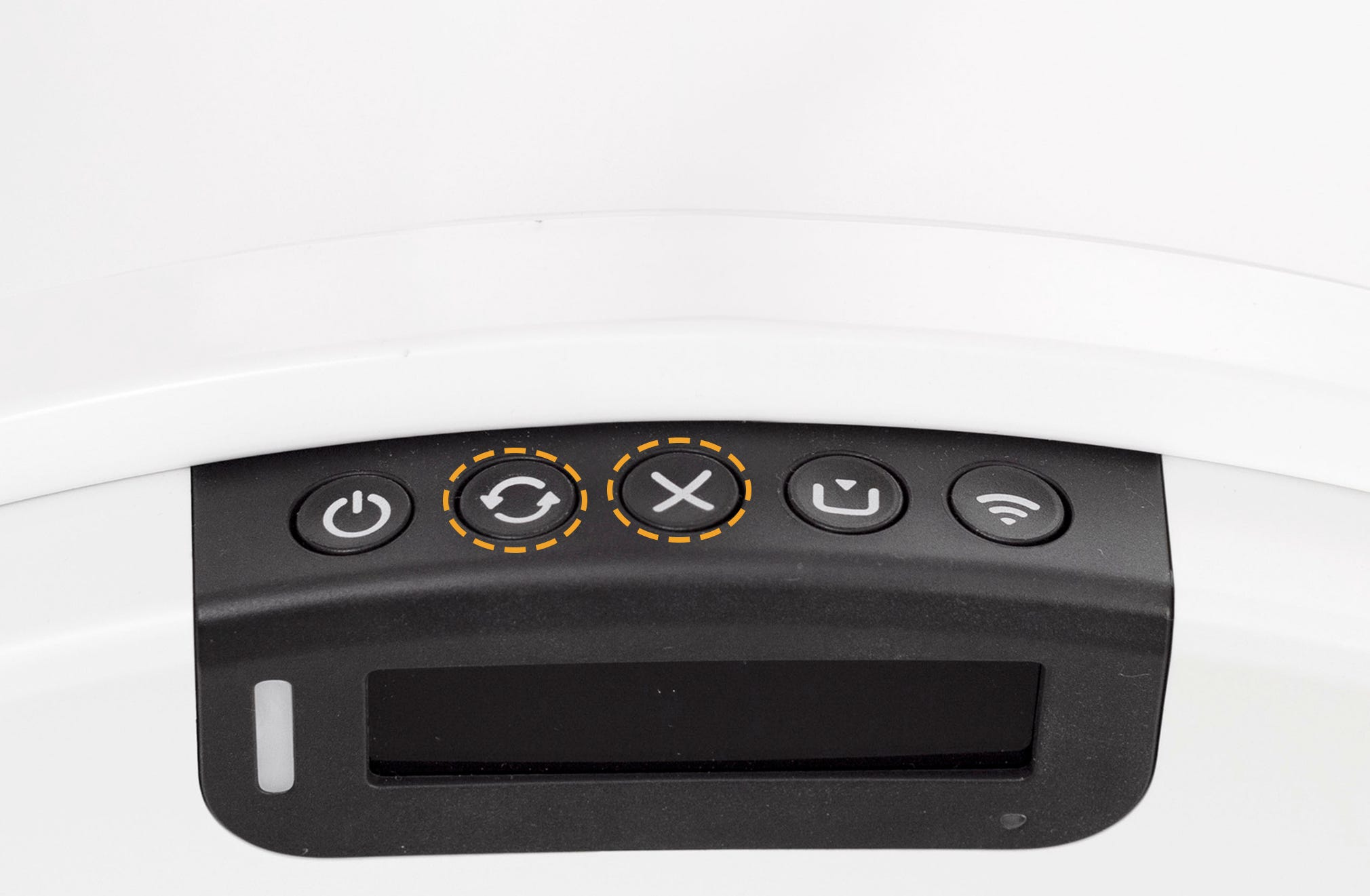
Press and hold the Cycle and Cancel buttons simultaneously for 3 seconds.
- Delete the robot from the Whisker app
If prompted, confirm the reset on the screen.
The LED indicator light will blink red.
Wait 2–3 minutes for the reset to complete.
When the camera LED returns to blinking blue, the unit is ready to pair again. Open the Whisker app and complete onboarding again.
For additional support, see:
Litter-Robot 5 Pro: Camera LED indicator light
Network tips (2.4 GHz vs 5 GHz)
- Litter-Robot 5 Pro: Supports both 2.4 GHz and 5 GHz WiFi.
- Use 5 GHz for best camera experience (lower latency, fewer dropped frames).
- Use 2.4 GHz if the robot is farther from the router or the signal is weak.
For more help with your network, we recommend reaching out to your internet service provider for assistance.
Need more help?
If onboarding still fails after these steps:
- Capture a screenshot of the exact error message.
- Note your phone model/OS, router brand, and what steps you’ve already tried.
- Please contact Whisker Customer Experience for further assistance.
Didn't find what you're looking for?
Live support available Mon-Fri: 9AM-9PM EST and Sat-Sun: 9AM-5PM EST, or submit a ticket anytime.