The store will not work correctly in the case when cookies are disabled.

Litter-Robot EVO: Drawer full indicator (DFI sensor)
If your Litter-Robot EVO displays a Waste Drawer Full notification in the Whisker app or on the LCD screen, the waste drawer may need attention. Here’s how to reset Litter-Robot EVO and clean the waste drawer full sensors.
Quick links
Before you begin
Make sure:
Your unit is plugged in.
Your unit is connected and online (if you use the Whisker app).
Your firmware is up to date. (If the app does not give you the option to update, you already have the latest version).
How the drawer full indicator works
The Litter-Robot EVO uses infrared Drawer Full Indicator (DFI) sensors located inside the base, above the waste drawer.
When the drawer is full, the unit will display a Waste Drawer Full notification on the LCD screen, and send a notification in the Whisker app (if connected).
The robot will complete two additional cycles before it stops automatic cycling until the drawer is emptied.
Waste drawer liner tips: White bags work best. Ensure the liner is tucked flat inside the drawer, under all four tabs. Puffy or loose liners may interfere with the sensors. We recommend Litter-Robot Waste Drawer Liners with drawstrings for easy disposal.
Replace the waste drawer liner
Emptying the drawer when prompted ensures reliable cycling and cleanliness.
Open the waste drawer and dispose of the liner.
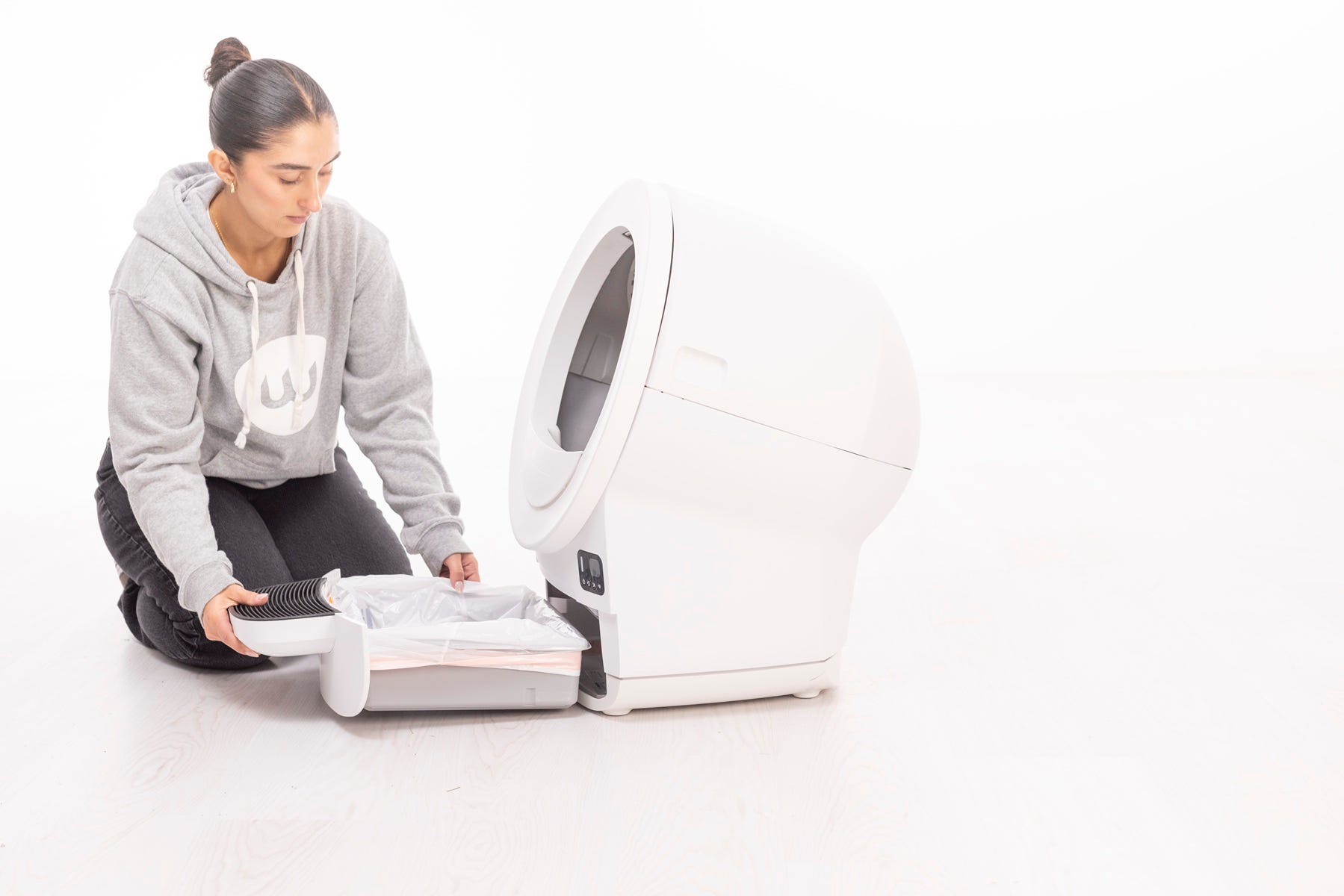
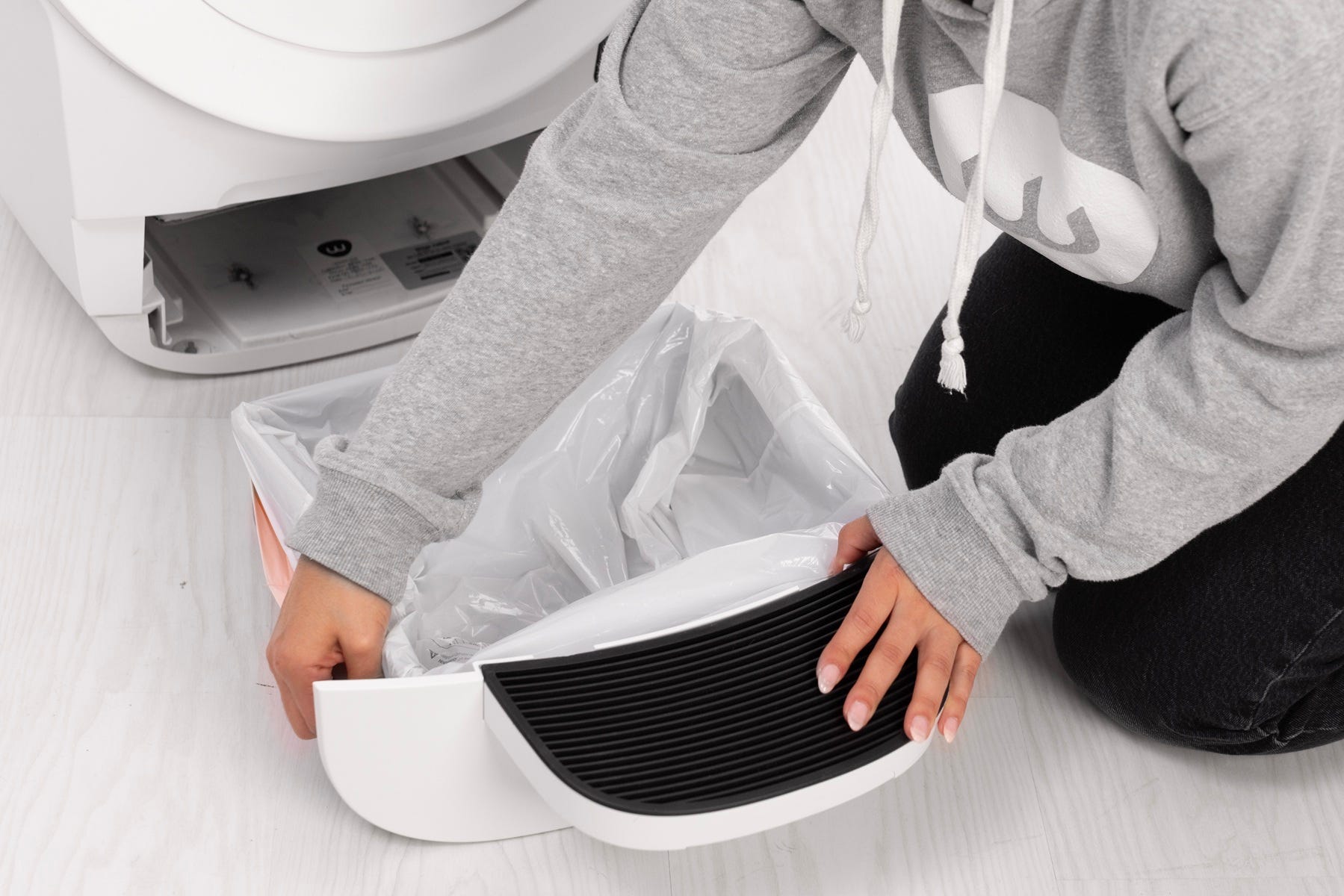
Install a new liner (8–13 gallon white bags work best). Tuck the bag securely into all four tabs.
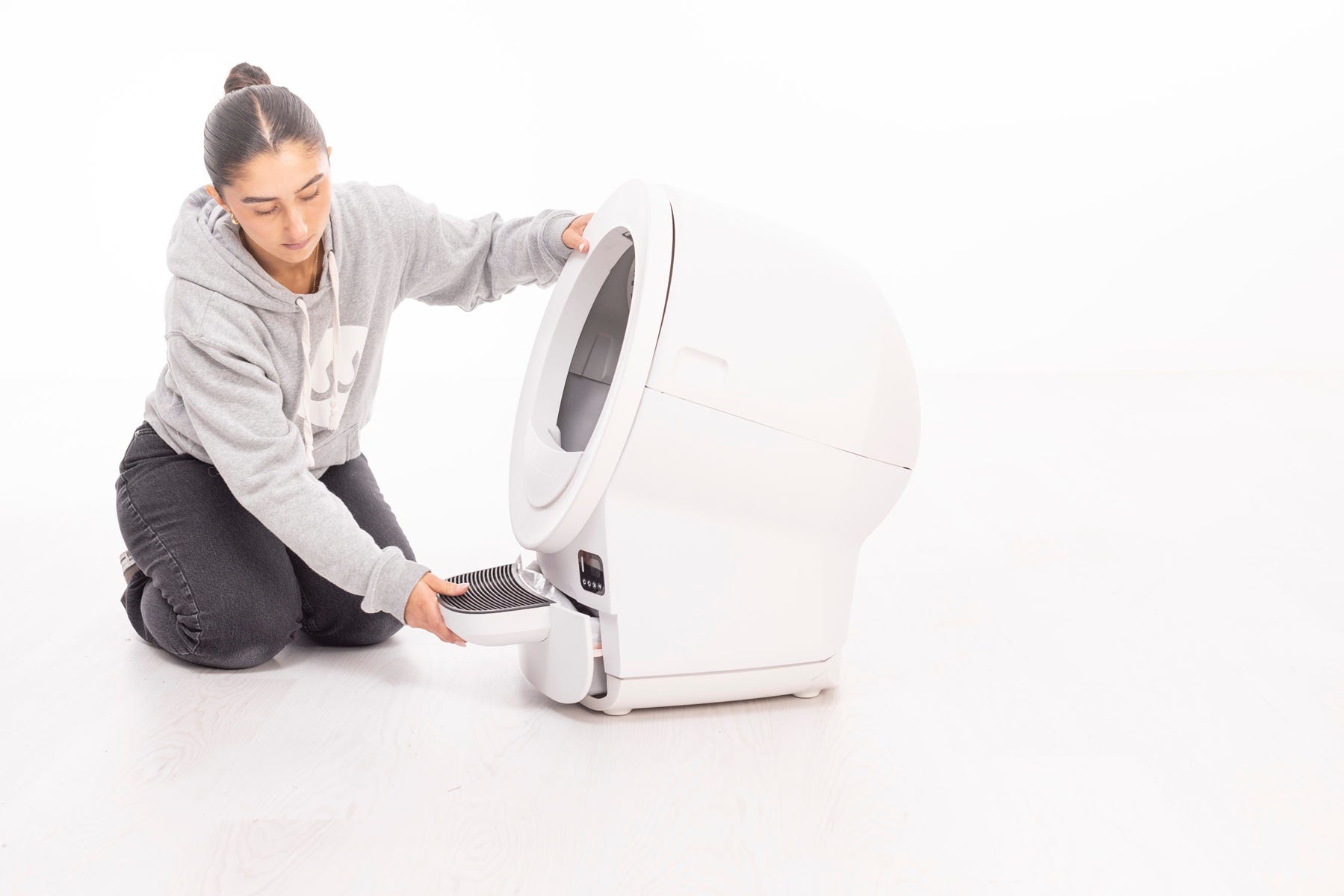
Reinsert the drawer into the base.
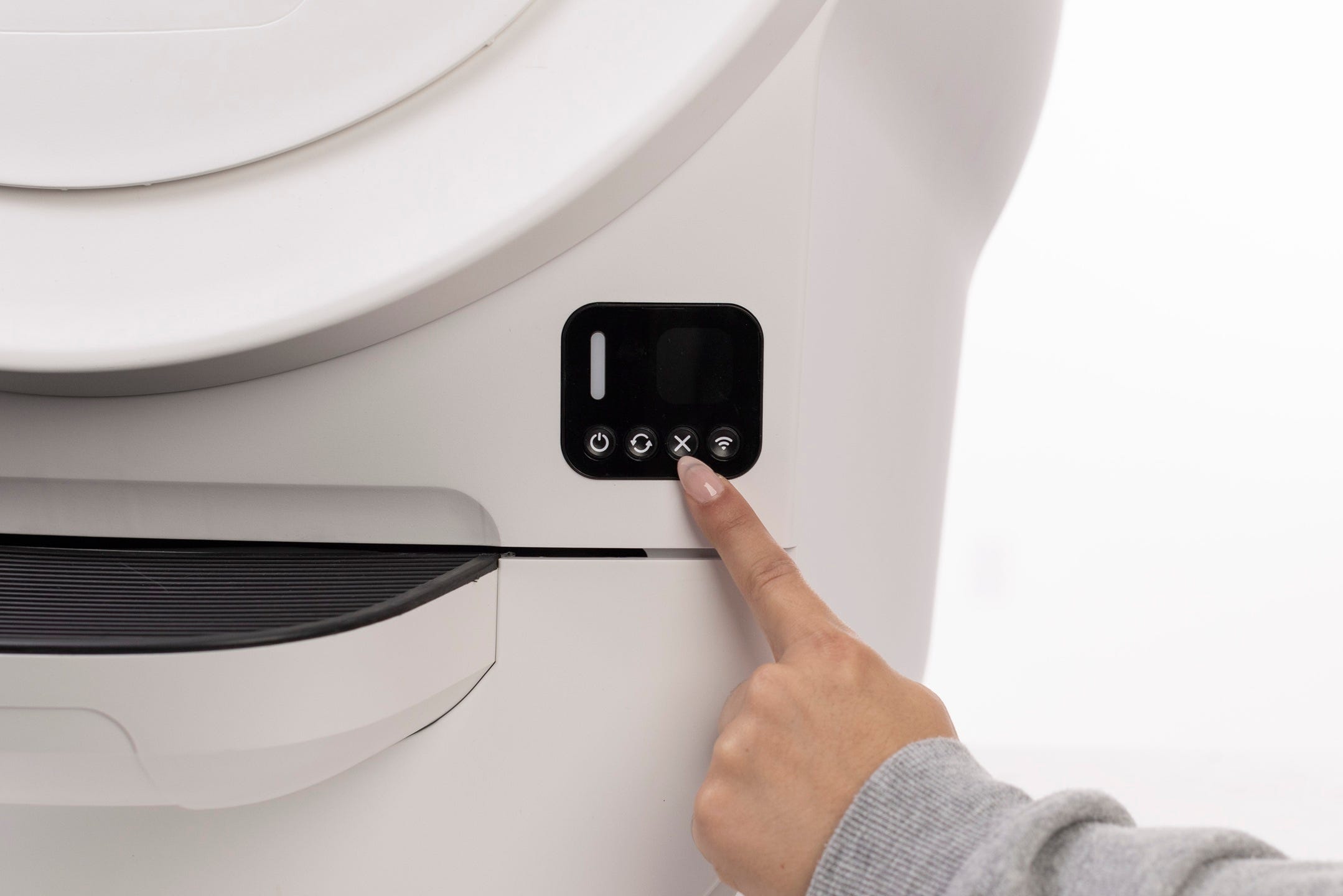
Press the Cancel button to clear any notifications and zero the weight scale.
If you are emptying the waste drawer before it's 100% full, use the Whisker app to reset the waste drawer level. Press the device → Controls → Reset Waste.
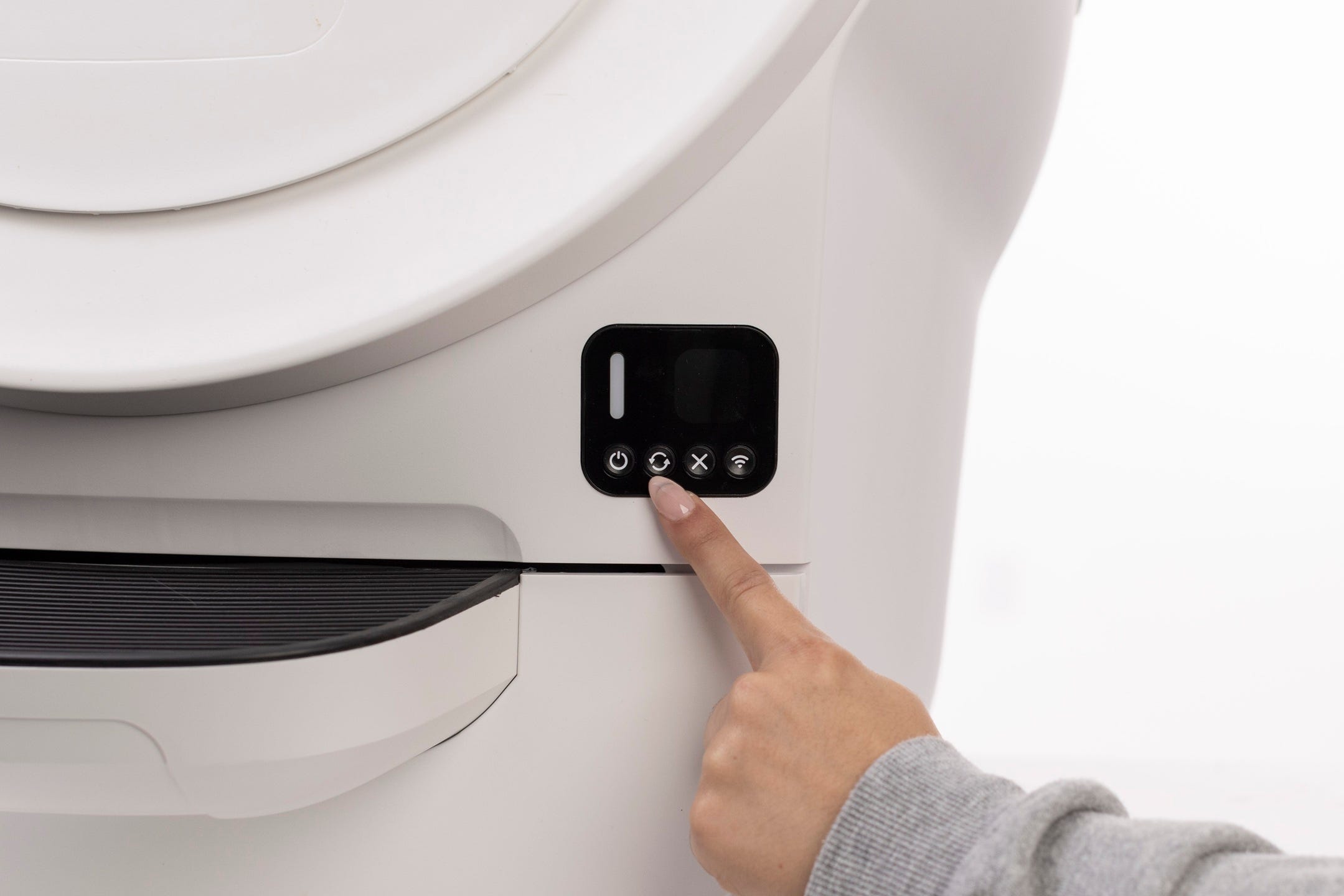
Short press the Cycle button to run a test cycle.
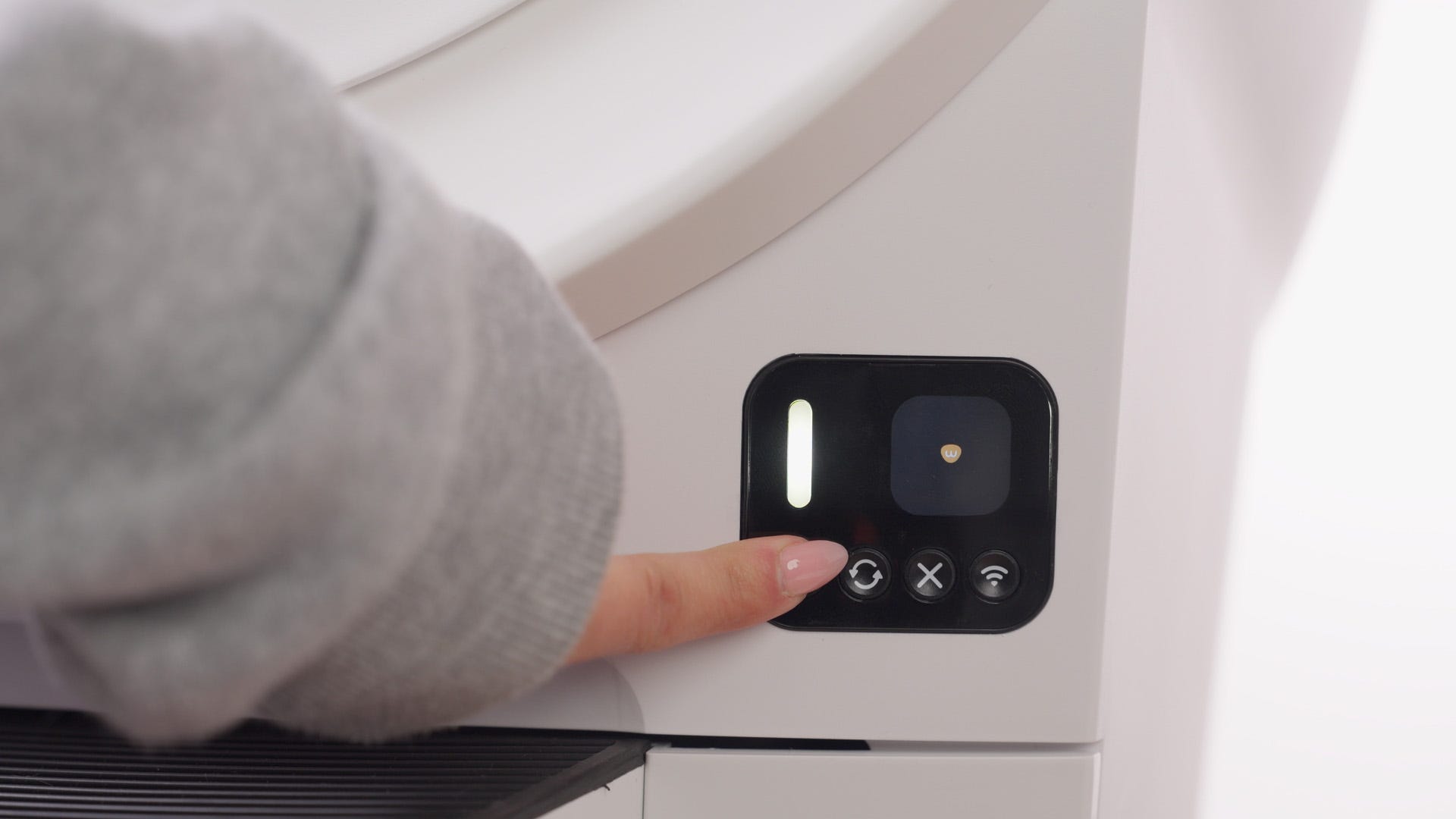
Successful: The unit returns Home with a solid white light.
Unsuccessful: Continue to the next step.
Clean the waste drawer sensors
Dust or litter clump buildup can trigger a false full indication.
Power off and unplug the unit.
Remove the bonnet and globe.
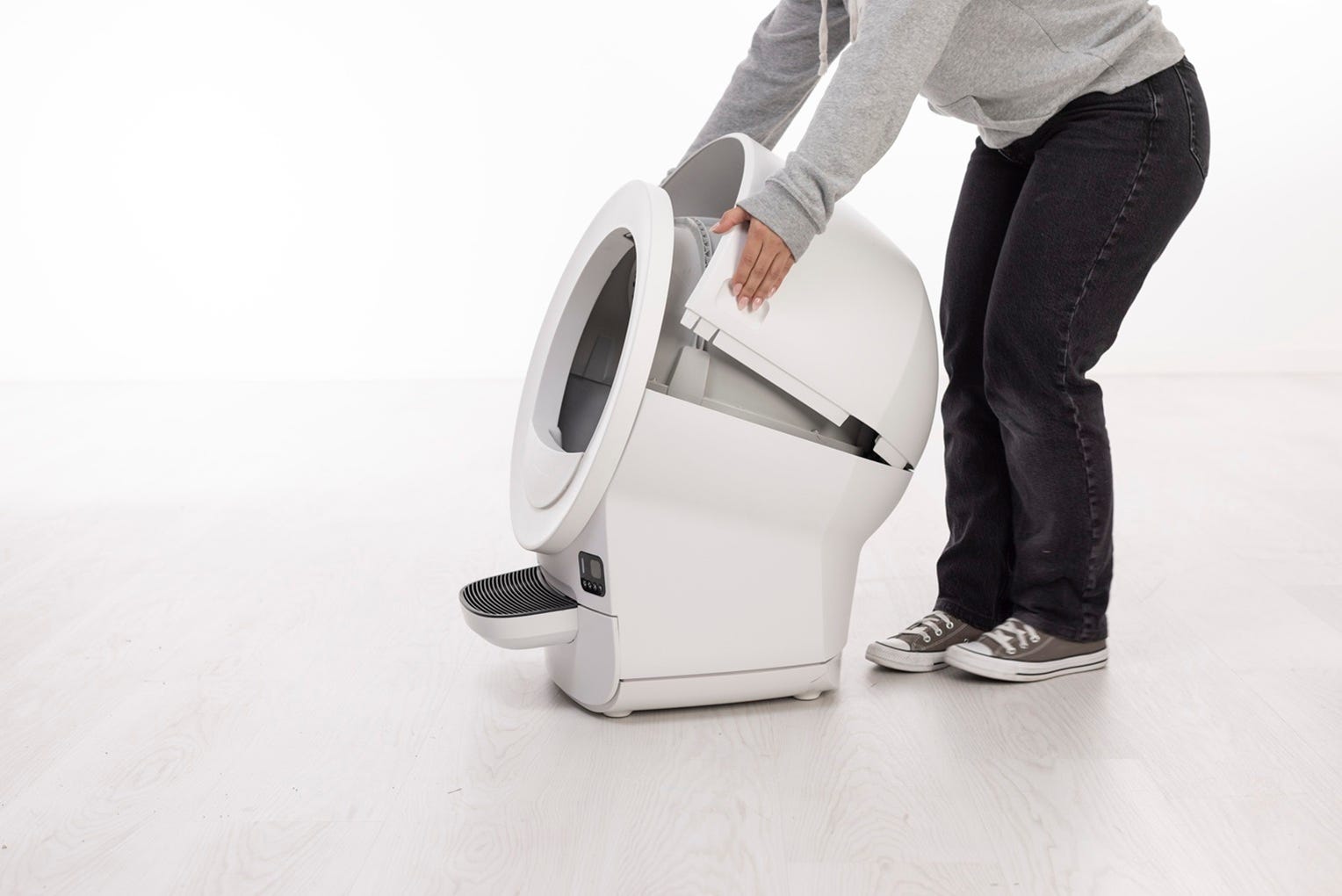
Remove the waste drawer.
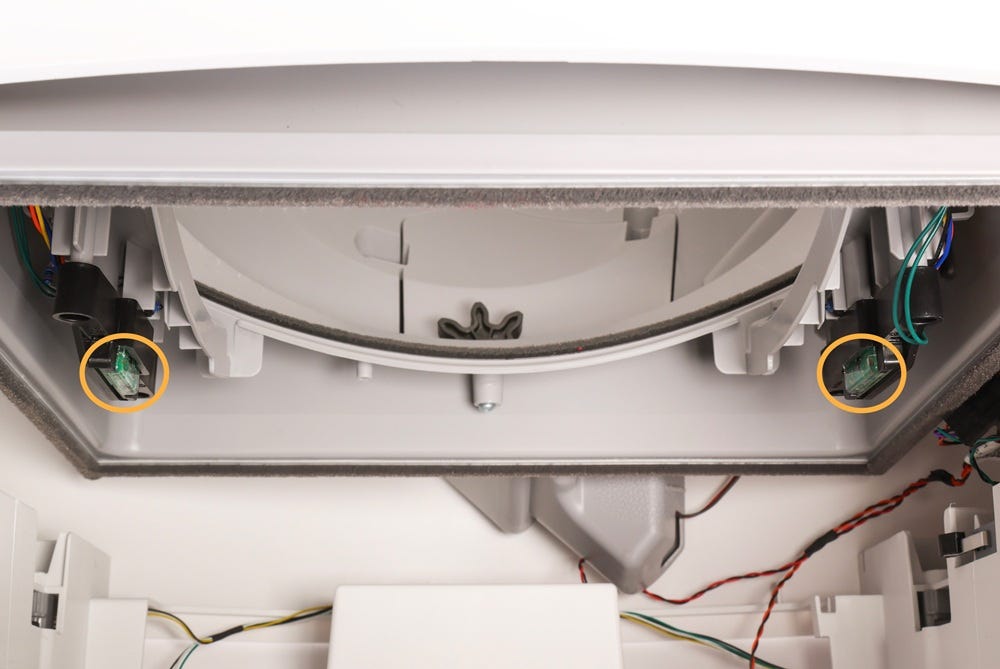
Locate the two DFI sensors inside the base, above the drawer opening.
Gently clean the sensor brackets with a dry or slightly damp microfiber cloth. Do not use ammonia-based cleaners.
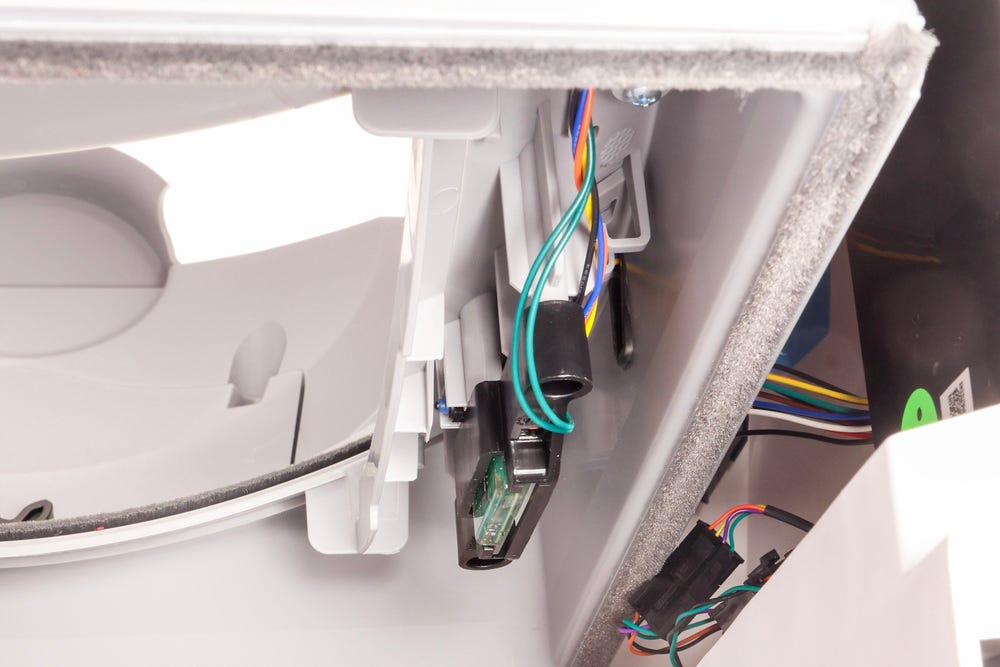
Reassemble the unit and power it back on.
Successful: The unit returns Home with a solid white light.
Unsuccessful: Continue to the next step.
Check for obstructions
Sometimes debris inside the base or around the waste port can block the sensors.
Inspect the drawer area and waste port for stuck clumps, debris, or loose liners.
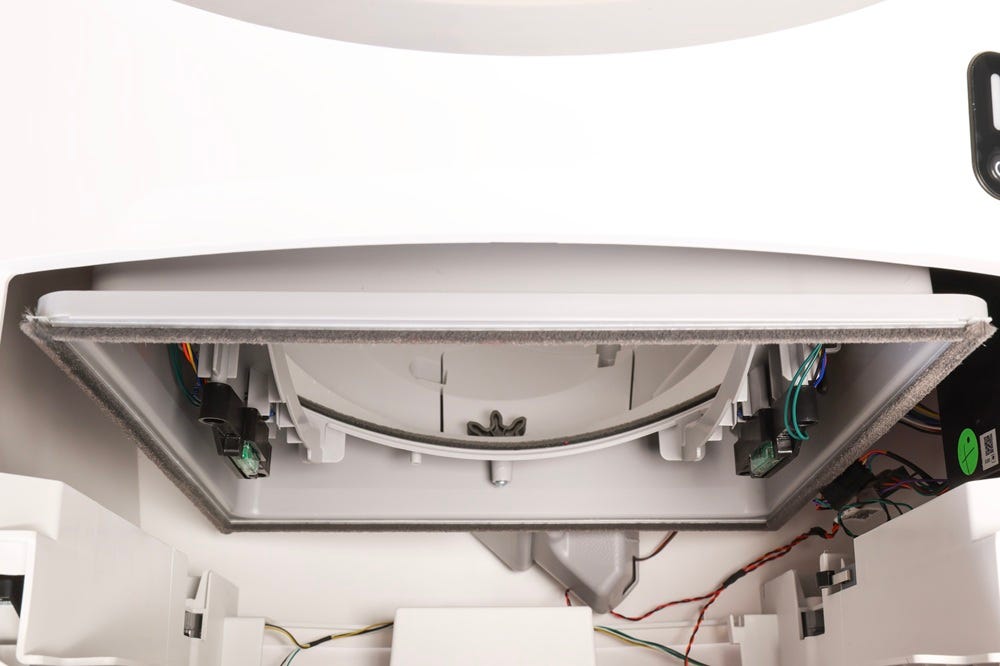
Make sure the drawer slides in fully.
Reinstall the globe and bonnet
Hold the rib at the top of the globe entrance and lower the globe into the base.
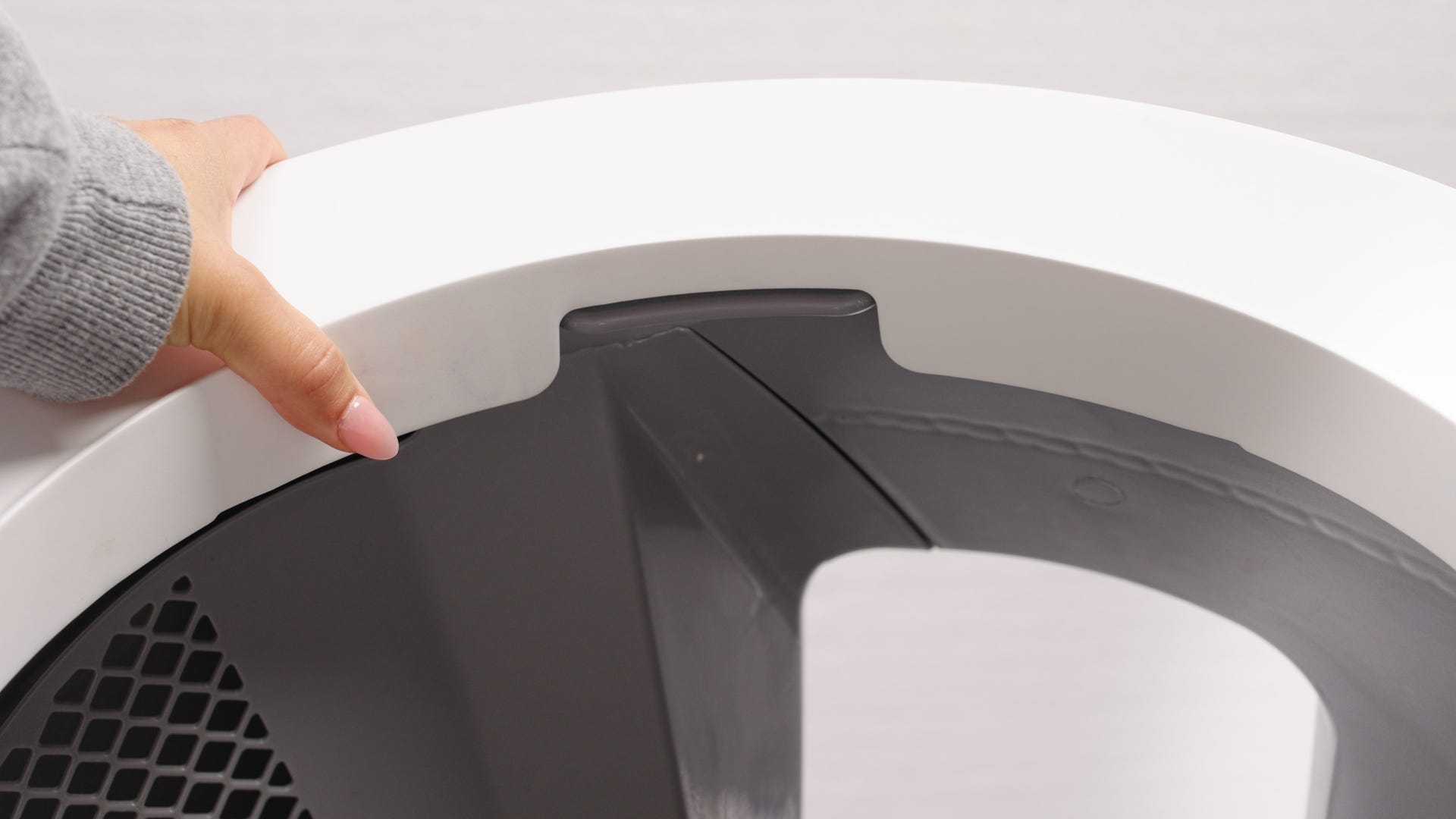
Keep the waste port oriented toward the top so the globe is near the Home position.
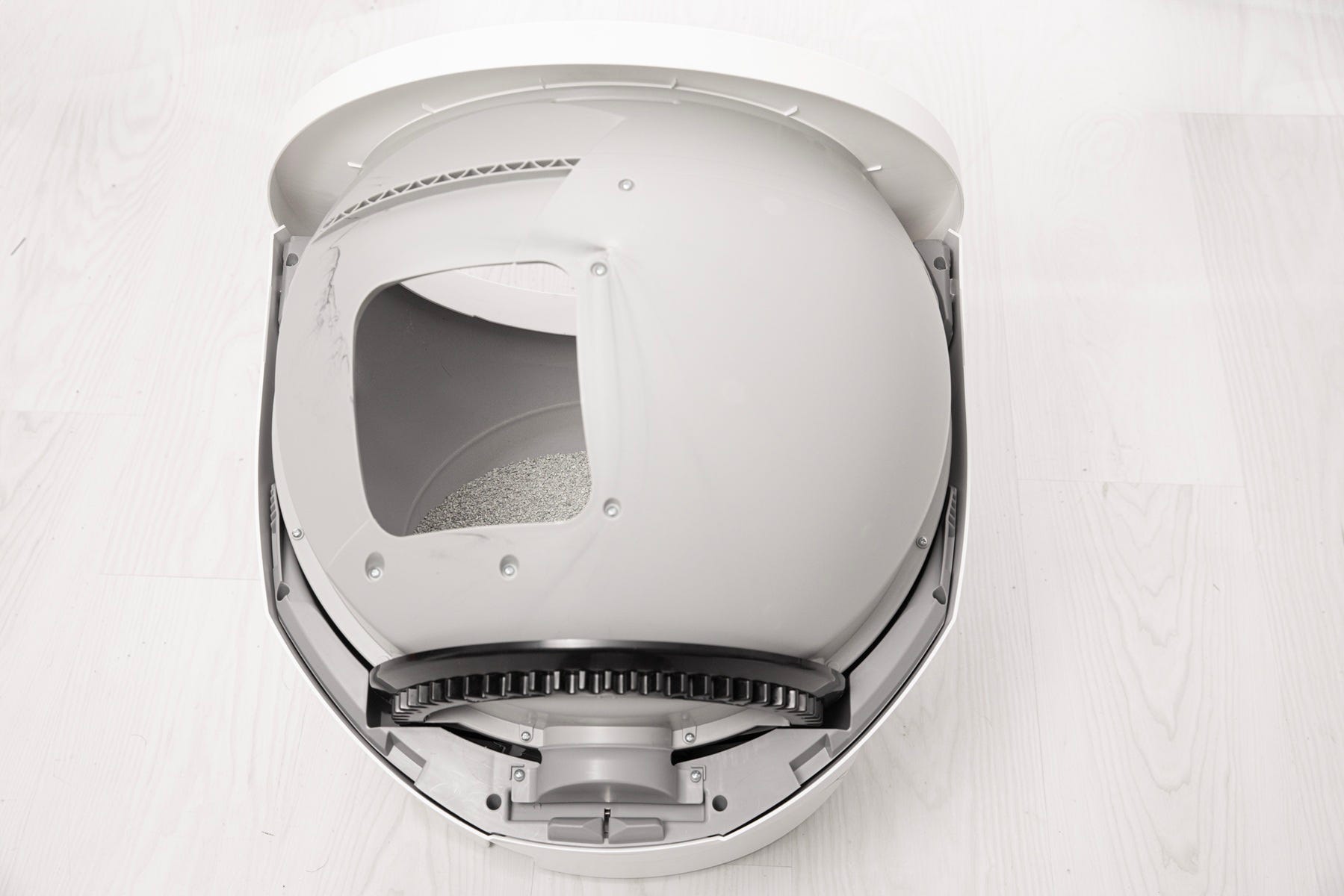
Ensure the cylindrical end is properly seated under the retaining bracket at the rear of the base and that the gear is within the track.
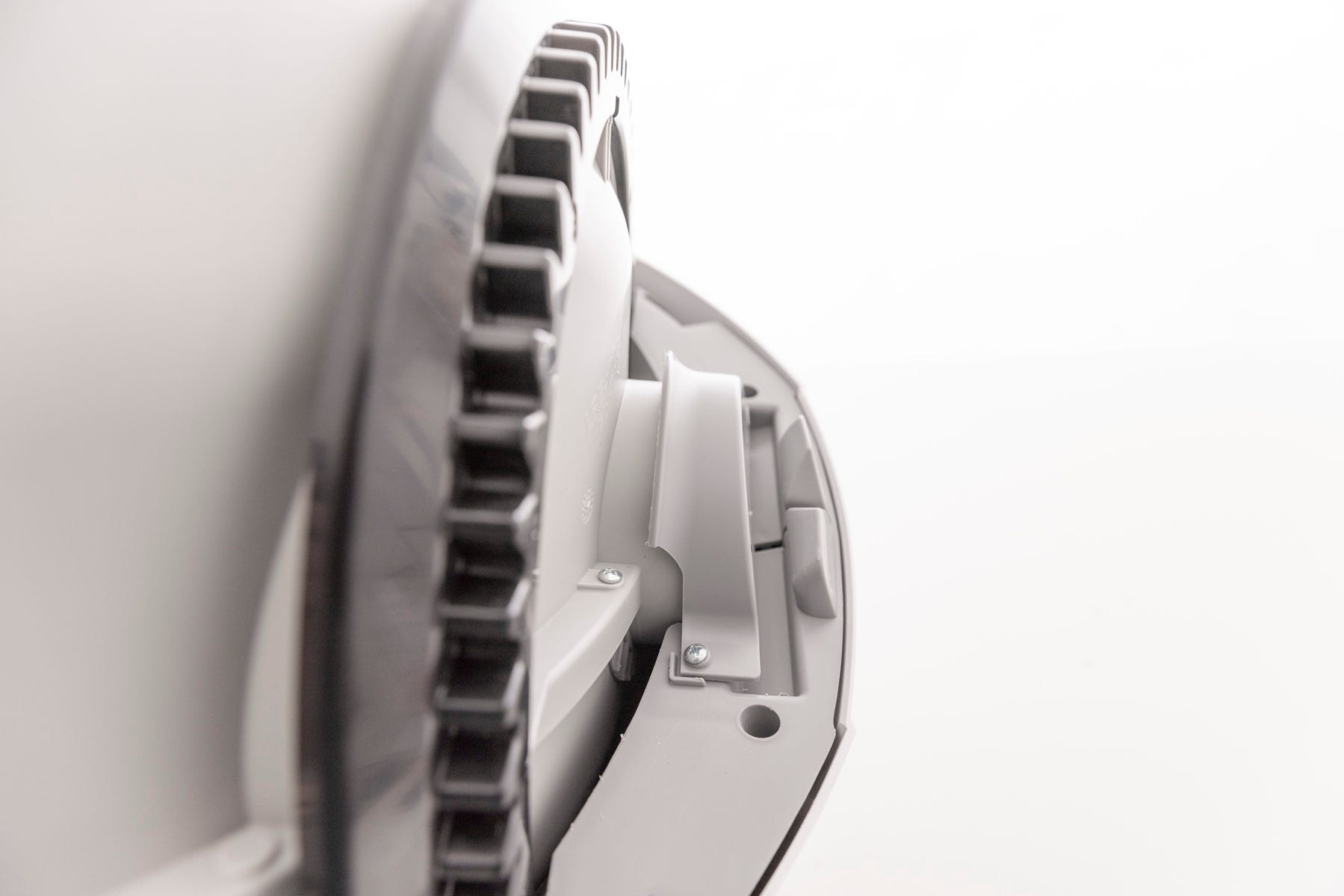
Reinstall the bonnet until the latches click into place.
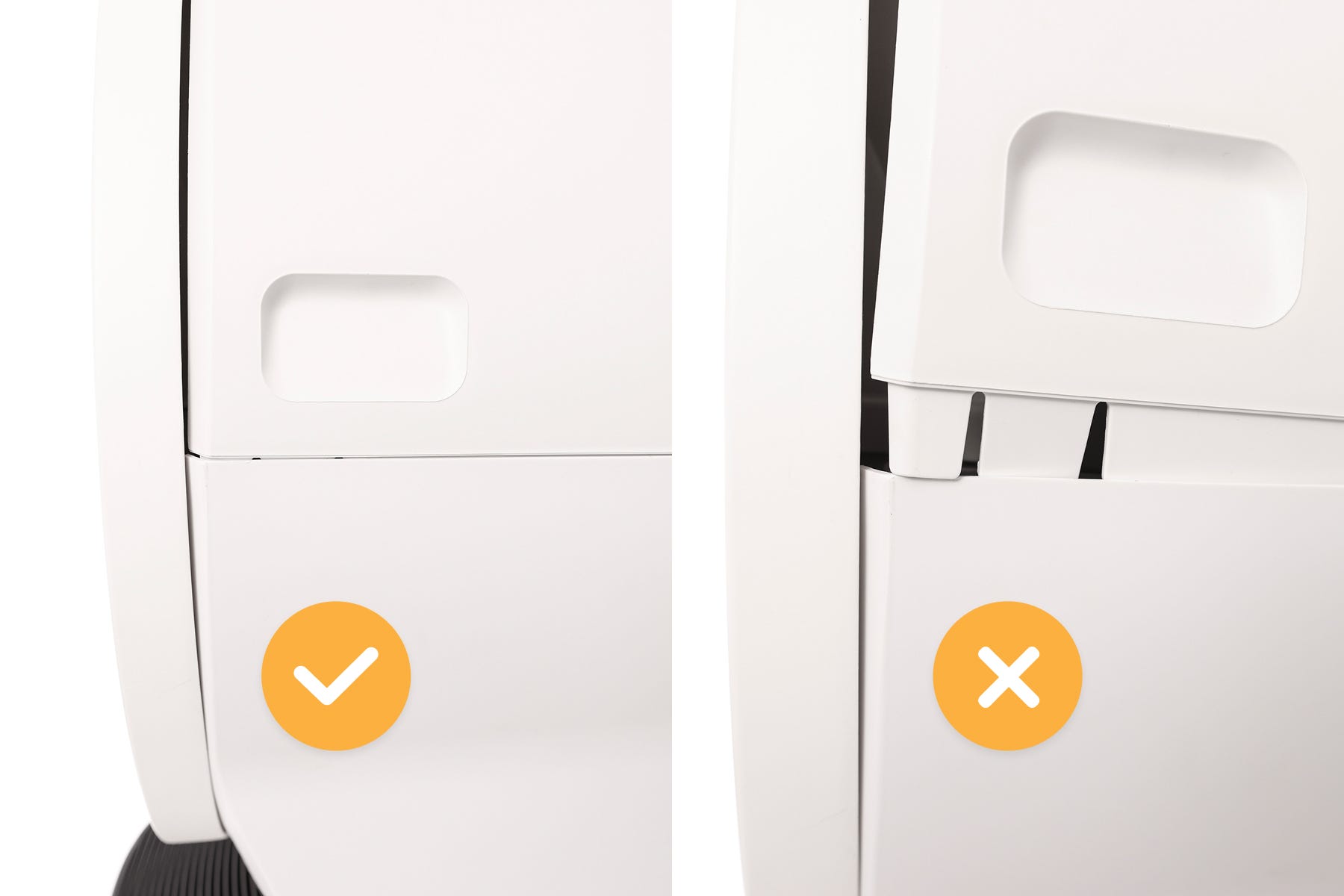
Power the unit on.
- Now let's run a test cycle:
- Short press the Cancel button to zero the weight scale
- Short press the Cycle button.
Successful: Solid white light at Home with a 0-5% waste level reading.
Unsuccessful: Continue to the next step.
Need more help?
If your unit continues to show a Waste Drawer Full notification please contact Whisker Customer Experience for further assistance.
Didn't find what you're looking for?
Live support available Mon-Fri: 9AM-9PM EST and Sat-Sun: 9AM-5PM EST, or submit a ticket anytime.