The store will not work correctly in the case when cookies are disabled.

Feeder-Robot: Connect light blinking blue or red (Disconnected from WiFi or offline)
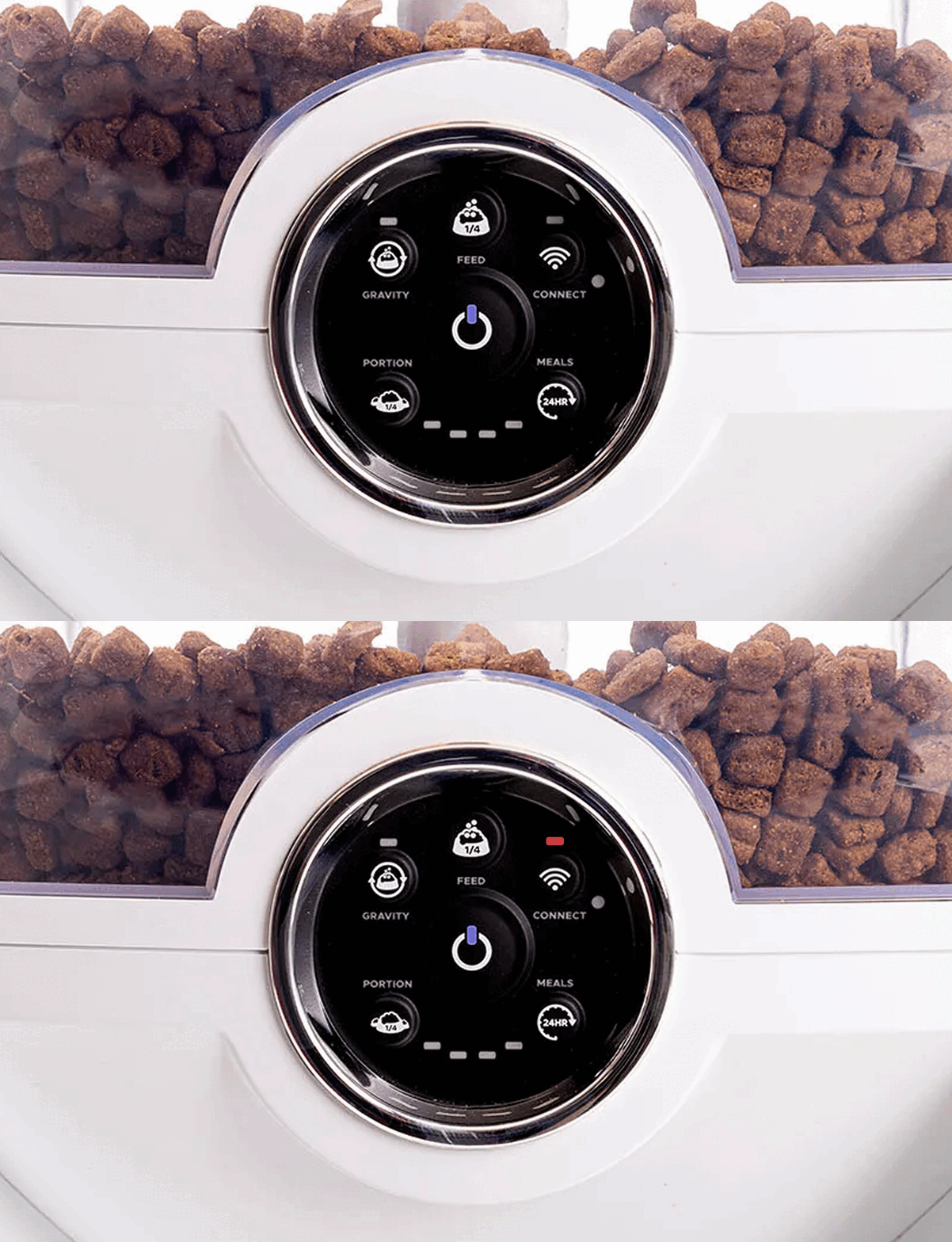
If Feeder-Robot displays a blinking blue light or blinking red light adjacent to the Connect button, this indicates that the unit is connecting to the app or has disconnected and is trying to reconnect but has not successfully reconnected.
-
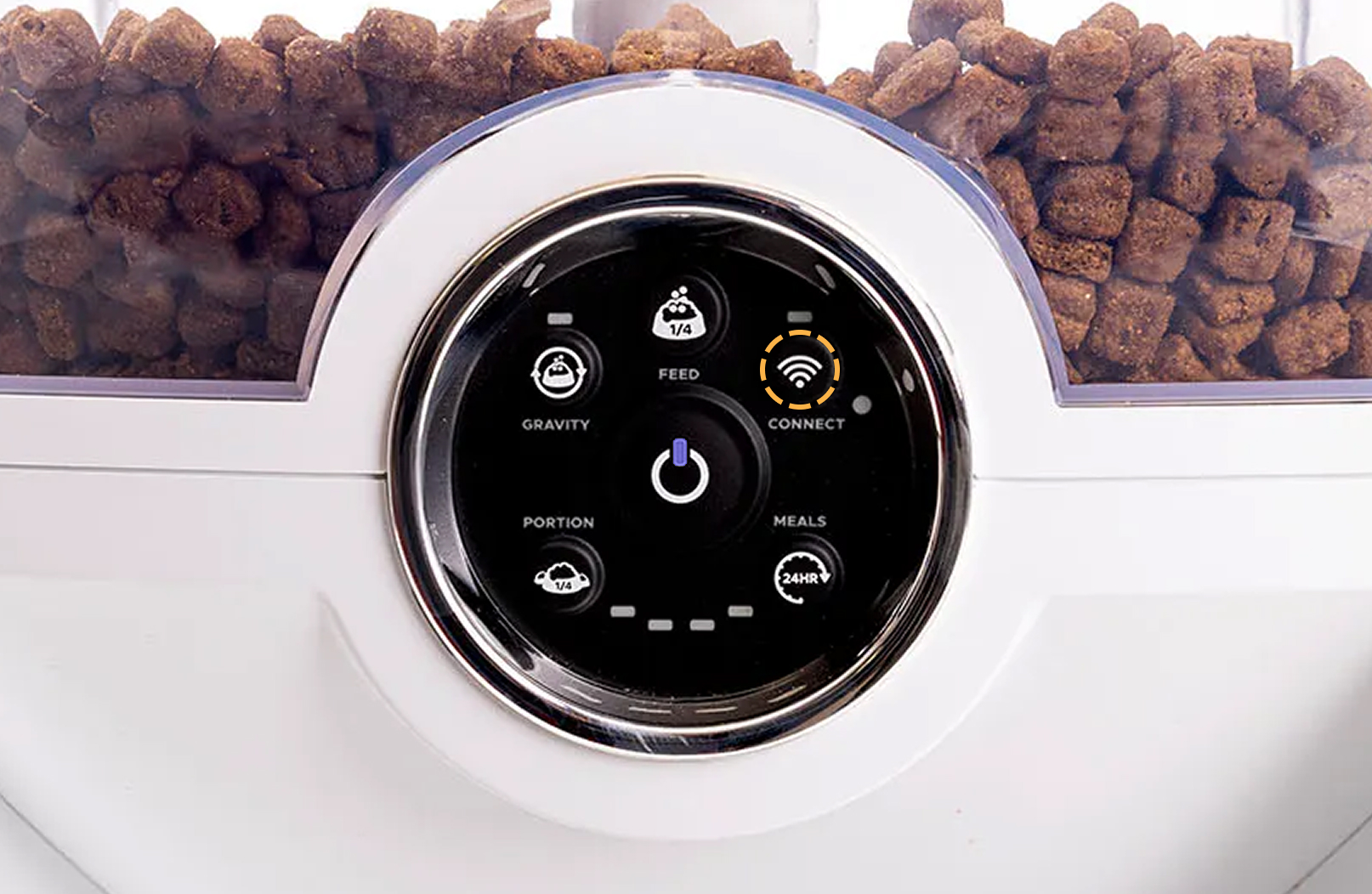
To reconnect your unit, you can re-enable the connection by pressing
the Connect button once to turn the WiFi off,
indicated by the Connect LED being off.
-
Then, press the Connect button a second time to
re-establish the connection. The Connect LED will begin flashing blue again
if previously onboarded, but should change to solid blue after a few
seconds.
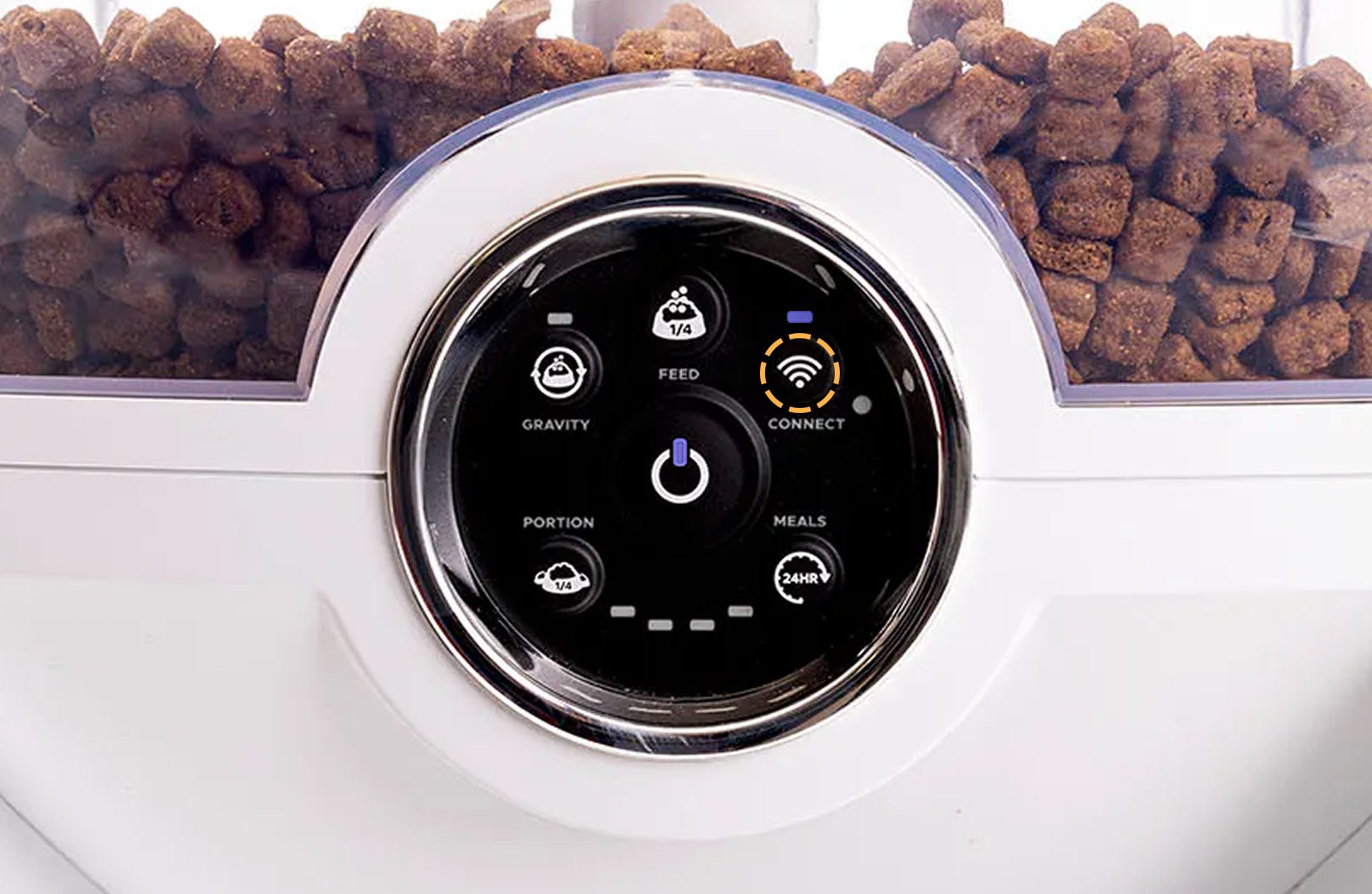
Successful: If your unit displays a solid blue Connect light, you've been successful.
Unsuccessful: If your unit is displaying a blinking blue Connect light, please follow these troubleshooting steps. If your unit is displaying a blinking red Connect light, your Feeder-Robot needs to be replaced.
Troubleshooting
Update Whisker app
If Feeder-Robot doesn't reconnect automatically, ensure you are using the latest version of the Whisker app.


- Search for the Whisker app in the App Store or Google Play Store.
- To download the Whisker app, tap the Get or Install button.
- If the Whisker app is already installed and an update is available, update to the newest version by tapping the Update button.
- If the Whisker app is up to date, tap the Open button.
Update network
Update your network to ensure the unit has the correct WiFi credentials.
- Open the Whisker app
-
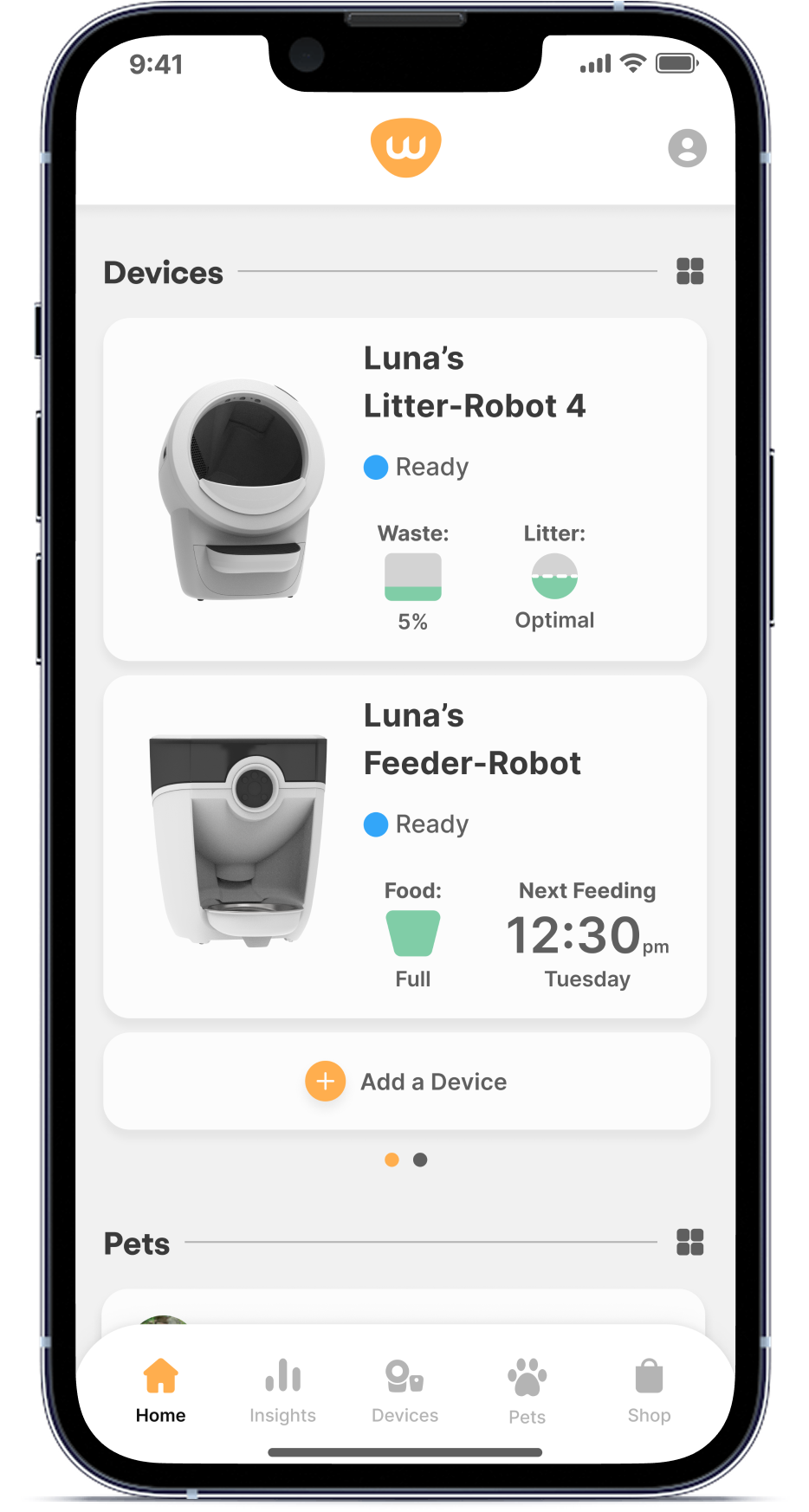
Select your Feeder-Robot
-
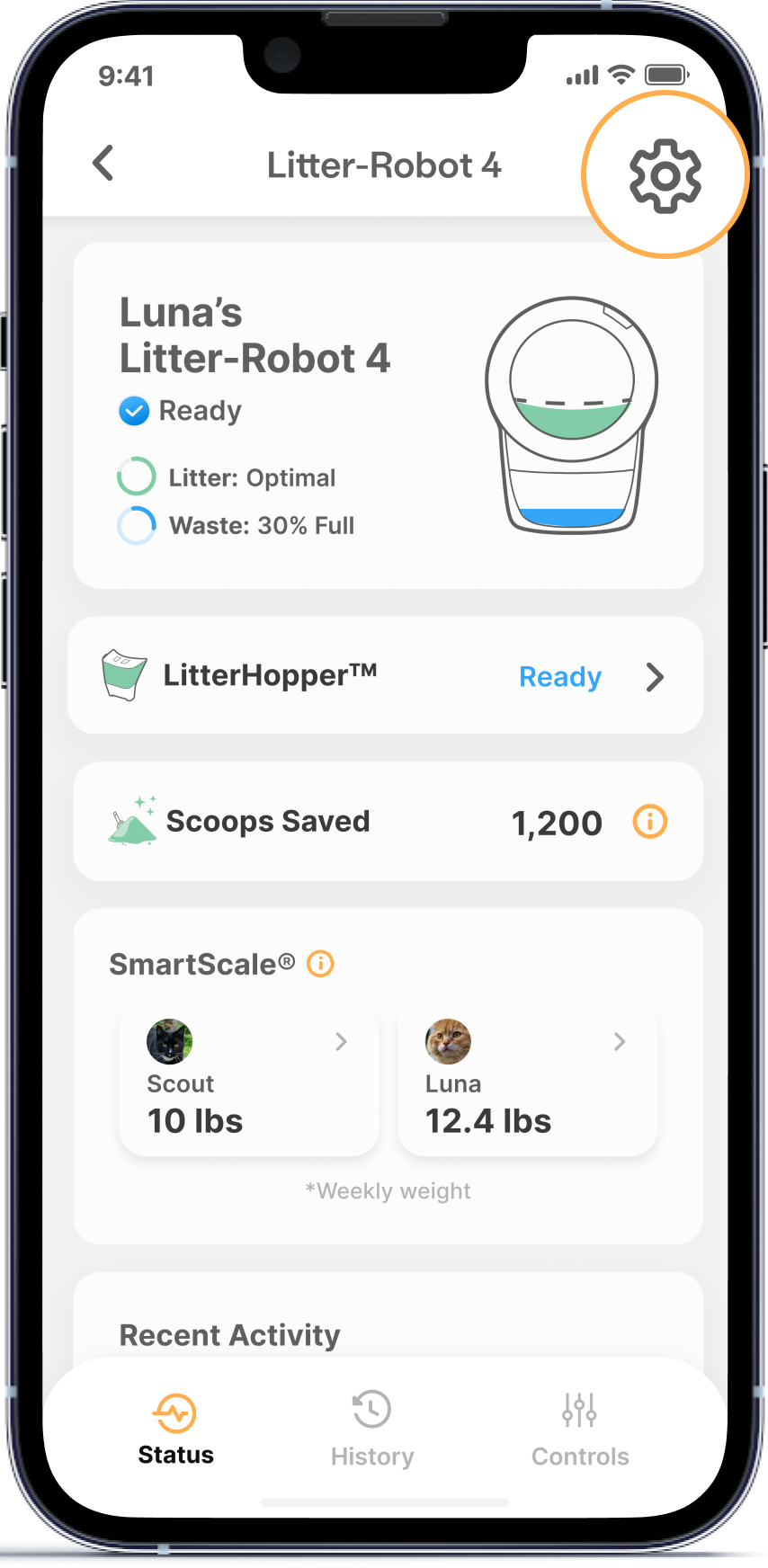
Select the Settings gear in the top right corner
-
Select Update Network

- Follow the steps listed within the app
Once the update is complete, your Feeder-Robot should be ready for use.
Successful: If your unit displays a solid blue Connect light, you've been successful.
Unsuccessful: If your unit is not displaying a solid blue Connect light, your Feeder-Robot may be having issues connecting to Whisker servers. You'll want to log into your router to confirm or change some settings.
Update router settings
Setup a guest network
Set up a guest network for IoT devices
- Prevents other wireless devices from communicating with one another, possibly causing interference.
- Allows flexibility to change specific network settings without upsetting the entire household.
- Follow your router manufacturer's instructions to set up a guest network.
IoT device security
Next, find the setting for IoT device security.
- Some routers require IoT device authorization to allow the device to have access to the internet.
- If your router has this setting, follow the steps to authorize Feeder-Robot access to the internet.
MiMo or QOS
Now, find the setting labeled MiMo or QOS.
- MiMo and QOS options attempt to employ power-saving modes that may cause interference on WiFi devices.
- Disable MiMo and/or QOS on the router.
Firewall security
Lastly, find the settings for your firewall security.
- Some routers have overactive firewall security settings that will block access to the HTTPS ports 8443 or 443. These are secure ports and access is needed for your unit and the app to access AWS servers.
- Follow your router manufacturer's instructions to open the ports 443 or 8443.
Reconnect your unit
- To reconnect your unit, re-enable the connection by pressing the Connect button once to turn the WiFi off, indicated by the Connect LED being off.
- Then, press the Connect button a 2nd time to reestablish the connection.
- The Connect LED will begin flashing blue again but should change to solid blue after a few seconds.
Successful: If your unit displays a solid blue Connect light, you've been successful.
Unsuccessful: If your unit is not displaying a solid blue Connect light, there's likely an issue with your Feeder-Robot or router.
What do I do?
My unit is covered by WhiskerCare™
If your Feeder-Robot is covered by WhiskerCare™ warranty, you have access to replacements, at no cost, to get your Feeder-Robot up-and-running quickly. Please contact our Customer Experience Team for further assistance.
The warranty on my unit has expired
If your unit is no longer under warranty, you will need a new Feeder-Robot.
Need technical support?
Our Troubleshooting Wizard will solve most issues and is the fastest way to get help.
Didn't find what you're looking for?
Live support available Mon-Fri: 9AM-9PM EST and Sat-Sun: 9AM-5PM EST, or submit a ticket anytime.