The store will not work correctly in the case when cookies are disabled.

Why is my Litter-Robot 4 not cycling? Troubleshooting steps
A Litter Robot 4 might not be cycling if:
- The waste drawer is full
- Litter-Robot is in sleep mode
- Excess weight or the litter level is too high
- The cat sensor is dirty or malfunctioning
- The unit is not on a level surface or placement is incorrect
- There is a mechanical issue with the motor or gear mechanism
If your Litter-Robot 4 is not cycling as intended, the lights present on the control panel will help you determine what the issue is.
Troubleshooting why your Litter-Robot 4 stopped cycling
Wait time settings
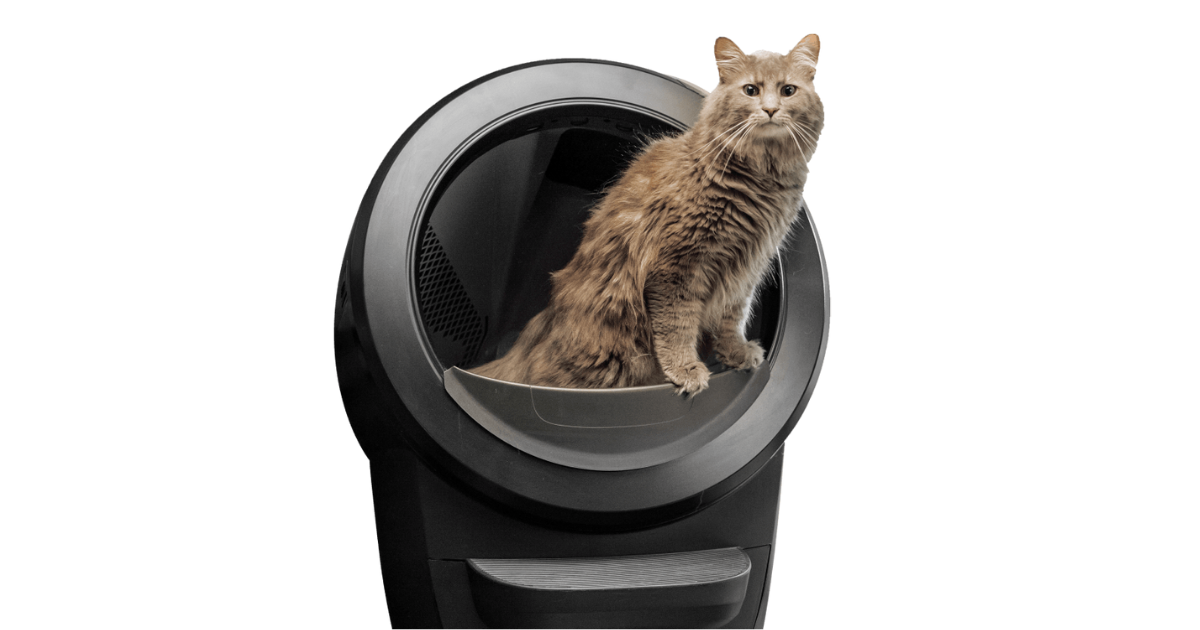
The default cycle delay is 7 minutes after the OmniSense sensors detect when a cat exits the unit so ensure that time has elapsed.
To cancel the wait time countdown, short press the Reset button.
You may also change the wait time setting for 3, 7, 15, 25, or 30 minutes by following our Litter-Robot 4 wait time setting guide.
For step-by-step troubleshooting, please watch this video.
Sleep mode
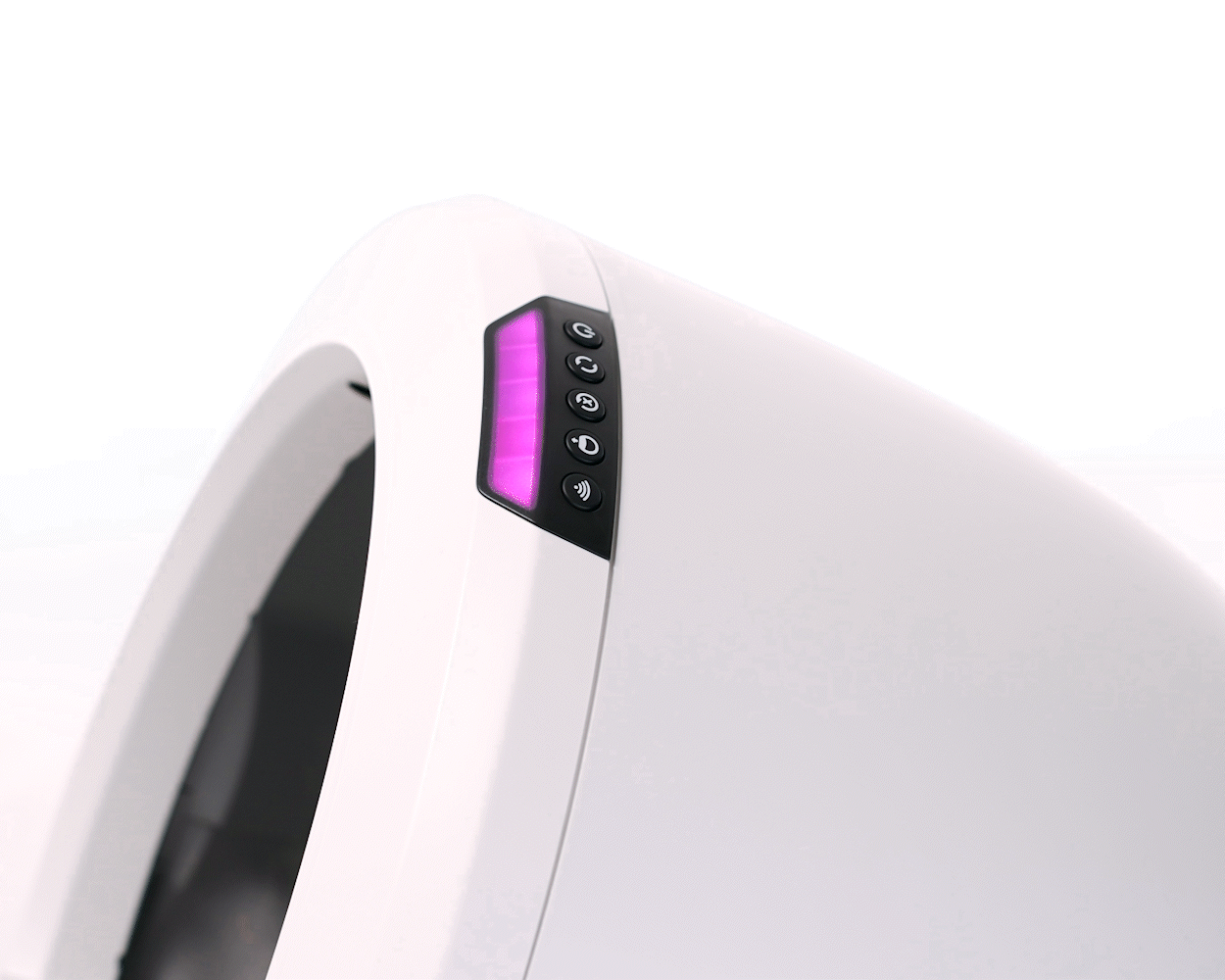
The unit is programmed with a default 8-hour sleep period and repeated every 24 hours indicated by a purple light. The start of the sleep period is determined by the time sleep mode was enabled.
During the sleep period, the unit will monitor for a cat using the unit but will not perform a Clean cycle.
If the unit detects usage during the sleep period, a Clean cycle will be performed.
A 3-second long press of the Cycle button will disable sleep mode.
Solid red light
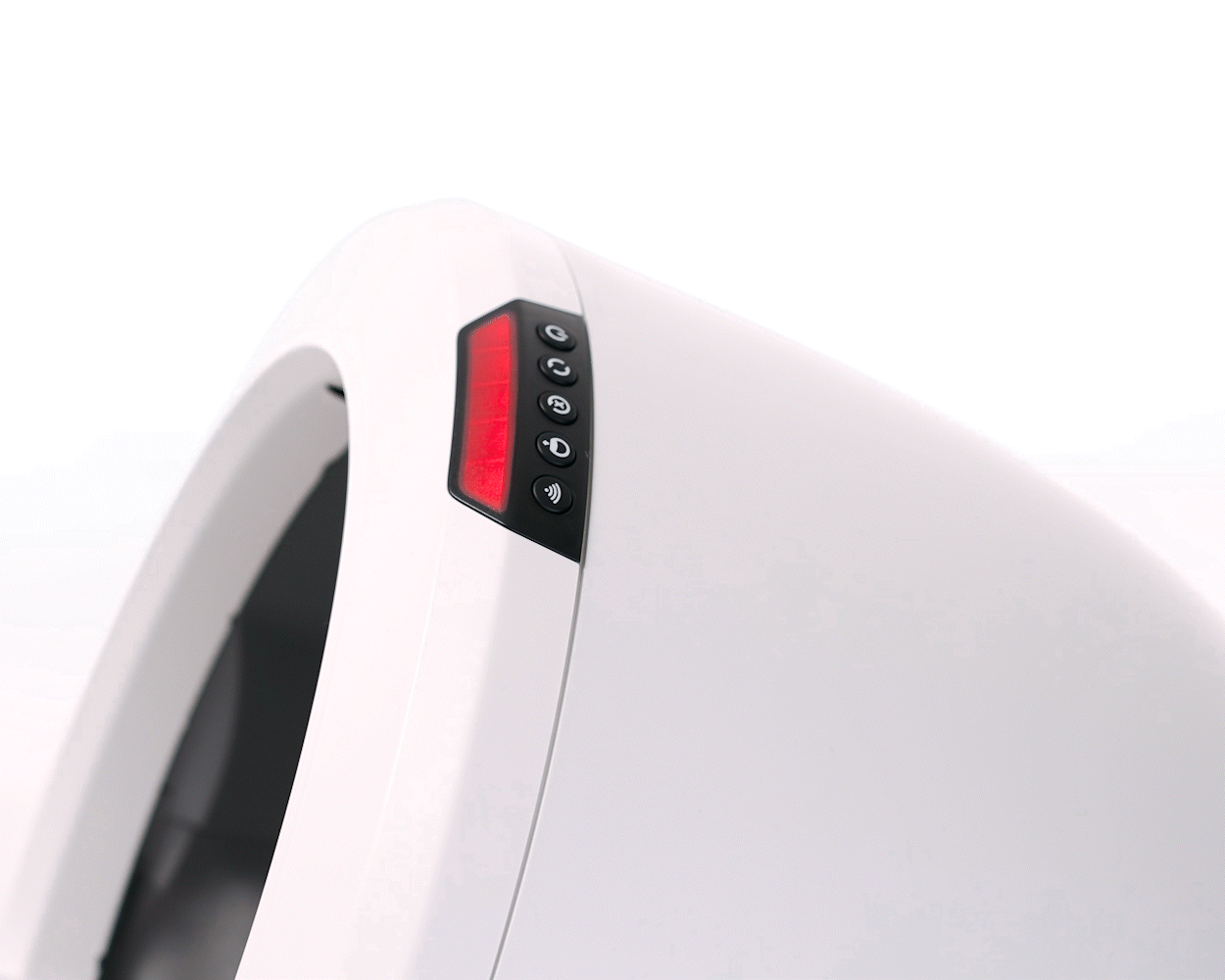
If your unit’s light bar is solid red, this indicates that the cat sensor has been triggered (kitty entered globe). The unit will cycle once the cycle delay countdown is up or if you press the Reset button. Learn more.
Excess weight detected
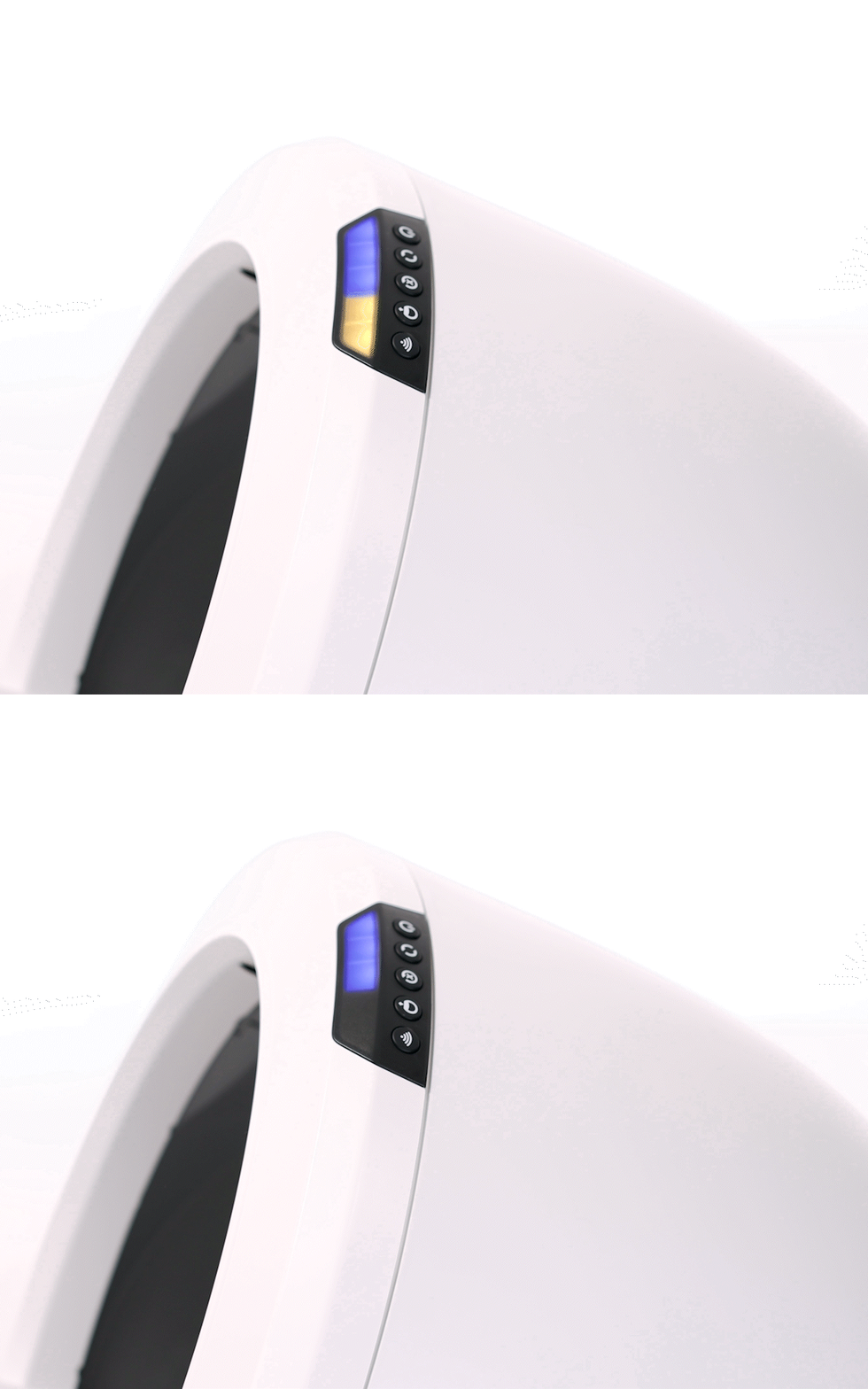
If your unit's light bar is blue with two flashing yellow lights, this indicates that the scale has been triggered for more than 30 minutes.
The weight scale could be detecting additional weight in Litter-Robot. If you’ve recently moved the unit or added too much cat litter it could cause Litter-Robot to think a cat is inside.
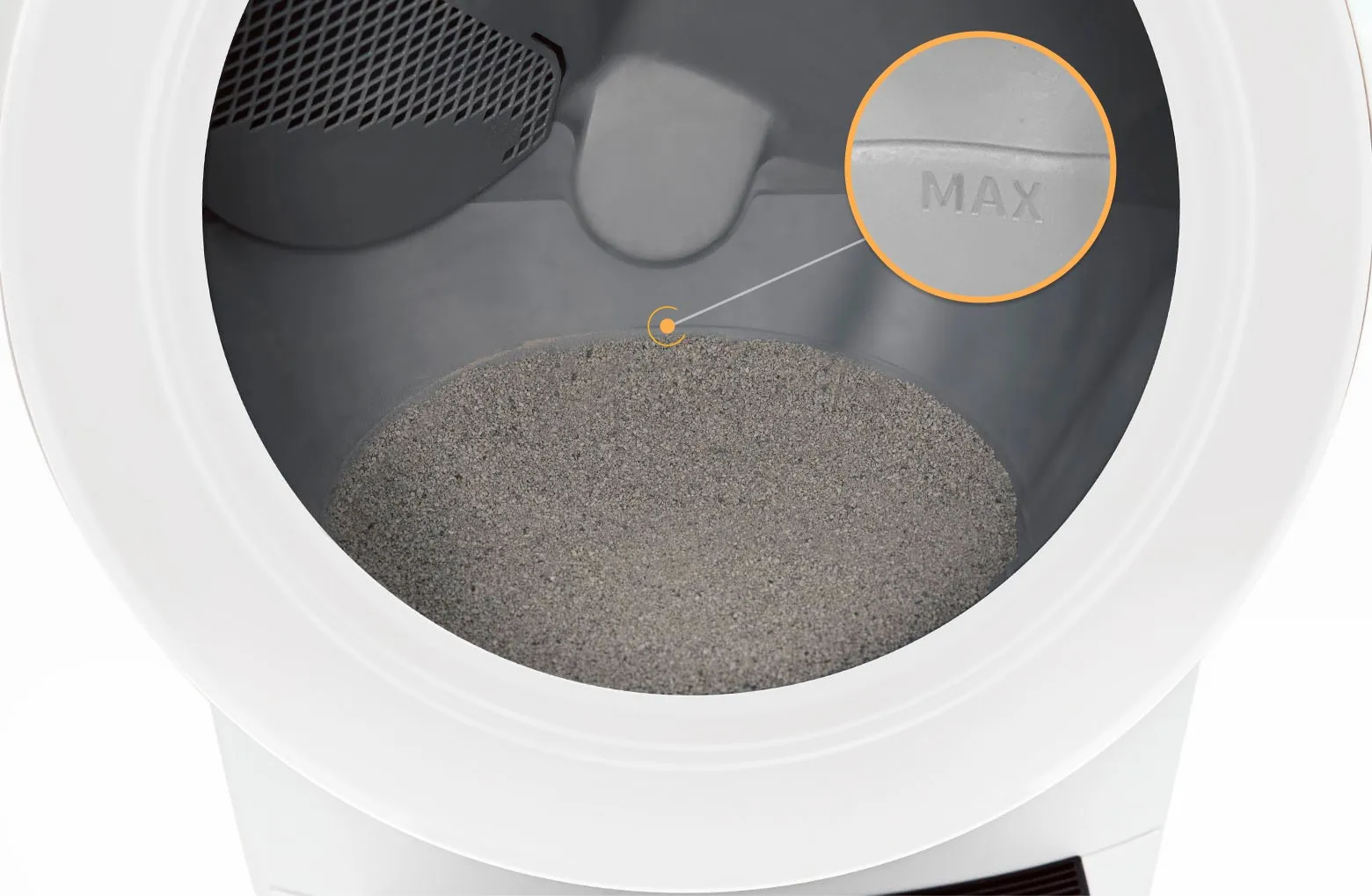
- Remove excess litter if it's above the fill line.
- Ensure the automatic litter box is not on carpet, a litter mat, a power cord, in a grout line, or touching any walls.
- From the Home position, press the Reset button twice to zero the weight scale.
- If your unit is stuck during a cycle, long press the Reset button for 3 seconds to zero the weight scale.
Learn more about how to resolve the blue with partial yellow flashing light and excess weight detected error.
Incorrect placement
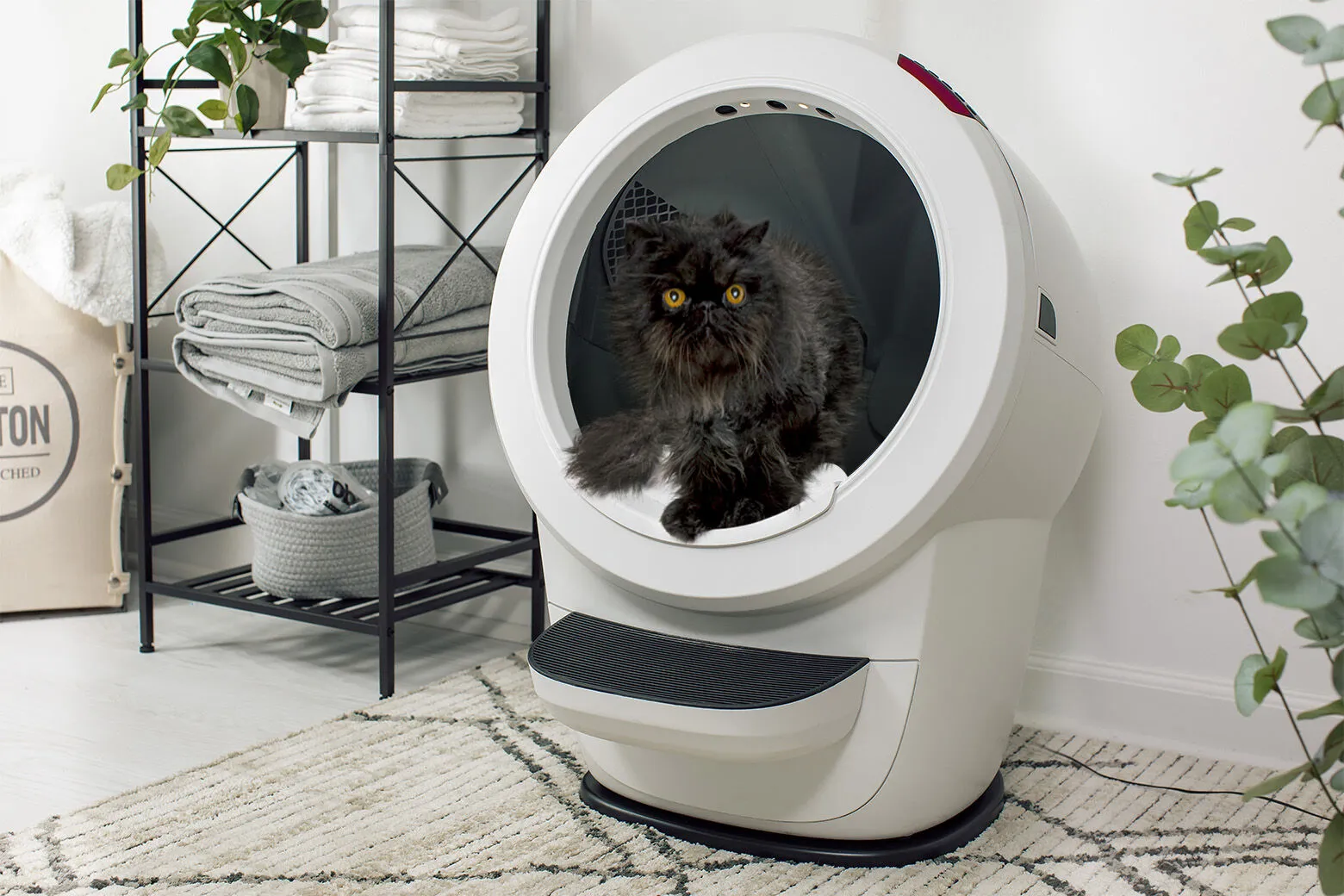
Place the unit on a firm, level surface. Avoid soft, uneven, or unstable flooring for accurate weight measurements like carpet.
The Litter-Robot 4 Carpet Tray can be used to improve the accuracy of SmartScale™ weight readings when Litter-Robot 4 sits on carpet or an uneven surface.
- Place your litter mat completely in front of the unit, not partially underneath.
- All sides of the robot should not touch any walls or other surfaces.
-
Check that all four feet can move freely and clear any litter or debris that
may be stuck in or around the feet.
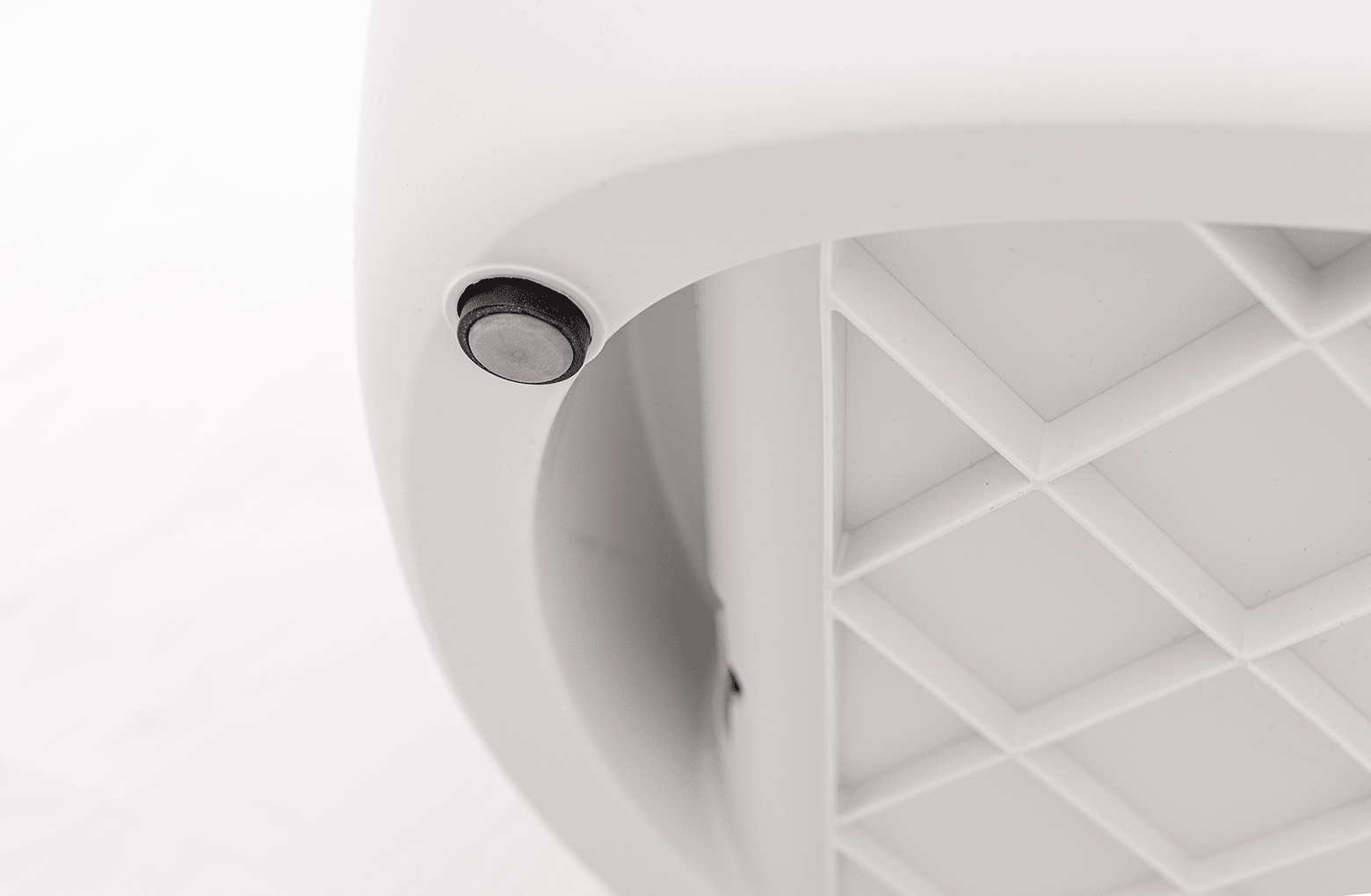
- Check that none of the four feet are resting on top of a cord or in a grout line.
Cat sensor error

Debris (dust, cat fur, etc) can interfere with the three laser sensors in the Bezel. This can cause the unit to inaccurately measure the Waste Drawer level and litter level, as well as cause false cat detects.
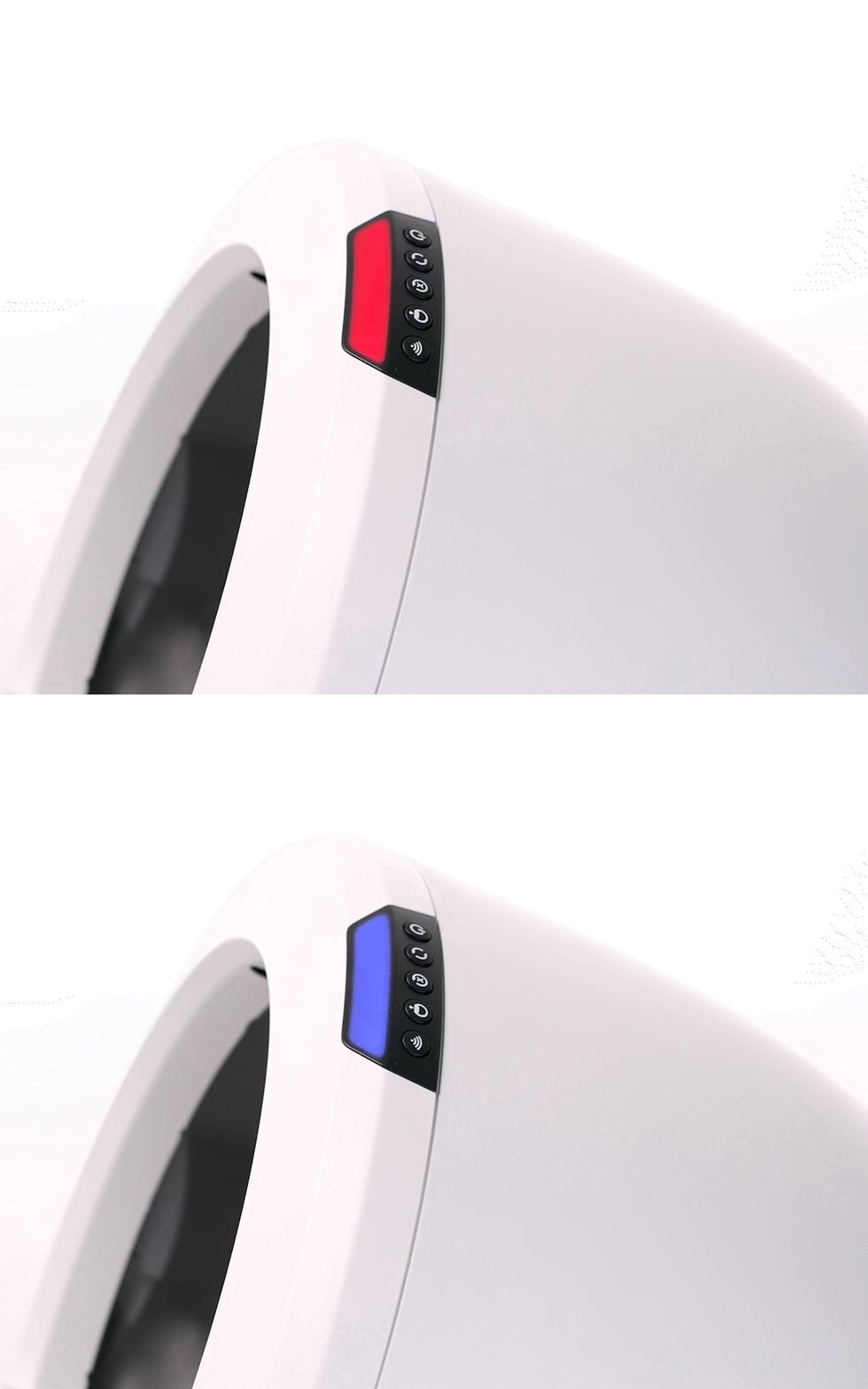
If your unit's light bar is alternating red and blue, this indicates that the three laser sensors, called Curtain Sensors, need to be cleaned. Learn more.
- Wipe the Bezel area where the sensors are located with a dry clean cloth to remove any hair or dust.
- Vacuum the inside perimeter of the Bezel with a brush attachment, passing over the holes at the top of the Bezel.
Motor fault
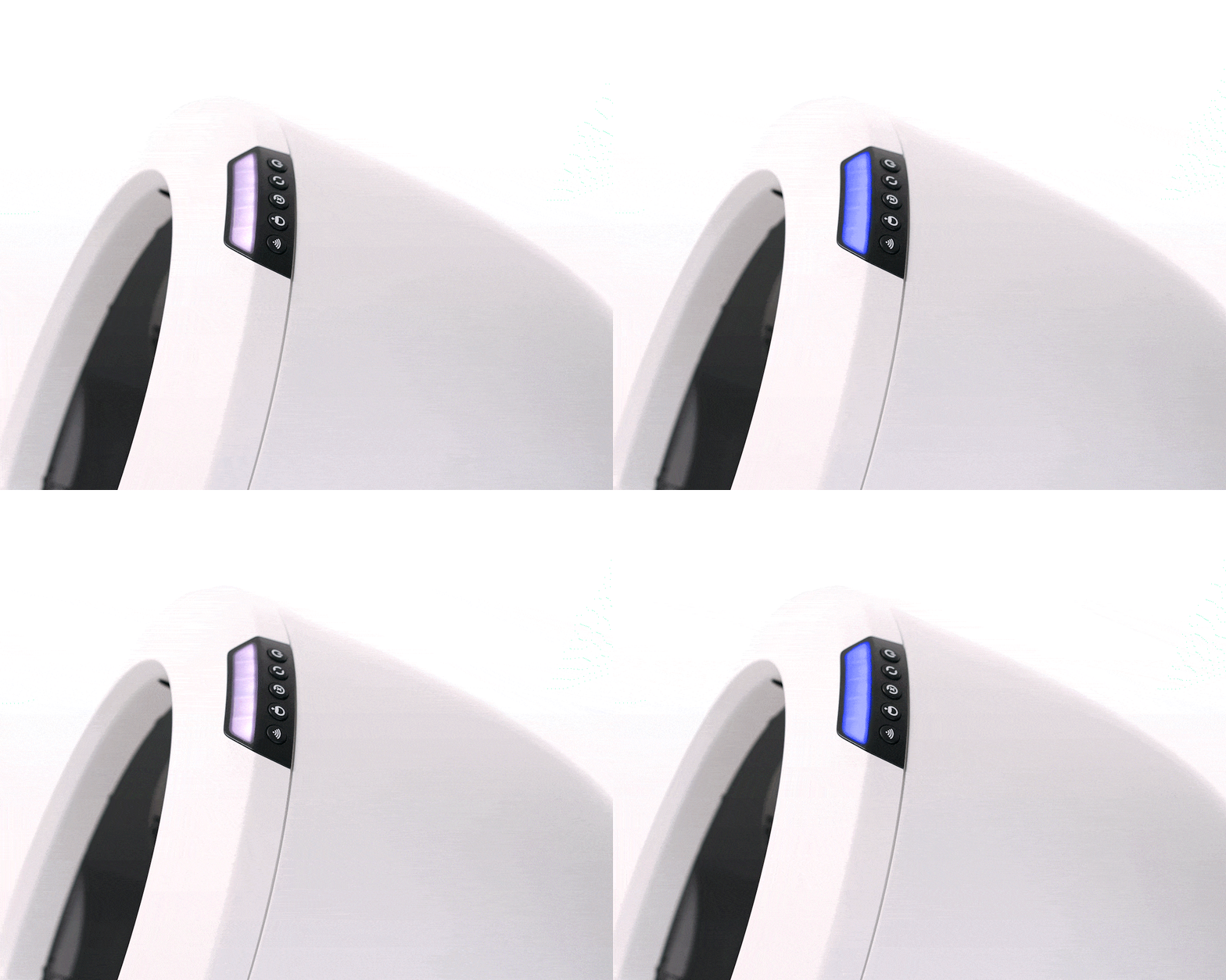
If the unit displays a blue and white alternating light bar, there is an issue with the motor connection, which affects the rotation of the globe.
Follow the steps in our Litter-Robot 4: Motor Installation Guide to ensure the motor is securely connected.
Successful: If your Litter-Robot 4 displays a blue light bar, you've been successful.
Unsuccessful: If you are still seeing a blue and white alternating light bar, there's likely an issue with your Litter-Robot.
Need technical support?
Our Troubleshooting Wizard will solve most issues and is the fastest way to get help.
Didn't find what you're looking for?
Phone and Chat support available Mon-Fri: 9AM-9PM EST and Sat-Sun: 9AM-5PM EST, or submit a ticket anytime.