The store will not work correctly in the case when cookies are disabled.

Litter-Robot 5 & Pro: Obstruction detected
If your Litter-Robot 5 or Litter-Robot 5 Pro has stopped working, is stuck, or displays an Obstruction detected notification, the obstruction detection sensors have been activated. This guide will help you identify the cause, clear the obstruction, and restore normal operation.
Quick links
Before you begin
Make sure:
Your unit is plugged in.
Your unit is connected and online.
Your firmware is up to date. (If the app does not show an update option, you already have the latest version.)
How an obstruction is detected
Litter-Robot 5 is equipped with obstruction detection sensors on both sides of the waste drawer chute. These sensors protect your cat by monitoring for any obstruction during operation and stop your self-cleaning litter box from cycling when something has been detected.
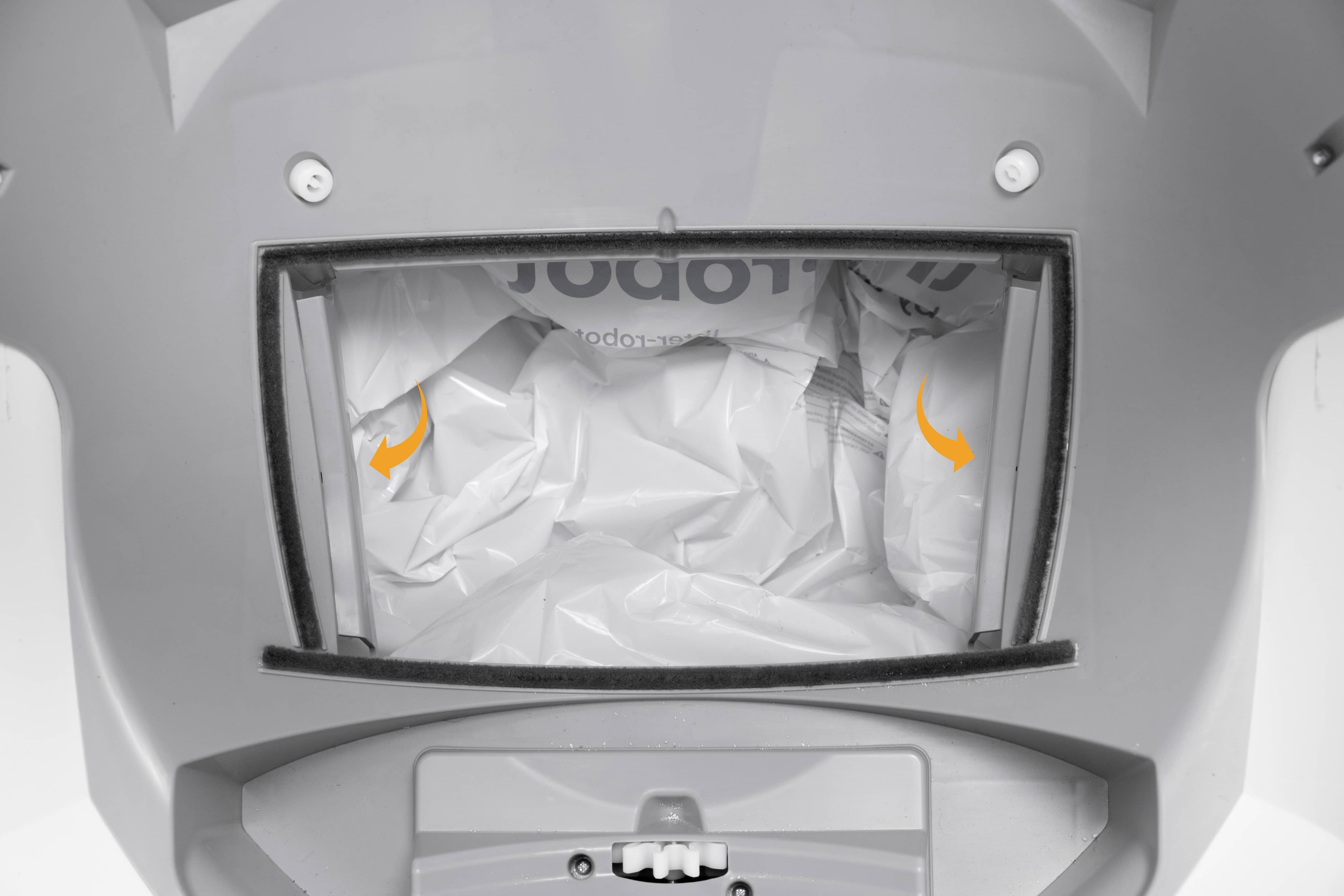
If the sensors detect resistance or an obstruction, the unit will stop, retract, and display an Obstruction Detected notification.
The unit will pause briefly, then attempt to resume the cycle.
If the unit cannot complete a cycle, it will remain paused until the error is cleared or the unit is power-cycled.
You’ll also receive a notification in the Whisker app if the obstruction detection sensors detect your cat’s presence in the litter box or an obstruction.
Check the waste drawer
Remove and empty the waste drawer.
- You will receive a notification in the Whisker app that the waste drawer is almost full.
- Make sure there are no objects, clumps, or liner edges sticking up that could contact the dual pinch bars during rotation.
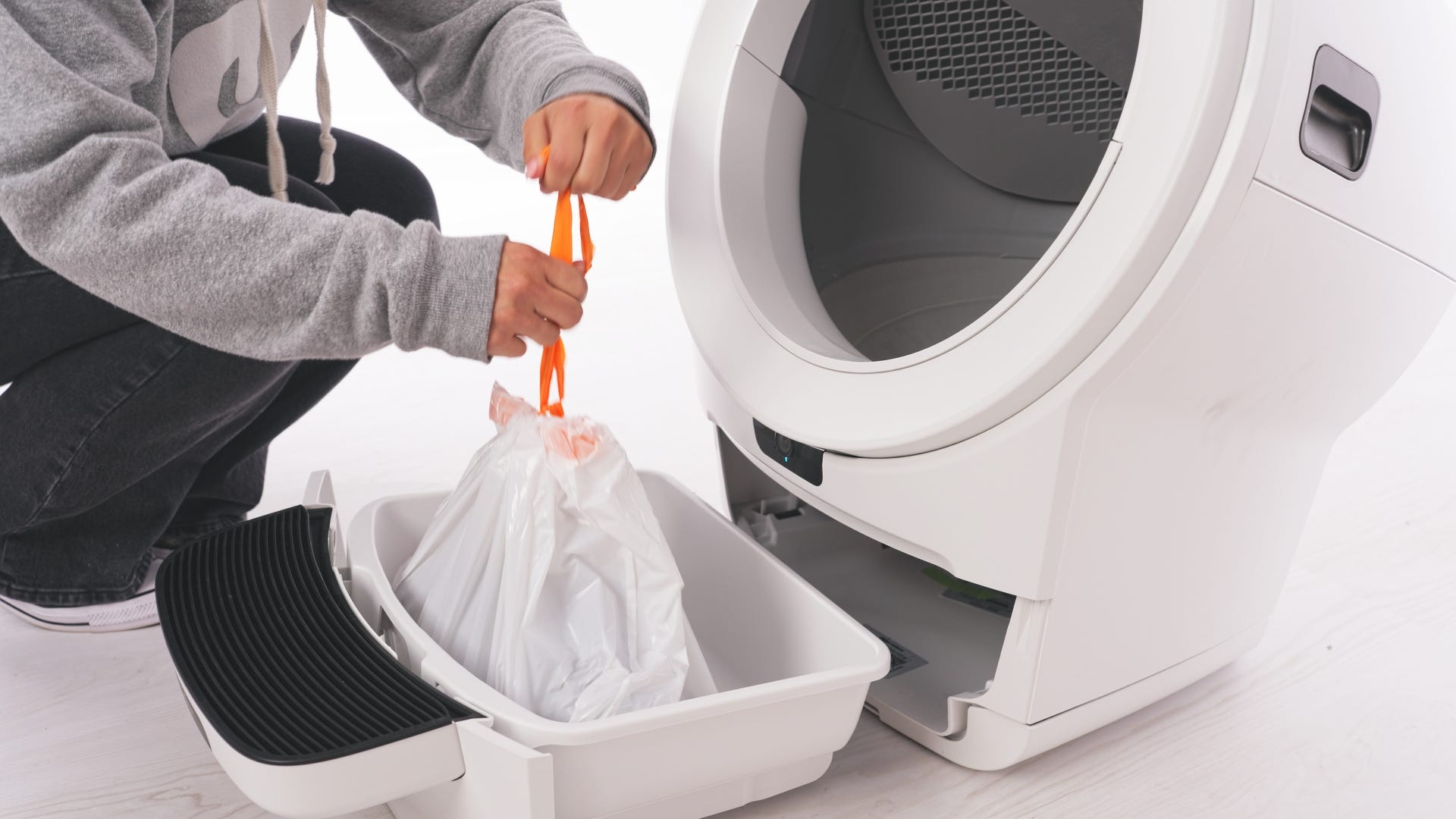
- Install a new waste drawer liner and reinsert the drawer.
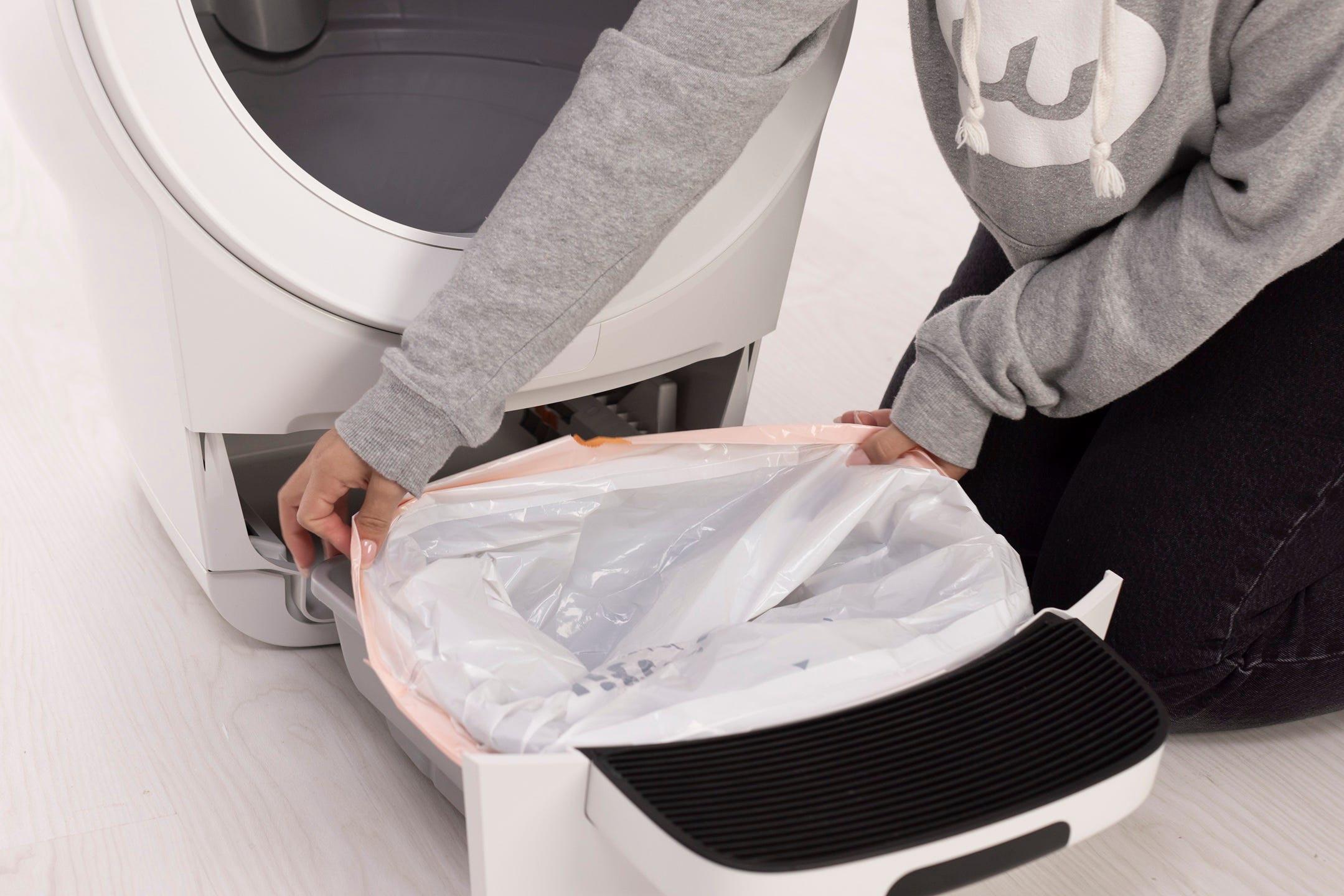
- Ensure the bag is pressed flat against the sides and bottom.
- Puffy or stretched bags can interfere with the DFI sensor.
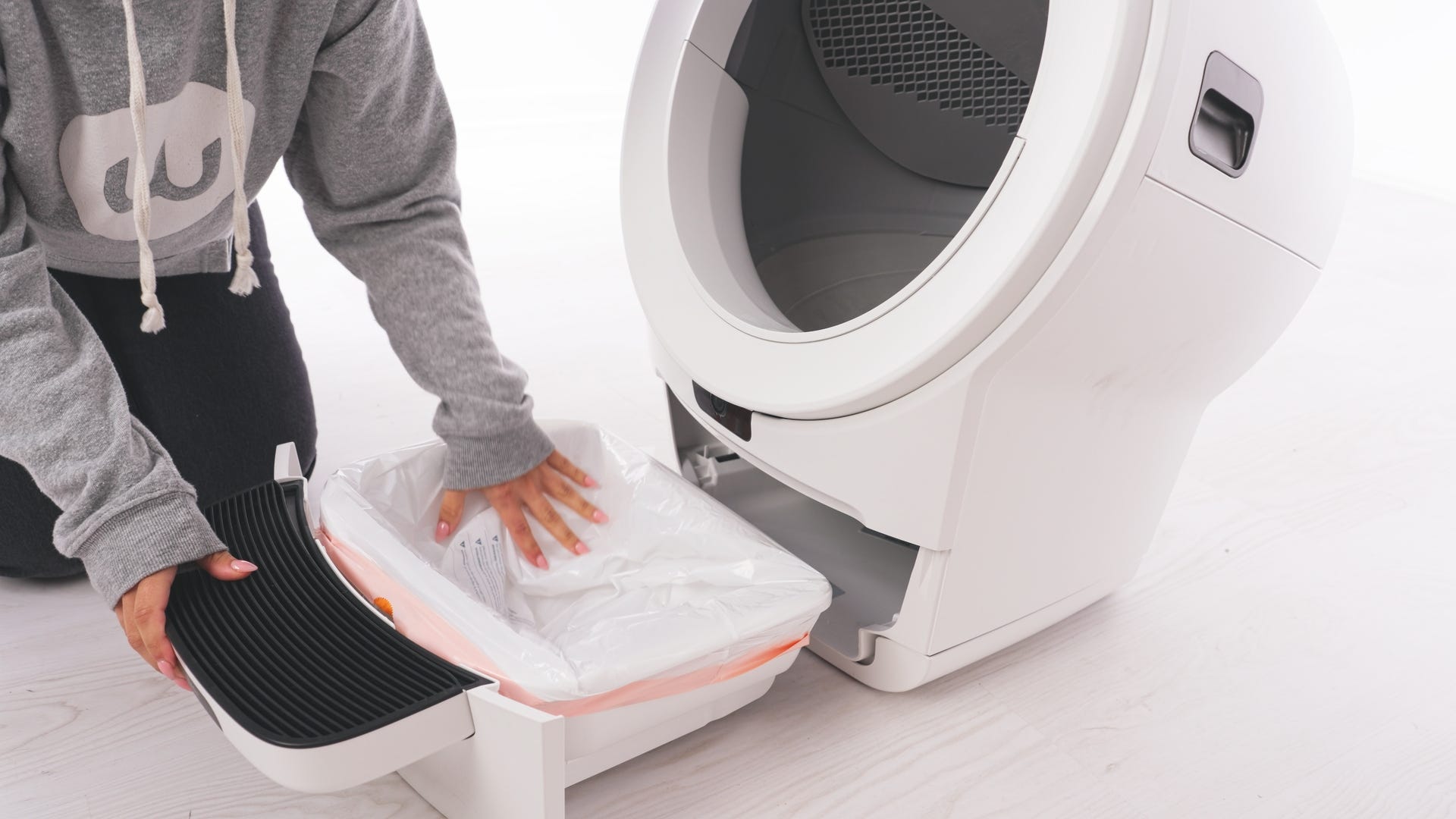
- Now, let's run a test cycle:
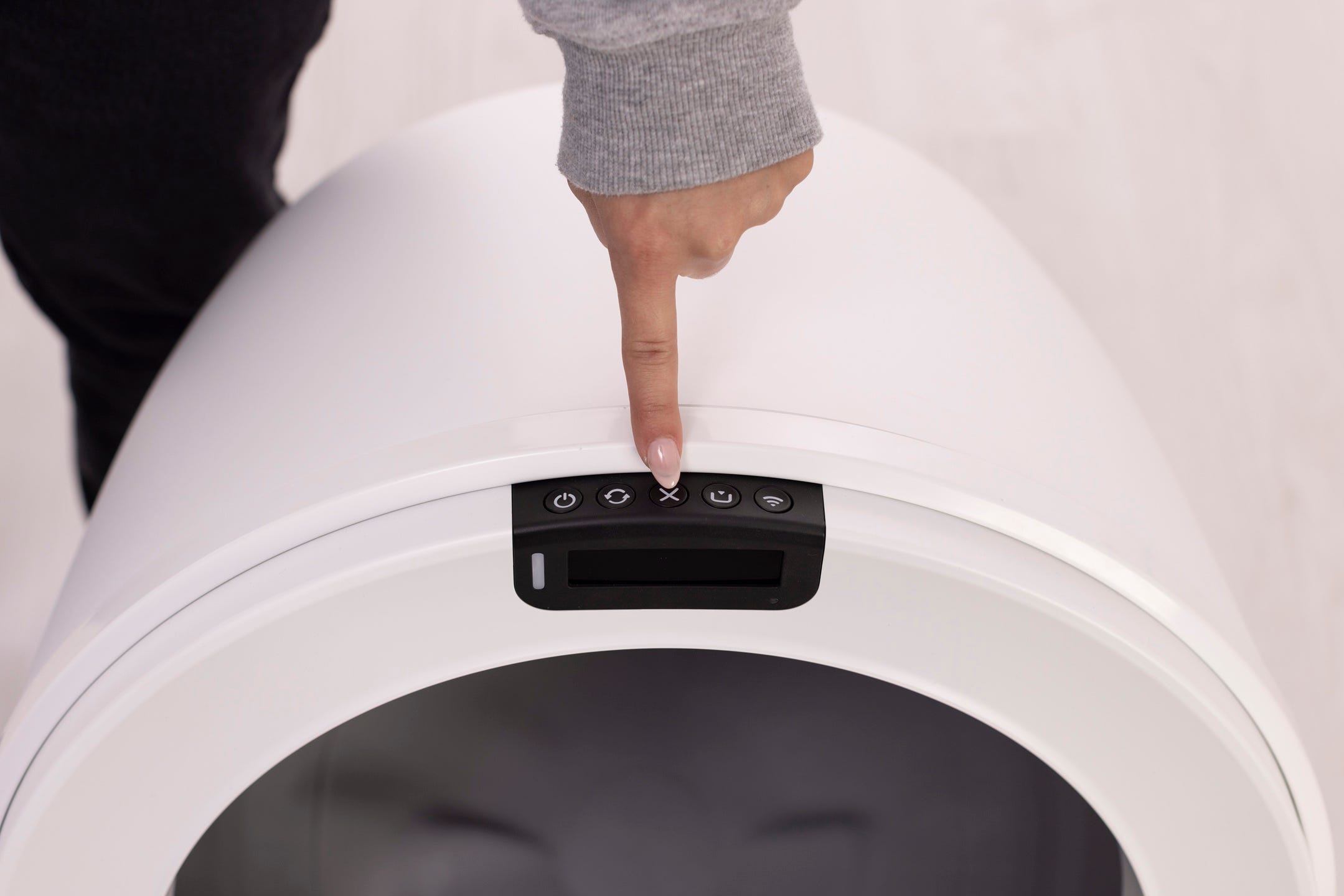
Short press the Cancel button.
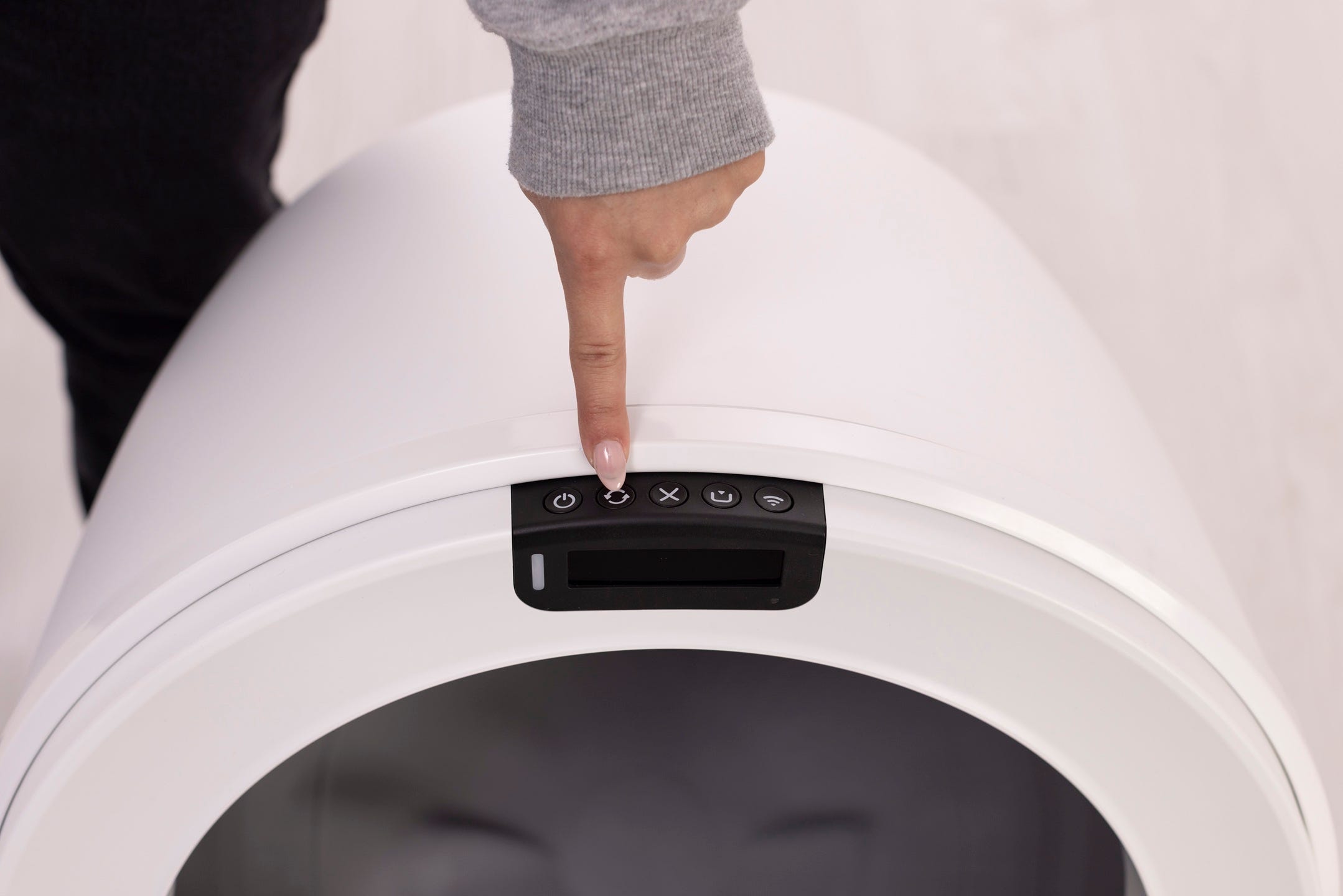
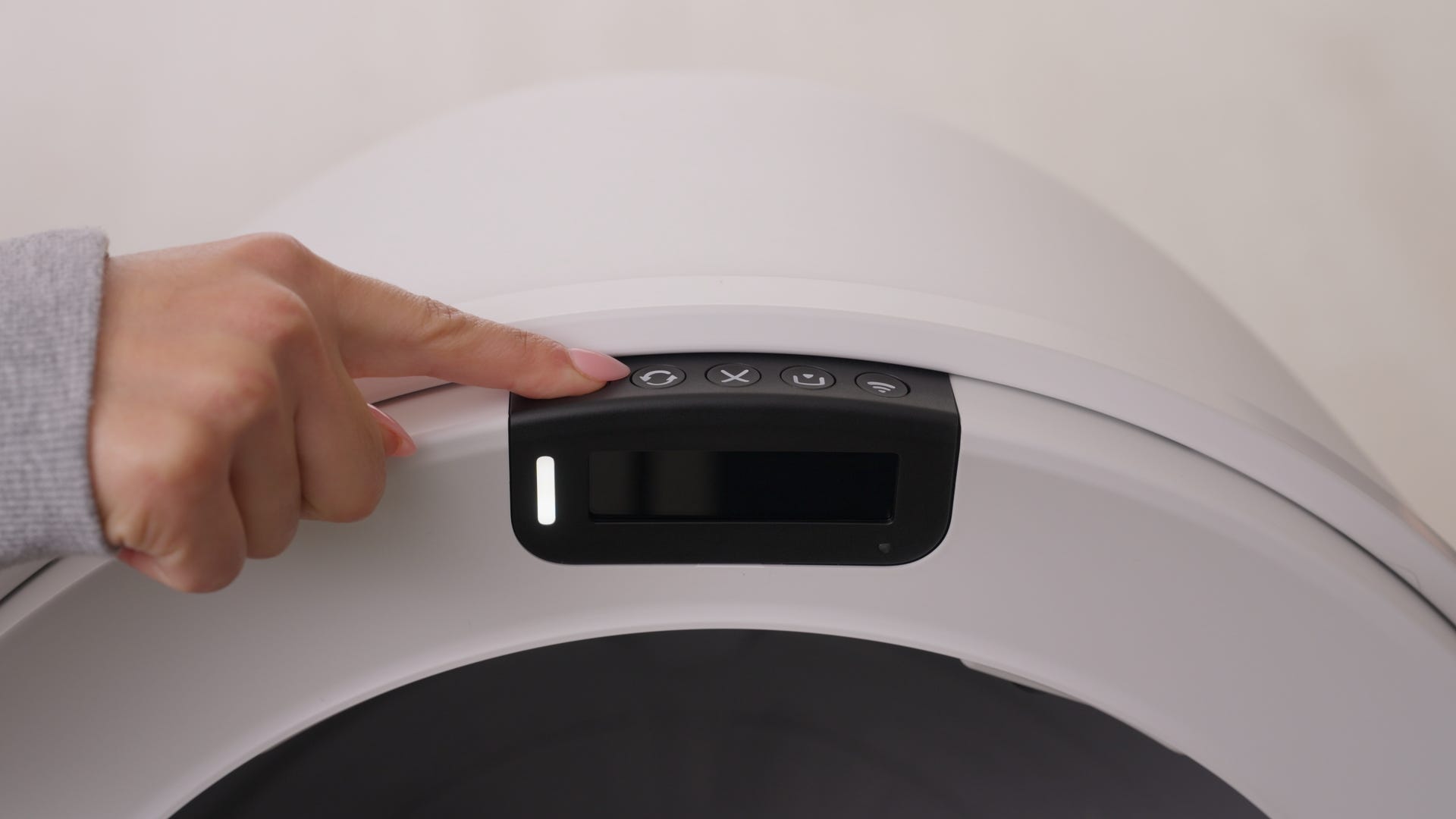
- Short press the Cycle button to run a test cycle.
Successful: If your unit cycles Home and displays a solid white light, the issue is resolved.
Unsuccessful: Continue below.
Inspect the obstruction detection sensors
If the Obstruction Detected notification remains, check the dual pinch bars.
- Turn the unit off, then unplug it.
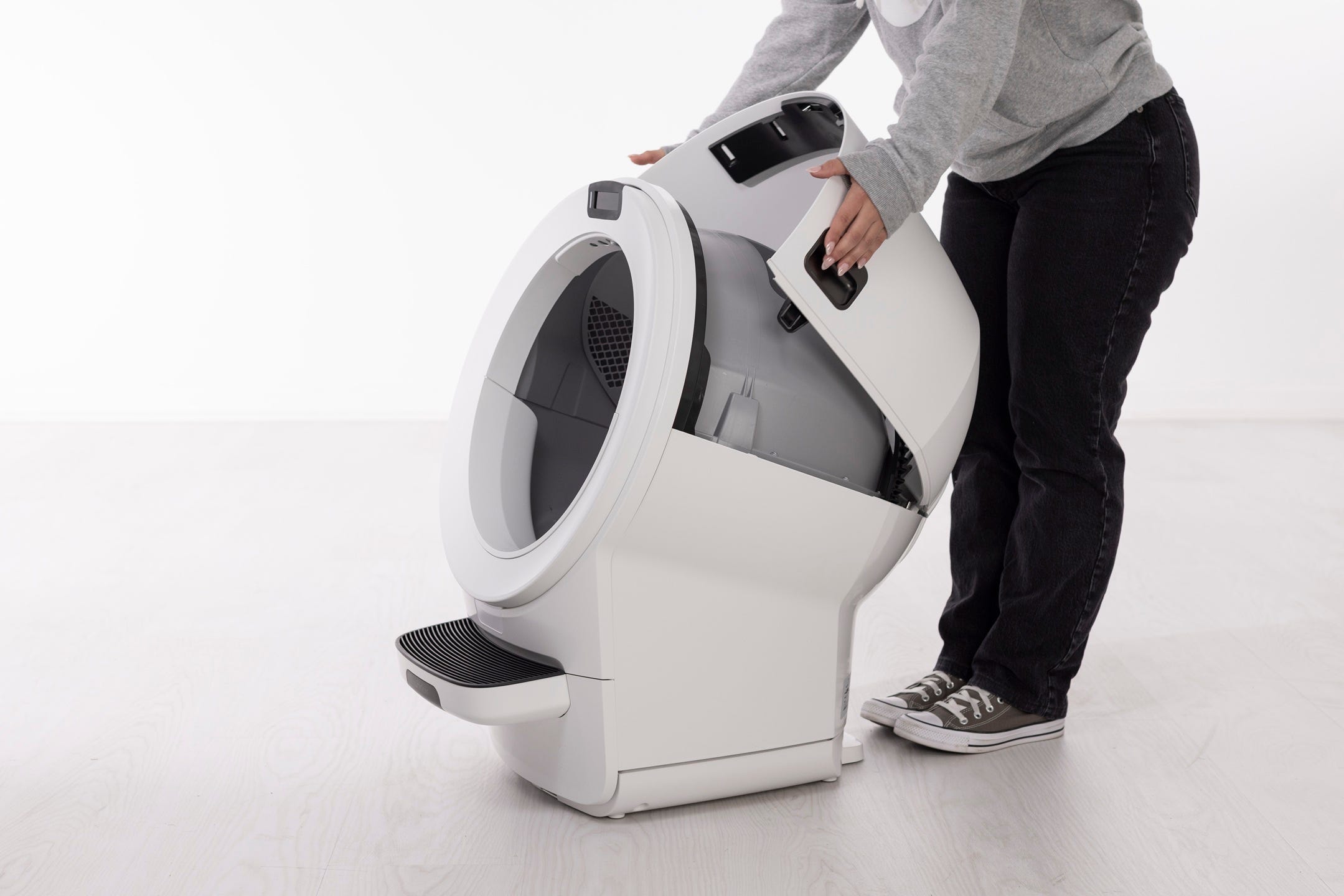
- Use the handles on both sides of the bonnet to lift and rotate it upwards to its open position.
If you have a fence or other accessories installed, remove them from the bezel.
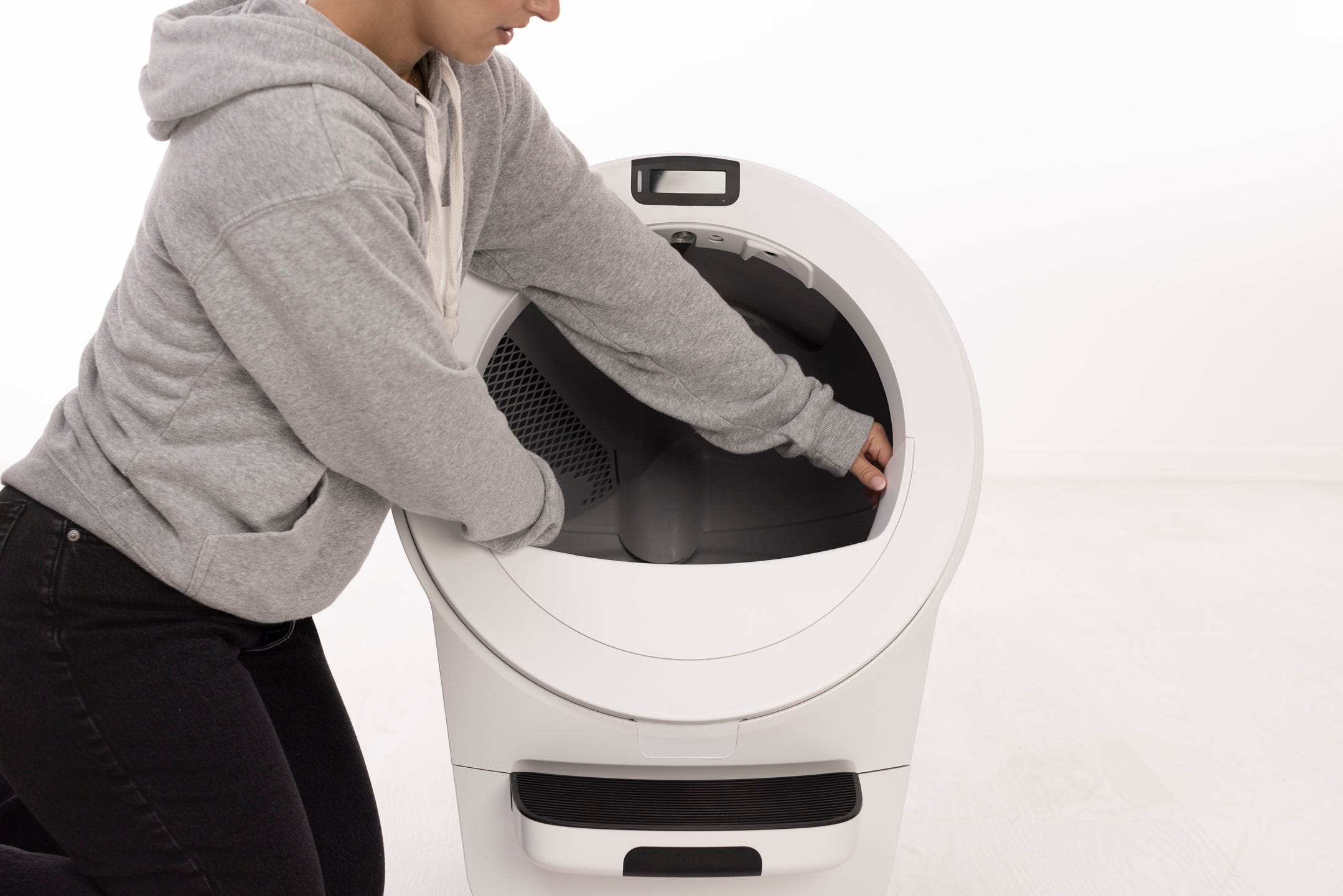
Lift the globe by the handle while holding the globe key in place to keep it from falling into the waste drawer.
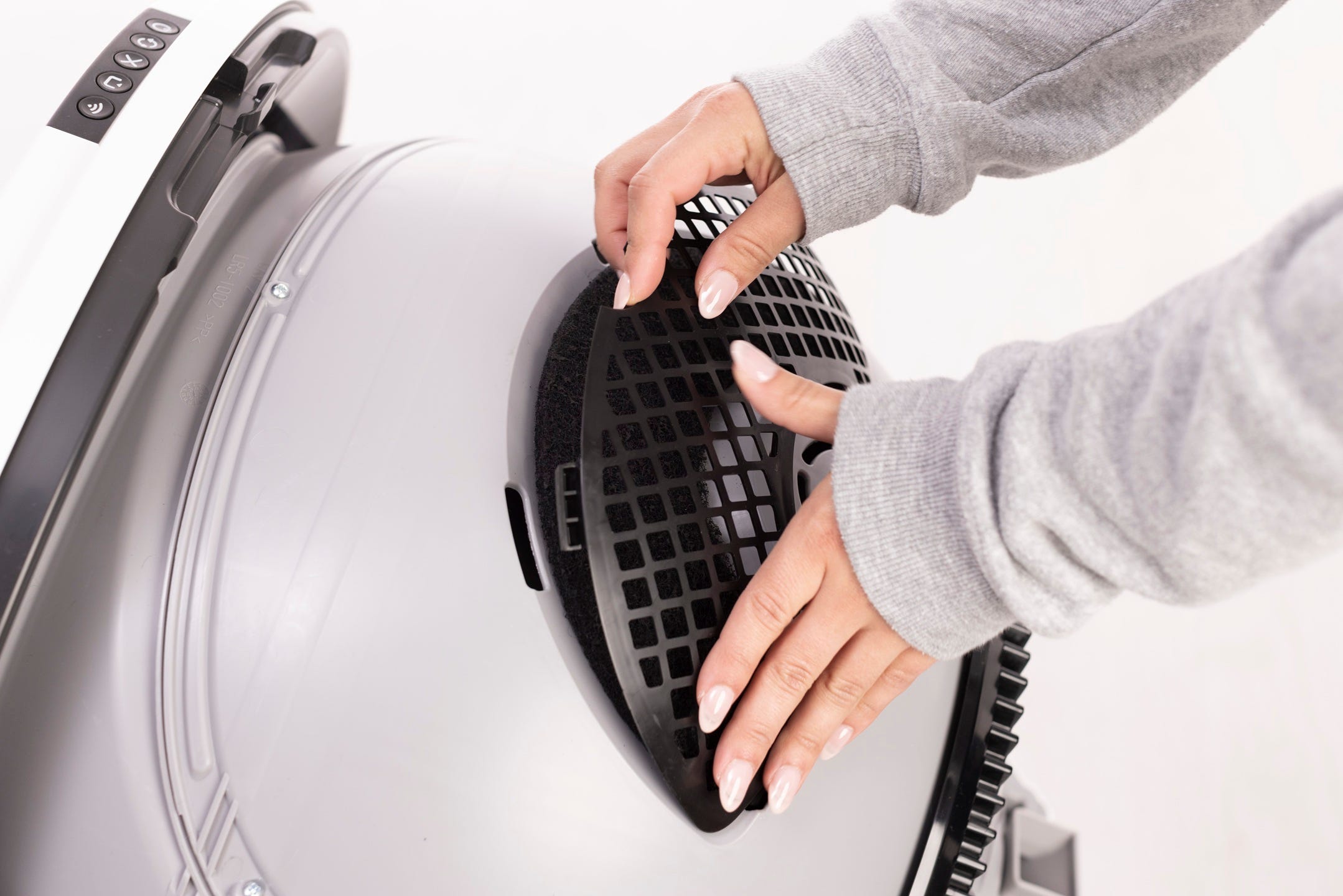
Verify the carbon filter cover under the globe is fully seated; a loose filter cover can contact a pinch bar and trigger the sensor.
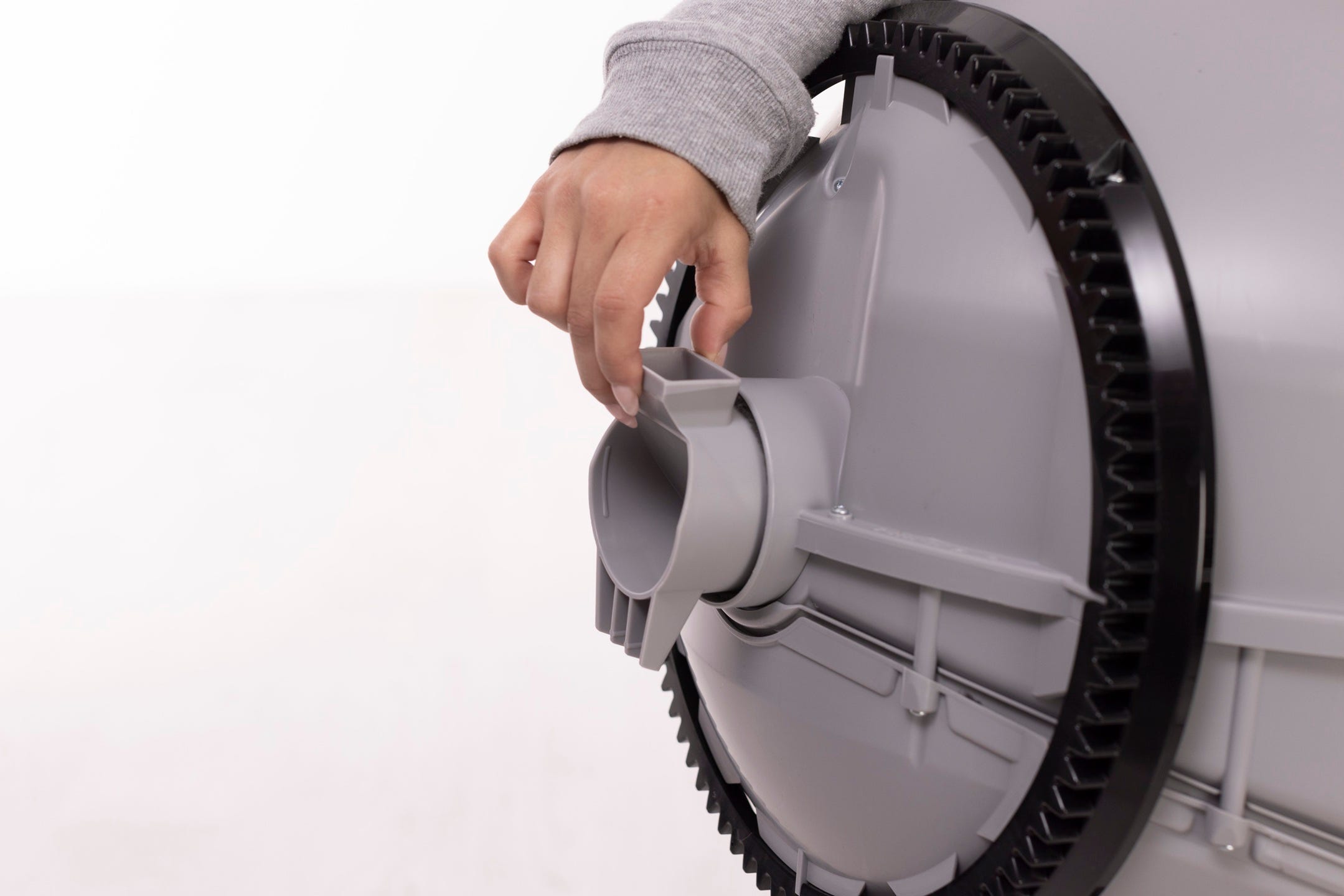
Check for and remove any litter buildup around the dump port and globe track.
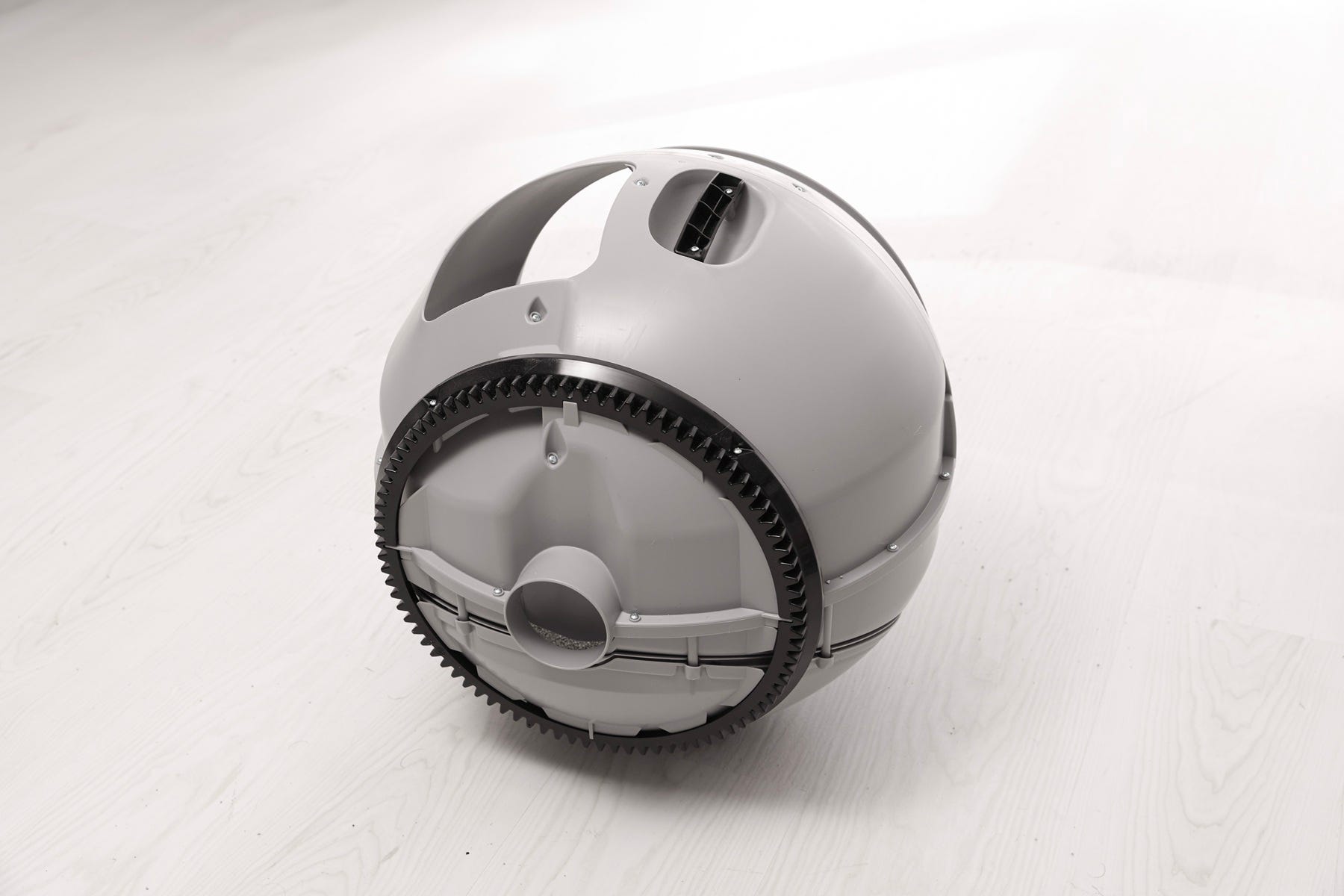
Locate the two obstruction detection sensors inside the base on each side of the dump port.
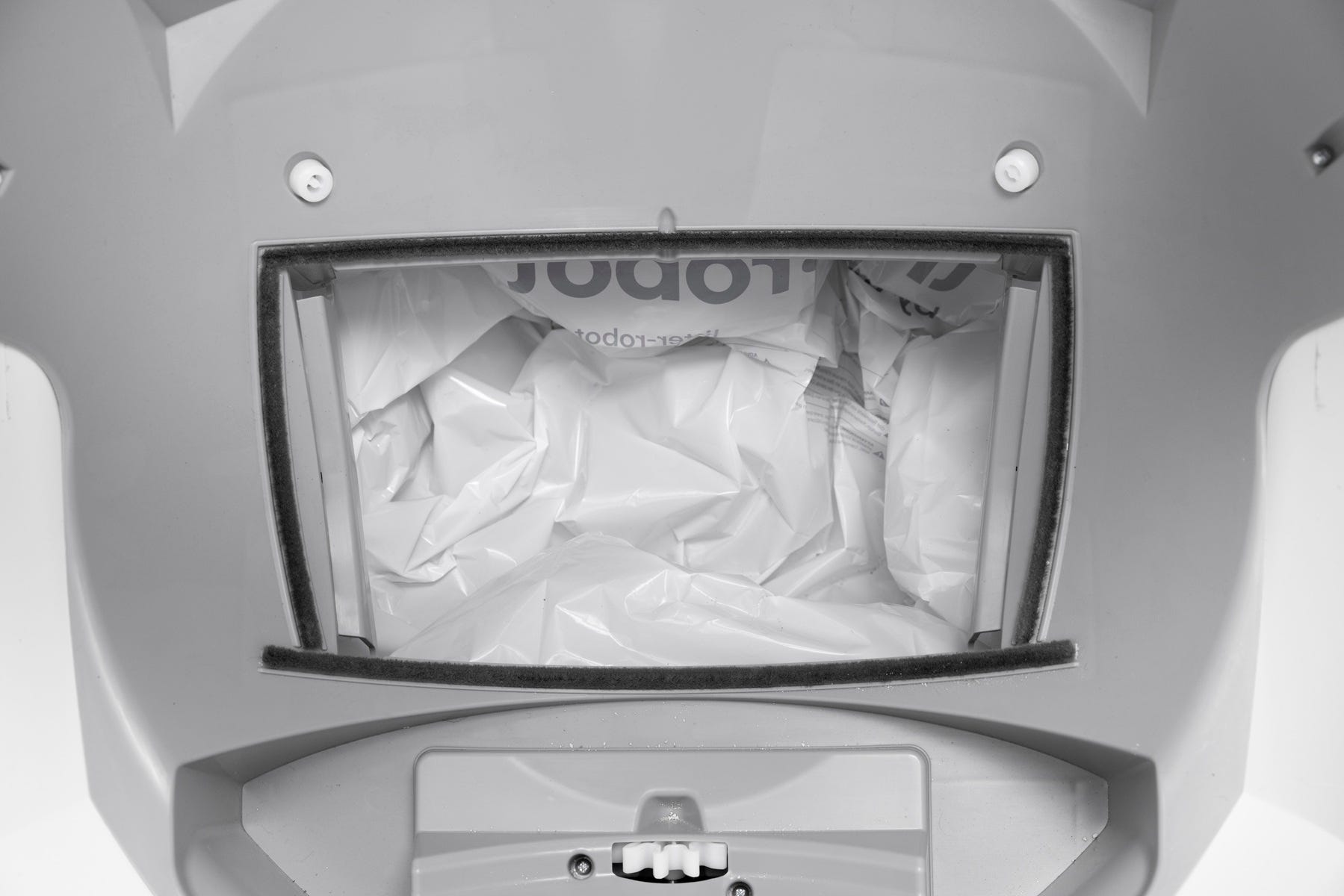
Make sure both sensor bars are free of debris.
Press inward on each bar until you hear a soft click to confirm they are properly seated and responsive.
Reinstall the globe and bonnet
- Ensure the globe key is installed in the back of the globe with the rectangular opening facing up. Hold the key in place, lift the globe, and set it back into the base so the key drops fully into the pocket.

Keep the globe handle and waste port oriented toward the top (Home position). The large black gear at the rear should easily engage with the smaller drive gear in the base.
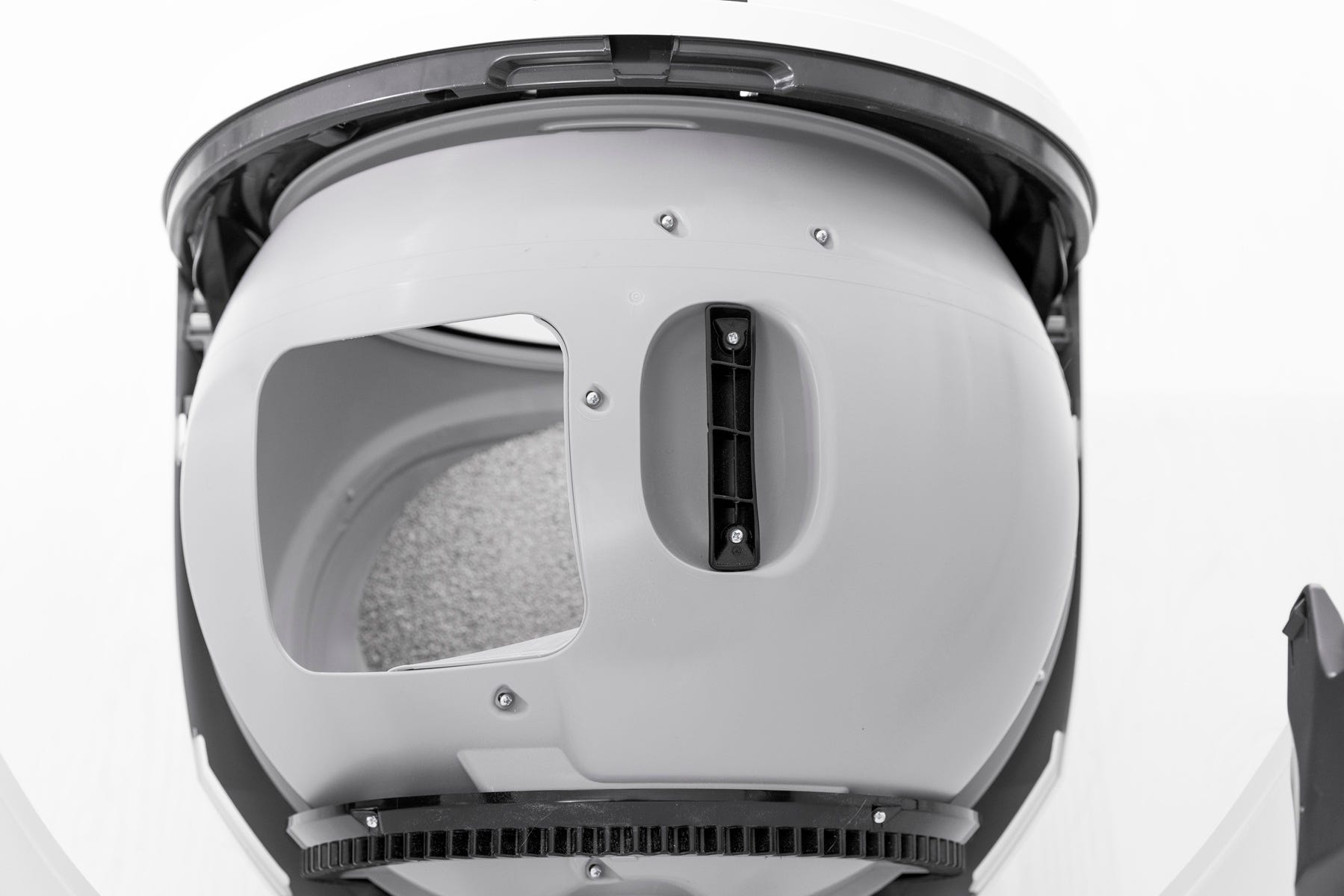
Rotate the bonnet downward over the globe until it automatically latches into place. Press on top to confirm it’s secure.
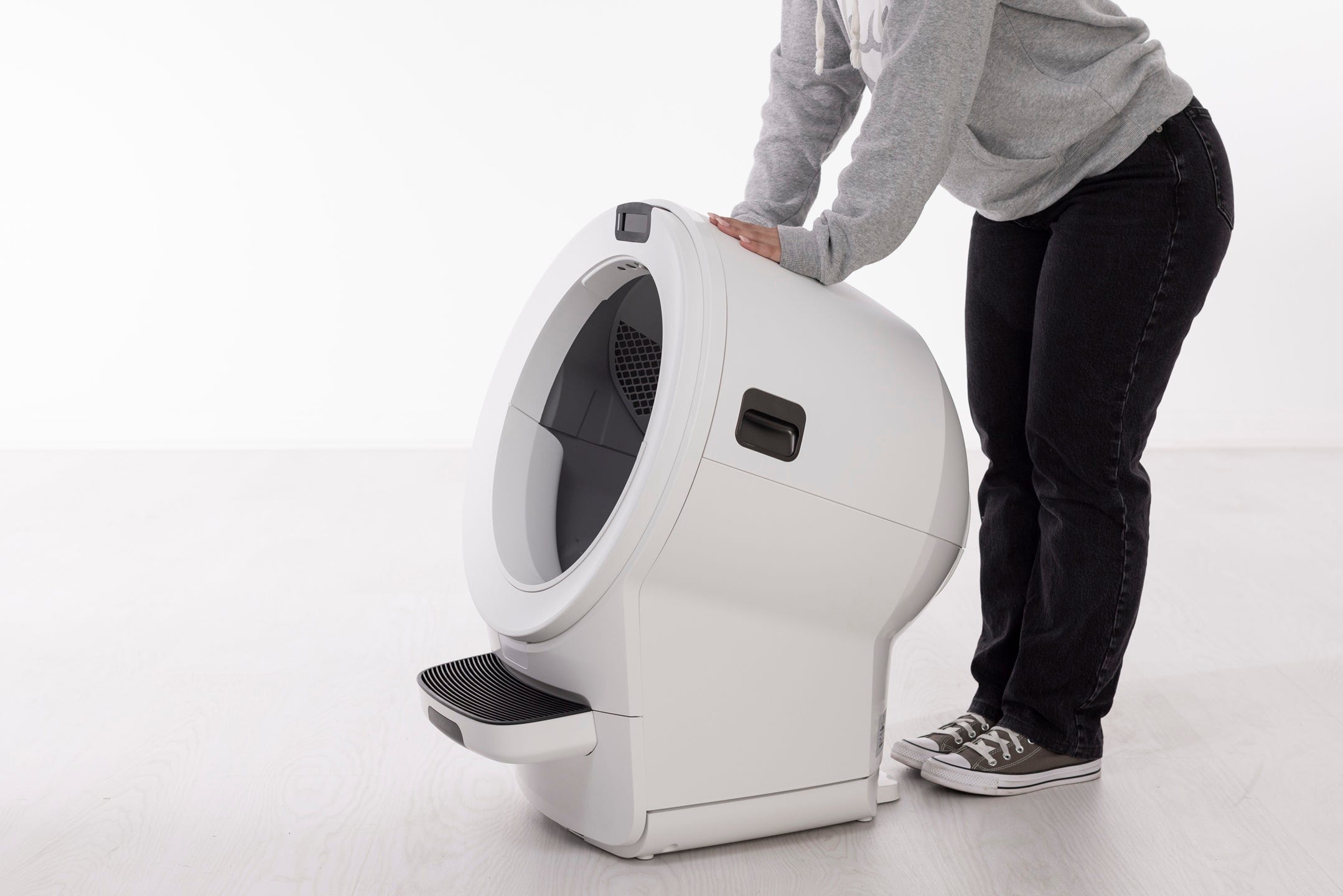
Plug the unit in and press the Power button to turn it on.
- Short press the Cancel button to zero the weight scale.
- Short press the Cycle button to run a test cycle.
Successful: The unit completes a full cycle and displays a solid white light.
Unsuccessful: If the Obstruction Detected notification persists, there may be an issue with the obstruction detection sensors.
Need more help?
If the Obstruction Detected notification continues after these steps, please contact Whisker Customer Experience for further assistance.
Didn't find what you're looking for?
Live support available Mon-Fri: 9AM-9PM EST and Sat-Sun: 9AM-5PM EST, or submit a ticket anytime.