The store will not work correctly in the case when cookies are disabled.

Litter-Robot 5 Pro: Camera setup FAQ
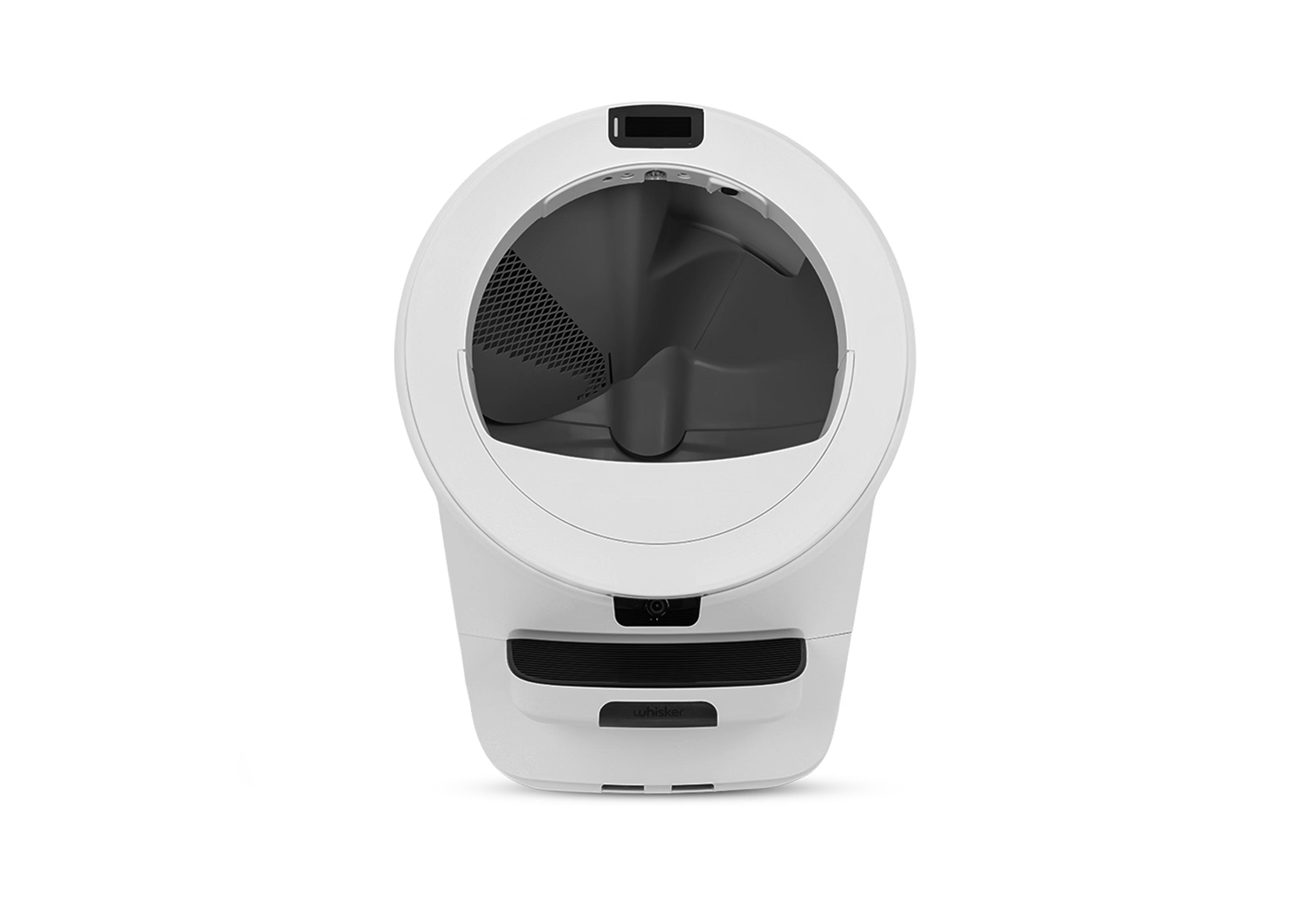
The Litter-Robot 5 Pro includes front-facing and inner-facing cameras designed to help you monitor your cat’s activity, view recorded events, and identify your pets automatically. This Litter-Robot 5 Pro camera setup guide covers setup, recognition, storage, and troubleshooting to help you get the best performance from your Litter-Robot 5 Pro cameras.
Quick links
Camera setup and access
The cameras on your Litter-Robot 5 Pro are designed to work automatically once connected to WiFi. You can control access, view live video, and manage settings directly from the Whisker app.
How do I enable or disable the cameras?
The cameras are enabled by default. To turn off a camera: open the Whisker App → go to your Litter-Robot device → tap the camera → select Controls → tap the power on/off button. Turning off the camera disables live video and event recordings.
Do I need Whisker+ to use the cameras?
You don’t need Whisker+ to use your camera, but Whisker+ unlocks additional features.
Without Whisker+: You can view events and live video for up to 5 minutes per day; videos are stored for 2 days.
With Whisker+: You get unlimited live video, labeled cat detections, and video storage for 30 days.
Why can’t I see live video in the app?
Free users are limited to 5 minutes of live viewing per day. Once you’ve reached the daily limit, the feed will stop automatically and a message will display.
If your live video doesn’t appear, check your WiFi signal — weak or unstable connections can interrupt streaming.
Can I adjust the camera angle or resolution?
No. The camera is fixed in the optimal position to capture cats entering and exiting the globe. Adjusting it could affect detection accuracy.
Does Litter-Robot 5 Pro support 5GHz WiFi?
Yes. The Litter-Robot 5 Pro works on both 2.4GHz and 5GHz WiFi.
Use 5GHz for the best video quality and lower latency.
Use 2.4GHz if your robot is farther from your router and needs more range.
AI and cat recognition
The Litter-Robot 5 Pro camera uses AI-based facial recognition to identify your cats. The more it sees them, the more consistent detections become.
How does AI cat identification work?
Litter-Robot 5 Pro identifies cats using a proprietary facial recognition machine learning model. During the first few weeks, the system will learn to distinguish each of the cats in your home. Our model is specific for cats, and we do not detect or identify dogs, people, or other pets. We’re continually working on enhancing the Cat ID system, as well as adding additional functionality.
Can the camera tell my cats apart if they look similar?
If your cats look very much alike, the system may occasionally confuse them. Responding to PawPrint prompts within the app helps refine identification over time.
Why isn’t the camera recognizing my cat correctly?
Recognition may be less accurate if your cat is far from the camera, moves quickly, or is in poor lighting. Choosing a room with optimal lighting and responding to the prompts within the app to confirm which cat is which will help the AI improve with future updates.
How is camera recognition different from PetTag?
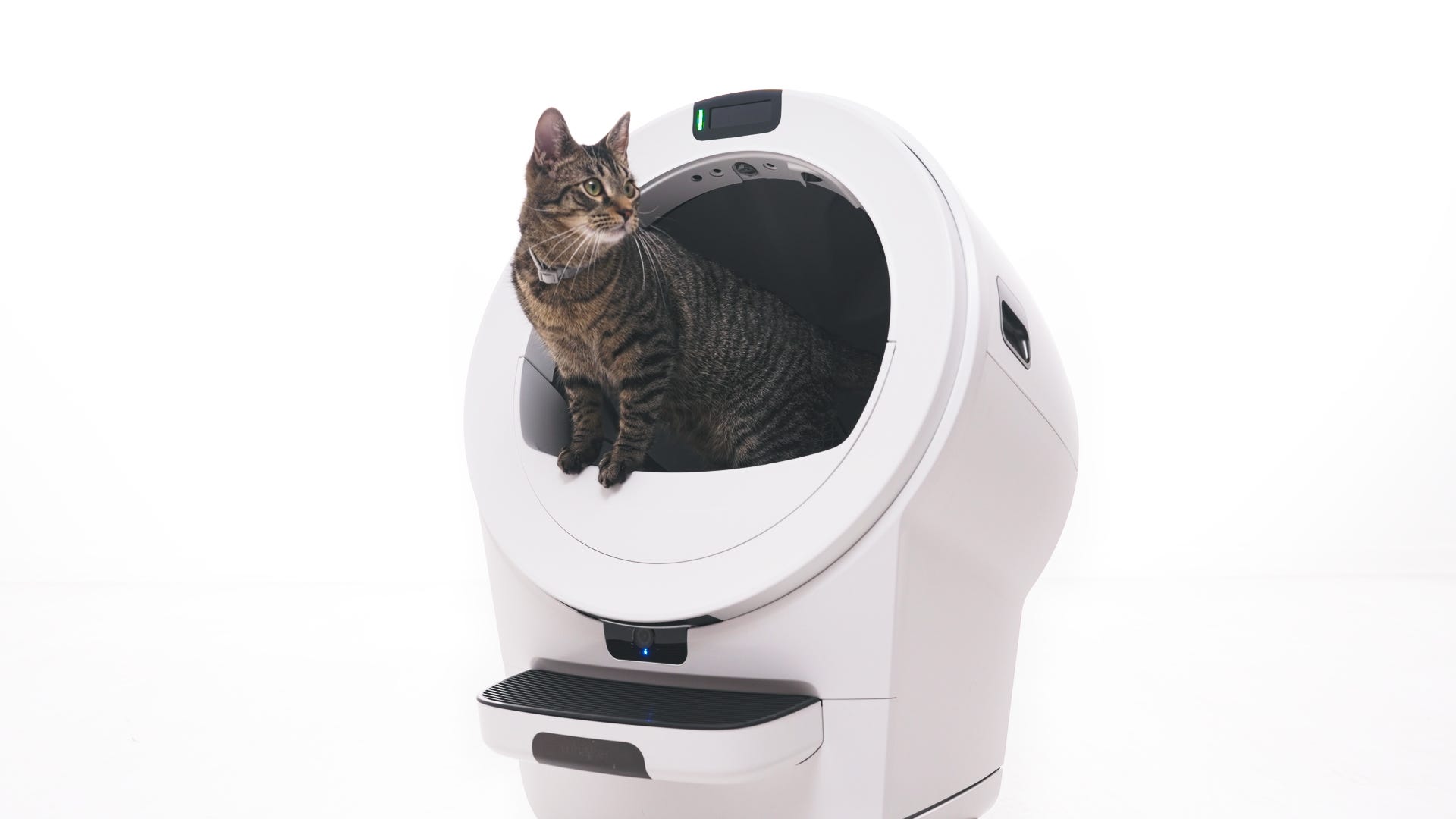
Camera-based Cat ID identifies cats visually, while PetTag uses Radio Frequency Identification (RFID) to confirm identity. Most households don’t need both, but homes with identical-looking cats may benefit from using both systems together.
Recording and storage
(What’s included for free vs. Whisker+)
Your camera automatically records short clips when it detects motion or a cat nearby.
What’s included for free vs. Whisker+?
Free plan: Video events saved for 2 days, 5 minutes of live streaming daily.
Whisker+ plan: 30 days of video storage, unlimited live viewing, and detailed behavior insights.
Can I expand storage without Whisker+?
Not currently. To retain videos for longer than 2 days in Whisker’s cloud storage, we recommend upgrading to Whisker+.
Privacy and control
(Managing Camera Privacy & Settings)
Can I turn the Litter-Robot cameras off completely?
Yes. You can turn off the Litter-Robot 5 Pro cameras from the Camera Controls or Live Video screens. Turning off the camera will disable event recordings, restrict access to live video, and stop any camera screenshots from being taken (such as the images of the litter bed in the litter-robot visit summaries).
Important note: The camera status LED on your robot may remain on when in this state, but the camera is not recording.
Do the cameras record all the time?
No.
The front-facing camera records only when a cat or motion is detected.
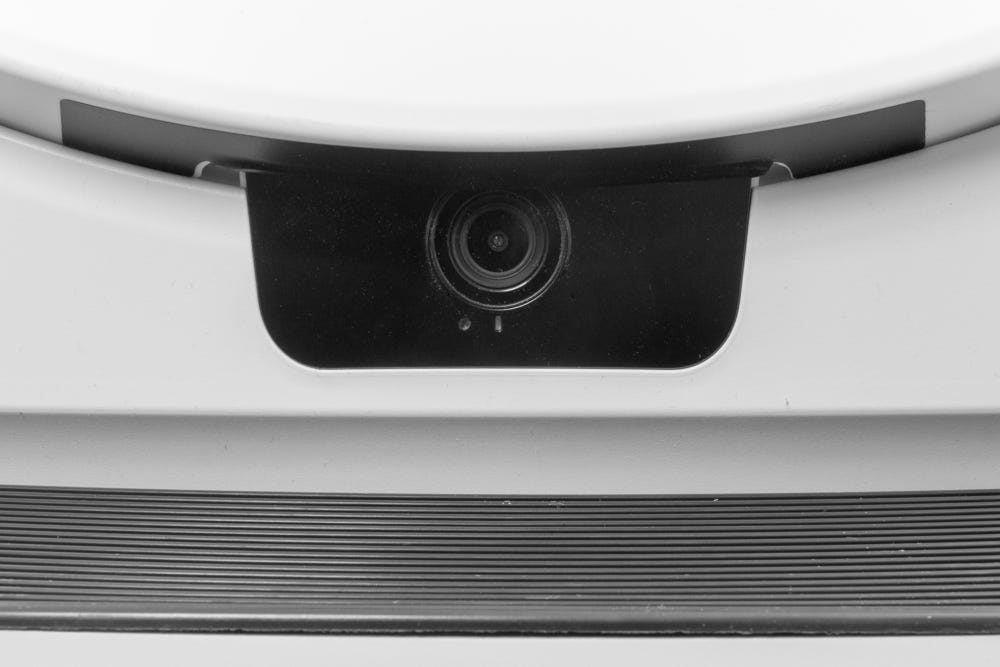
The inner camera currently supports live streaming, and video recordings of your cat inside the globe are coming soon.
Night vision and quality
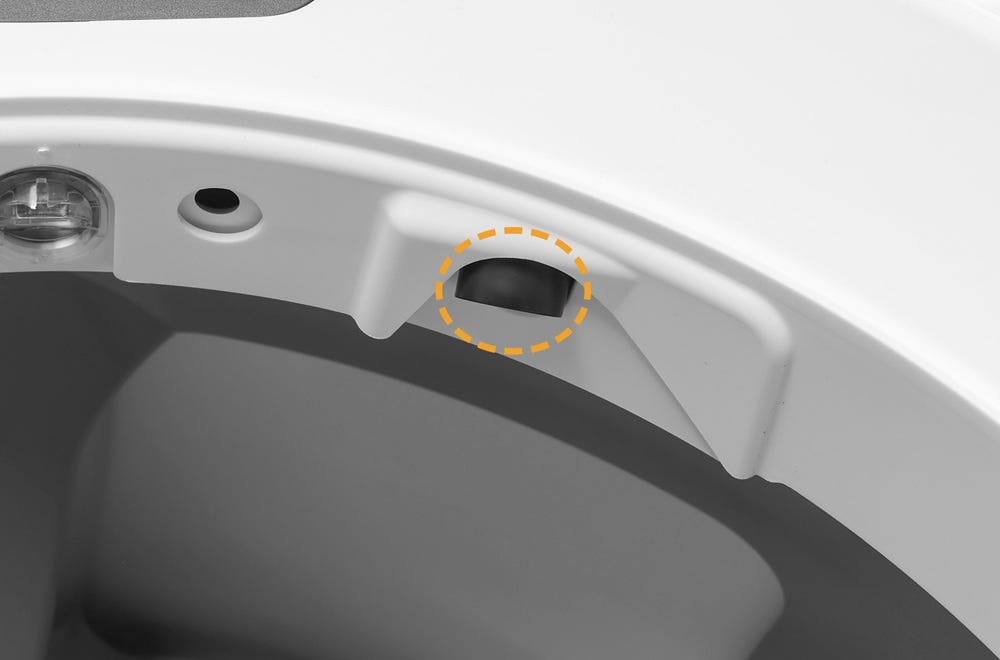
The camera uses infrared (IR) LEDs for clear visibility in the dark. This helps capture activity without using visible light that could disturb your pet.
How well does night vision work?
The front facing camera uses infrared LEDs to light the camera’s field of view. Indoor cameras with IR night vision capture clear black-and-white video in total darkness across most rooms (typically between 20–30 ft).
We’ve chosen to use IR (instead of visible light) when it’s dark because it won’t disturb people or pets while they may be sleeping. This also provides more consistent results than “color night vision” modes that depend on dim room light or a bright white spotlight.
Why is my video grainy or blurry at night?
In dark conditions, the camera increases sensitivity, which can introduce noise or blur. This is normal for IR video.
Dust on the lens, reflective surfaces, or subjects very close to the LEDs can also reduce clarity.
Can Litter-Robot cameras still identify my cat in the dark?
Yes. The IR sensor enhances visibility so that Cat ID continues to work even without a nightlight inside the globe.
Behavior monitoring
(What the Inner-Facing Camera Tracks)
The inner camera offers unique insights into your cat’s litter box use and behavior.
What does the inner-facing camera track?
The inner-facing camera will soon be able to capture short clips and still images when your cat uses the globe and after each cycle. You will be able to view these in the app to monitor your cat’s routine.
Can I use the videos to check for health issues?
Whisker does not diagnose medical conditions, but you can observe litter consistency and usage patterns.
If you have any concerns or questions about the clumps in your Litter-Robot, we recommend consulting your veterinarian.
Will the system alert me if something looks wrong?
Whisker doesn’t analyze the images from the inner-facing camera. These are provided for your review. If you have any concerns or questions about the clumps in your Litter-Robot, we recommend consulting your veterinarian.
Technical issues
If you experience lag, missing clips, or connection problems, the issue is often related to WiFi strength or network configuration.
Why is my camera feed lagging or clips missing?
Slow or unstable internet connections can cause delays or missing video segments.
If the robot is within 6 feet of your router, try moving it slightly farther away to reduce interference.
Required ports for best performance:
UDP: 49152–65535 (WebRTC live streaming)
UDP: 123 (Network Time Protocol)
TCP: 80, 443, and 8443
Most home routers have the required ports open by default. To confirm, you can contact your internet service provider or follow these steps:
Log in to your router’s admin page (usually by typing your router’s IP address into a browser).
Look for sections called “Port Forwarding,” “Firewall,” or “Advanced Settings.”
Confirm that the ports listed above are not blocked.
Why can’t I access my camera in the app?
If your camera feed won’t load, your Litter-Robot and camera could be offline.
Unplug the power from the base for 15 seconds.
Plug it back in.
Wait 60 seconds.
If the issue continues, follow WiFi Troubleshooting steps.
Why isn’t my cat being detected or identified correctly?
Confirm each cat’s PawPrint profile is complete with two clear images.
If the cats look similar; that may explain the incorrect ID.
Continue to respond to PawPrint prompts.
If possible, note timestamps of incorrect detections so Engineering can review the specific events.
Live View shows a black screen
If Live View opens but the video feed appears black, this is typically related to network conditions rather than a camera hardware issue.
Live video streaming requires a stable network connection. If the connection is interrupted or limited, the app may not display video even though the camera is functioning.
What to try:
Confirm the phone has a strong internet connection.
Make sure Litter-Robot 5 Pro remains connected to WiFi.
Wait a few moments and try opening Live View again.
If the issue continues, try again later. In many cases, the video feed will resume once network conditions improve.
Additional information
(Common Questions & Specs)
What is the resolution of the Litter-Robot 5 Pro camera?
Front-facing camera: 1920×1080 (1080p)
Inner camera: 1280×720 (720p)
Does each Litter-Robot 5 Pro need its own Whisker+ membership?
No. One membership covers all devices linked to the same account.
Can the cameras replace my home WiFi cameras?
The cameras on the Litter-Robot 5 Pro are designed specifically for cat owners with pet needs in mind. They do not offer many of the same features as home security cameras and are not recommended for that application.
Can I talk to my pets through the cameras?
Not yet. Optional audio is available in video events and live streams, but two-way communication isn’t supported at this time.
Need more help?
Please contact Whisker Customer Experience for additional assistance.
Didn't find what you're looking for?
Live support available Mon-Fri: 9AM-9PM EST and Sat-Sun: 9AM-5PM EST, or submit a ticket anytime.