The store will not work correctly in the case when cookies are disabled.

Litter-Robot 5 Pro: Unable to onboard
If your Litter-Robot 5 Pro won’t complete onboarding in the Whisker app or is not connecting to your WiFi, follow this guide for step-by-step troubleshooting and error-specific fixes.
Need help with onboarding your Litter-Robot 5?
Quick links
Before you begin
- Place the robot near your WiFi router for setup.
- Install or update the Whisker app to the latest version (version 1.31.0 or newer) and sign in.
- Have your WiFi name (SSID) and password ready.
- Allow required permissions (Location/Nearby Devices/Camera).
- Power on the automatic litter box. The LED should be solid white.
- Keep your phone within a few feet of the robot. Avoid VPNs or captive-portal networks.
Onboarding checklist (recommended order)
- Open the Whisker app → Add a Device → follow prompts.
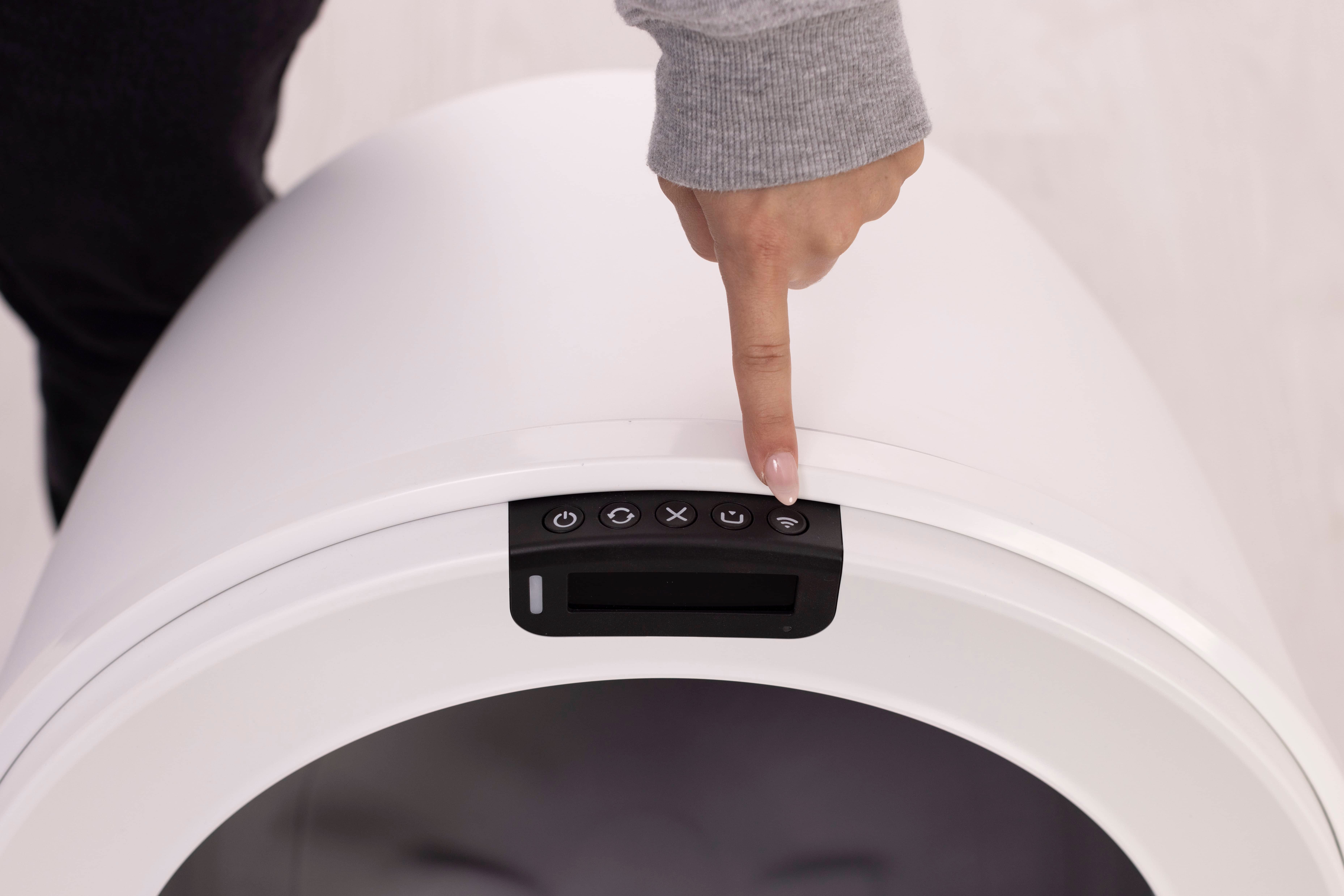
- Press the Connect button on the Control Panel for three seconds to enter pairing mode. The indicator light should blink blue.
- Select the correct WiFi network and carefully re-type the password.
Note: If the camera LED indicator light turns blinking yellow after the QR code is scanned, this likely means incorrect WiFi credentials have been entered. Please confirm your WiFi network’s name and password and retry.
- Keep the app open while credentials are sent.
- When onboarding completes, the LED shows solid white (ready).
Send a manual Cycle command in the app to ensure communication is active.
Tap your device → Controls → Cycle.
Error messages and fixes
Typical onboarding error messages include:
- "An Error Occurred. Something went wrong, please try again."
- “The serial number is invalid or already in use.”
Use the following sections to address each category.
WiFi credential / network errors
- Verify SSID and password are exact (case-sensitive; avoid pasted spaces).
- Ensure you are on a private home network.
- Move the robot closer to the router for setup.
- Turn off VPNs or firewalls blocking new devices.
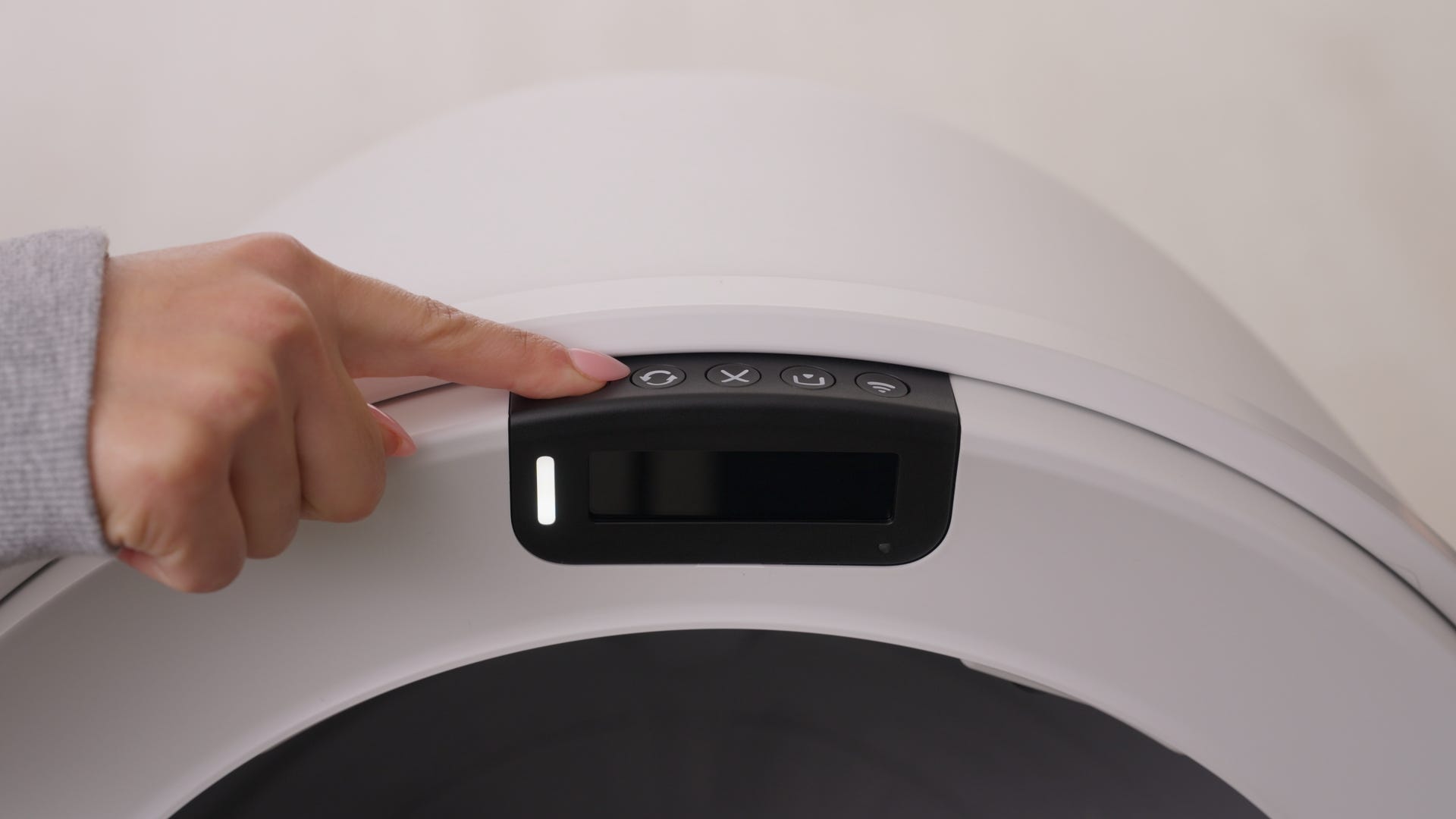
- Retry onboarding after a short pause or perform a Hard Reset by pressing the Power button for six seconds.
- Wait 60 seconds for the unit to reboot, then restart onboarding
Timeouts or device didn’t reboot
- Keep the Whisker app open during setup (do not switch apps).
- Ensure a stable WiFi connection and proximity to the router.
- Perform a Hard Reset: hold the Power button for six seconds, release, wait 60 seconds for the unit to reboot, then restart onboarding.
Serial number or cloud errors
- Ensure you are signed in to the correct Whisker account.
- Confirm the serial number isn’t already claimed under another account.
- Verify your internet connection is active and unrestricted (no captive portal or VPN).
- Retry onboarding after a Hard Reset (instructions below).
- If you see “Failed to establish secure session” or similar, perform a Factory Reset (instructions below) and try again.
- If you have purchased the robot second-hand, submit a Support Request form for further assistance.
Hard Reset and Factory Reset
- Hard Reset: With the unit powered ON, hold Power for six seconds, release, wait 60 seconds for reboot.
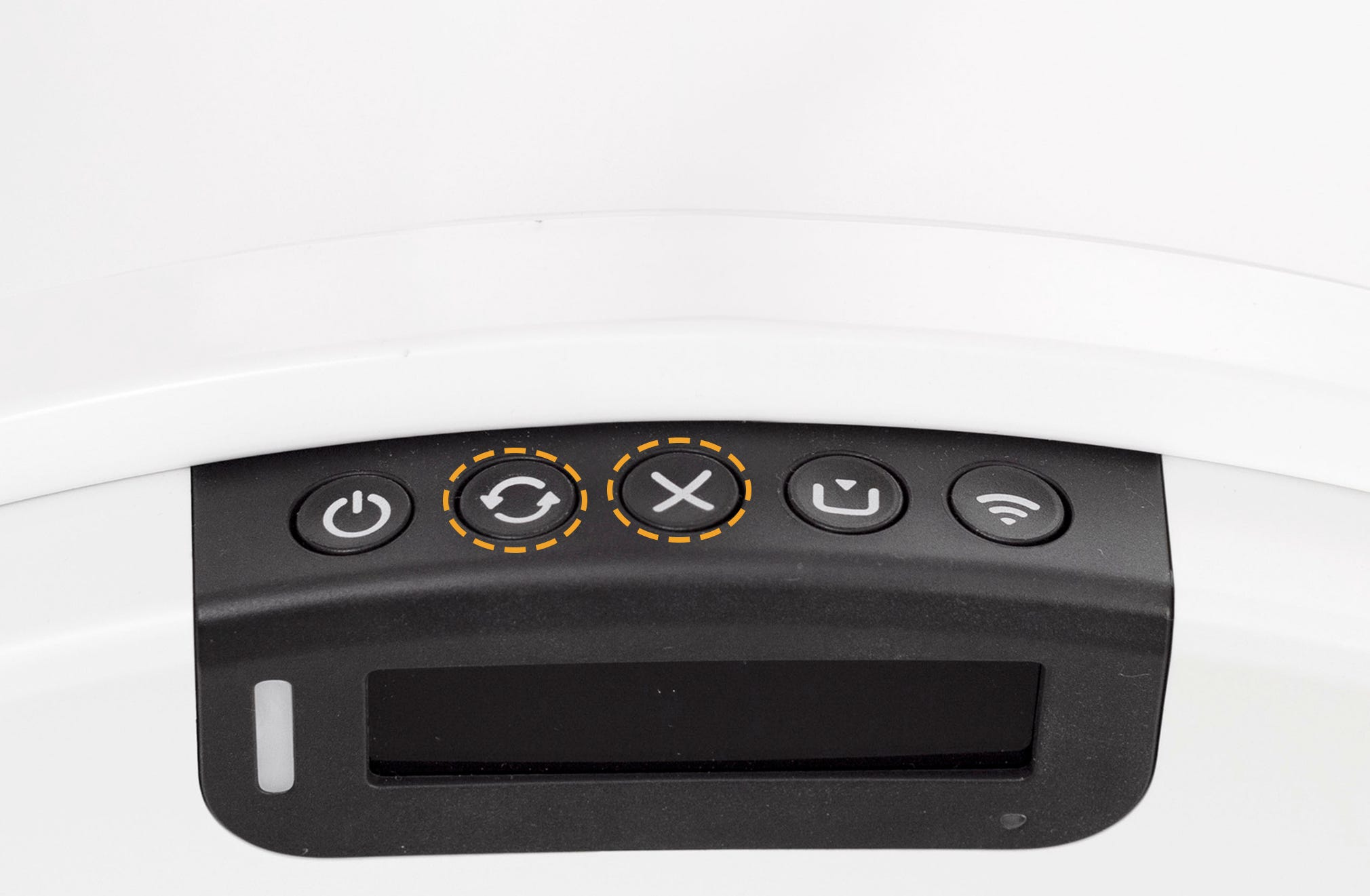
- Factory Reset: With the unit powered ON, simultaneously press and hold Cycle + Cancel for three seconds.
Retry onboarding after reset completes.
Network tips (2.4 GHz vs 5 GHz)
- Litter-Robot 5 Pro: Supports both 2.4 GHz and 5 GHz WiFi.
- Use 5 GHz for best camera experience (lower latency, fewer dropped frames).
- Use 2.4 GHz if the robot is farther from the router or the signal is weak.
For more help with your network, we recommend reaching out to your internet service provider for assistance.
Need more help?
If onboarding still fails after these steps:
- Capture a screenshot of the exact error message.
- Note your phone model/OS, router brand, and what steps you’ve already tried.
- Please contact Whisker Customer Experience for further assistance.
Didn't find what you're looking for?
Live support available Mon-Fri: 9AM-9PM EST and Sat-Sun: 9AM-5PM EST, or submit a ticket anytime.