The store will not work correctly in the case when cookies are disabled.

Litter-Robot firmware update instructions
To ensure that Whisker customers always enjoy the latest features and improvements, we will now automatically update the firmware on your robots as soon as a new release becomes available. For additional details, please refer to our Terms and Conditions.
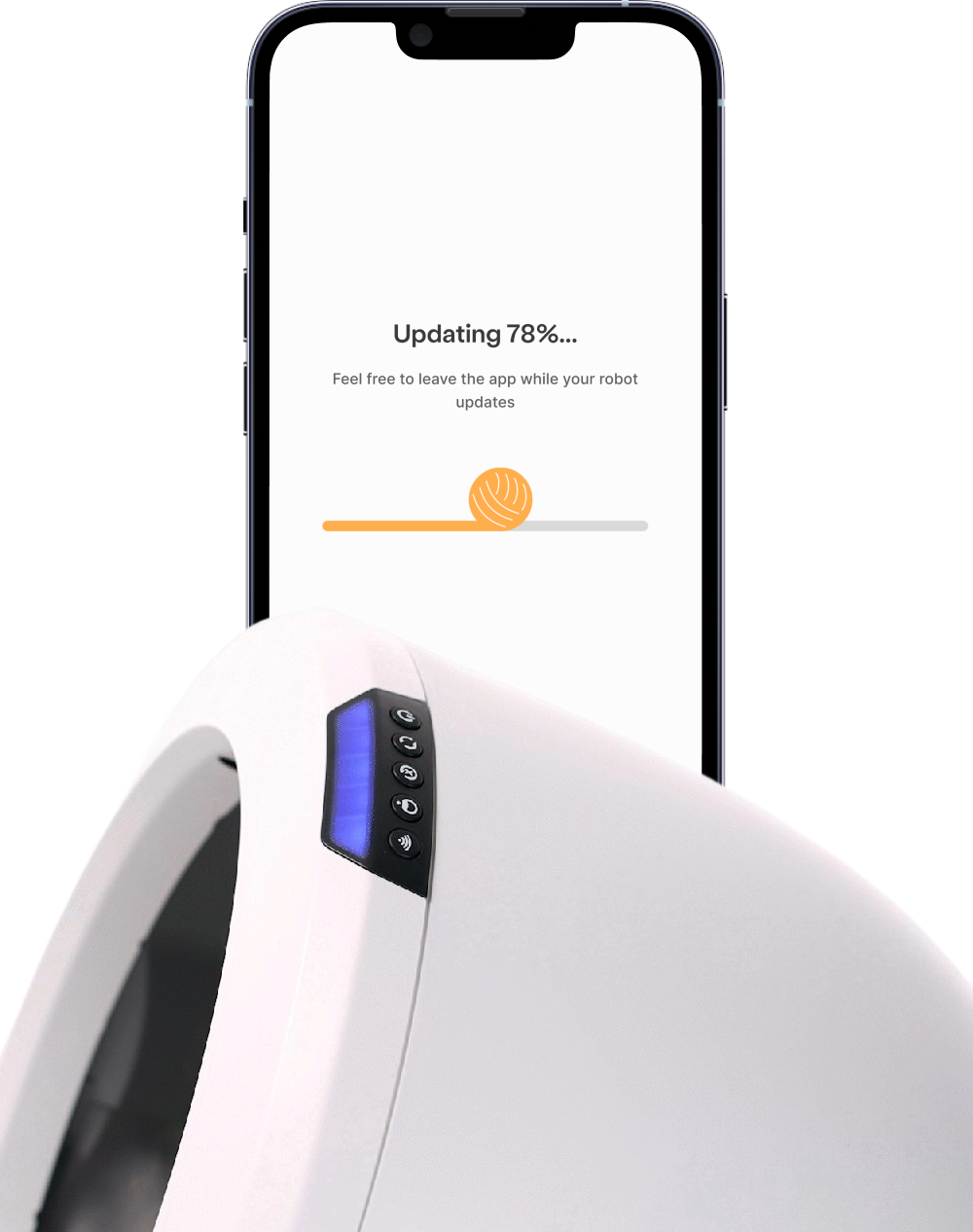
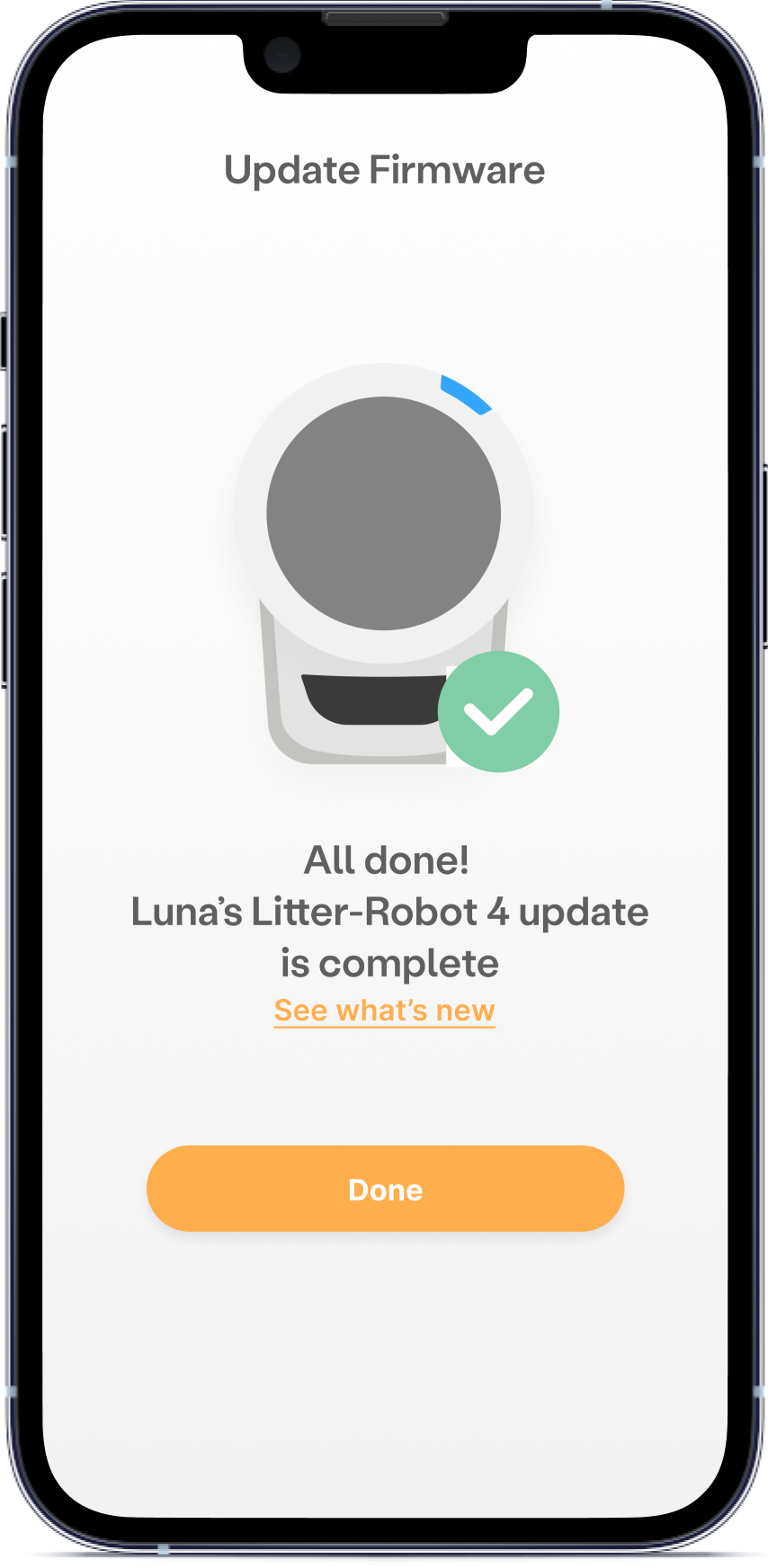
How will I know if the firmware is updating?
Visit our Whisker Software Releases page to learn about the latest and greatest updates for your Litter-Robot and Whisker mobile app.
Quick links
Litter-Robot 4
If your Litter-Robot 4 is not on the most current firmware version it should automatically update once the firmware version becomes available for your unit. Firmware can also be manually updated through the Whisker app.
Follow these steps to update your Litter-Robot's firmware:
1
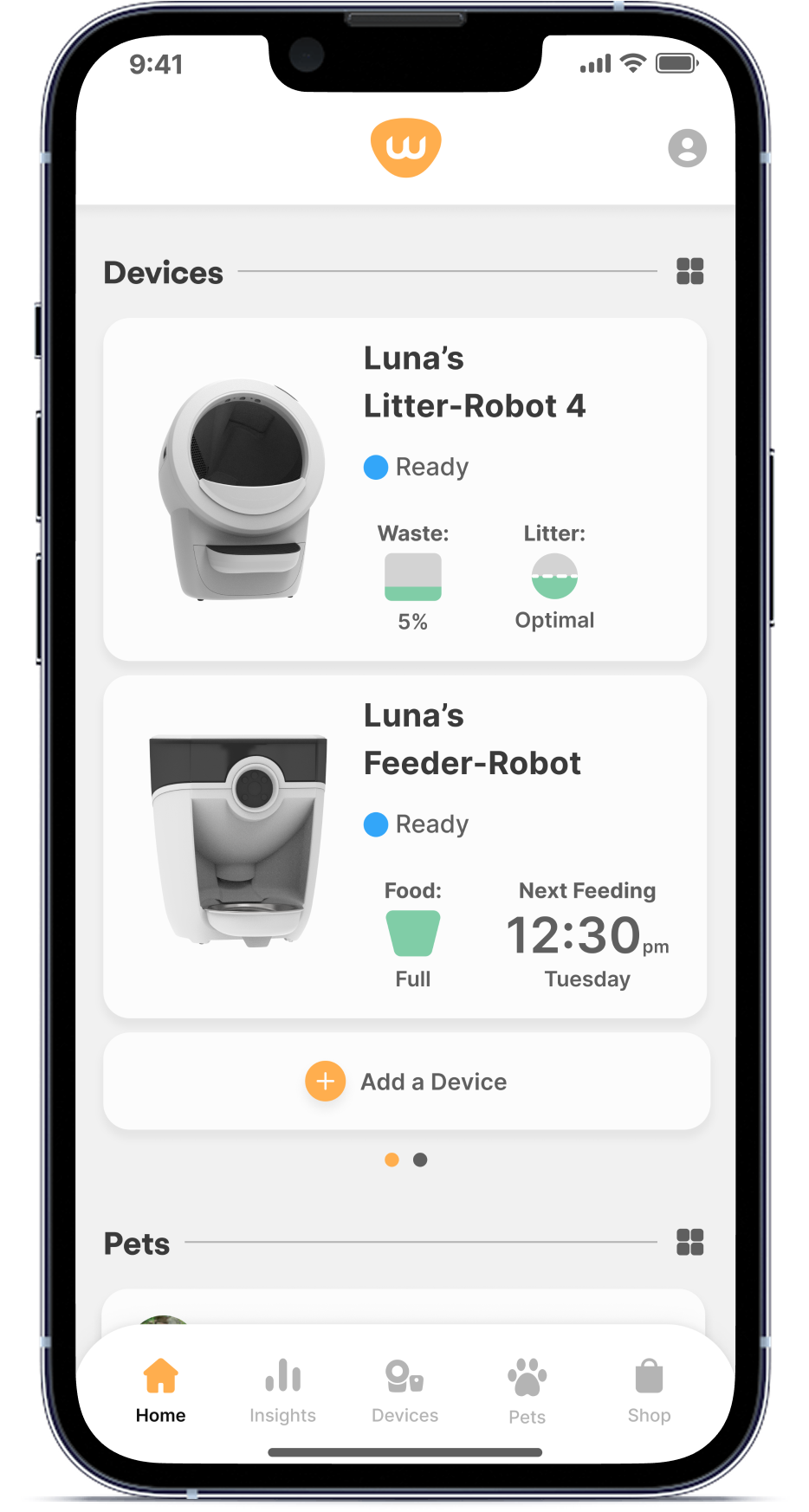
In the Whisker app, select your Litter-Robot 4 unit from the dashboard.
2
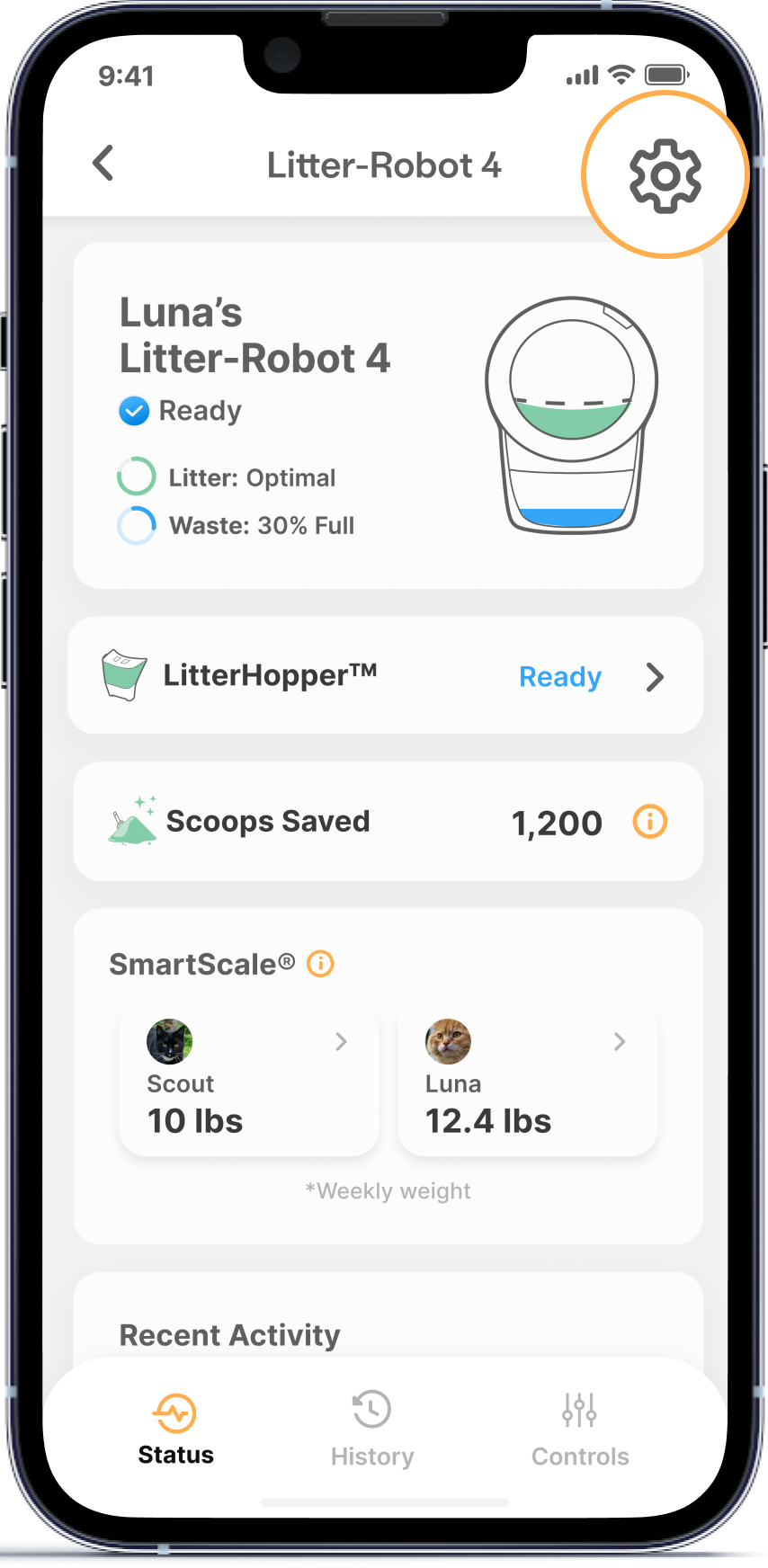
Tap on the Settings gear in the top right corner.
3
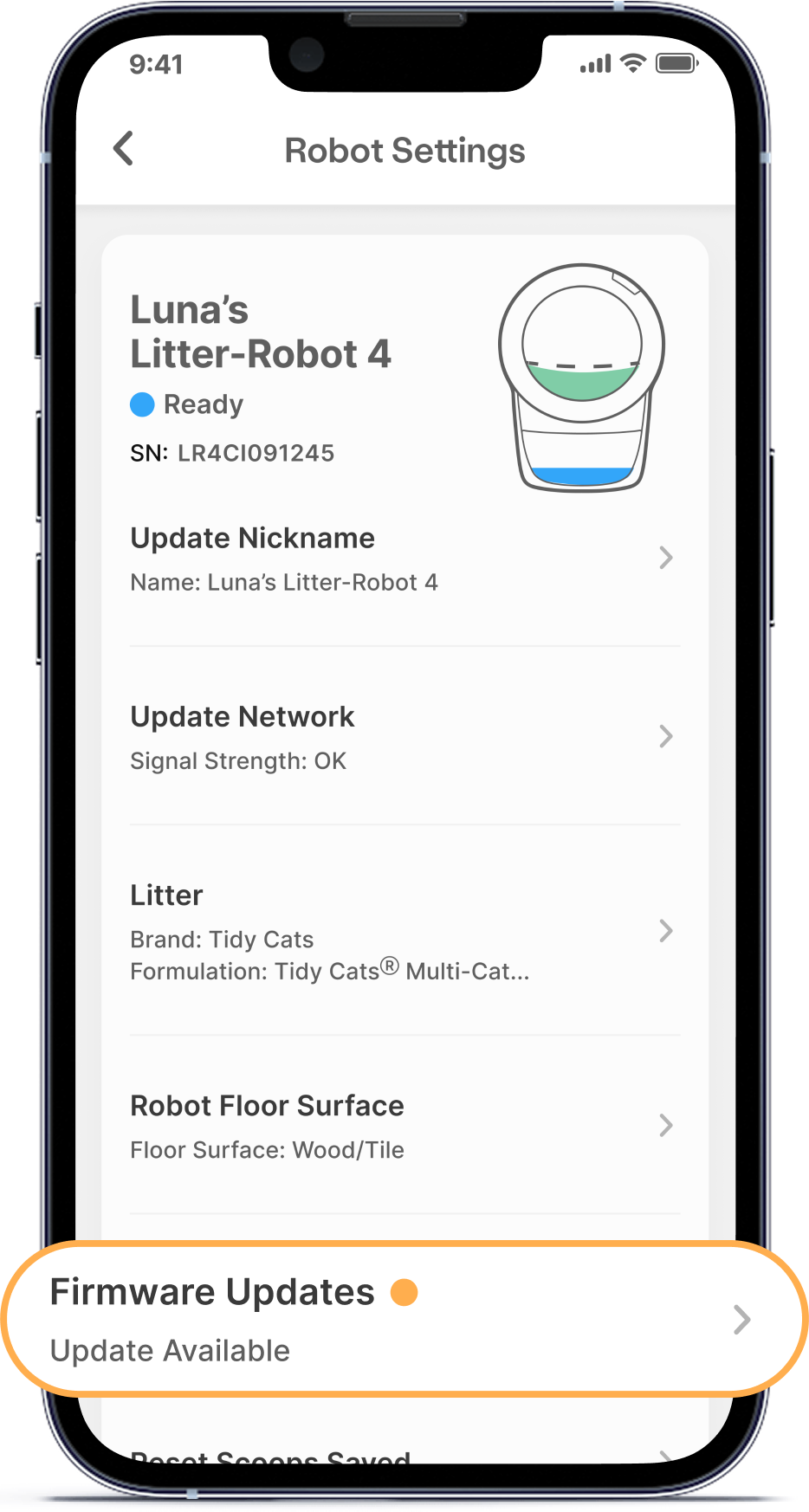
On the Robot Settings page, tap Firmware Information.
4
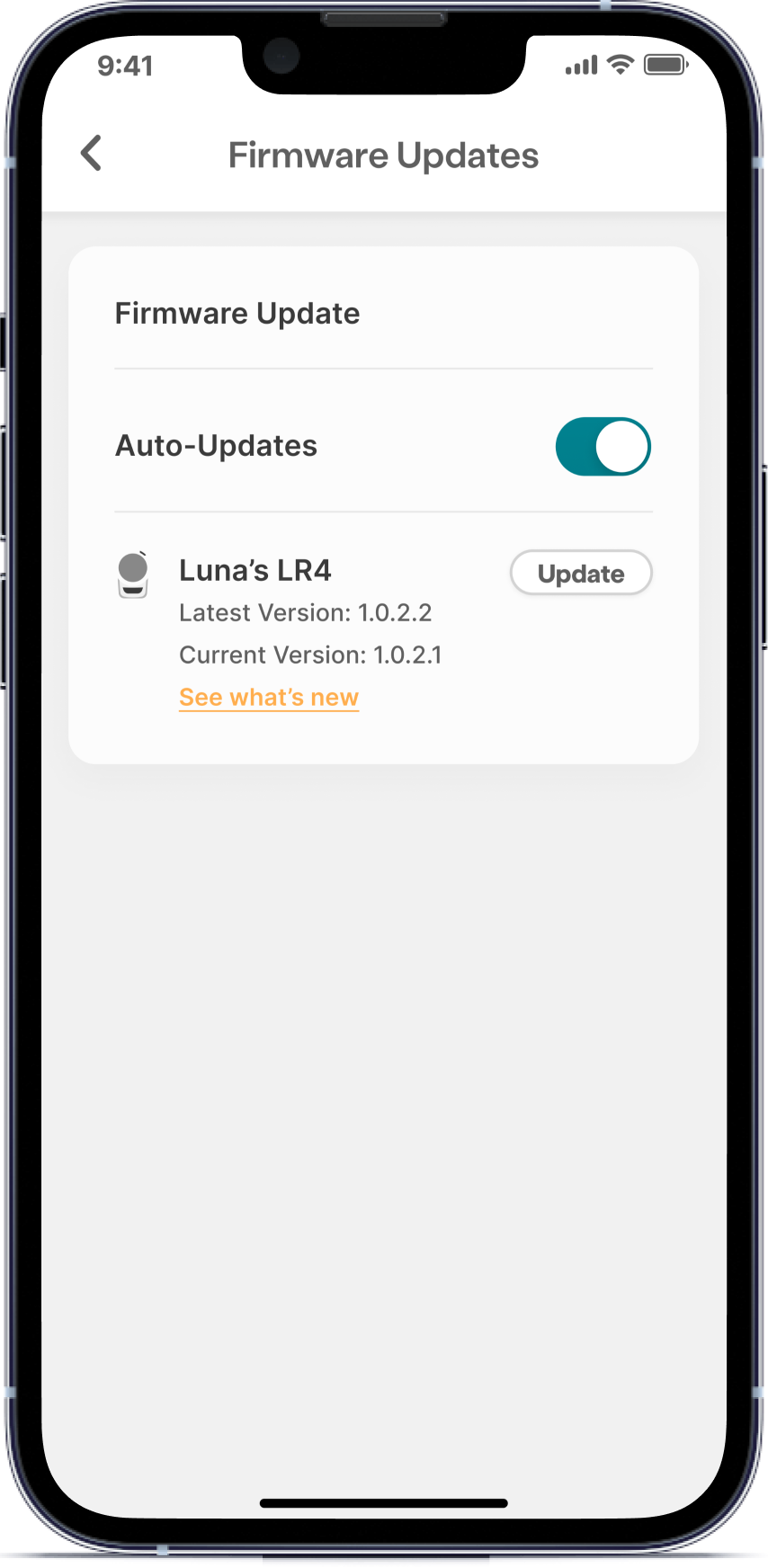
On the Firmware Updates page, tap Update to begin the update process.
This may take up to 15 minutes to complete. You will see a single white light blinking on your unit's control panel - this is your signal that your robot's firmware is updating.
There is no need to stand by the unit during the update.
5
The light bar on your robot's control panel should return to the solid blue "ready" status.
6
To confirm the update was successful, your app should not display the "Update" button and you should have the latest ESP, PIC and/or TOF firmware.
Note: Your robot may turn off its WiFi chip after completing the firmware update. If you see a white light with the Connect (WiFi) button, simply press it once to turn the robot's WiFi back on.
Litter-Robot 5 & Pro and Litter-Robot EVO
If your Litter-Robot is not on the most current firmware version it should automatically update once the firmware version becomes available for your unit.
Checking the firmware version
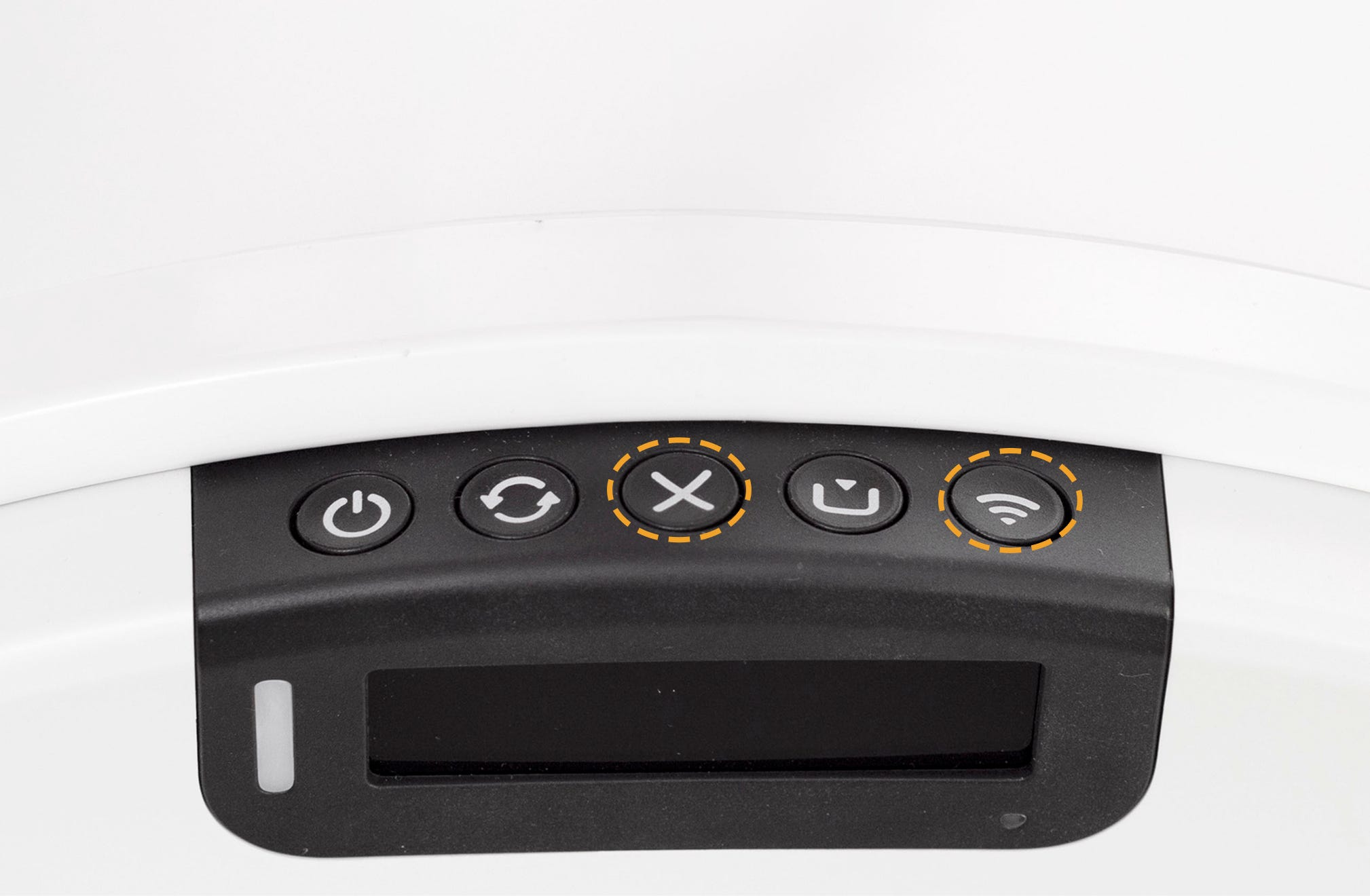
- Press and hold the Cancel and Connect buttons together for 3 seconds.
- Several firmware version numbers should appear on the screen. These will auto-dismiss after about 10 seconds.
- You can also check the firmware version of your Litter-Robot by using the Whisker app. Tap your device→ Settings→ Firmware Information and your current firmware version should be displayed.
Visit our WhiskerOS™ Releases page for the latest firmware versions.
How will I know if the firmware is updating?
Your Litter-Robot’s LED indicator light will be solid white and the Whisker app screen will indicate that a firmware update is in process.
The screen may dim during the update process.
Note: Litter-Robot 5 Pro models may take up to 30 minutes to complete firmware updates and may appear unresponsive in the Whisker app while the camera updates. The camera LED indicator light will blink blue while the camera firmware updates.
Important: Please do not power off or interact with your Litter-Robot until the update is finished.
Once the firmware update is complete
Litter-Robot will automatically power on and off. The LED indicator light should remain solid white.
- Litter-Robot 5 Pro: The camera LED indicator light will turn solid white.
To confirm the update was successful, you can check the current firmware by pressing and holding the Cancel and Connect buttons on the control panel for 3 seconds, or by checking the Settings–> Firmware Information section in the app.
Litter-Robot 5 and Litter-Robot EVO will display the Robot and IoT firmware versions.
Litter-Robot 5 Pro will display the Robot, Edge, Camera, and AI firmware versions.
Need more help?
If you need more assistance, please contact Whisker Customer Experience.
FAQ
What's new in this update?
Visit our Whisker Software Releases page to learn about the latest and greatest updates for your Litter-Robot and Whisker mobile app.
Do I need to be home to push this update to my Litter-Robot 4?
No. As long as your Litter-Robot 4 is connected to your home WiFi, you should be able to complete this firmware update remotely using the Whisker app. If the unit indicates that it has disconnected from WiFi after the update, follow these steps:
Simply press the Connect (WiFi) button and the solid white light should change to blinking blue and then solid blue within a few seconds. If this is unsuccessful, you can update your network in the Whisker app. Select your device → Settings → Update Network
Note: Your robot will operate normally even if not connected to WiFi — however, you will lose app access until reconnected.
Can I use my Litter-Robot while it’s updating?
No. The robot should remain plugged in and idle until the firmware update finishes. Using or powering off the unit during an update can interrupt the process.
Will my app show progress during the update?
Yes. The Whisker app will display that a firmware update is in progress. Once complete, the status will change back to “Ready,” and your robot’s firmware version will be current.
What happens if my app is still updating after 30 minutes?
Please note that if you have a Litter-Robot 5 Pro model this process may take up to 30 minutes due to the built-in camera (which requires a separate update). This is normal. Do not unplug or power off your robot during this time.
For all other models, simply exit out of the app and open it again, then check the firmware version again. If it still appears unresponsive, unplug the unit for 60 seconds, then plug back in.
If the issue persists, contact Whisker Customer Experience— our team can check whether the update completed successfully or help reset the unit.
My robot's WiFi turned off (single white light below Connect (WiFi) button). How do I turn it back on?
For Litter-Robot 4: Push the Connect (WiFi) button on the robot. The light under the Connect (WiFi) button will change from solid white to blinking blue, then to solid blue within a few seconds.
For Litter-Robot 5 & Pro and Litter-Robot EVO: Press the Connect (WiFi) button for three seconds. The Connect (WiFi) button will begin blinking blue, then change to solid white once reconnected.
What if I have more than one robot?
For users with multiple robots, please select each robot individually in the app and update accordingly.
What if I need help?
Please call us at 1-877-250-7729 or submit a support request.
Didn't find what you're looking for?
Live support available Mon-Fri: 9AM-9PM EST and Sat-Sun: 9AM-5PM EST, or submit a ticket anytime.