The store will not work correctly in the case when cookies are disabled.

Litter-Robot EVO: Attention and error messages guide
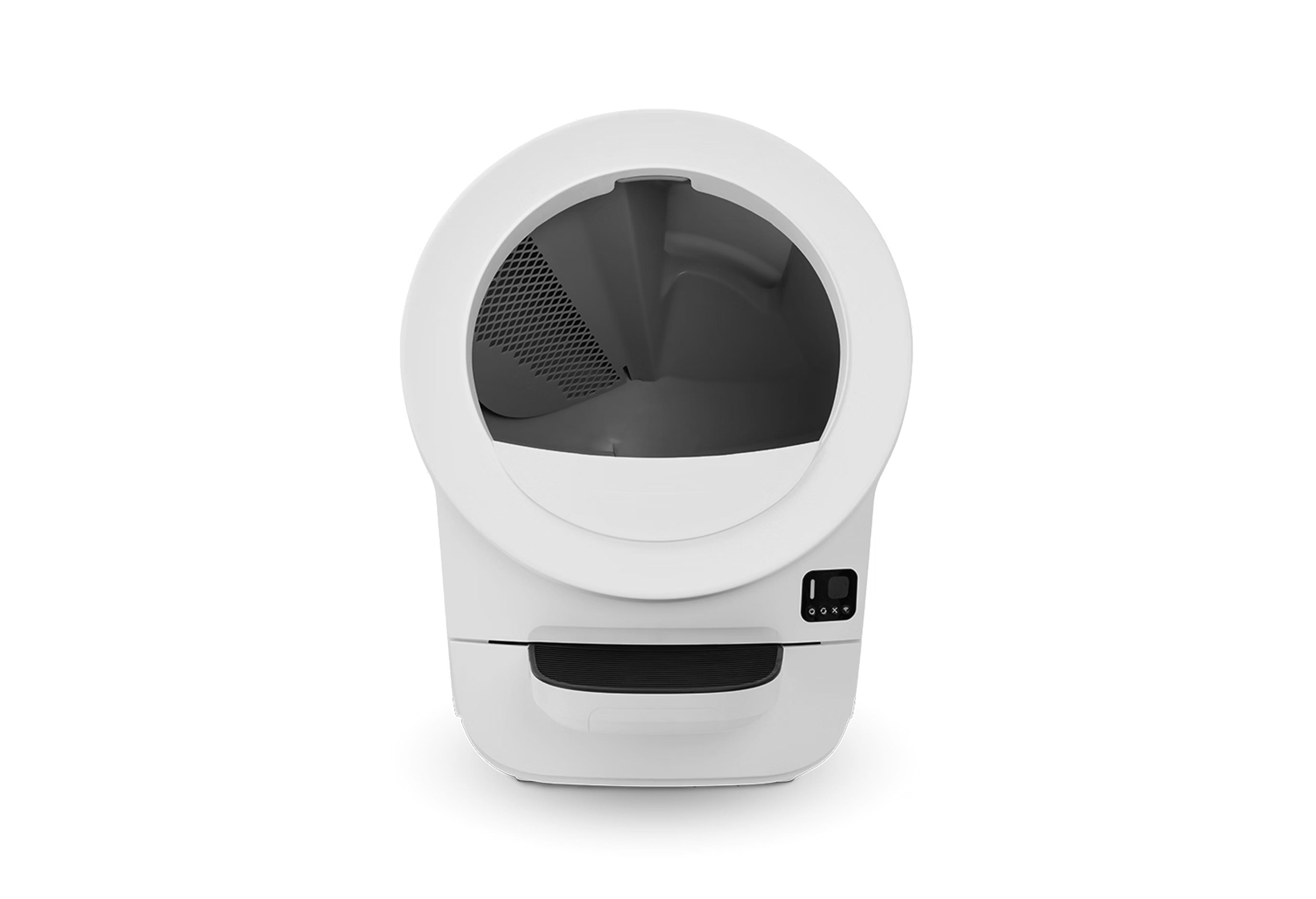
Your Litter-Robot EVO displays clear on-screen messages when something needs your attention or when the robot cannot operate. This guide explains all current Litter-Robot EVO attention and error messages and what they mean.
Quick links
What the indicator lights mean
Your Litter-Robot EVO uses both an LCD screen and LED indicator light to help communicate what the robot is doing. Before reviewing specific messages, here is a short guide to what each light color means:
White light (normal operation)
A solid white light means the robot is powered on and ready for use. Many system messages appear while the light remains white.Yellow light (attention required)
A yellow light means the robot needs attention but remains functional. Examples include messages about connectivity or drawer capacity.Red light (error state)
A red light means the robot has detected an error that prevents it from cycling. These messages must be resolved before the robot can operate again.- Green light (cat detected or cycle delay)
A blinking green light means the robot has detected weight inside the globe—usually a cat entering or exiting. After the cat leaves, the robot enters a Cycle Delay countdown before beginning a Clean Cycle. The light will remain blinking green until the countdown finishes.
Blue light (setup or connectivity)
A blue light is used during onboarding, network setup, or other configuration steps. You may see a blinking blue light when connecting the robot to WiFi or updating settings.
Attention messages
These messages indicate that your Litter-Robot EVO needs attention but can still function normally. Taking action soon will prevent interruptions.
Drawer almost full
The waste drawer is nearing capacity. The robot will continue cycling, but the drawer should be emptied soon to avoid a stoppage.
Replace filter soon
The carbon filter is nearing the end of its usable life. Litter-Robot EVO can continue operating without a replacement, but replacing the filter soon is recommended to maintain effective odor control.
New filter required
The carbon filter has reached the end of its usable life and should be replaced to maintain odor control. Litter-Robot EVO can operate without a filter, but replacing it is recommended for maximum odor control.
WiFi chip fault
The robot is unable to check in with its WiFi module. Power cycle the robot. If the message returns, please contact Whisker Customer Experience.
Disconnected
The robot lost connection to your WiFi network. It may reconnect automatically after a few minutes. If it does not, check your WiFi network or update your network settings in the Whisker app. Do this by selecting your device→ Settings→ Update Network.
Error messages
These messages indicate that your Litter-Robot EVO cannot operate until the issue is resolved. Action is required for the robot to resume functionality.
Drawer full
The robot has detected that the waste drawer is full. Empty the drawer and press the  Cancel button to dismiss the message. Learn more → Drawer full indicator
Extended scale activity
The robot has detected continuous weight on the base for over 30 minutes. Make sure nothing is resting against or underneath the unit, then reposition it on a level surface. Press the Cancel button to reset the weight scale. Learn more → Extended scale activity
Power fault
The robot is not receiving stable power. Ensure the power adapter is the original Whisker adapter and is securely connected to both the Litter-Robot and the wall outlet. Test another electrical outlet to determine whether the issue is with the outlet or with the unit.
If the issue persists, a new power supply or base may be needed.
Motion in drawer
Motion was detected in the waste drawer. Litter-Robot EVO rotates the globe to the dump position to allow anything inside the drawer to exit. The robot will wait for the Cancel button to be pressed or will automatically return to the Home position after 5 minutes.
Remove the drawer, check for obstructions, reinsert it fully, and press Cancel to reset. Learn more → Motion in drawer
Drawer obstructed
Something is blocking the drawer from fully seating or moving correctly. Remove the drawer, clear debris or objects, and reinsert it securely. Learn more → Drawer obstructed
Board fault
A system board issue has been detected. Perform a Hard Reset on the robot by long-pressing the Power button for 6 seconds. If the message returns, contact Whisker Support.
Hall Effect fault
The robot is unable to reliably detect globe movement during rotation. Check that the globe is correctly installed and rotating freely, then restart the unit.
Motor fault
The motor encountered resistance or cannot rotate. Remove excess litter, check for blockages, and restart the unit.
Bonnet removed
The bonnet is not correctly seated. Align the bonnet hinge at the back of the base and ensure the latches on both sides of the bonnet click securely into the corresponding slots. Press Cancel button to zero the weight scale. Learn more → Bonnet removed
Position fault
The robot cannot find or maintain the correct globe position after three attempts. Remove the globe, reseat it fully (ensuring that the black gear engages easily with the smaller drive gear in the base), and power the unit back on. Press the Cancel button and then press the  Cycle button to run a test cycle. Learn more → Position fault
Drawer removed
The waste drawer is not fully inserted. Remove the drawer and slide it back in firmly until it is fully seated.
Overloaded globe
The globe is encountering resistance during rotation. Check that the carbon filter cover is properly seated and ensure the seal strips are not peeling or catching on the globe. Press the Cancel button to reset. Learn more → Overloaded globe
Function unavailable
The requested action cannot be completed while the robot is in a restricted state (such as during an error or ongoing operation). Resolve any current error messages first or wait for Litter-Robot to return to the ready state if currently in operation.
Need more help?
Please contact Whisker Customer Experience for more assistance.
Didn't find what you're looking for?
Phone and Chat support available Mon-Fri: 9AM-9PM EST and Sat-Sun: 9AM-5PM EST, or submit a ticket anytime.